



URL copied to clipboard

6 views
__readtime__ Min
read
Navigate to: Insights > Authors
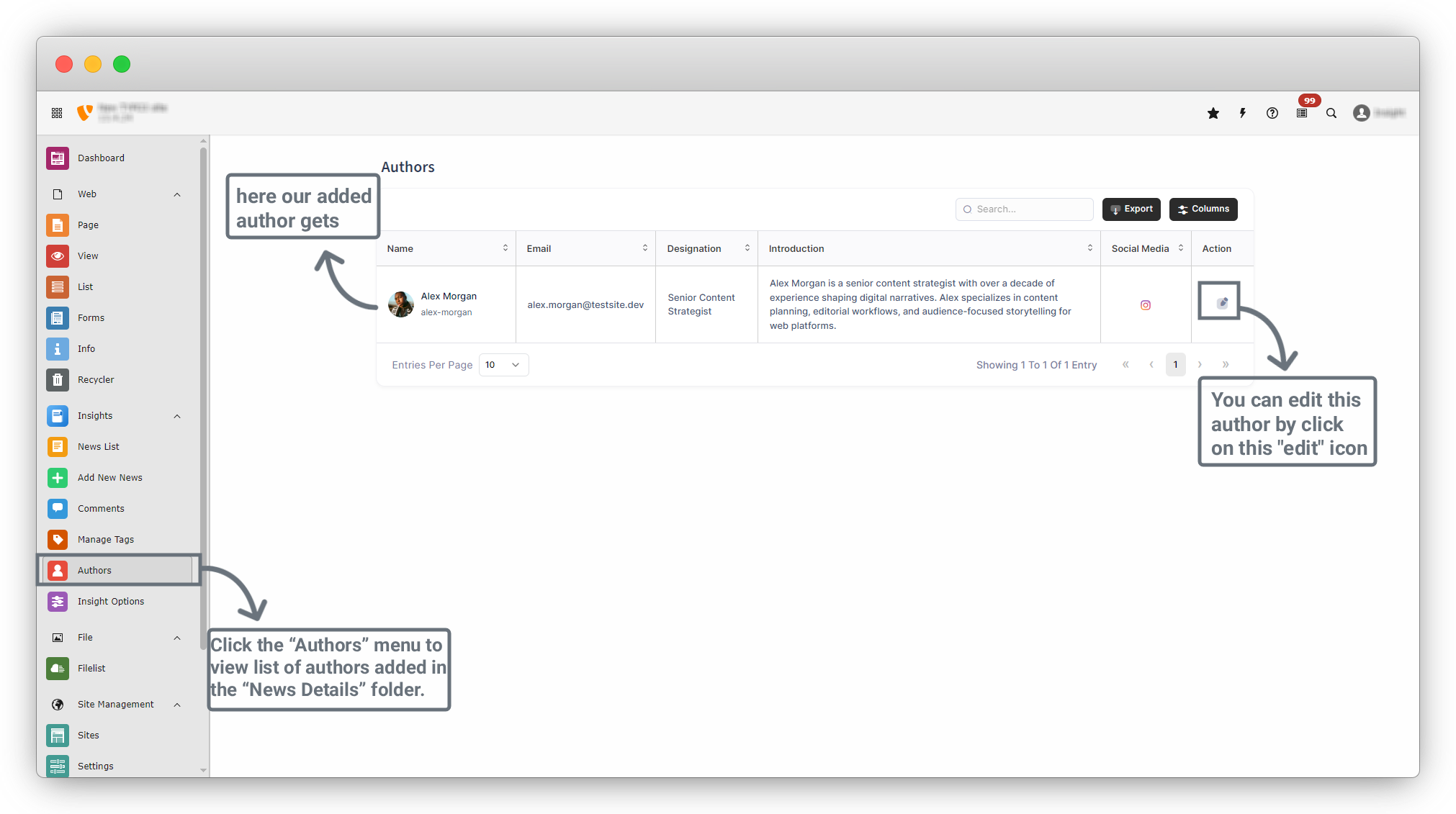
You will see a screen similar to the screenshot below, where all Authors with their details are listed.
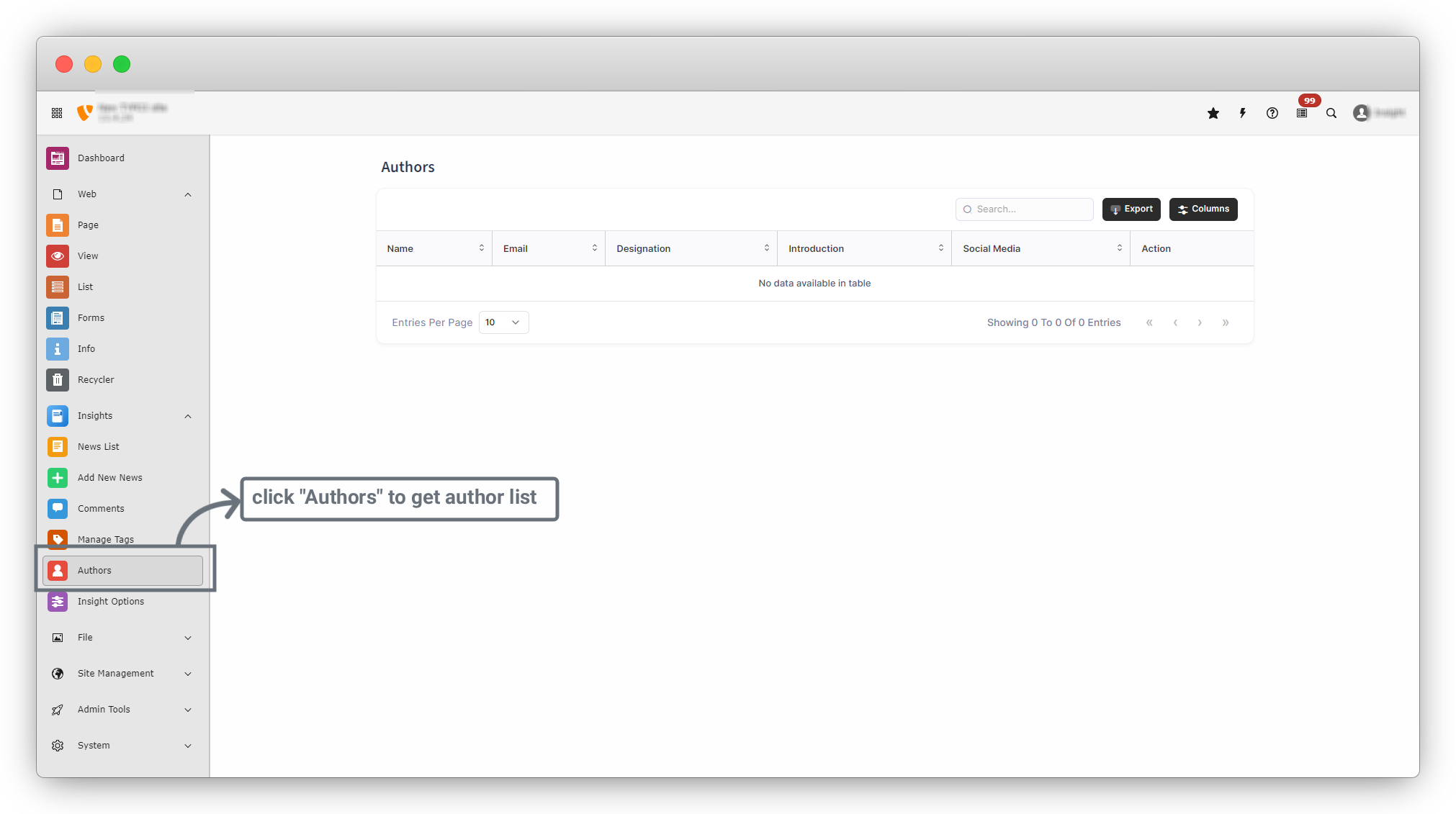
From here you can:
- Edit author details
- Delete author
Add New Author
1. From the left sidebar, click on the “List” menu. In the List menu, navigate to Home > News Details. This folder is used to store news-related data.
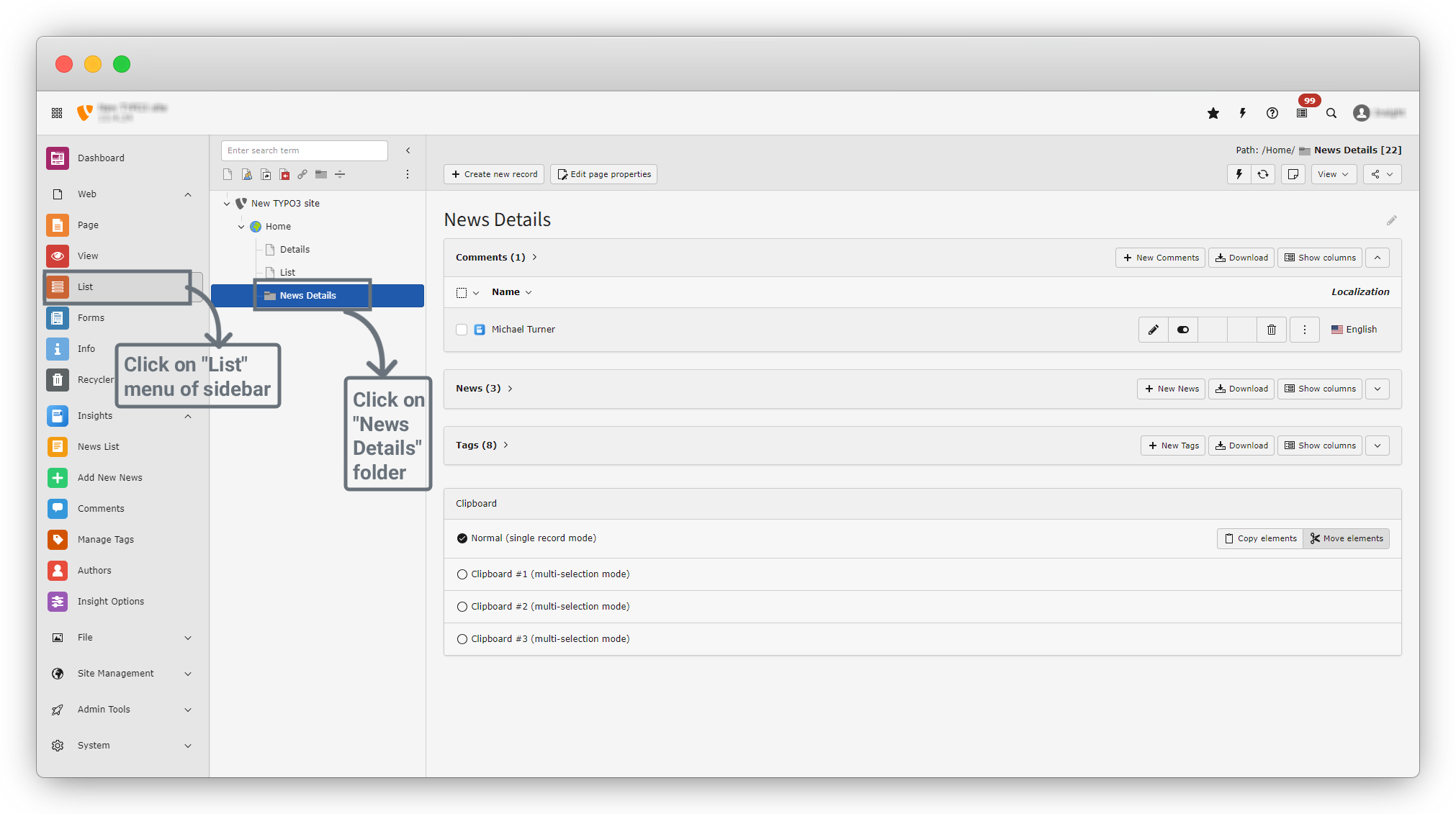
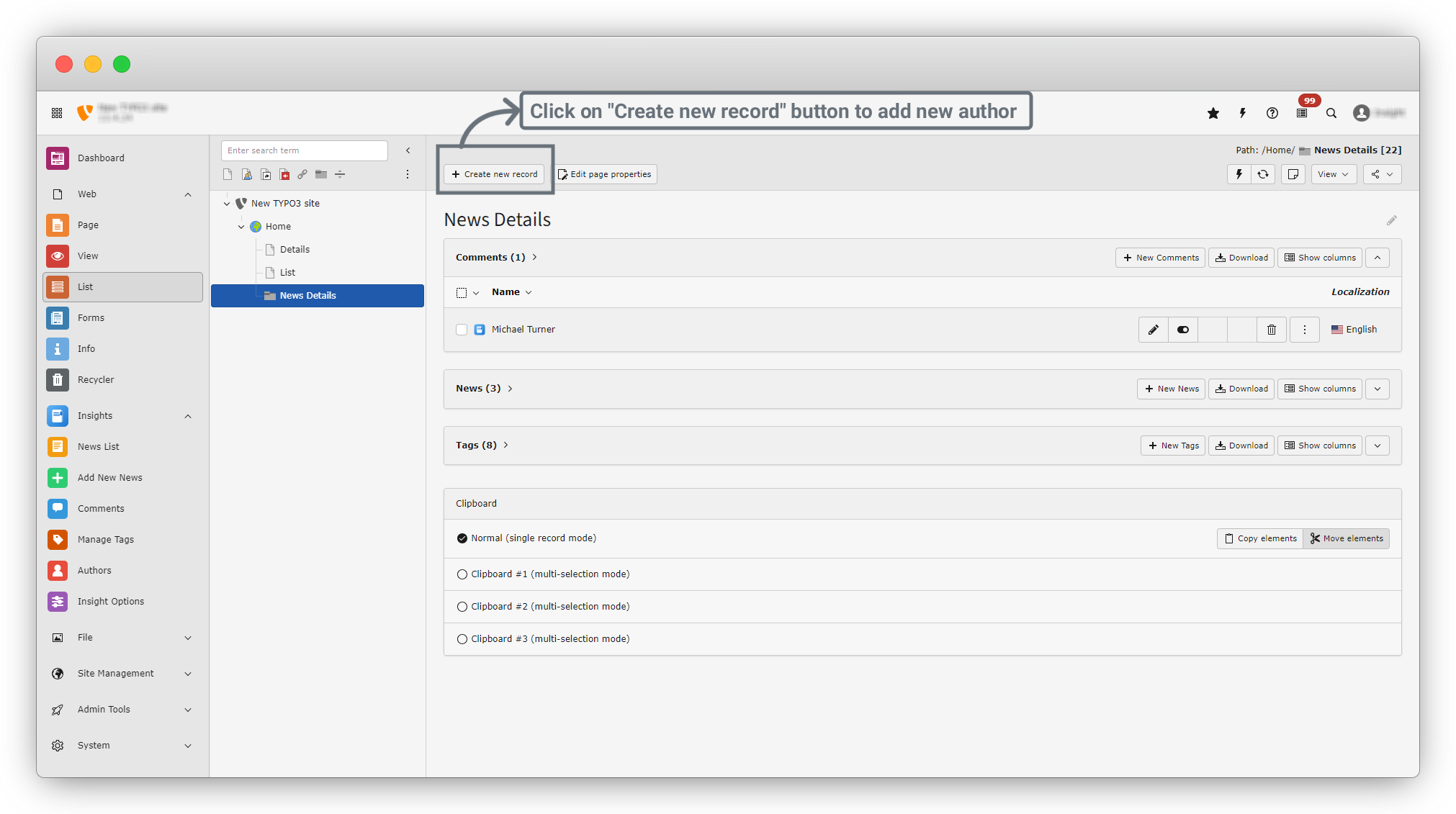
2. In the News Details folder, you will see a screen similar to the screenshot below. Click on the “+ Create New Record” button to create a new author.
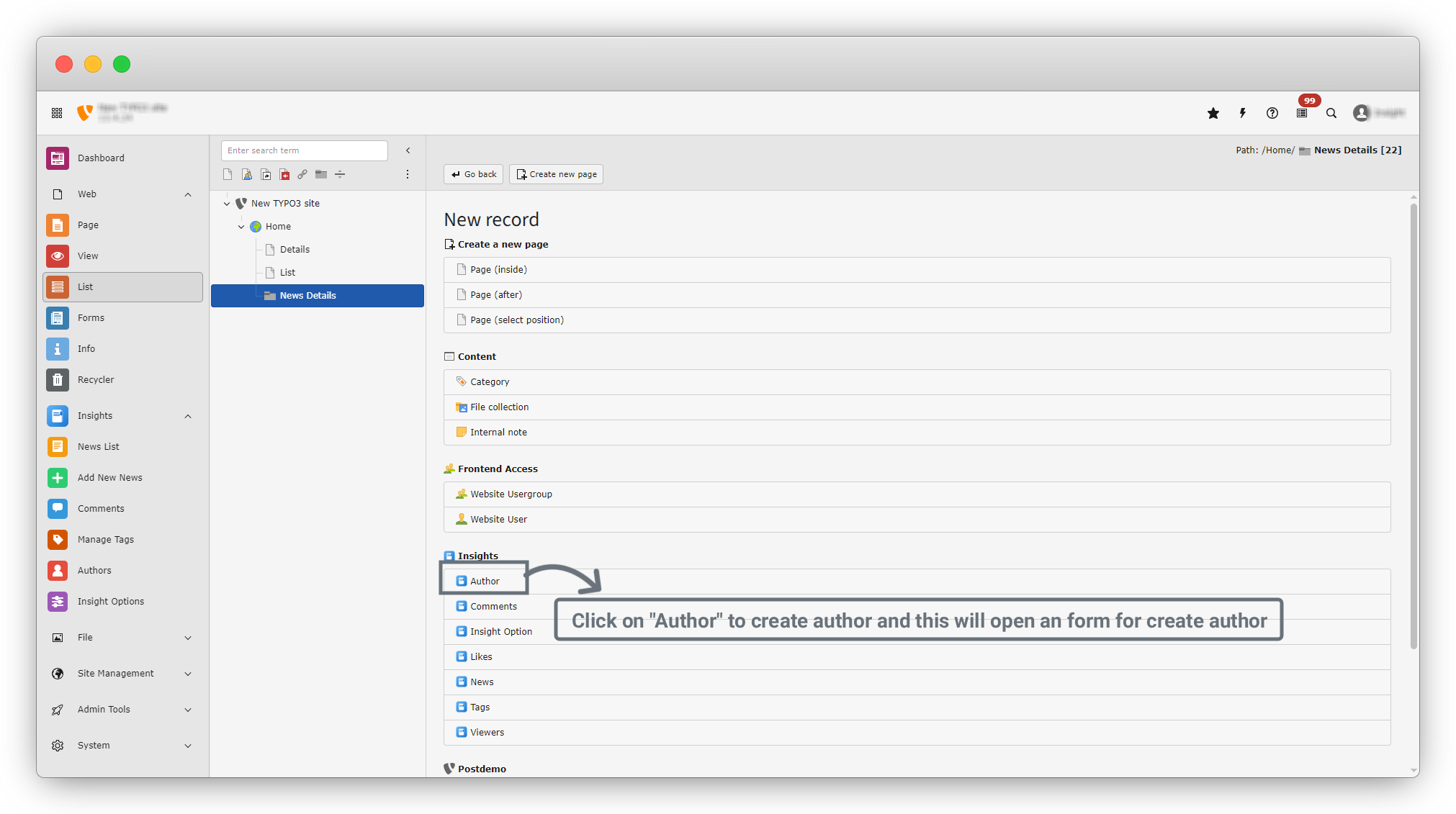
3. A new screen will open. Click to Insights > Author to add an author.
4. This will open a blank Add Author form, as shown in the screenshot below.
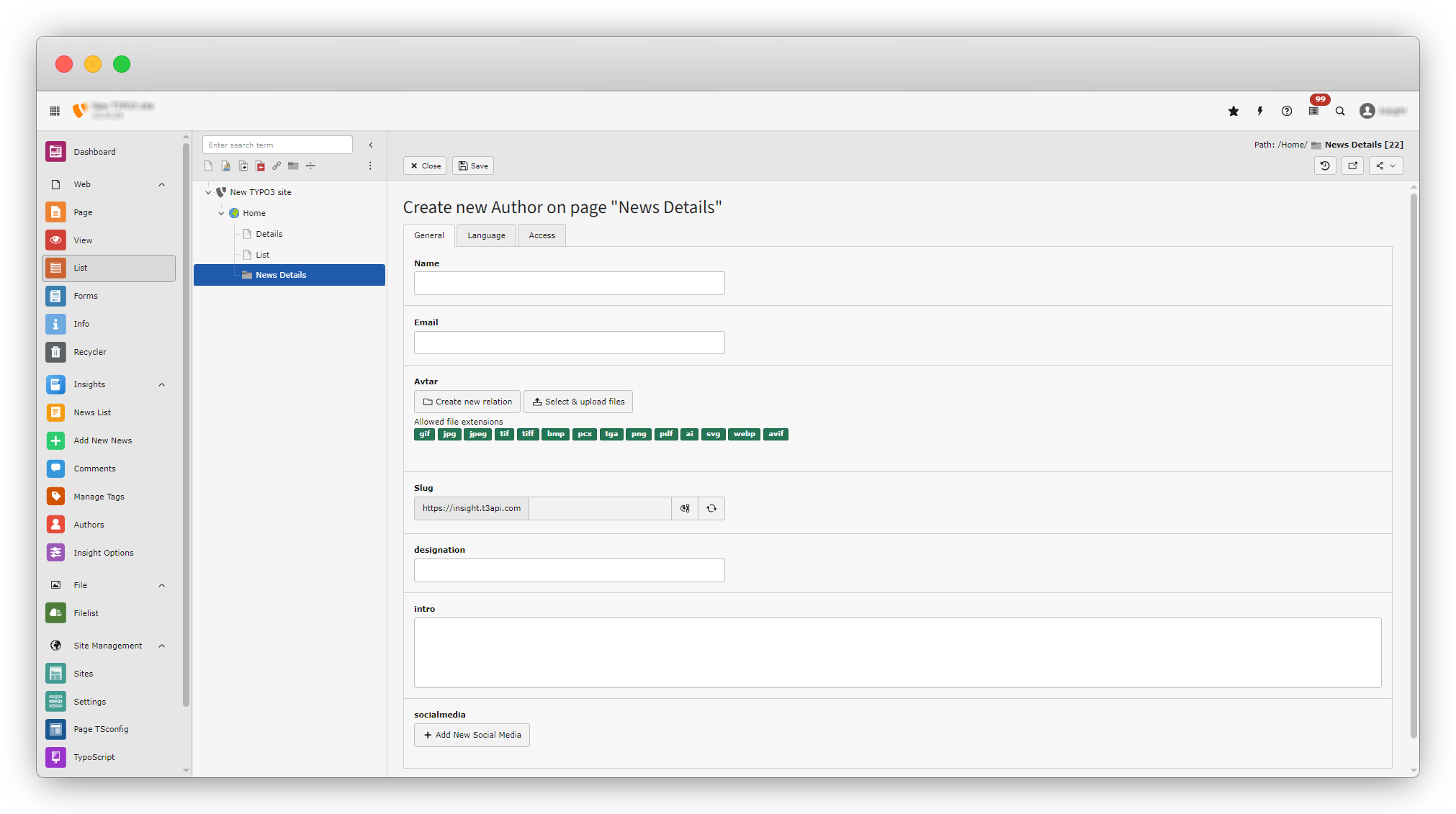
5. In the General tab, the following fields are required to create an author:
- Name: Enter the author's name.
- Email : Enter the author’s email address.
- Avtar : Upload the author’s image.
- Slug : Automatically generated after entering the author’s name.
- designation : Enter the author’s designation.
- intro : Add a brief introduction for the author.
- socialmedia :
- Url : Enter the social media URL.
- Icon : Enter the icon for the selected social media platform.
6. Fill in all the fields in the General tab, including Name, Email, Avatar, Designation, and Intro.
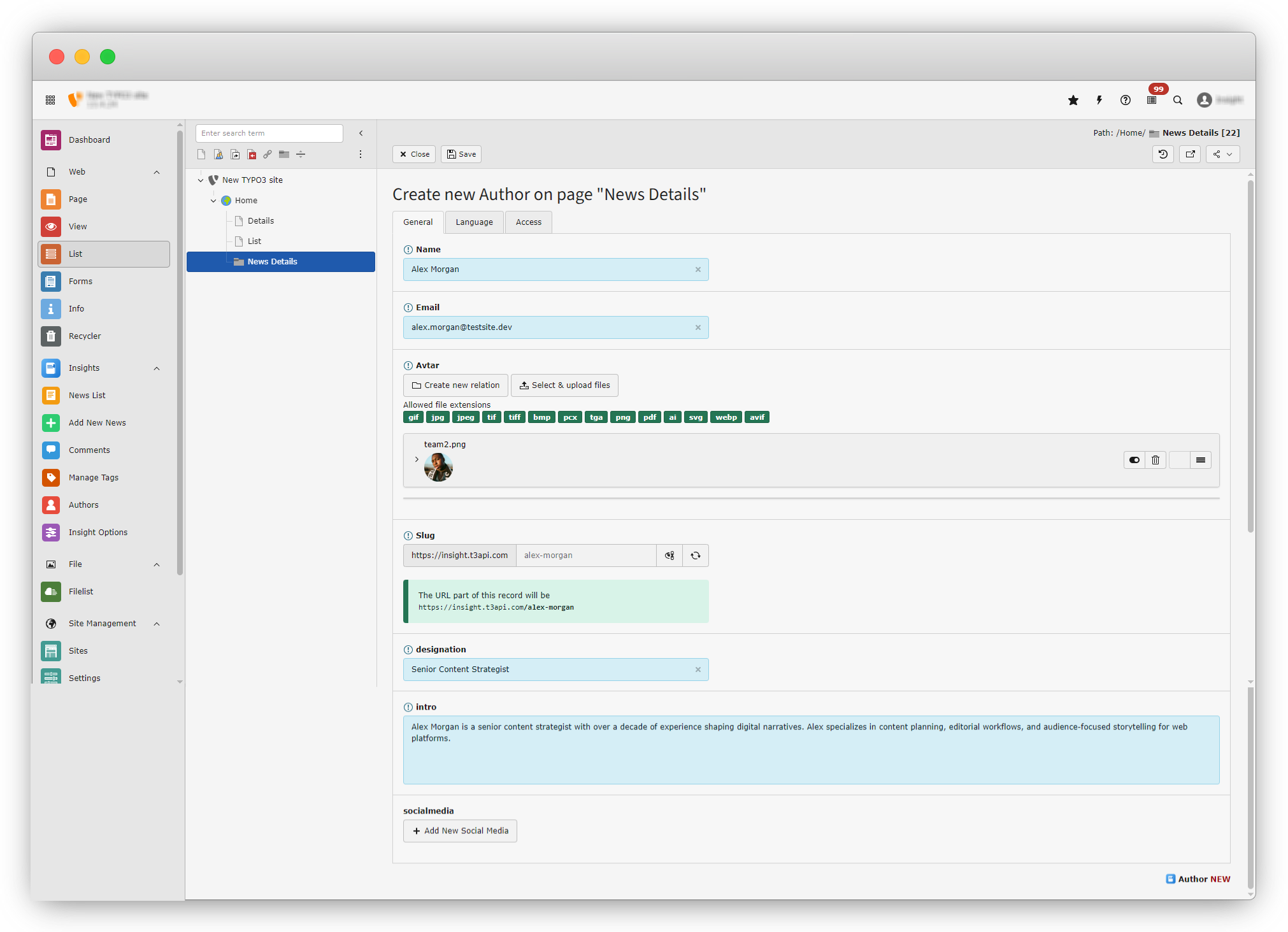
7. After filling in the basic details, now we will add social media information. Click on the “+ Add New Social Media” button. A blank form will appear with Link and Icon fields. Enter the Instagram URL and select the Instagram icon.
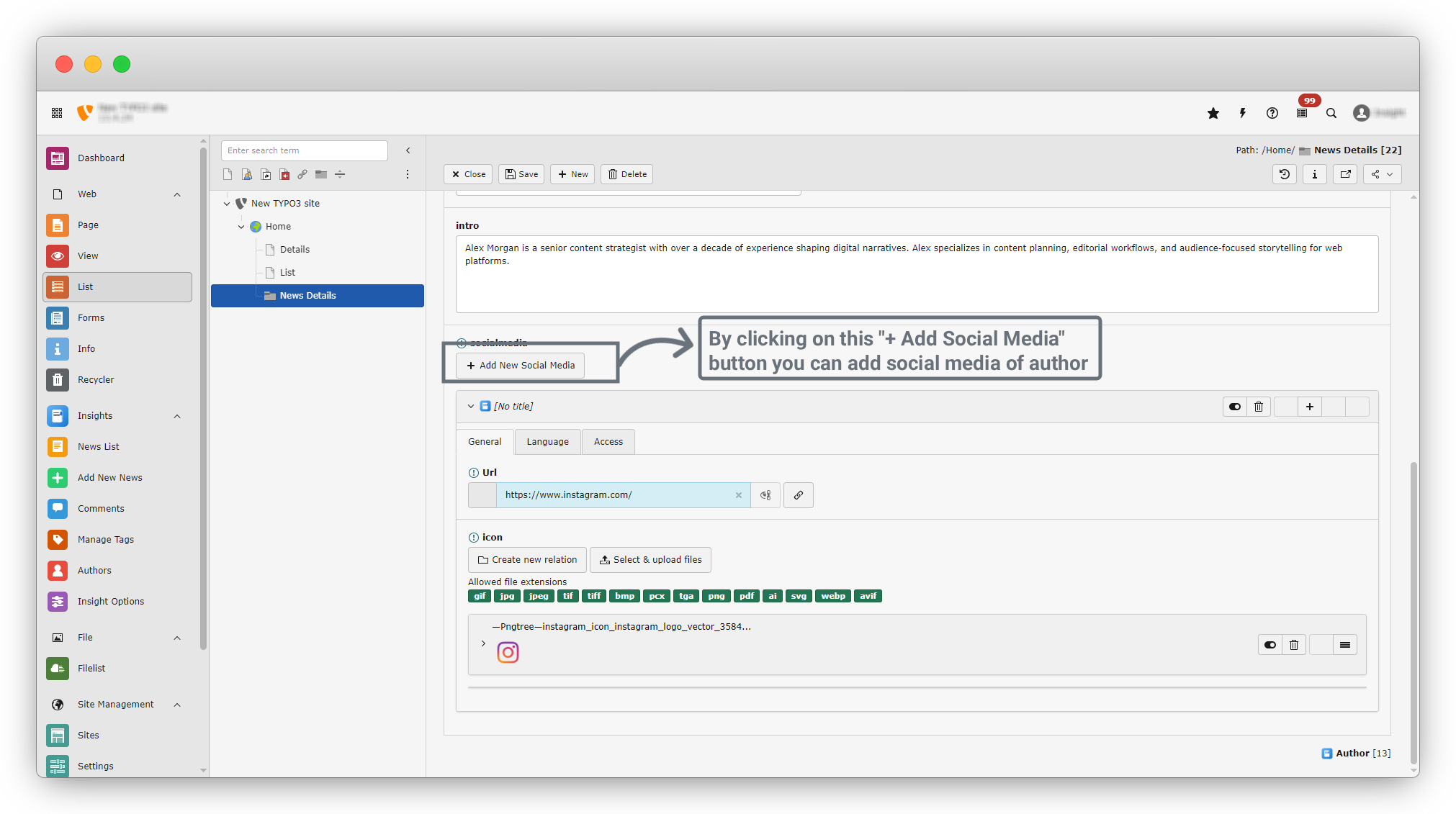
8. After entering all the required information in the General tab, click the “Save” button. Once the data is saved successfully, a success message will appear.
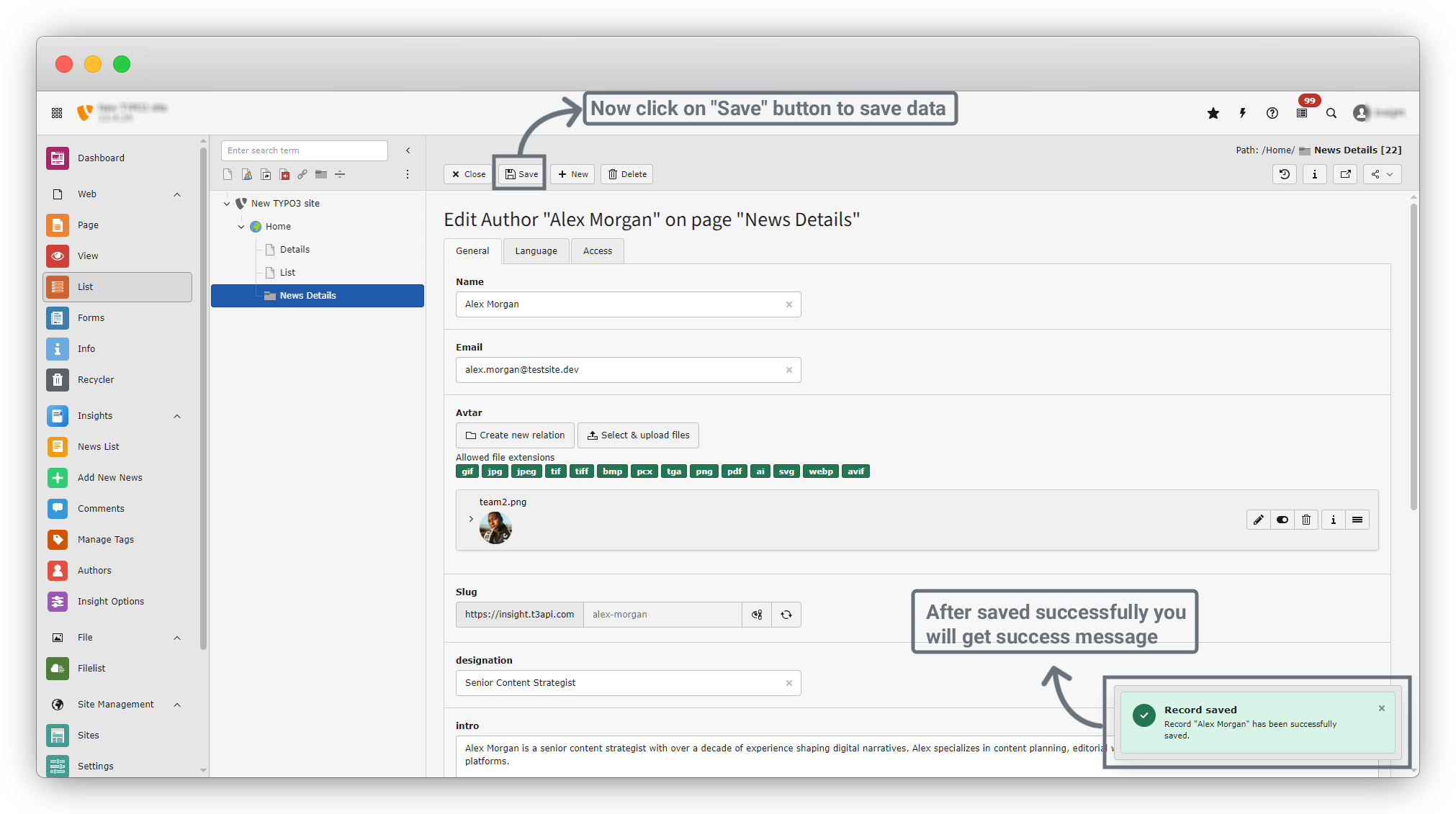
9. After saving successfully, Click the “Close” button (next to the Save button) to close the form and return to the list.
10. From the sidebar menu, go to Insights > Authors. You will see a screen similar to the screenshot below, where your newly added author is listed along with an Edit icon.
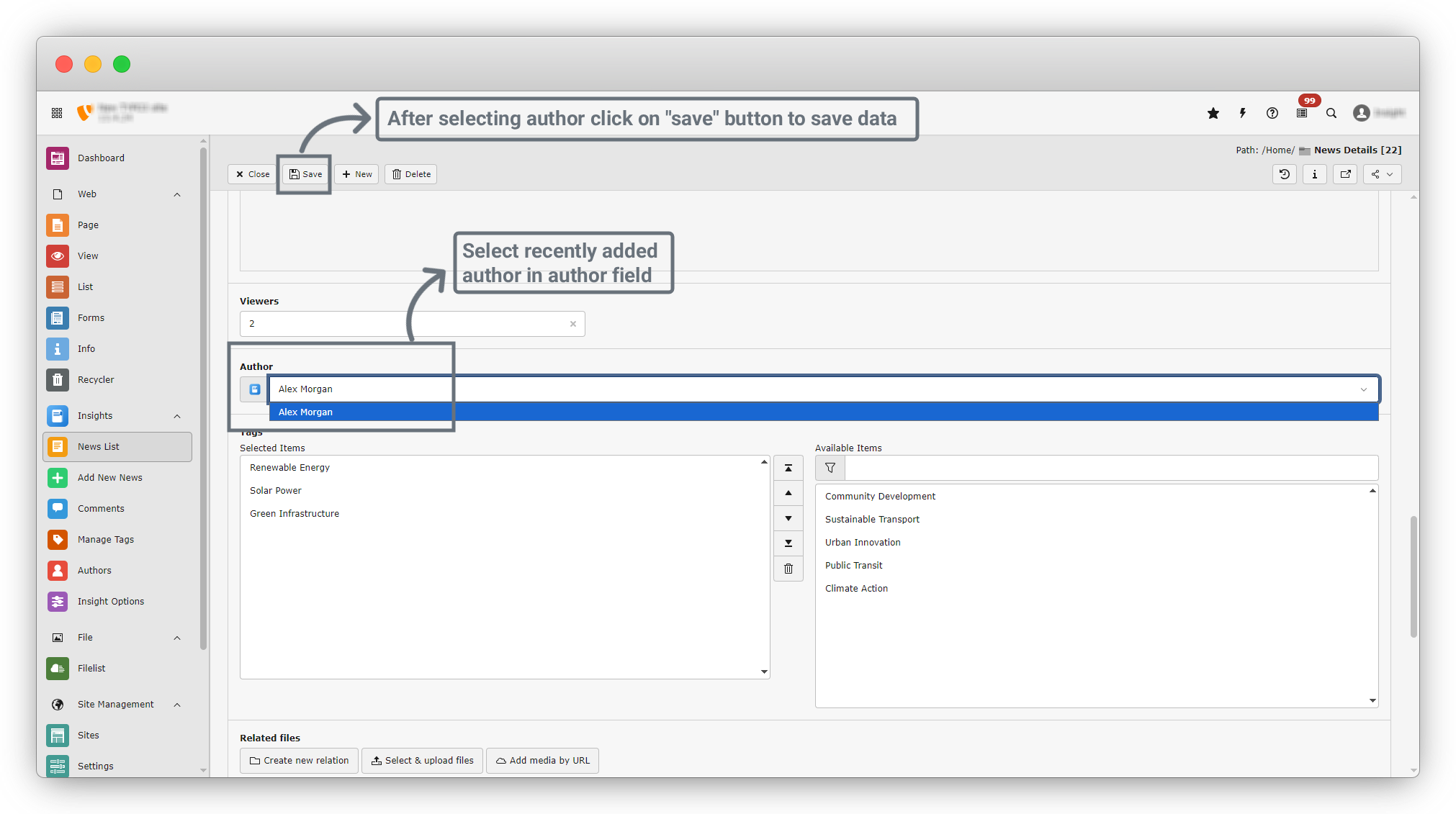
11. Now edit the news item titled “Community Launches Solar-Powered Transit Hub.” In the edit form, locate the Author field.
12. Select the author “Alex Morgan” that was recently added, then click the “Save” button to apply the changes.
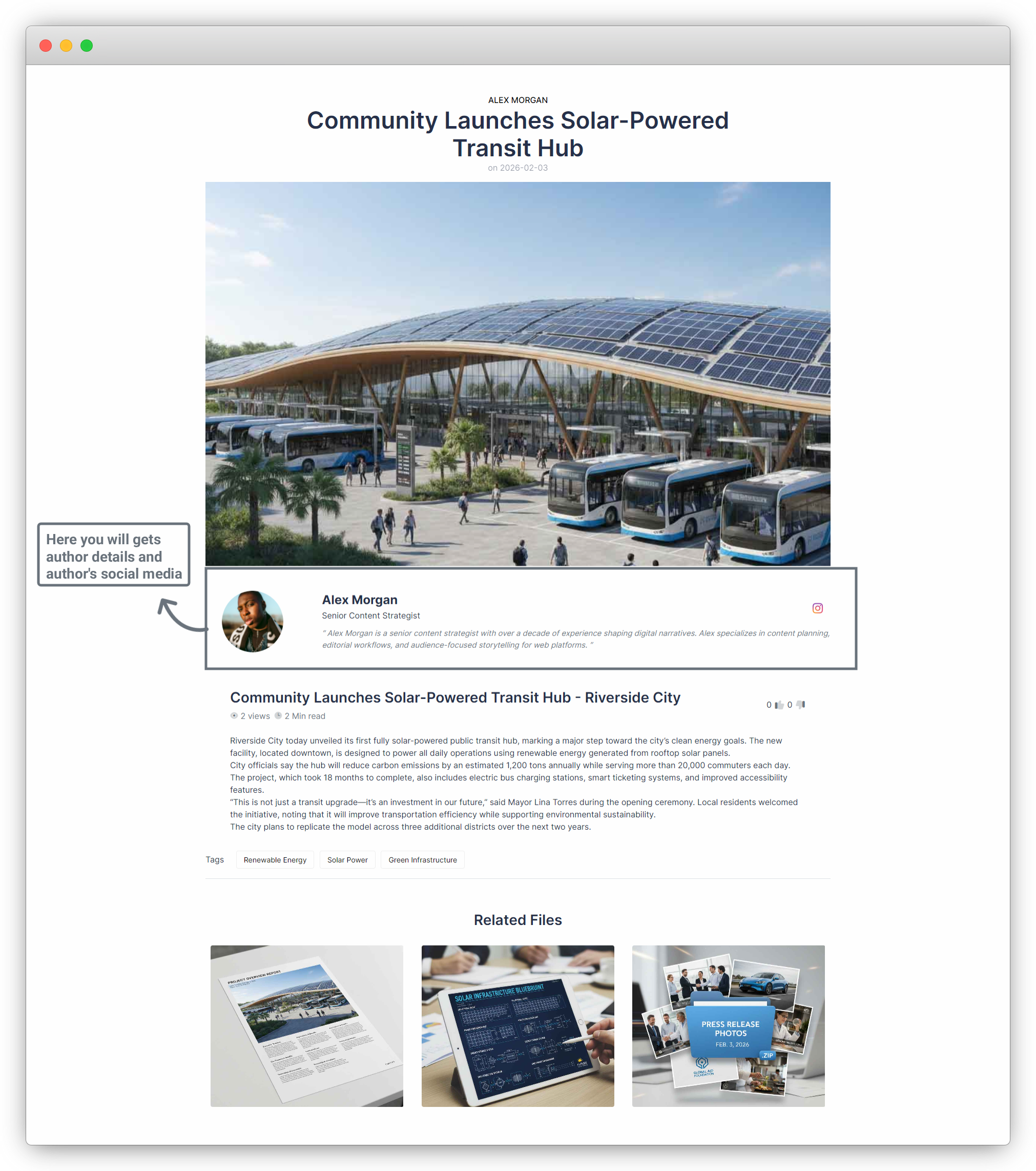
13. Finally, open the News Details page on the frontend. You will see the selected author displayed on the page with social media.
Share



