



URL copied to clipboard

Add multi-language in the back-end
5 views
__readtime__ Min
read
TYPO3 provides an option to add multiple languages. We can add the languages separately for the TYPO3 back-end and the front-end.
To add the multi-language in the back-end, we can add languages to custom extensions, back-end modules, font-end plugins, etc.
And to add the multi-language in the front-end, we can add the language for the front end and then add the language menu for front-end, it also requires adding the pages for multi-language, and then translating the extension records and the front-end plugins.
Let’s start with the back-end multi-language.
Add multi-language in the back-end
- When we install the TYPO3 setup, it comes with the English language only, if you want to make a multi-language site, then you will have to add the languages in TYPO3 back-end.
- Let’s check the steps to add multi-language to our setup with the extension, back-end module, and front-end plugin.
Add back-end language
To add the new languages in TYPO3 back-end, please follow the steps given below:
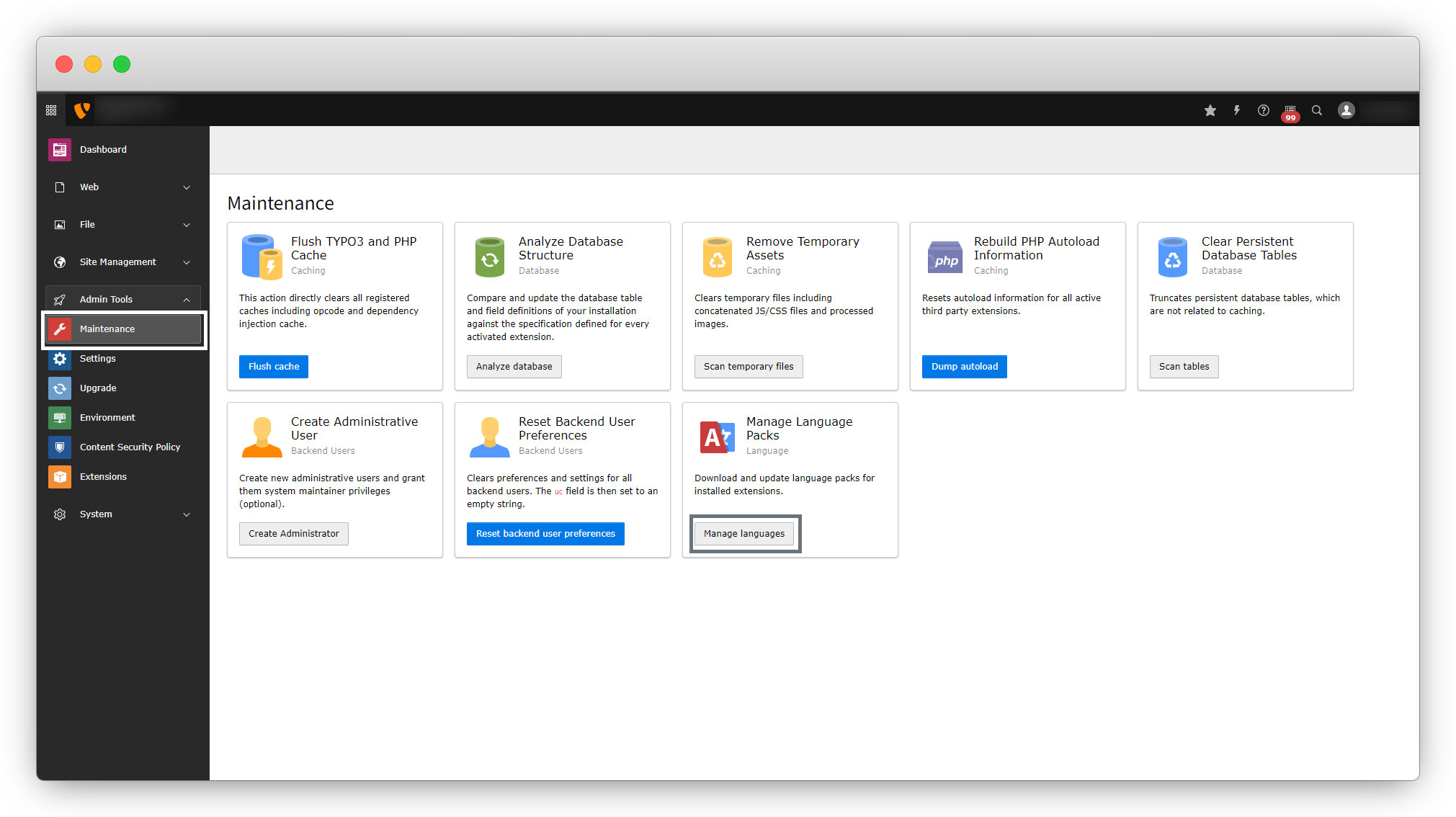
1. Go to Admin tools > Maintenance > Manage Language Packs and click the button “Manage languages” as seen in the screenshot below.
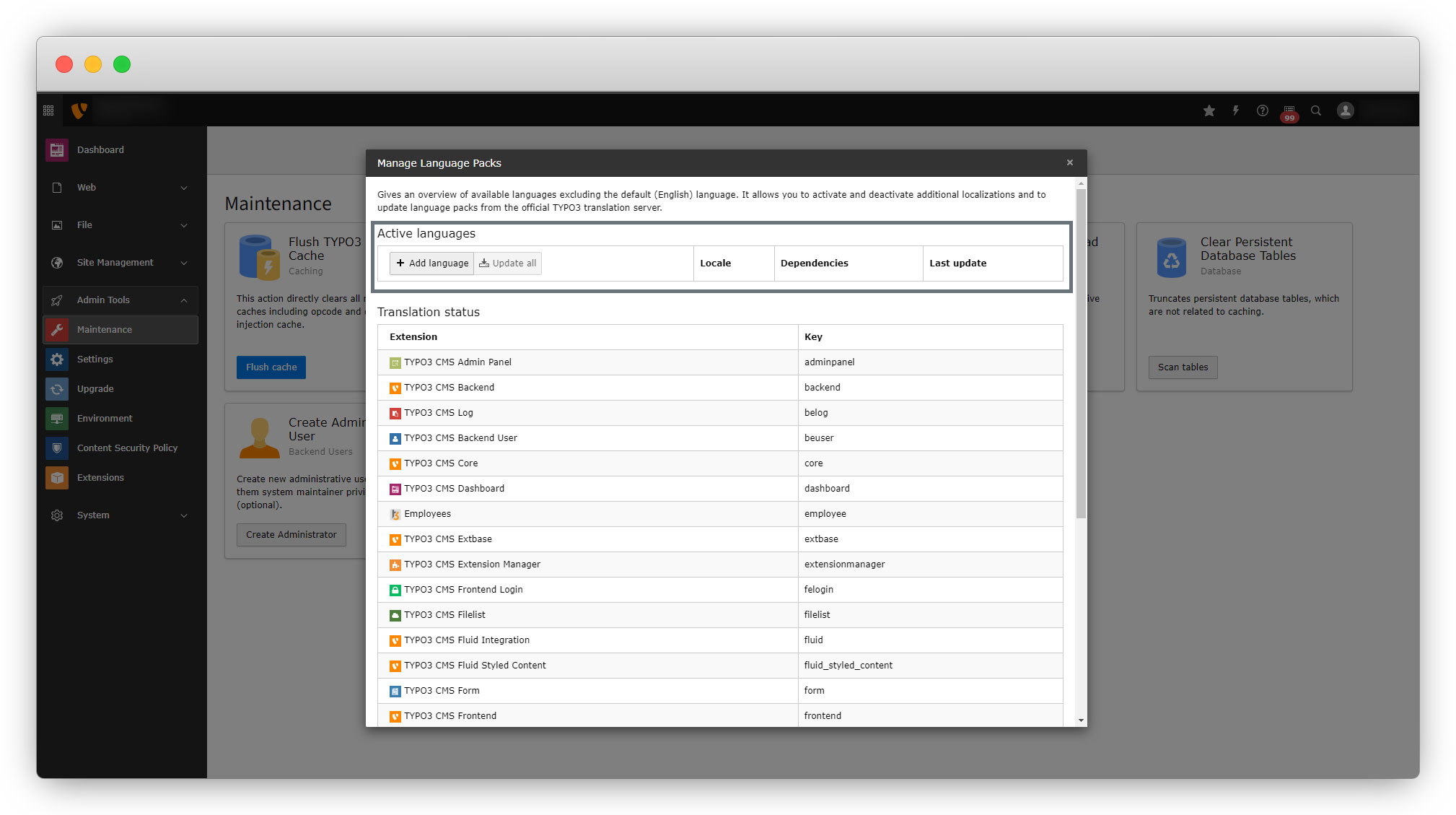
2. When you click the button “Manage languages”, you will see a popup with the list of active languages if you have any active language, otherwise, the list will be empty. Check the screenshot below.
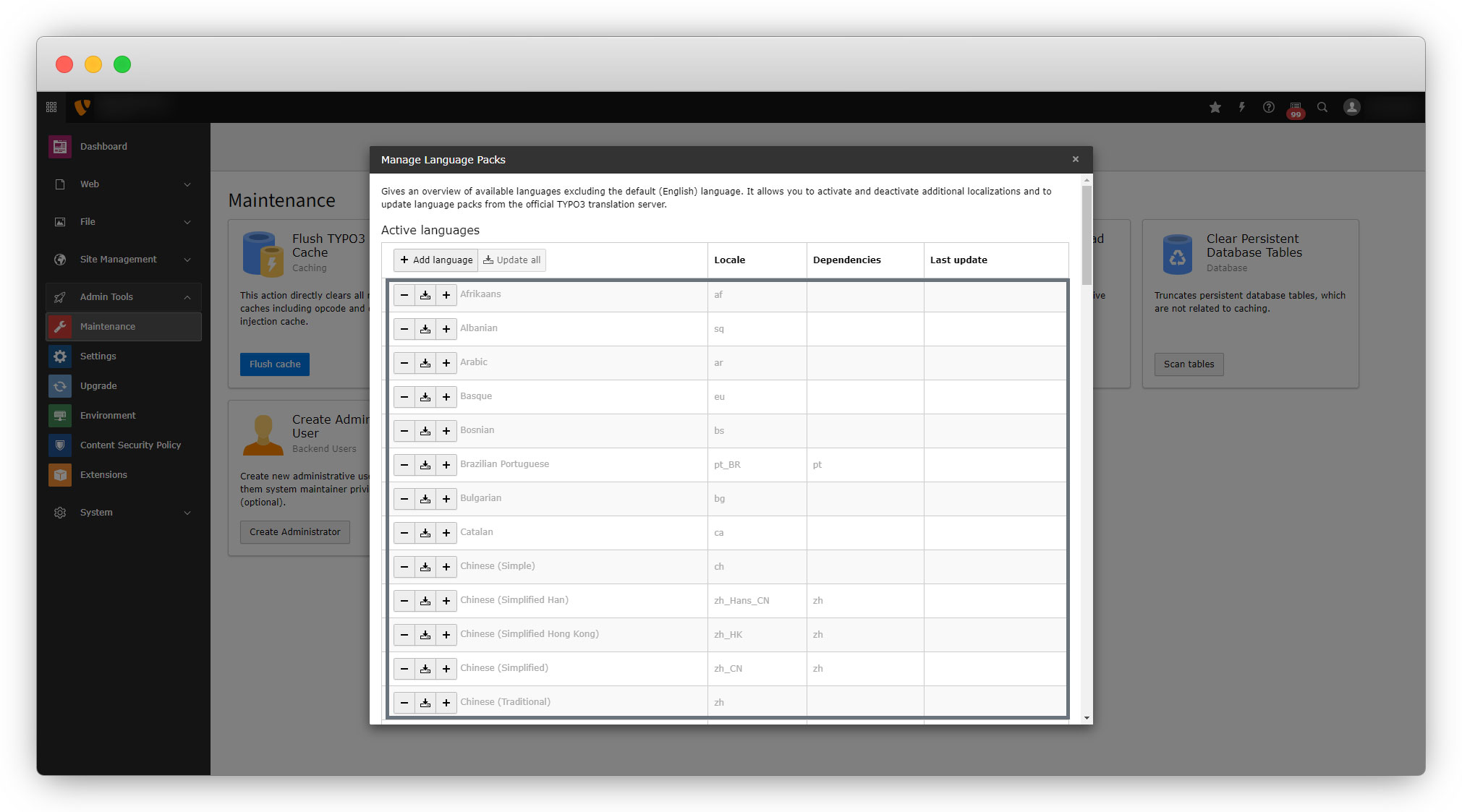
3. To add any new language, click the button “Add language”, and you will see the list of languages with add, remove, and download options as you can see in the screenshot below.
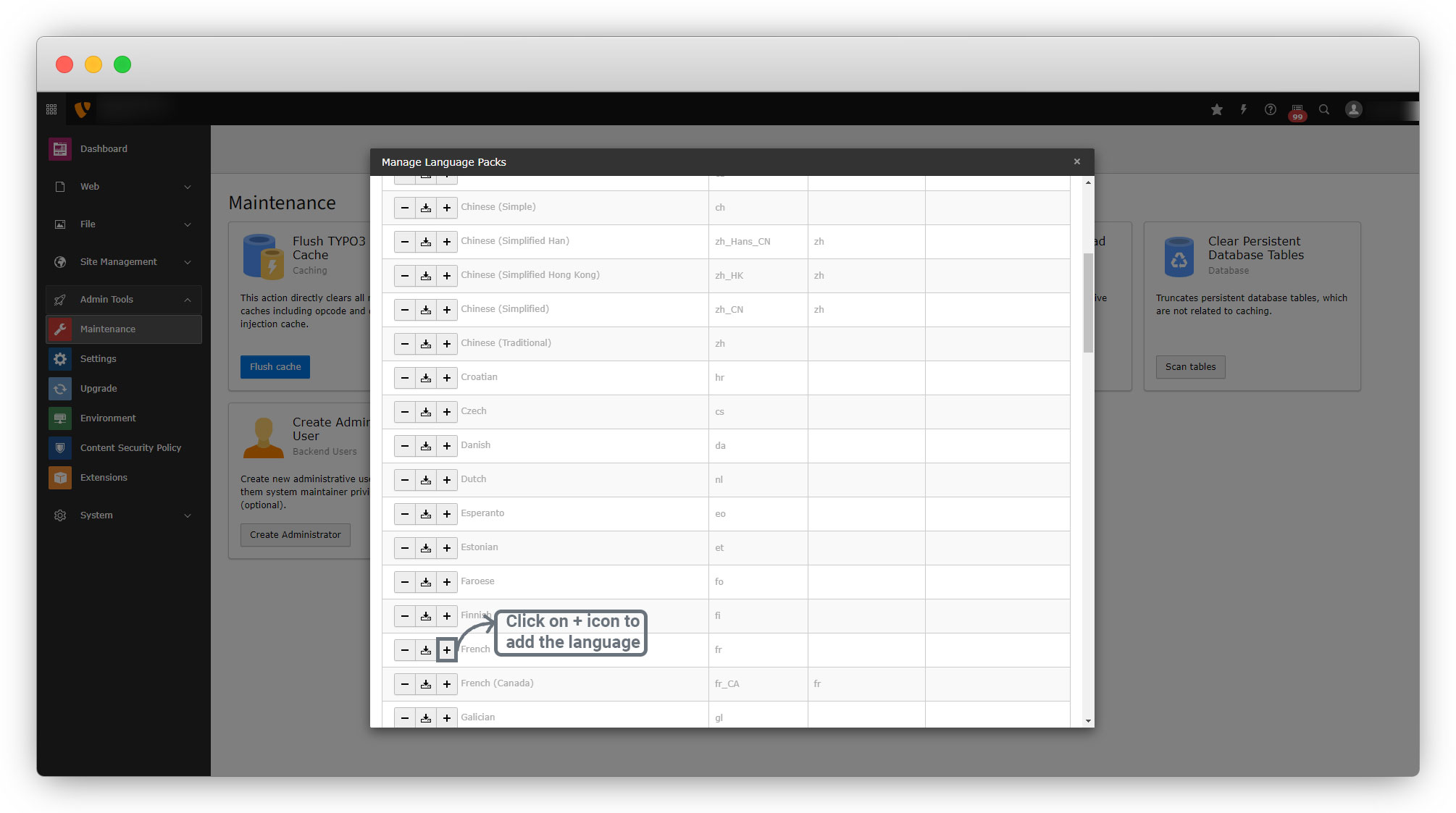
4. To add any language, just click the plus (‘+’) icon beside whatever language you want to add. For example, here we are going to add the “French” language, so we need to click the + icon beside the French language as you can see in the screenshot below.
5. Now, if you click the + icon for the French language, you will see the message about the language that has been already activated and also you will see the French language in your list of activated languages.
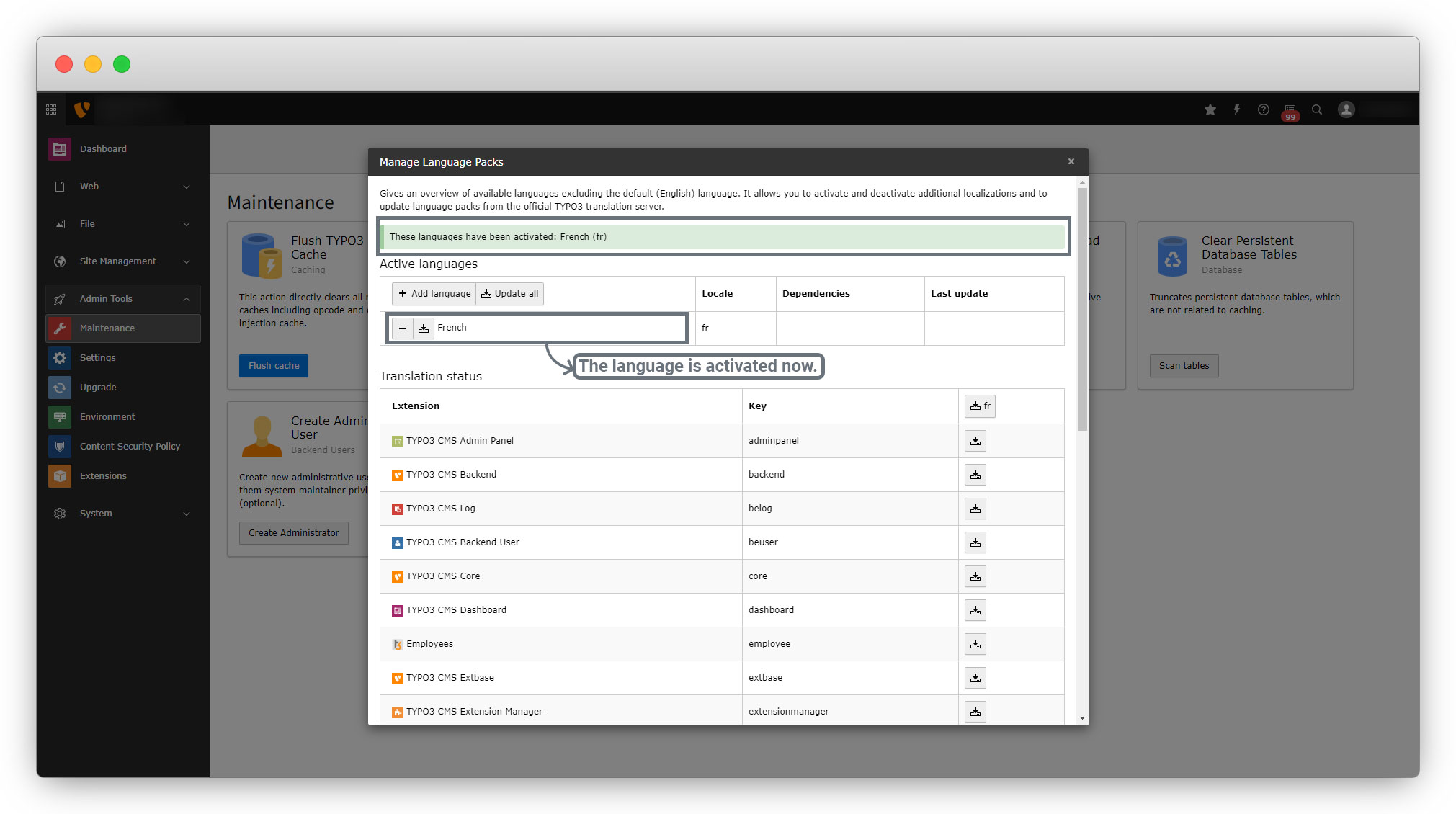
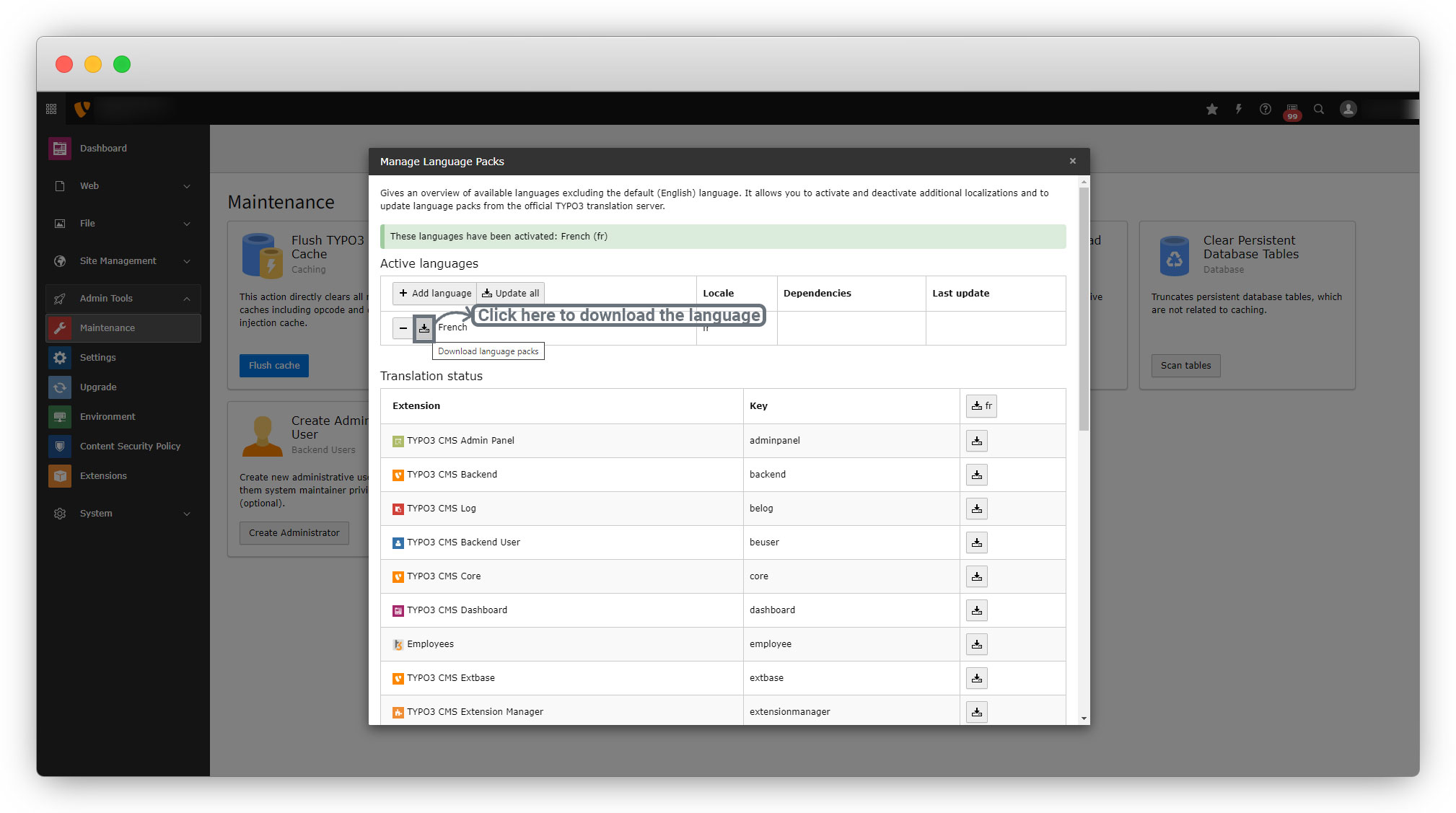
6. After adding the language, now download the language by clicking on the download button of that language from the list of the activated languages.
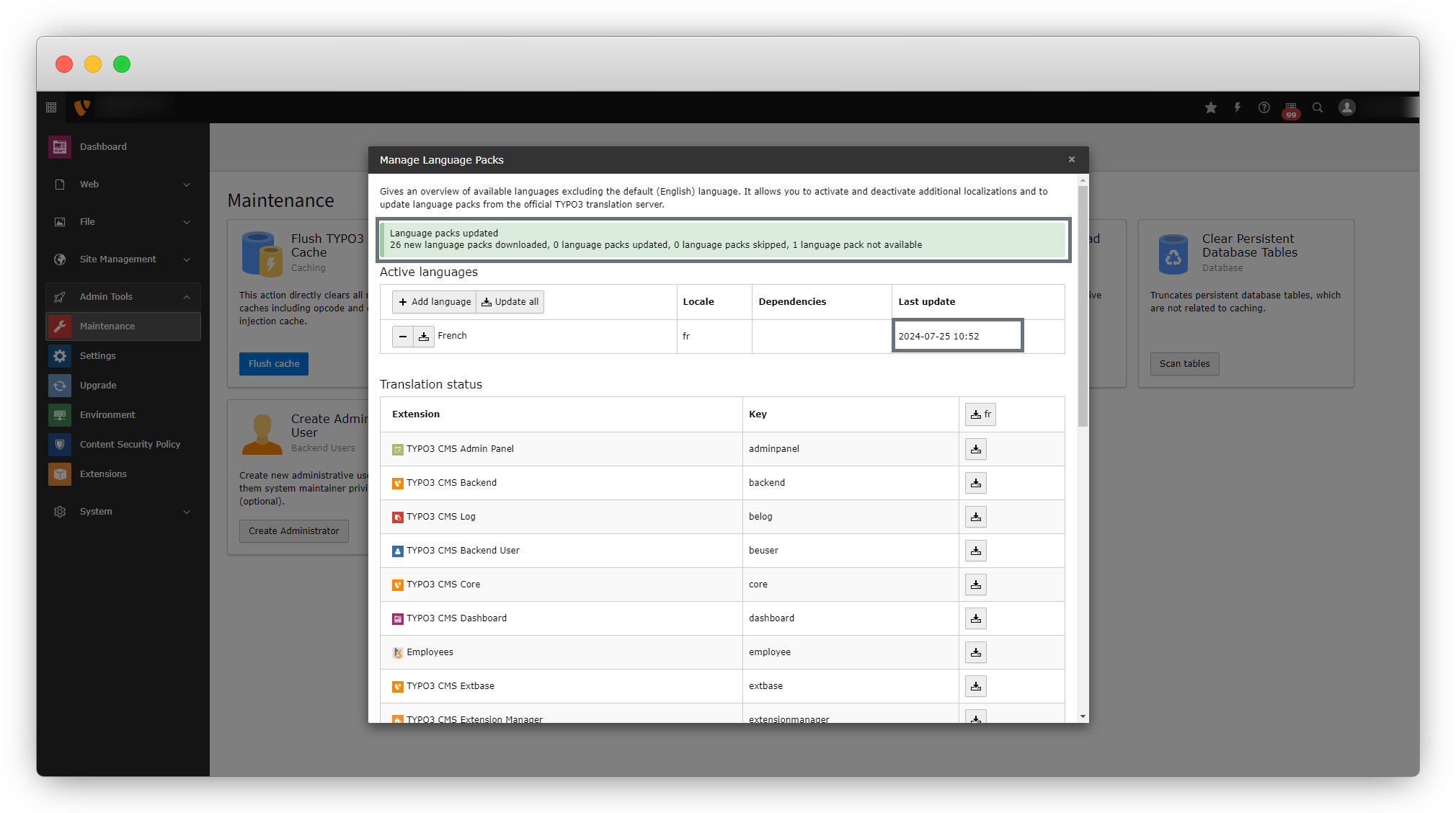
7. After downloading the language, you will see the message and also the date in the “Last update” column.
Set Backend Language
After adding the language, let’s set the language.
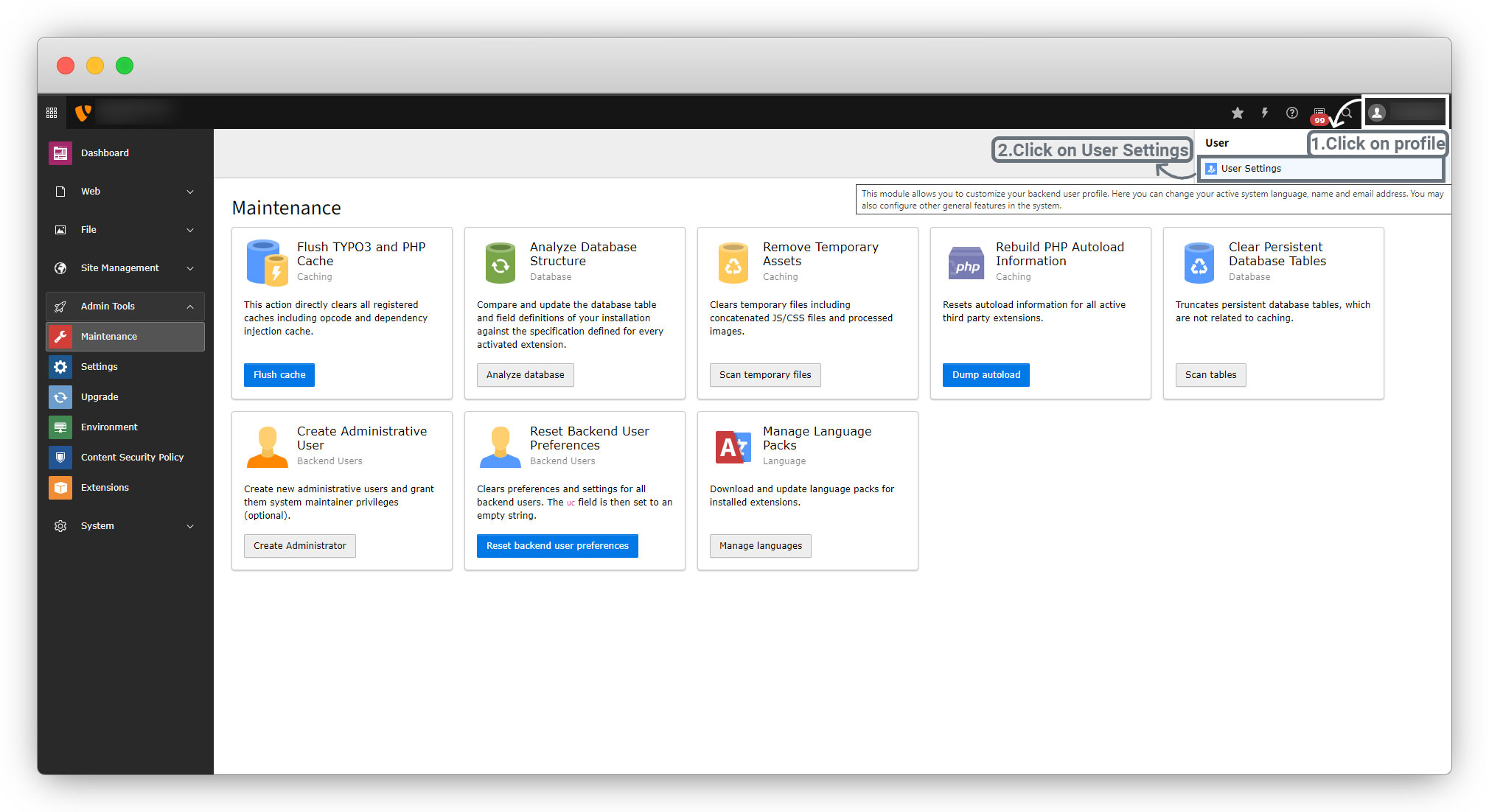
1. To change the language of the admin panel, go to the profile and click on the user settings button as seen in the screenshot below.
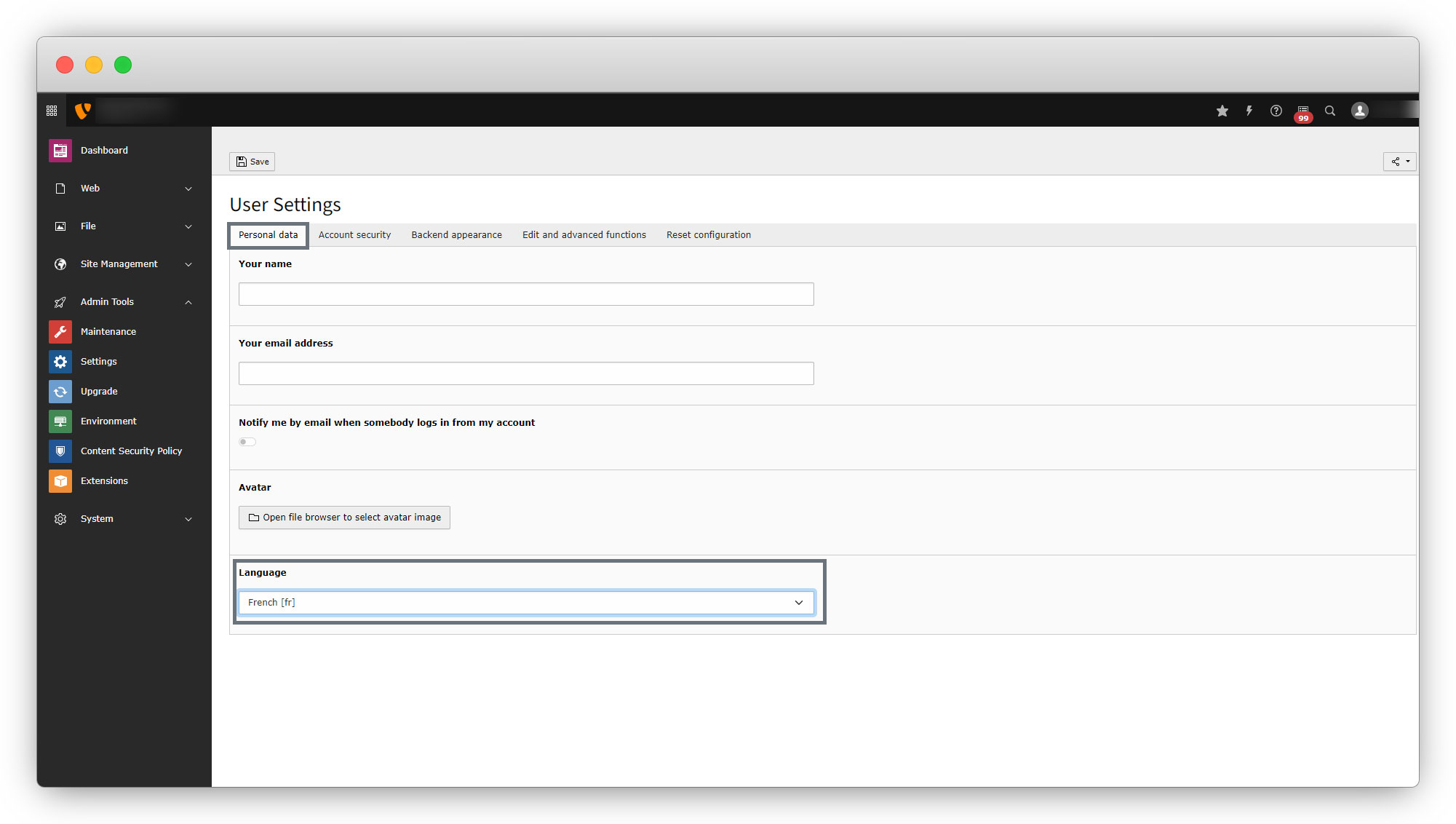
2. In user settings, there is an option to change the language in the “Personal data” tab, select the French language there and save the settings by clicking on the save button.
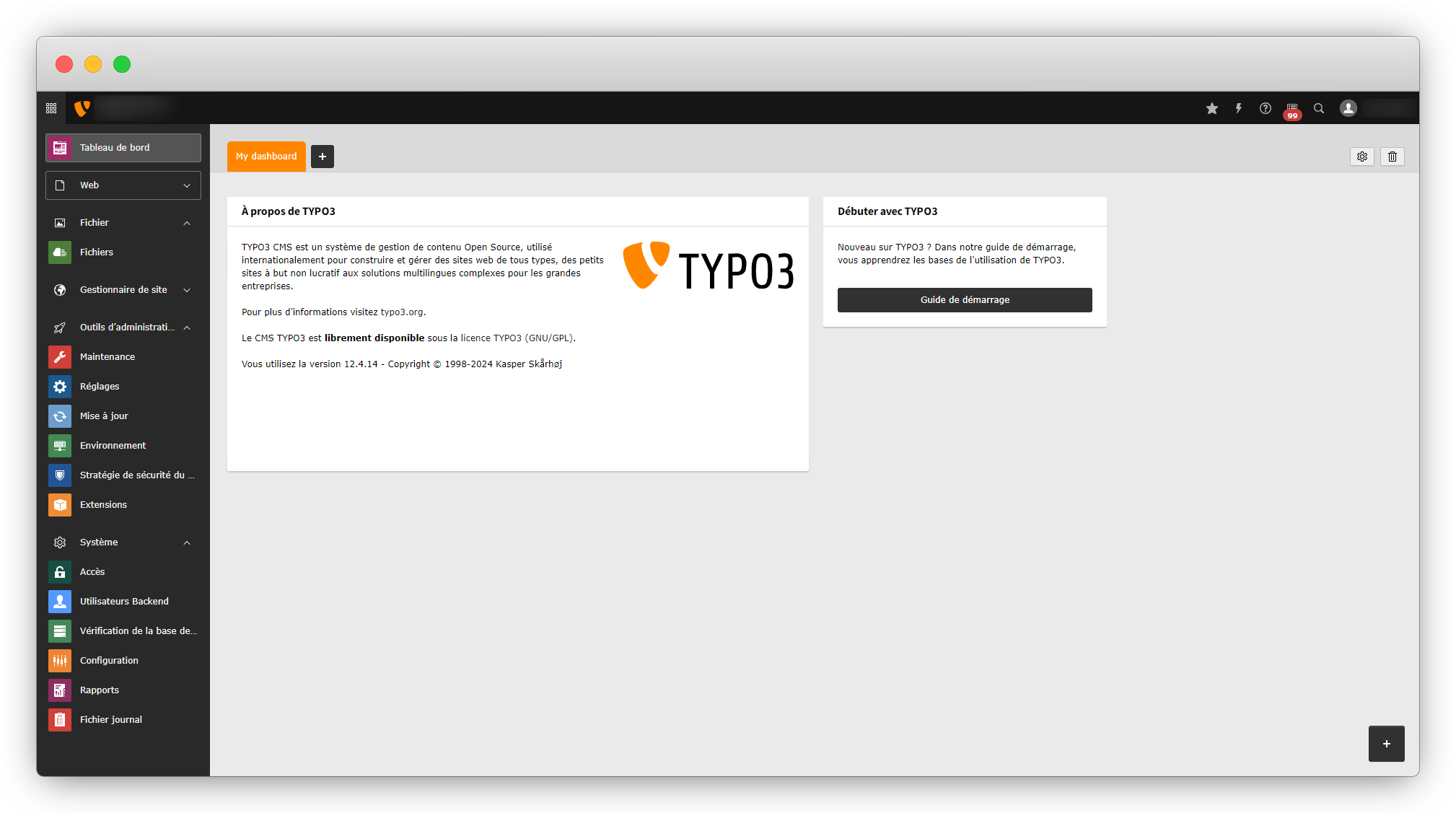
3. After saving the user settings, you will see the back-end with the selected language. Below is the screenshot of the back-end after adding the French language.
Add multi-language in the custom extension
Follow the steps below to add the multi-language in the custom extension
1. In the created extension, the CRUD was implemented and to add the new record for the employee extension we used the “List” module.
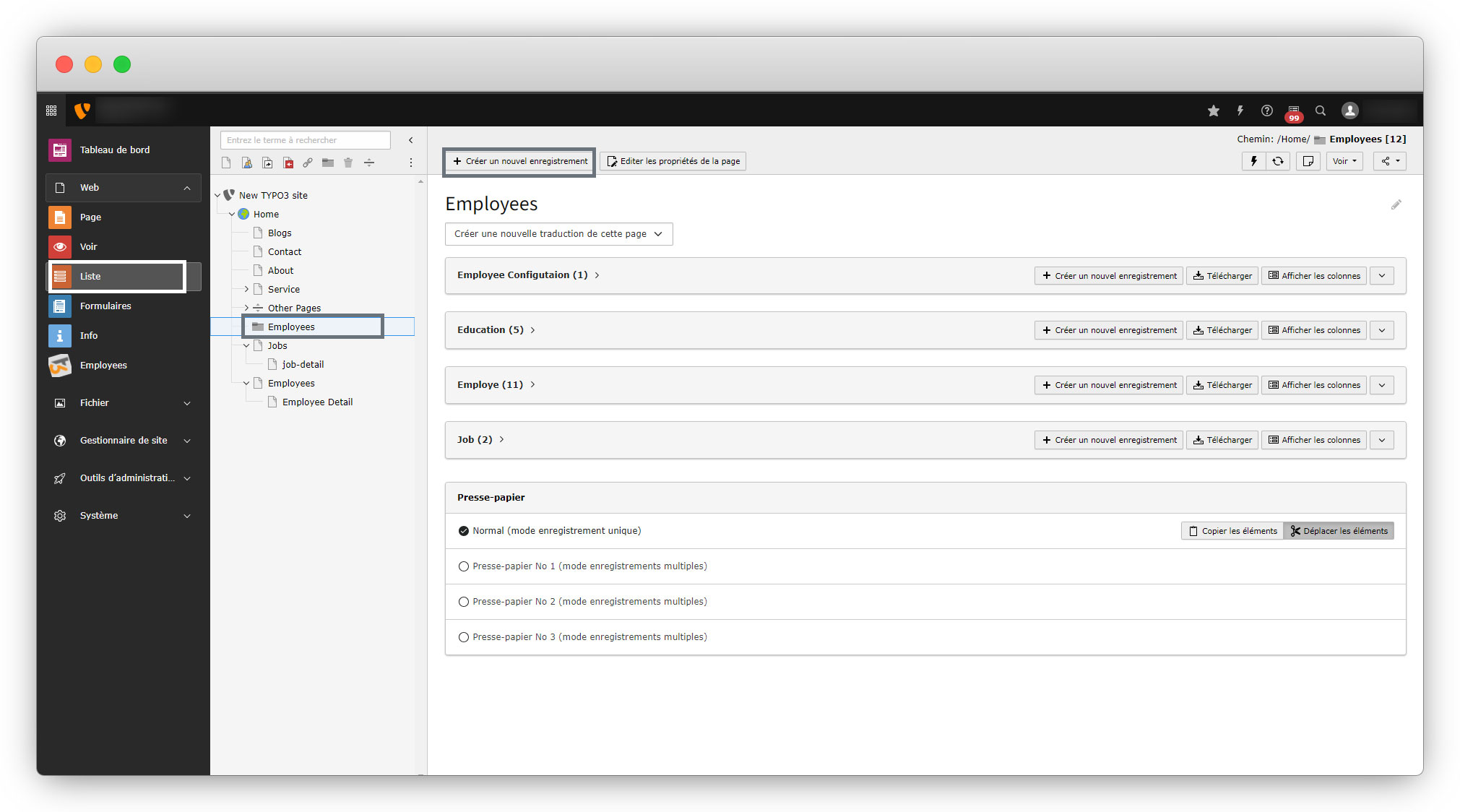
2. Go to the List but here the language is French for now so go to the “Liste” > select the folder “Employees” or select whatever folder you have stored your records in > then click the button “Créer un nouvel enregistrement” to create a new record.
3. After clicking that button, you will see the options to add the records.
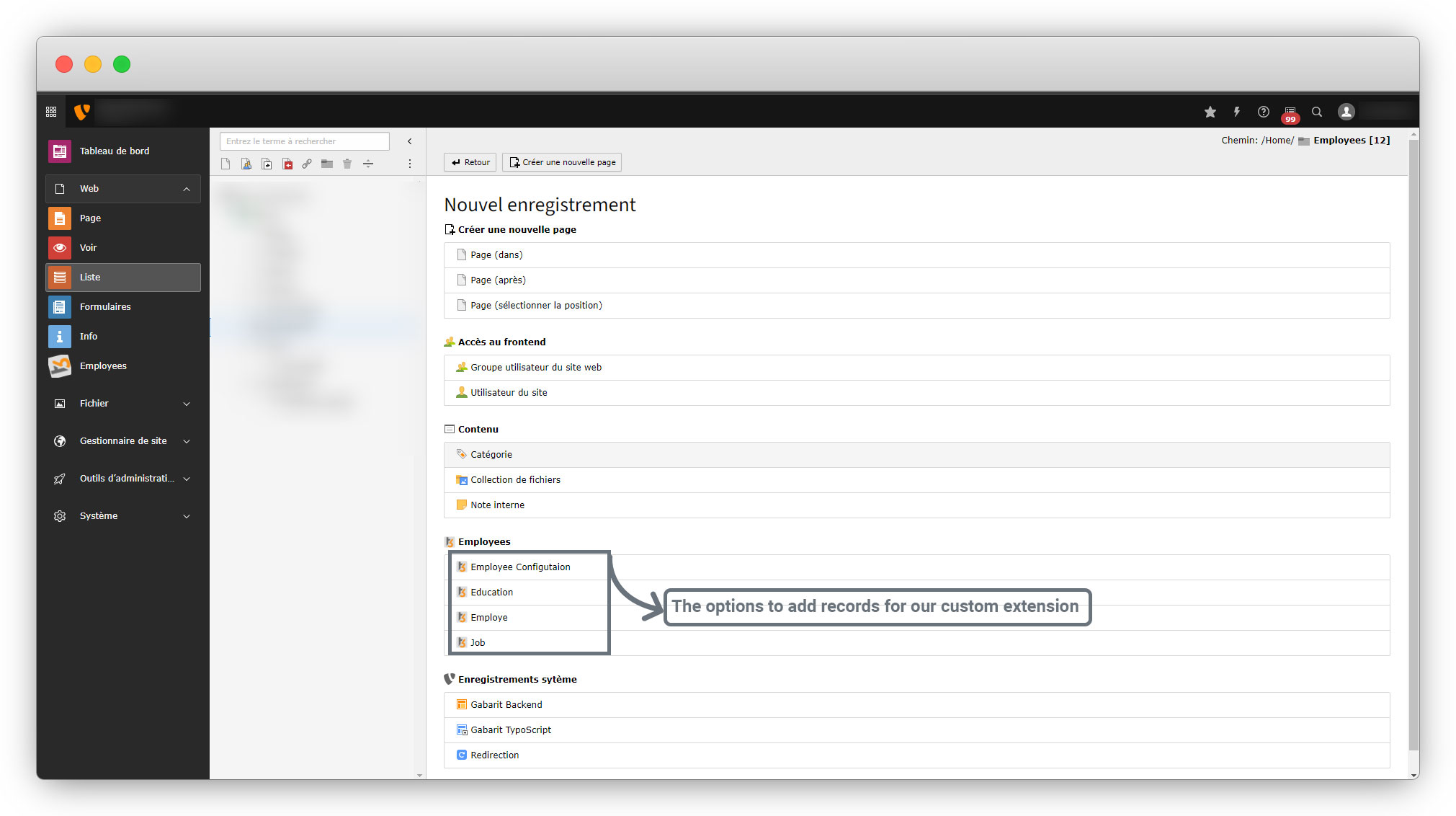
4. As you can see in the above screenshot, the options to add the records are displayed in the English language while the currently selected language is French. So to show these options in French, create the language files in employee/Resources/Private/Language folder.
5. Create different files for different languages with the prefix of language code.
- E.g. If the main language file of the extension is “locallang_employee.xlf” and now we want to add the language file for the French language, the file name should be fr.locallang_employee.xlf.
- If the main language file’s name is extensionlangaugefile.xlf, then the French language file name should be fr.extensionlangaugefile.xlf. And if you want to add any other language with French, let’s say you want to add the German language too, then the language file for the German would be de.extensionlangaugefile.xlf
6. Here in this example, the main language file is “locallang_employee.xlf” and we are creating a new language file for the French language so that the new file name will be “fr.locallang_employee.xlf”
6.1. The file path is employeeResourcesPrivateLanguagefr.locallang_employee.xlf
6.2. Below is the code of the file fr.locallang_employee.xlf
<?xml version="1.0" encoding="utf-8" standalone="yes" ?>
<xliff version="1.0" approved="yes" >
	<file source-language="en" target-language="fr"  datatype="plaintext" date="2023-02-25T07:50:45Z" product-name="employee" original="EXT:employee/Resources/Private/Language/locallang_employee.xlf"  >
		<body>
		</body>
	</file>
</xliff>
6.3. The above code shows the basic language file. Below is the explanation of the file
- source-language=”en”, it does mean that we are converting the English language as it is the original language here.
- target-language=”fr”, it does mean that we are converting to the French language.
- product-name=”employee”, it contains the key of the extension.
- The “original” will contain the base language path, and the base language or original language is English here, so set the path of the file “locallang_exployee.xlf”
- The body part of the file will contain the changes for the language file based on the key.
- Here we can set the value for the French language by adding the original content in <source></source> and the translated content in <target></target> (here you will have to translate the content manually for the extension ) as you can see in the code below
<?xml version="1.0" encoding="utf-8" standalone="yes" ?>
<xliff version="1.0" approved="yes" >
    <file source-language="en" target-language="fr"  datatype="plaintext" date="2023-02-25T07:50:45Z" product-name="employee" original="EXT:employee/Resources/Private/Language/locallang_employee.xlf"  >
        <body>
            <trans-unit id="employee" resname="employee" approved="yes">
                <source>Employee</source>
                <target>Employée</target>
            </trans-unit>
        </body>
    </file>
</xliff>
After any changes in language files, please toggle the extension (Deactivate once and then activate again) or go to Maintainance > Flush TYPO3 and PHP cache and click on the button “Flush cache”
7. We have 4 types of records and currently, they are not rendering language-wise as you can see in the screenshot below.
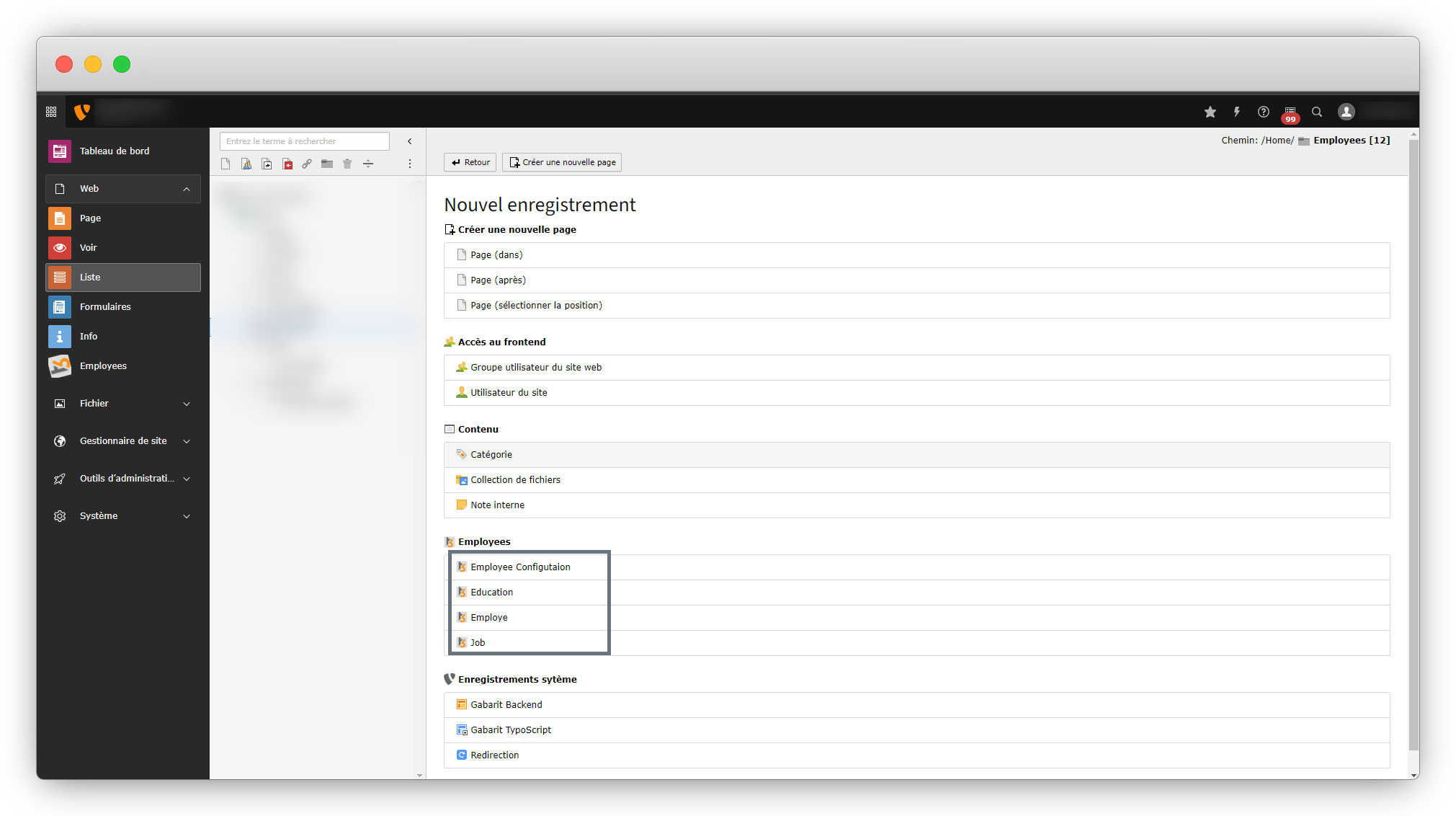
8. To set these titles for multi-language, set the labels for them in the language file, and before that, the TCA file must be updated.
9. Let’s try to understand this for the first title “Employee Configuration”.
9.1. As we know the first title “Employee Configuration” is for the extension configuration, open the TCA file for the configuration – extemployeeConfigurationTCAtx_employee_domain_model_conf.php
9.2. See the below screenshot, we have the static title “‘Employee Configuration'” for now, so it will be the same for all the languages if we don’t make it available language-wise.
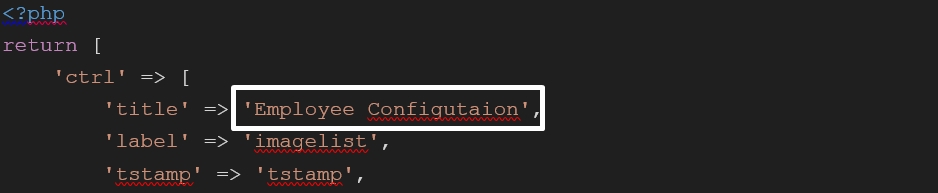
9.3. Remove that static title and put this line instead – 'LLL:EXT:employee/Resources/Private/Language/locallang_employee.xlf:conf'
9.4. Below is the screenshot after adding the line for the translation.
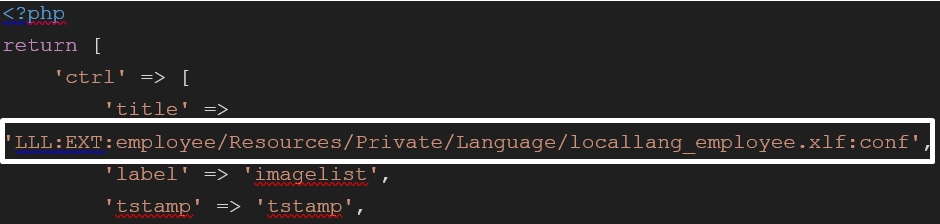
9.5. As you can see in the above screenshot, we called the main language file “locallang_employee.xlf” which is the original language file with the path of the file, and at last, we have added the “:conf”, here the “conf” is the key for that title. Now let’s check the back-end after updating the TCA file, below is the screenshot.
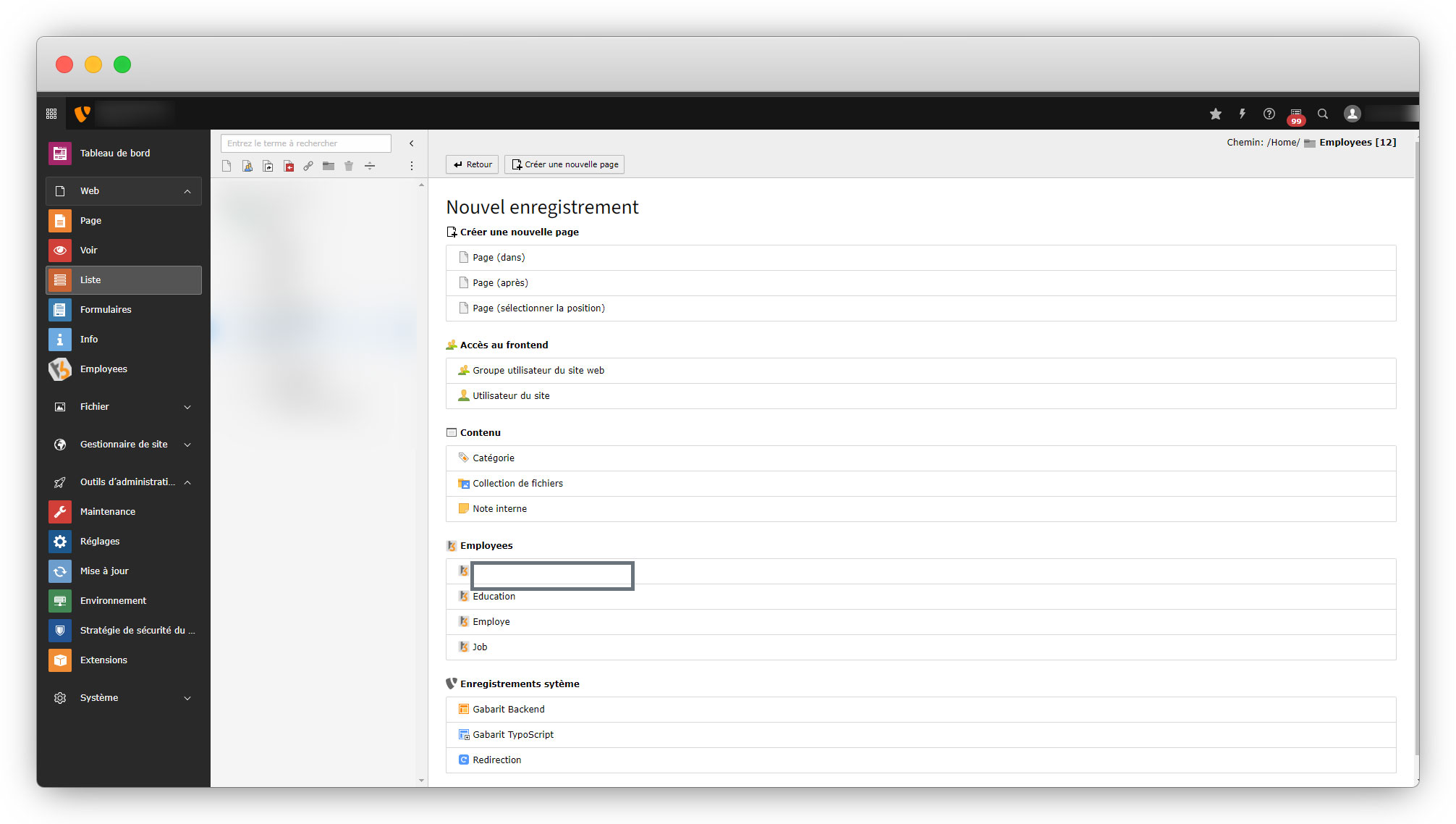
9.6. As you can see in the above screenshot, the title is not rendering, this is an issue that is occurring because we have added the key “conf” in TCA file’s title but we didn’t define it in the “locallang_employee.xlf” file. Let’s define the key conf. Add the code below in the locallang_employee.xlf file.
<trans-unit id="conf" resname="conf">
    <source>Employee Extension Configuration</source>
</trans-unit>
9.7. By adding the above code, we have added the title “Employee Extension Configuration” for the key conf, now check the back-end and you will see as seen in the screenshot below:
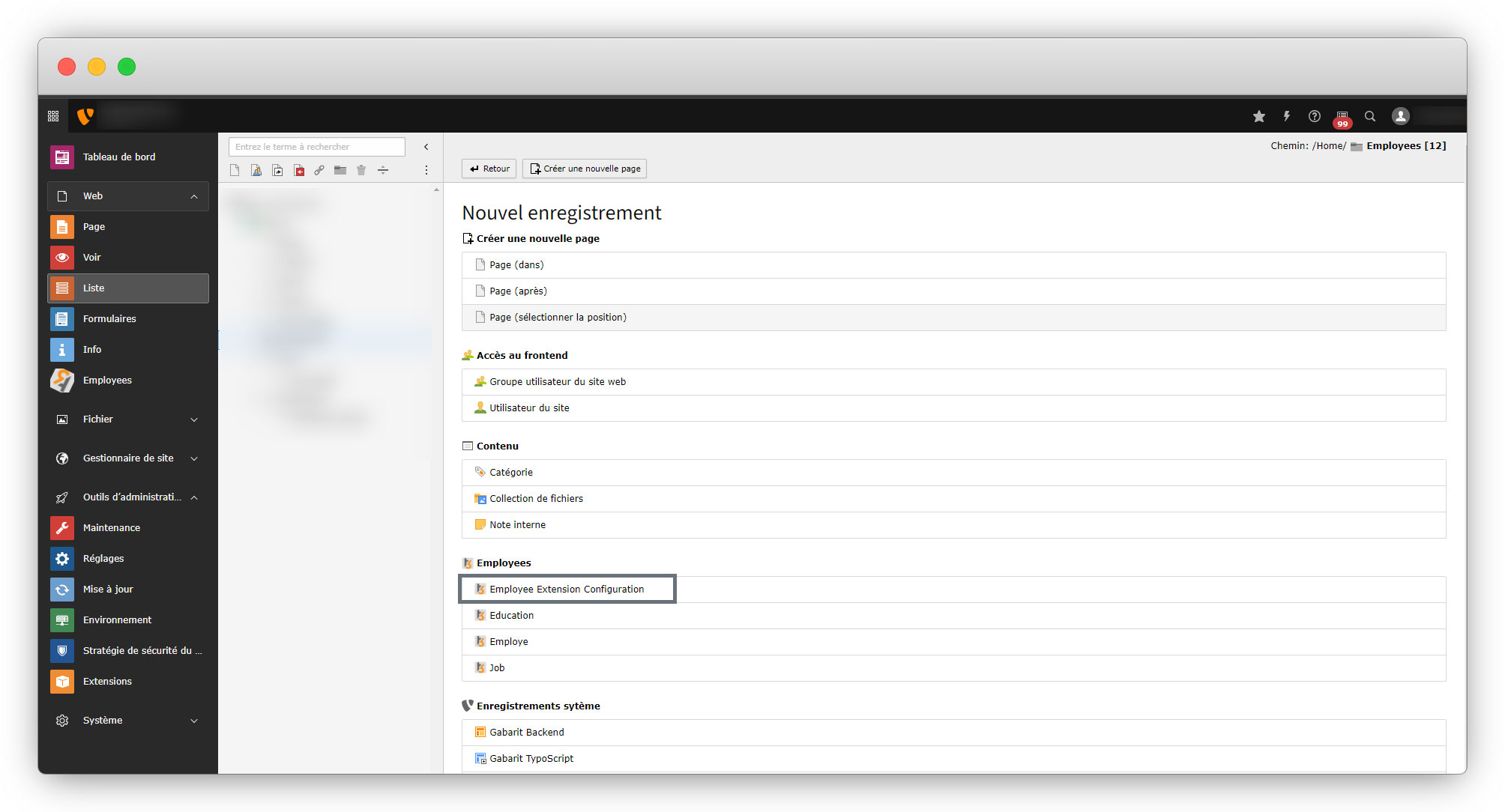
9.8. But still, the title is rendered in the English language while the rendered language is French for now in the back-end, so the title should be rendered in the French language because we didn’t add the title into the fr.locallang_employee.xlf, replace the code of the file fr.locallang_employee.xlf file with the given code below:
<?xml version="1.0" encoding="utf-8" standalone="yes" ?>
<xliff version="1.0" approved="yes" >
    <file source-language="en" target-language="fr"  datatype="plaintext" date="2023-02-25T07:50:45Z" product-name="employee" original="EXT:employee/Resources/Private/Language/locallang_employee.xlf"  >
        <body>
            <trans-unit id="employee" resname="employee" approved="yes">
                <source>Employee</source>
                <target>Employée</target>
            </trans-unit>
            <trans-unit id="conf" resname="conf" approved="yes">
                <source>Employee Extension Configuration</source>
                <target>Configuration des extensions d'employé</target>
            </trans-unit>
        </body>
    </file>
</xliff>
9.9. Now check the back-end and you will see the title extension configuration in the French language, as seen in the screenshot below:
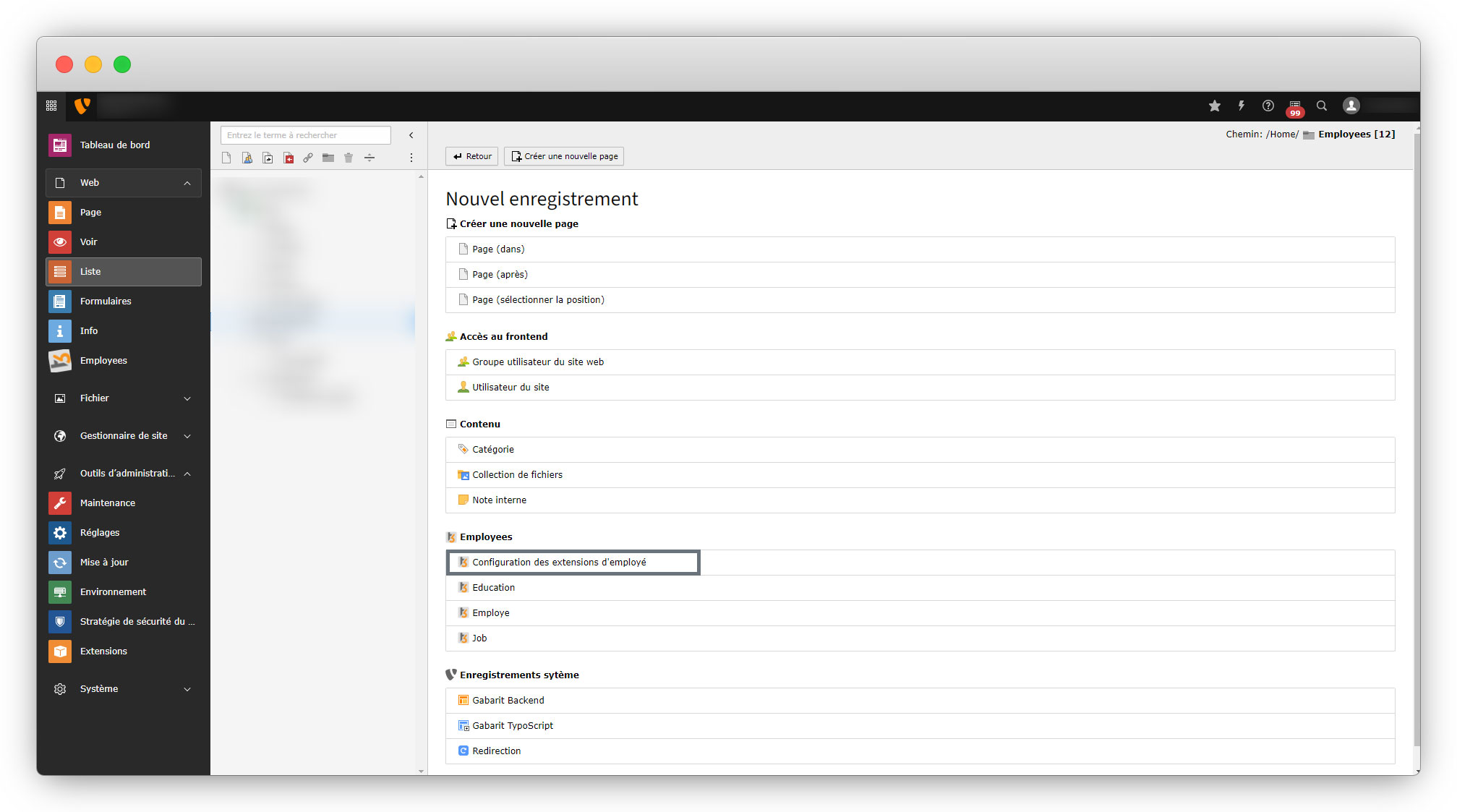
9.10. Do the same for all the other 4 record titles and they all will be translated as seen in the screenshot below
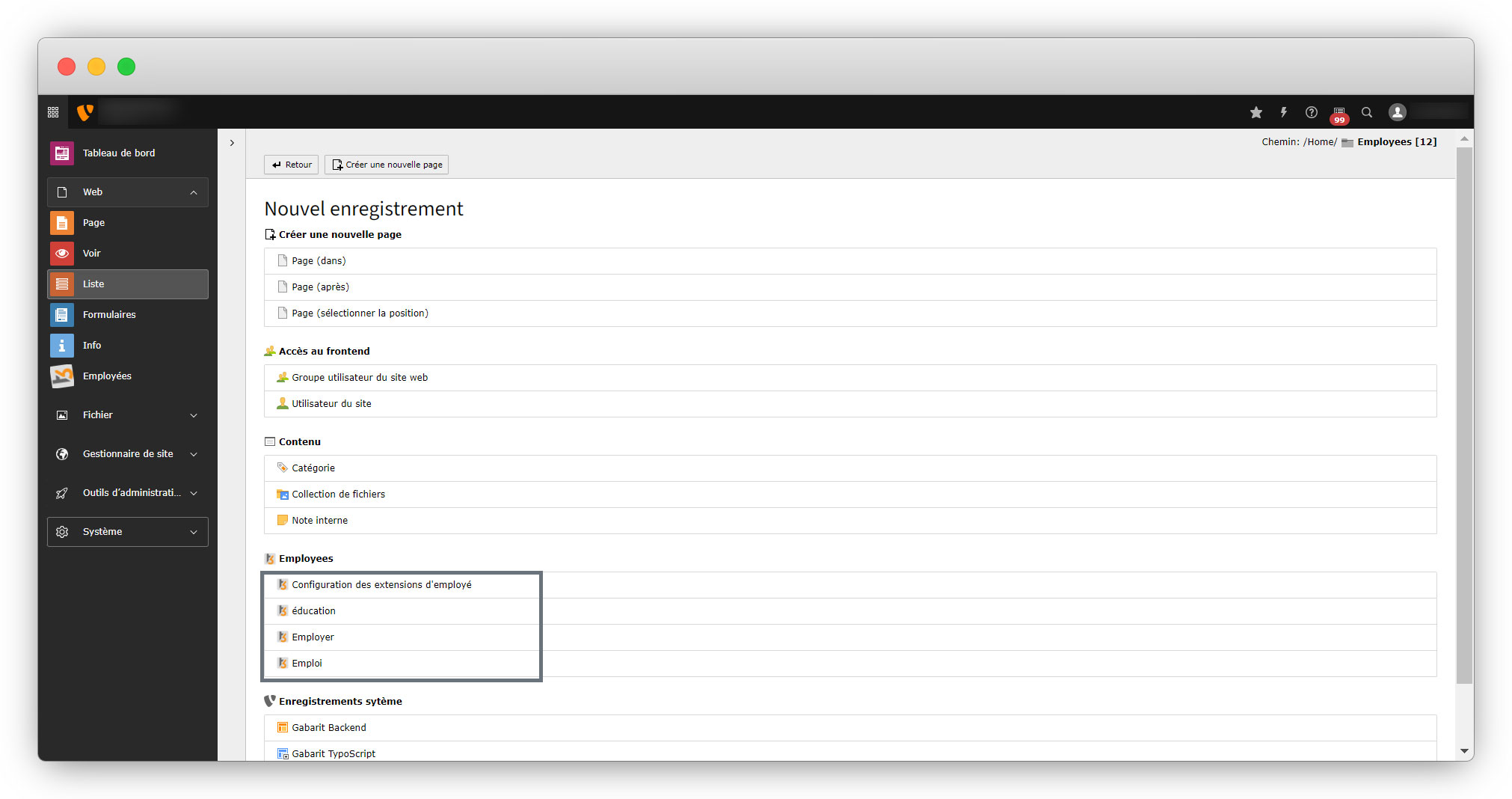
10. After completing the 4 record titles, let’s move to the detail page or the page that is open after clicking on any of them, let’s click on “Employer” which means “Employee” in English and you will see the details/field names rendered in English as seen in the screenshot below
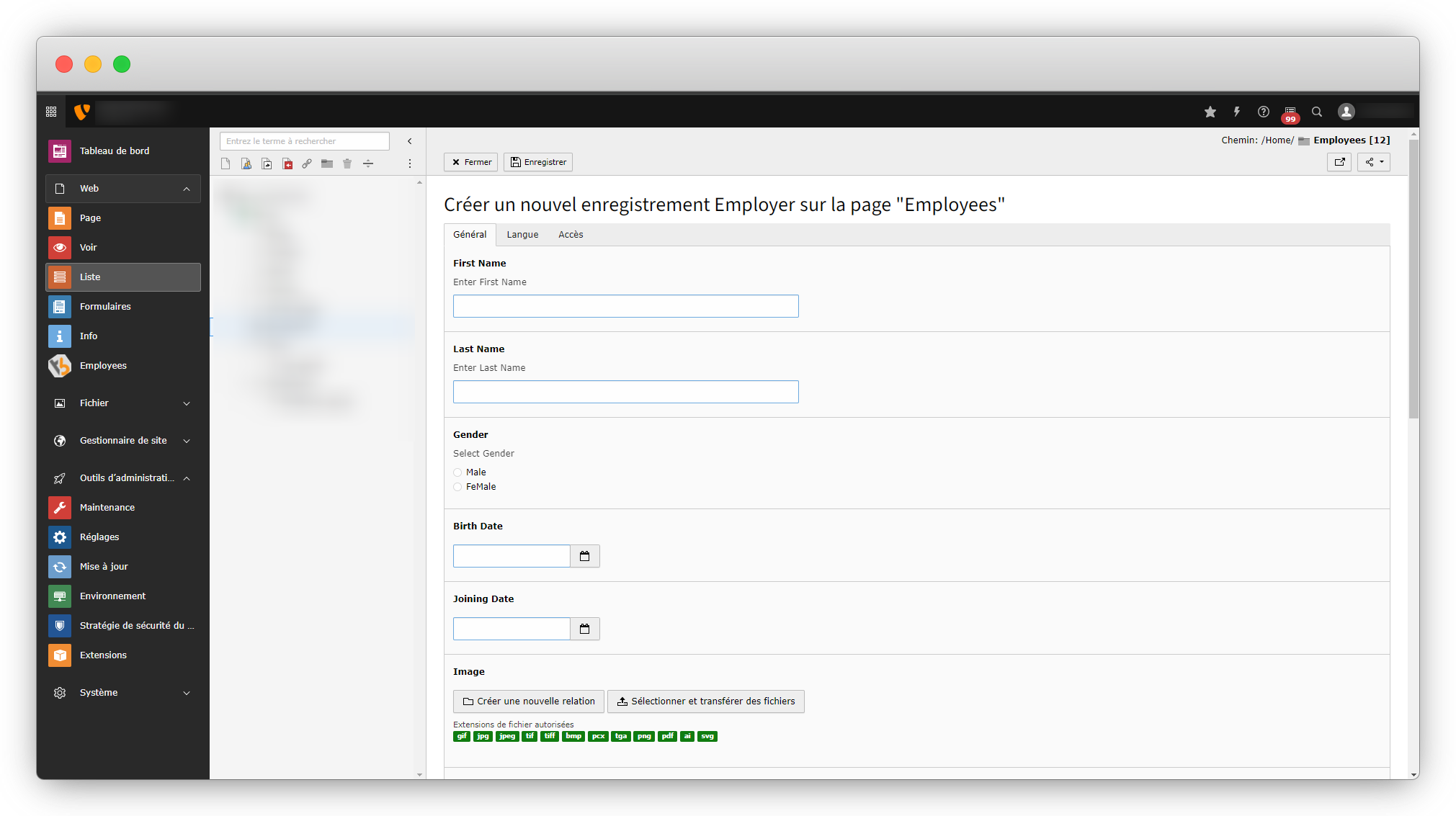
10.1. To convert the field titles into French, it is required to update the TCA file and the language file, the same as we have done for the record titles.
10.2. Let’s understand this by converting the field name “First Name”.
10.3. Open the TCA file employeeConfigurationTCAtx_employee_domain_model_employ.php find the field name ‘first_name’, and replace the static “label” and “description” of the ”first_name’ field with the original language file path and key, you just need to replace the code for the “first_name” field with the code given below:
'first_name' => [
            'l10n_mode' => 'prefixLangTitle',
            'label' => 'LLL:EXT:employee/Resources/Private/Language/locallang_employee.xlf:employ.first_name',
            'description' => 'LLL:EXT:employee/Resources/Private/Language/locallang_employee.xlf:employ.first_name.description',
            'config' => [
                'type' => 'input',
                'behaviour' => [
                    'allowLanguageSynchronization' => true,
                ],
            ]
        ],
10.4. Please note in the above code that the key for the label is “employ.first_name” and the key for the description field is “employ.first_name.description“.
10.5. Now open the language file employeeResourcesPrivateLanguagelocallang_employee.xlf and add the given code below
<trans-unit id="employ.first_name" resname="employ.first_name">
    <source>First Name</source>
</trans-unit>
<trans-unit id="employ.first_name" resname="employ.first_name.description">
    <source>Enter First Name</source>
</trans-unit>
10.6. Then open the file employeeResourcesPrivateLanguagefr.locallang_employee.xlf and add the given code below
<trans-unit id="employ.first_name" resname="employ.first_name" approved="yes">
    <source>First Name</source>
    <target>Prénom</target>
</trans-unit>
<trans-unit id="employ.first_name.description" resname="employ.first_name.description" approved="yes">
    <source>Enter First Name</source>
    <target>Entrez votre prénom</target>
</trans-unit>
10.7. After the above changes for the field “first_name”, you can see the updated/converted field name as seen in the screenshot below:
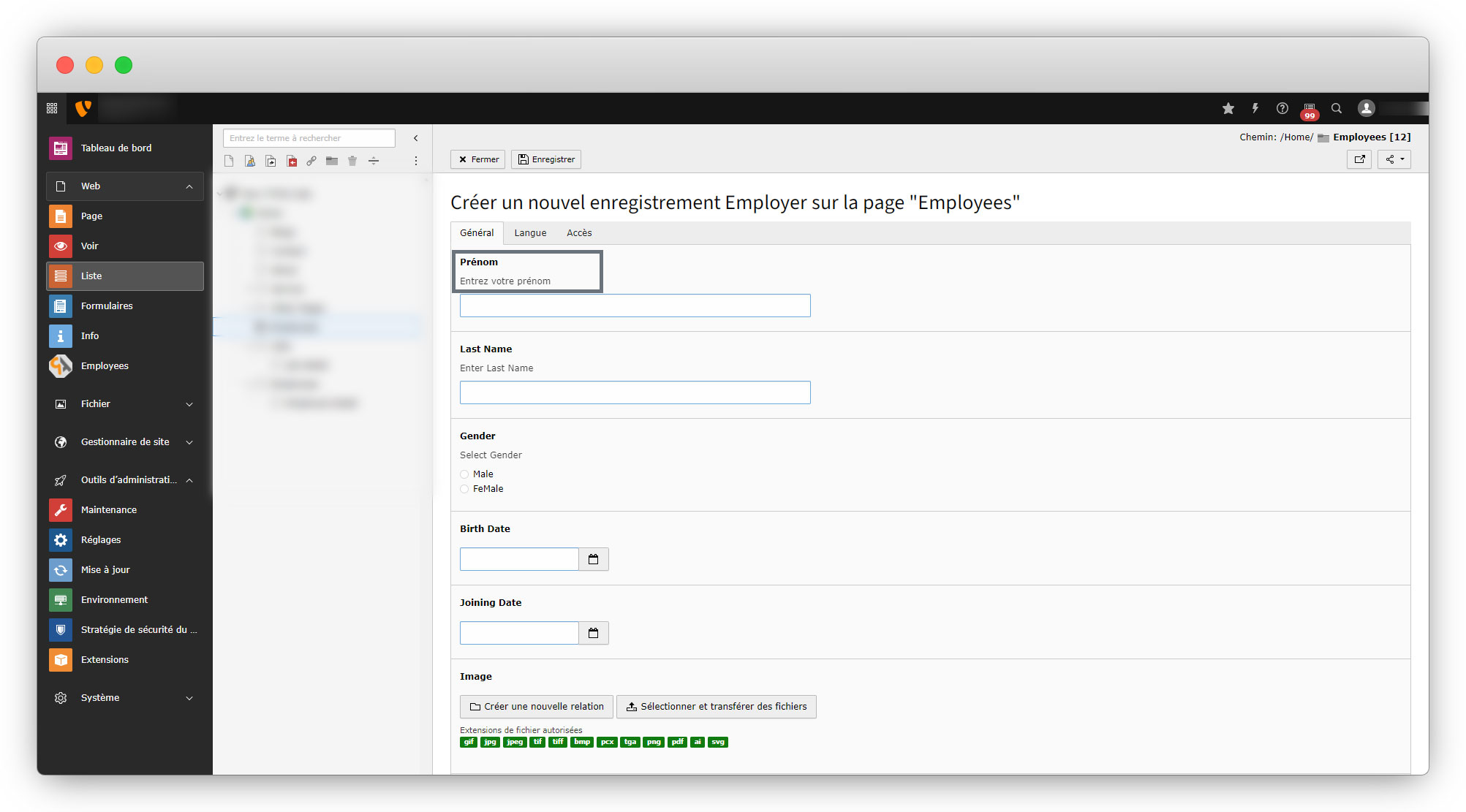
11. Do the same for the remaining fields. Below is the final code for the Employee TCA file and language files after converting all the things mentioned above.
11.1. open the file employeeConfigurationTCAtx_employee_domain_model_employ.php and replace the code with the code below to convert all the fields
<?php
return [
    'ctrl' => [
        'title' => 'LLL:EXT:employee/Resources/Private/Language/locallang_employee.xlf:employ',
        'label' => 'first_name',
        'tstamp' => 'tstamp',
        'crdate' => 'crdate',
        'versioningWS' => true,
        'label_alt_force' => true,
        'origUid' => 't3_origuid',
        'languageField' => 'sys_language_uid',
        'transOrigPointerField' => 'l10n_parent',
        'transOrigDiffSourceField' => 'l10n_diffsource',
        'delete' => 'deleted',
        'enablecolumns' => [
            'disabled' => 'hidden',
            'starttime' => 'starttime',
            'endtime' => 'endtime',
        ],
        'searchFields' => 'first_name',
        'last_name',
        'bio',
        'iconfile' => 'EXT:employee/Resources/Public/Icons/Extension.png',
        'security' => [
            'ignorePageTypeRestriction' => true,
        ],
    ],
    'types' => [
        '1' => [
            'showitem' => 'first_name,last_name,gender,birth_date,joining_date,image,bio,experiance,salary,languages,country,job,educations, --div--;LLL:EXT:core/Resources/Private/Language/Form/locallang_tabs.xlf:language, sys_language_uid, l10n_parent, l10n_diffsource, --div--;LLL:EXT:core/Resources/Private/Language/Form/locallang_tabs.xlf:access, hidden, starttime, endtime'
        ],
    ],
    'columns' => [
        'sys_language_uid' => [
            'exclude' => true,
            'label' => 'LLL:EXT:core/Resources/Private/Language/locallang_general.xlf:LGL.language',
            'config' => [
                'type' => 'language',
            ],
        ],
        'l10n_parent' => [
            'displayCond' => 'FIELD:sys_language_uid:>:0',
            'label' => 'LLL:EXT:core/Resources/Private/Language/locallang_general.xlf:LGL.l18n_parent',
            'config' => [
                'type' => 'select',
                'renderType' => 'selectSingle',
                'default' => 0,
                'items' => [
                    ['label' => '', 'value' => 0]
                ],
                'foreign_table' => 'tx_employee_domain_model_employ',
                'foreign_table_where' => 'AND {#tx_employee_domain_model_employ}.{#pid}=###CURRENT_PID### AND {#tx_employee_domain_model_employ}.{#sys_language_uid} IN (-1,0)',
            ],
        ],
        'l10n_diffsource' => [
            'config' => [
                'type' => 'passthrough',
            ],
        ],
        'hidden' => [
            'config' => [
                'type' => 'check',
                'items' => [
                    ['label' => 'Disable'],
                ],
            ]
        ],
        'starttime' => [
            'exclude' => true,
            'label' => 'LLL:EXT:core/Resources/Private/Language/locallang_general.xlf:LGL.starttime',
            'config' => [
                'type' => 'input',
                'renderType' => 'datetime',
                'eval' => 'datetime,int',
                'default' => 0,
                'behaviour' => [
                    'allowLanguageSynchronization' => true
                ]
            ],
        ],
        'endtime' => [
            'exclude' => true,
            'label' => 'LLL:EXT:core/Resources/Private/Language/locallang_general.xlf:LGL.endtime',
            'config' => [
                'type' => 'input',
                'renderType' => 'datetime',
                'eval' => 'datetime,int',
                'default' => 0,
                'range' => [
                    'upper' => mktime(0, 0, 0, 1, 1, 2038)
                ],
                'behaviour' => [
                    'allowLanguageSynchronization' => true
                ]
            ],
        ],

        'first_name' => [
            'l10n_mode' => 'prefixLangTitle',
            'label' => 'LLL:EXT:employee/Resources/Private/Language/locallang_employee.xlf:employ.first_name',
            'description' => 'LLL:EXT:employee/Resources/Private/Language/locallang_employee.xlf:employ.first_name.description',
            'config' => [
                'type' => 'input',
                'behaviour' => [
                    'allowLanguageSynchronization' => true,
                ],
            ]
        ],
        'last_name' => [
            'l10n_mode' => 'prefixLangTitle',
            'label' => 'LLL:EXT:employee/Resources/Private/Language/locallang_employee.xlf:employ.last_name',
            'description' => 'LLL:EXT:employee/Resources/Private/Language/locallang_employee.xlf:employ.last_name.description',
            'config' => [
                'type' => 'input',
                'behaviour' => [
                    'allowLanguageSynchronization' => true,
                ],
            ]
        ],
        'gender' => [
            'label' => 'LLL:EXT:employee/Resources/Private/Language/locallang_employee.xlf:employ.gender',
            'description' => 'LLL:EXT:employee/Resources/Private/Language/locallang_employee.xlf:employ.gender.description',
            'config' => [
                'type' => 'radio',
                'items' => [
                    [
                        'label' => 'LLL:EXT:employee/Resources/Private/Language/locallang_employee.xlf:employ.male',
                        'value' => 1,
                    ],
                    [
                        'label' => 'LLL:EXT:employee/Resources/Private/Language/locallang_employee.xlf:employ.female',
                        'value' => 2,
                    ]
                ],
            ],
        ],
        'birth_date' => [
            'label' => 'LLL:EXT:employee/Resources/Private/Language/locallang_employee.xlf:employ.birth_date',
            'config' => [
                'type' => 'datetime',
                'format' => 'date',
                'eval' => 'int',
                'default' => 0,
            ]
        ],
        'joining_date' => [
            'label' => 'LLL:EXT:employee/Resources/Private/Language/locallang_employee.xlf:employ.joining_date',
            'config' => [
                'type' => 'datetime',
                'format' => 'datetime',
                'eval' => 'int',
                'default' => 0,
            ]
        ],
        'image' => [
            'label' => 'LLL:EXT:employee/Resources/Private/Language/locallang_employee.xlf:employ.image',
            'config' => [
                'type' => 'file',
                'allowed' => 'common-image-types'
            ],
        ],
        "bio" => [
            'label' => 'LLL:EXT:employee/Resources/Private/Language/locallang_employee.xlf:employ.bio',
            'config' => [
                'type' => 'text',
                'cols' => 20,
                'rows' => 2,
            ],
        ],
        "experiance" => [
            'label' => 'LLL:EXT:employee/Resources/Private/Language/locallang_employee.xlf:employ.experiance',
            'config' => [
                'type' => 'text',
                'enableRichtext' => true,
            ],
        ],
        "salary" => [
            'label' => 'LLL:EXT:employee/Resources/Private/Language/locallang_employee.xlf:employ.salary',
            'config' => [
                'type' => 'number',
                'format' => 'decimal'
            ]
        ],
        "job" => [
            'label' => 'LLL:EXT:employee/Resources/Private/Language/locallang_employee.xlf:job',
            'config' => [
                'type' => 'select',
                'renderType' => 'selectSingle',
                'foreign_table' => 'tx_employee_domain_model_job',
            ],
        ],
        "languages" => [
            'label' => 'LLL:EXT:employee/Resources/Private/Language/locallang_employee.xlf:employ.languages',
            'config' => [
                'type' => 'check',
                'items' => [
                    [
                        'label' => 'LLL:EXT:employee/Resources/Private/Language/locallang_employee.xlf:employ.languages.english',
                        'value' => 'en',
                    ],
                    [
                        'label' => 'LLL:EXT:employee/Resources/Private/Language/locallang_employee.xlf:employ.languages.german',
                        'value' => 'de',
                    ],
                    [
                        'label' => 'LLL:EXT:employee/Resources/Private/Language/locallang_employee.xlf:employ.languages.french',
                        'value' => 'fr',
                    ],
                ],
            ],
        ],
        "country" => [
            'label' => 'LLL:EXT:employee/Resources/Private/Language/locallang_employee.xlf:employ.country',
            'config' => [
                'type' => 'select',
                'renderType' => 'selectSingle',
                'items' => [
                    [
                        'label' => 'LLL:EXT:employee/Resources/Private/Language/locallang_employee.xlf:employ.country.us',
                        'value' => 'US',
                    ],
                    [
                        'label' => 'LLL:EXT:employee/Resources/Private/Language/locallang_employee.xlf:employ.country.germany',
                        'value' => 'Germany',
                    ],
                    [
                        'label' => 'LLL:EXT:employee/Resources/Private/Language/locallang_employee.xlf:employ.country.france',
                        'value' => 'France',
                    ],
                ],
            ],
        ],
        'educations' => [
            'label' => 'LLL:EXT:employee/Resources/Private/Language/locallang_employee.xlf:employ.educations',
            'description' => 'LLL:EXT:employee/Resources/Private/Language/locallang_employee.xlf:employ.educations.add',
            'config' => [
                'type' => 'inline',
                'foreign_table' => 'tx_employee_domain_model_education',
                'foreign_field' => 'employ',
                'appearance' => [
                    'showSynchronizationLink' => true,
                    'showAllLocalizationLink' => true,
                    'showPossibleLocalizationRecords' => true,
                ],
            ],
        ],
    ],
];
11.2. Now open the employeeResourcesPrivateLanguagelocallang_employee.xlf file and replace the code with the given code below
<?xml version="1.0" encoding="utf-8" standalone="yes" ?>
<xliff version="1.0">
    <file source-language="en" datatype="plaintext" date="2023-02-25T07:50:45Z" product-name="t3theme">
        <body>
            <trans-unit id="mlang_tabs_tab" resname="mlang_tabs_tab">
                <source>Employees</source>
            </trans-unit>
            <trans-unit id="conf" resname="conf">
                <source>Employee Extension Configuration</source>
            </trans-unit>
            <trans-unit id="education" resname="education">
                <source>Education</source>
            </trans-unit>
            <trans-unit id="employ" resname="employ">
                <source>Employ</source>
            </trans-unit>
            <trans-unit id="job" resname="job">
                <source>Job</source>
            </trans-unit>
            <trans-unit id="employ.first_name" resname="employ.first_name">
                <source>First Name</source>
            </trans-unit>
            <trans-unit id="employ.first_name" resname="employ.first_name.description">
                <source>Enter First Name</source>
            </trans-unit>
            <trans-unit id="employ.last_name" resname="employ.last_name">
                <source>Last Name</source>
            </trans-unit>
            <trans-unit id="employ.last_name" resname="employ.last_name.description">
                <source>Enter Last Name</source>
            </trans-unit>
            <trans-unit id="employ.gender" resname="employ.gender">
                <source>Gender</source>
            </trans-unit>
            <trans-unit id="employ.gender" resname="employ.gender.description">
                <source>Select Gender</source>
            </trans-unit>
            <trans-unit id="employ.male" resname="employ.male">
                <source>Male</source>
            </trans-unit>
            <trans-unit id="employ.female" resname="employ.female">
                <source>Female</source>
            </trans-unit>
            <trans-unit id="employ.birth_date" resname="employ.birth_date">
                <source>Birth Date</source>
            </trans-unit>
            <trans-unit id="employ.joining_date" resname="employ.joining_date">
                <source>Joining Date</source>
            </trans-unit>
            <trans-unit id="employ.image" resname="employ.image">
                <source>Image</source>
            </trans-unit>
            <trans-unit id="employ.bio" resname="employ.bio">
                <source>Bio</source>
            </trans-unit>
            <trans-unit id="employ.experiance" resname="employ.experiance">
                <source>Experiance</source>
            </trans-unit>
            <trans-unit id="employ.salary" resname="employ.salary">
                <source>Salary</source>
            </trans-unit>
            <trans-unit id="employ.languages" resname="employ.languages">
                <source>Languages</source>
            </trans-unit>
            <trans-unit id="employ.languages.english" resname="employ.languages.english">
                <source>English</source>
            </trans-unit>
            <trans-unit id="employ.languages.german" resname="employ.languages.german">
                <source>German</source>
            </trans-unit>
            <trans-unit id="employ.languages.french" resname="employ.languages.french">
                <source>French</source>
            </trans-unit>
            <trans-unit id="employ.country" resname="employ.country">
                <source>Country</source>
            </trans-unit>
            <trans-unit id="employ.country.us" resname="employ.country.us">
                <source>United State</source>
            </trans-unit>
            <trans-unit id="employ.country.germany" resname="employ.country.germany">
                <source>Germany</source>
            </trans-unit>
            <trans-unit id="employ.country.france" resname="employ.country.france">
                <source>France</source>
            </trans-unit>
            <trans-unit id="employ.educations" resname="employ.educations">
                <source>Educations</source>
            </trans-unit>
            <trans-unit id="employ.educations.add" resname="employ.educations.add">
                <source>Add Educations</source>
            </trans-unit>
        </body>
    </file>
</xliff>
11.3. Now open the employeeResourcesPrivateLanguagefr.locallang_employee.xlf file and replace the code with the given code below
<?xml version="1.0" encoding="utf-8" standalone="yes" ?>
<xliff version="1.0" approved="yes" >
    <file source-language="en" target-language="fr"  datatype="plaintext" date="2023-02-25T07:50:45Z" product-name="employee" original="EXT:employee/Resources/Private/Language/locallang_employee.xlf"  >
        <body>
            <trans-unit id="employee" resname="employee" approved="yes">
                <source>Employee</source>
                <target>Employée</target>
            </trans-unit>
            <trans-unit id="conf" resname="conf" approved="yes">
                <source>Employee Extension Configuration</source>
                <target>Configuration des extensions d'employé</target>
            </trans-unit>
            <trans-unit id="education" resname="education" approved="yes">
                <source>Education</source>
                <target>éducation</target>
            </trans-unit>
            <trans-unit id="employ" resname="employ" approved="yes">
                <source>Employ</source>
                <target>Employer</target>
            </trans-unit>
            <trans-unit id="job" resname="job" approved="yes">
                <source>Job</source>
                <target>Emploi</target>
            </trans-unit>
            <trans-unit id="employ.first_name" resname="employ.first_name"  approved="yes">
                <source>First Name</source>
                <target>Prénom</target>
            </trans-unit>
            <trans-unit id="employ.first_name.description" resname="employ.first_name.description"  approved="yes">
                <source>Enter First Name</source>
                <target>Entrez votre prénom</target>
            </trans-unit>
            <trans-unit id="employ.last_name" resname="employ.last_name"  approved="yes">
                <source>Last Name</source>
                <target>Nom de famille</target>
            </trans-unit>
            <trans-unit id="employ.last_name.description" resname="employ.last_name.description"  approved="yes">
                <source>Enter Last Name</source>
                <target>Entrer le nom de famille</target>
            </trans-unit>
            <trans-unit id="employ.gender" resname="employ.gender"  approved="yes">
                <source>Gender</source>
                <target>Genre</target>
            </trans-unit>
            <trans-unit id="employ.gender.description" resname="employ.gender.description"  approved="yes">
                <source>Select Gender</source>
                <target>sélectionnez le sexe</target>
            </trans-unit>
            <trans-unit id="employ.male" resname="employ.male"  approved="yes">
                <source>Male</source>
                <target>Hommes</target>
            </trans-unit>
            <trans-unit id="employ.female" resname="employ.female"  approved="yes">
                <source>Female</source>
                <target>femmes</target>
            </trans-unit>
            <trans-unit id="employ.birth_date" resname="employ.birth_date"  approved="yes">
                <source>Birth Date</source>
                <target>Date de naissance</target>
            </trans-unit>
            <trans-unit id="employ.joining_date" resname="employ.joining_date"  approved="yes">
                <source>Joining Date</source>
                <target>Date d'inscription</target>
            </trans-unit>
            <trans-unit id="employ.image" resname="employ.image"  approved="yes">
                <source>Image</source>
                <target>Image</target>
            </trans-unit>
            <trans-unit id="employ.bio" resname="employ.bio"  approved="yes">
                <source>Bio</source>
                <target>biographie</target>
            </trans-unit>
            <trans-unit id="employ.experiance" resname="employ.experiance"  approved="yes">
                <source>Experiance</source>
                <target>Expérience</target>
            </trans-unit>
            <trans-unit id="employ.salary" resname="employ.salary"  approved="yes">
                <source>Salary</source>
                <target>Salaire</target>
            </trans-unit>
            <trans-unit id="employ.languages" resname="employ.languages"  approved="yes">
                <source>Languages</source>
                <target>Langues</target>
            </trans-unit>
            <trans-unit id="employ.languages.english" resname="employ.languages.english"  approved="yes">
                <source>English</source>
                <target>Anglais</target>
            </trans-unit>
            <trans-unit id="employ.languages.german" resname="employ.languages.german"  approved="yes">
                <source>German</source>
                <target>Allemand</target>
            </trans-unit>
            <trans-unit id="employ.languages.french" resname="employ.languages.french"  approved="yes">
                <source>French</source>
                <target>Français</target>
            </trans-unit>
            <trans-unit id="employ.country" resname="employ.country"  approved="yes">
                <source>Country</source>
                <target>Pays</target>
            </trans-unit>
            <trans-unit id="employ.country.us" resname="employ.country.us"  approved="yes">
                <source>United State</source>
                <target>Etats Unis</target>
            </trans-unit>
            <trans-unit id="employ.country.german" resname="employ.country.german"  approved="yes">
                <source>German</source>
                <target>Allemande</target>
            </trans-unit>
            <trans-unit id="employ.country.france" resname="employ.country.france"  approved="yes">
                <source>France</source>
                <target>France</target>
            </trans-unit>
            <trans-unit id="employ.educations" resname="employ.educations"  approved="yes">
                <source>Educations</source>
                <target>éducation</target>
            </trans-unit>
            <trans-unit id="employ.educations.add" resname="employ.educations.add"  approved="yes">
                <source>Add Educations</source>
                <target>Ajouter une formation</target>
            </trans-unit>
        </body>
    </file>
</xliff>
12. After updating TCA file and the language files, flush the TYPO3 and PHP Cache and check in the back-end and you will see that all the field names are converted as seen in the screenshot below.
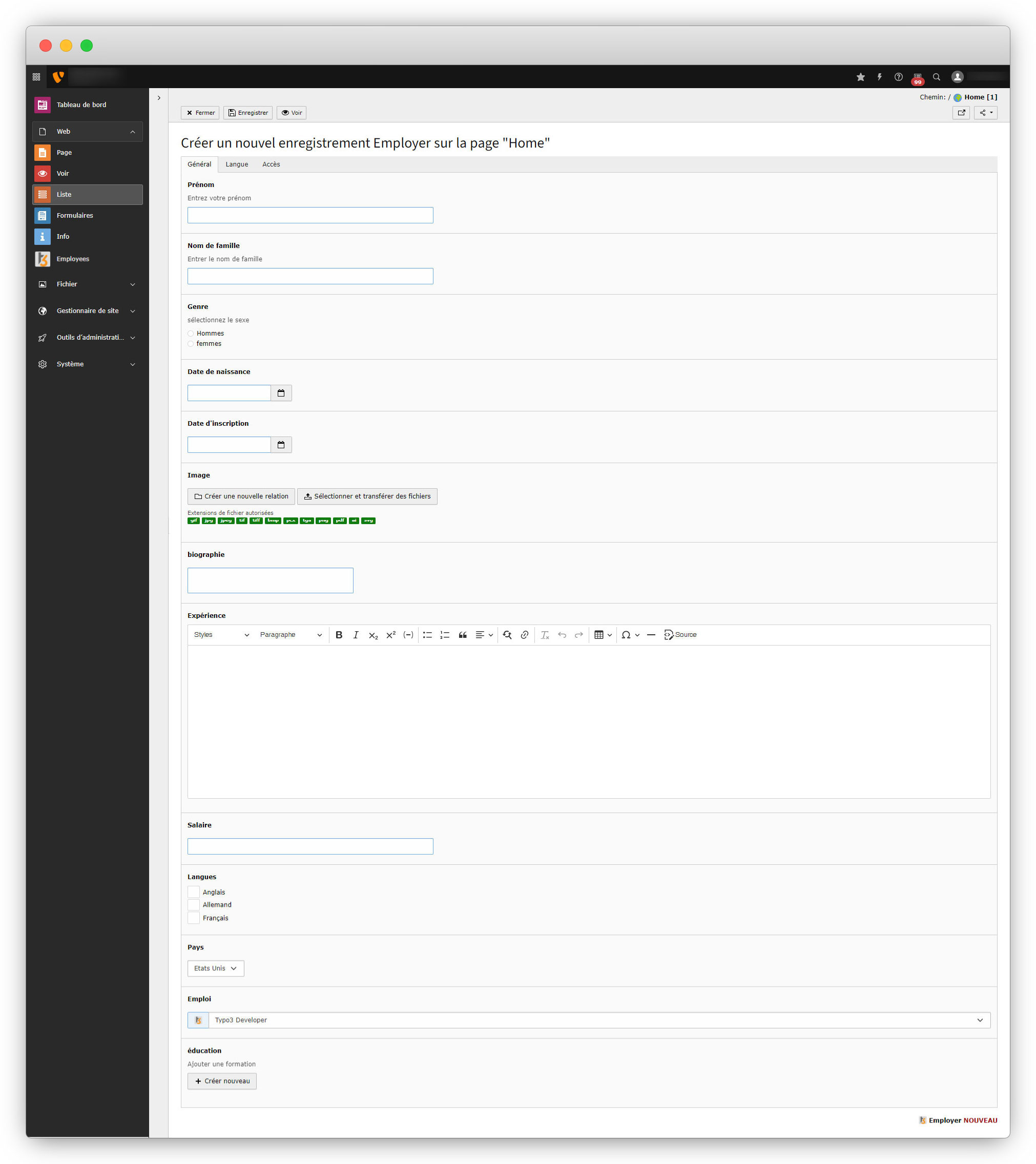
13. You can take reference to the above and do the same for the other 3 records.
14. Now, let’s see how to implement multi-language to the back-end module.
Add multi-language in the back-end module
1. As you can see in the above screenshot, the titles of all the modules of TYPO3 (on the left sidebar) are translated into French but the title of the custom back-end module “Employees” is still not translated.
2. As per the back-end module configuration, we just called the language file name without any key, because the labels for the back-end modules are rendering based on its config as defined in the reference link – https://docs.typo3.org/m/typo3/reference-coreapi/main/en-us/ApiOverview/Backend/BackendModules/ModuleConfiguration/Index.html#backend-modules-configuration
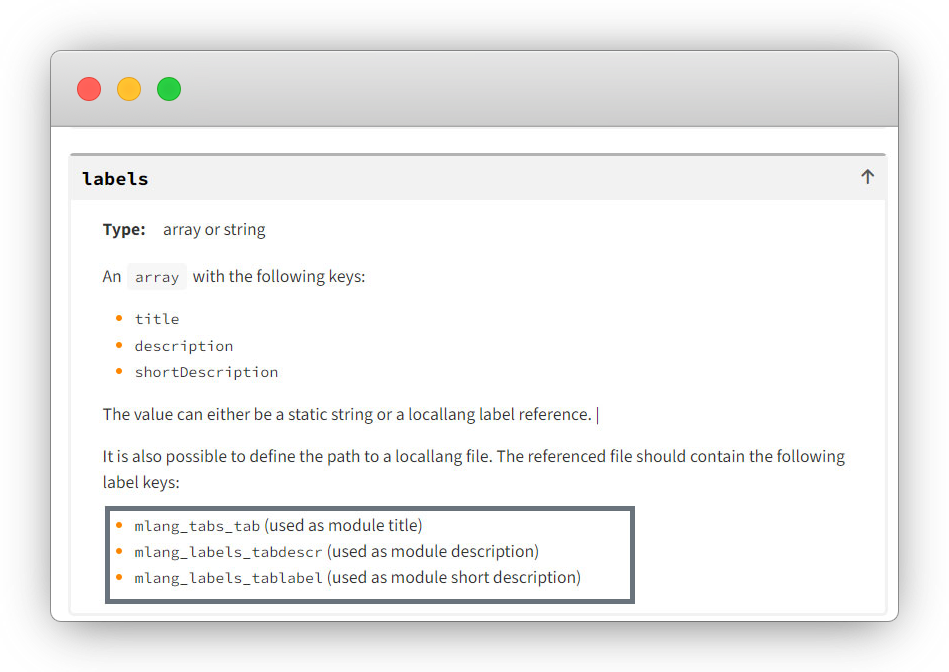
3. In the main language file employee/Resources/Private/Language/locallang_employee.xlf we defined the key mlang_tabs_tab with the value “Employees” so the title will be rendered with this value only, for all the languages.
4. If we want to convert the back-end module’s title for the French language, we need to add it to the French language file, let’s convert it.
5. Open the file employeeResourcesPrivateLanguagefr.locallang_employee.xlf and add the code below
<trans-unit id="mlang_tabs_tab" resname="mlang_tabs_tab" approved="yes">
	<source>Employees</source>
	<target>Employées</target>
</trans-unit>
6. After adding the above code flush the cache and check in the back-end and you will see the back-end module’s title is converted for the French language.
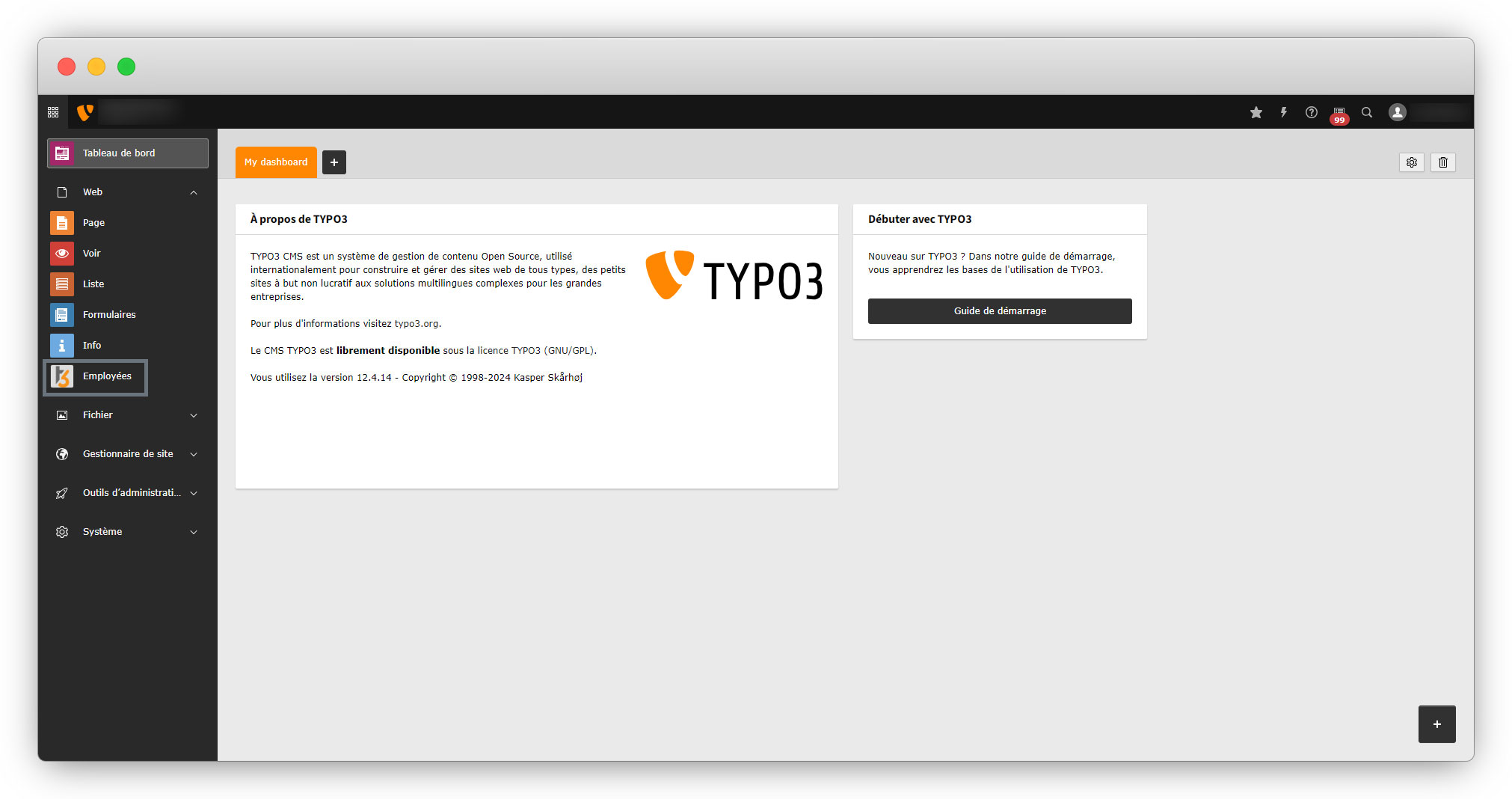
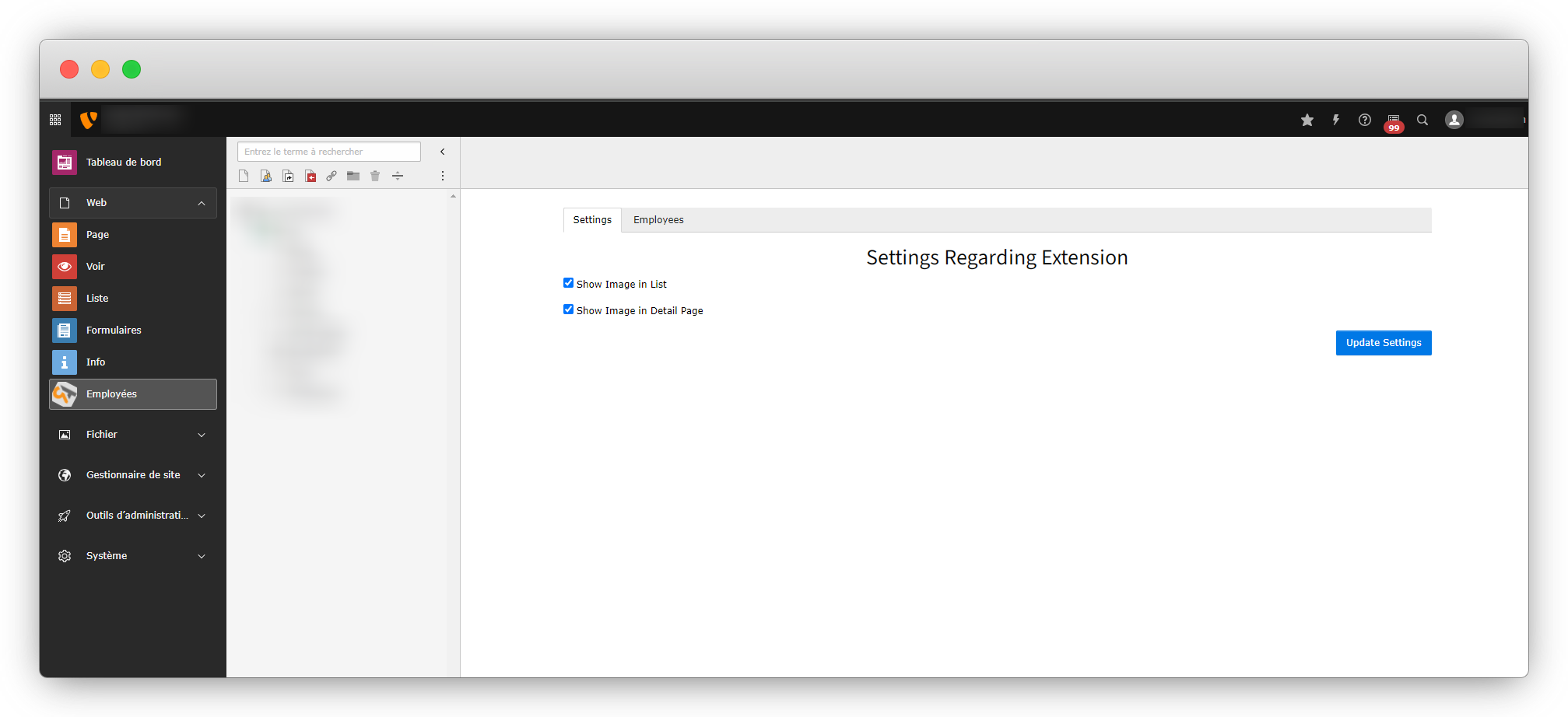
7. Click on the back-end module and you will see the configurations/settings of the back-end module on the screen, you can see that the settings are rendered in English only while the selected language is French.
8. Let’s convert the settings into French.
8.1. The labels for settings are written statically in the fluid template file employeeResourcesPrivateBackendTemplatesEmployBelist.html as you can see in the screenshot below
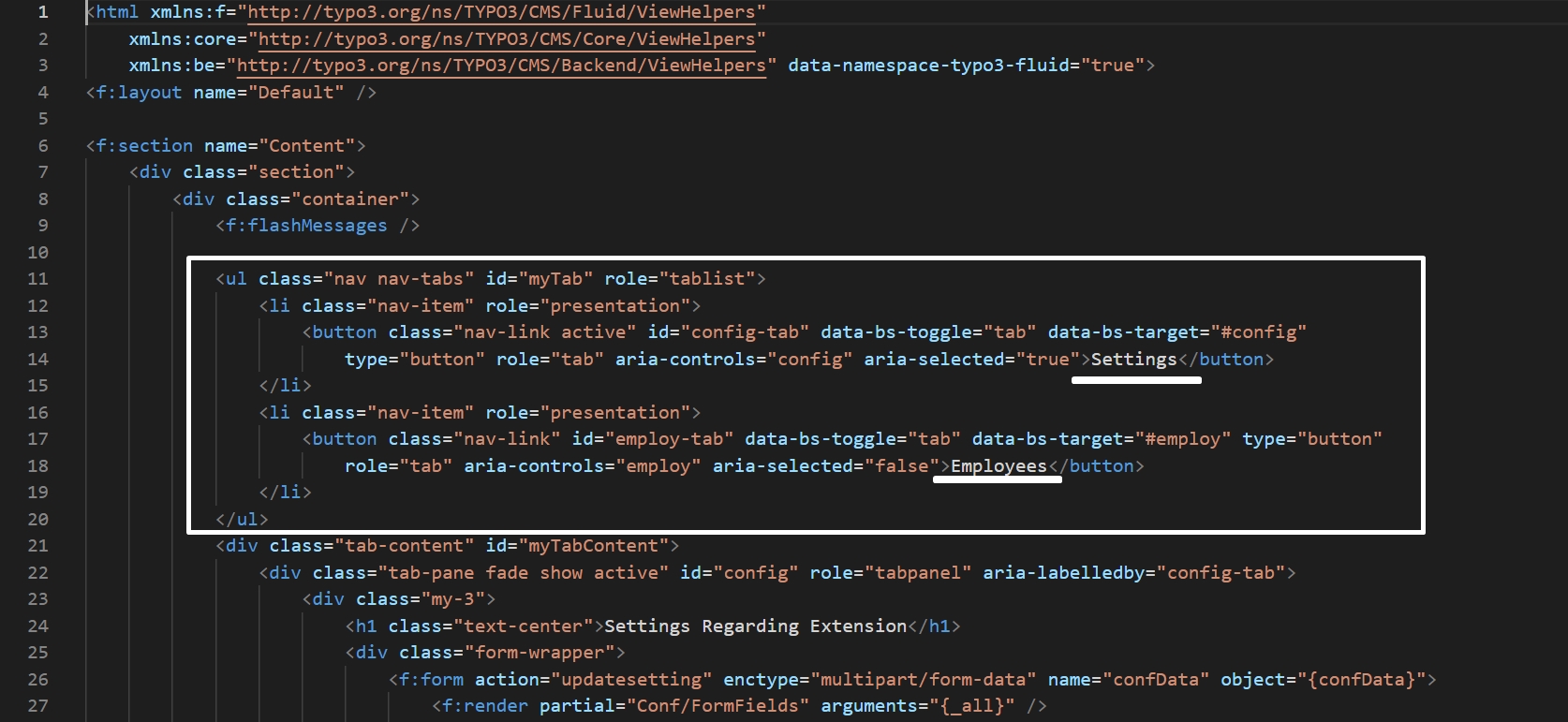
8.2. So they are always rendered static until we translate.
8.3. Now, to make translations in a fluid template, we can use in TYPO3 the viewhelper of the fluid. Here is the reference link – https://docs.typo3.org/m/typo3/reference-coreapi/main/en-us/ExtensionArchitecture/HowTo/Localization/Fluid.html
8.4. By using the viewhelper, we just have to call the language file with an identifier and we will get the translated text from the language file according to the current language.
8.5. Let’s use the translate viewhelper into the fluid template file to render the text based on the selected language.
And please note here that we will not use this only for the settings, but will use this in the employeeResourcesPrivateBackendTemplatesEmployBelist.html file to translate each static text in the file.
8.6. Below is the code of the employeeResourcesPrivateBackendTemplatesEmployBelist.html after translating the static text by using the viewhelper.
<html xmlns:f="http://typo3.org/ns/TYPO3/CMS/Fluid/ViewHelpers"
    xmlns:core="http://typo3.org/ns/TYPO3/CMS/Core/ViewHelpers"
    xmlns:be="http://typo3.org/ns/TYPO3/CMS/Backend/ViewHelpers" data-namespace-typo3-fluid="true">
<f:layout name="Default" />

<f:section name="Content">
    <div>
        <div>
            <f:flashMessages />

            <ul id="myTab" role="tablist">
                <li role="presentation">
                    <button id="config-tab" data-bs-toggle="tab" data-bs-target="#config"
                        type="button" role="tab" aria-controls="config" aria-selected="true">
                        <f:translate key="LLL:EXT:employee/Resources/Private/Language/locallang_employee.xlf:settings" />
                    </button>
                </li>
                <li role="presentation">
                    <button id="employ-tab" data-bs-toggle="tab" data-bs-target="#employ" type="button"
                        role="tab" aria-controls="employ" aria-selected="false">
                        <f:translate key="LLL:EXT:employee/Resources/Private/Language/locallang_employee.xlf:employee" />
                    </button>
                </li>
            </ul>
            <div id="myTabContent">
                <div id="config" role="tabpanel" aria-labelledby="config-tab">
                    <div>
                        <h1><f:translate key="LLL:EXT:employee/Resources/Private/Language/locallang_employee.xlf:settings.header" /></h1>
                        <div>
                            <f:form action="updatesetting" enctype="multipart/form-data" name="confData" object="{confData}">
                                <f:render partial="Conf/FormFields" arguments="{_all}" />
                                <div>
                                    <f:form.submit value="{f:translate(key: 'LLL:EXT:employee/Resources/Private/Language/locallang_employee.xlf:settings.savebutton')}" />
                                </div>
                            </f:form>
                        </div>
                    </div>
                </div>
                <div id="employ" role="tabpanel" aria-labelledby="employ-tab">
                    <div>
                        <div>
                            <f:link.action action="new">Add New Employee</f:link.action>
                        </div>
                        <table>
                            <thead>
                                <tr>
                                    <th>Image</th>
                                    <th>FirstName</th>
                                    <th>LastName</th>
                                    <th>Gender</th>
                                    <th>Action</th>
                                </tr>
                            </thead>
                            <tbody>
                                <f:for each="{employs}" as="emp">
                                    <tr>
                                        <td>
                                            <f:if condition="{emp.image}">
                                                <f:for each="{emp.image}" as="img">
                                                    <f:image image="{img}" alt="{emp.firstName}" width="100c"
                                                        height="100c" />
                                                </f:for>
                                            </f:if>
                                        </td>
                                        <td>{emp.firstName}</td>
                                        <td>{emp.lastName}</td>
                                        <td>{emp.gender == 1 ? "Male" :"Female"}</td>
                                        <td>
                                            <f:link.action action="edit"
                                                arguments="{uid:emp.uid}">
                                                Edit
                                            </f:link.action>
                                            <f:link.action action="delete"
                                                arguments="{uid:emp.uid}">Delete
                                            </f:link.action>
                                        </td>
                                    </tr>
                                </f:for>
                            </tbody>
                        </table>
                    </div>
                </div>
            </div>
        </div>
    </div>
</f:section>

</html>
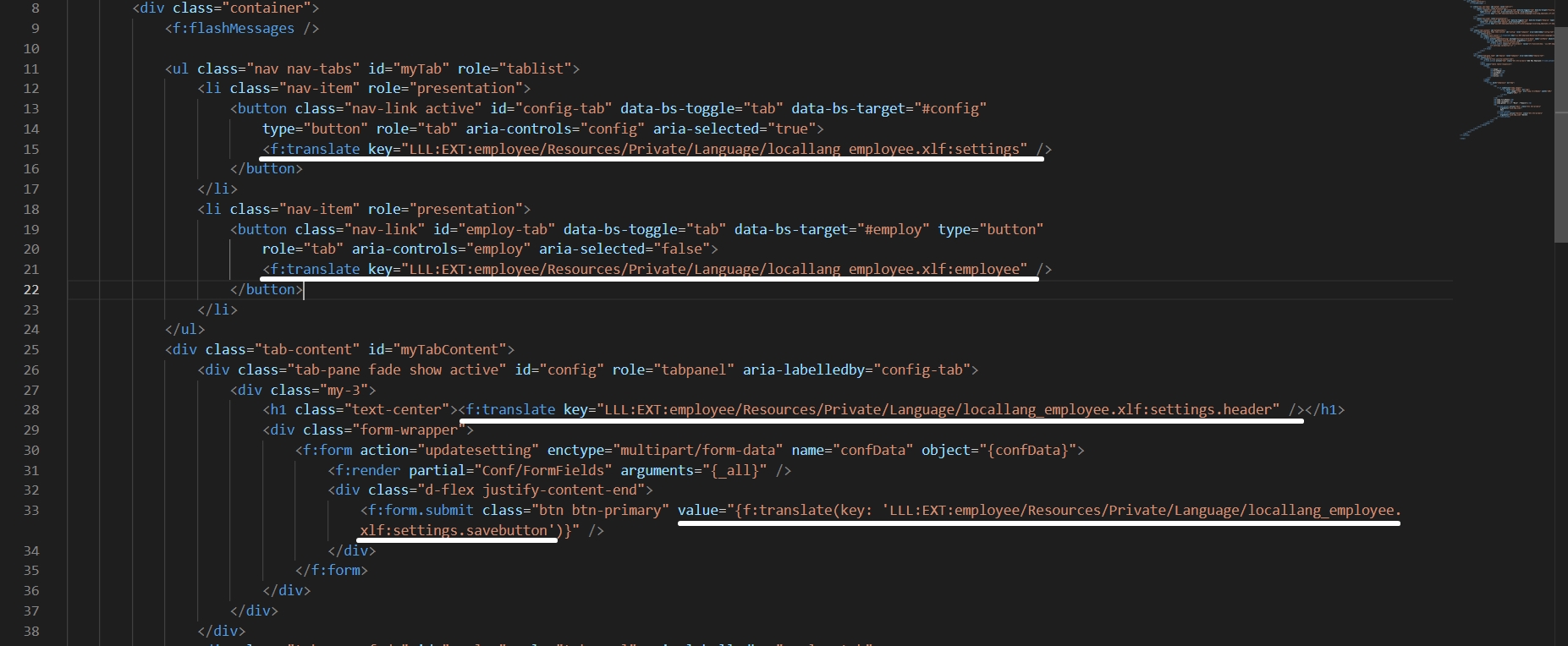
Below is the screenshot to highlight the code of translation into the employeeResourcesPrivateBackendTemplatesEmployBelist.html
8.7. Add the given code below in employeeResourcesPrivateLanguagelocallang_employee.xlf file
<trans-unit id="settings" resname="settings">
    <source>Settings</source>
</trans-unit>
<trans-unit id="employee" resname="employee">
    <source>Employee</source>
</trans-unit>
<trans-unit id="settings.header" resname="settings.header">
    <source>Settings Regarding Extension</source>
</trans-unit>
<trans-unit id="settings.savebutton" resname="settings.savebutton">
    <source>Update Settings</source>
</trans-unit>
8.8. Add the given code below in employeeResourcesPrivateLanguagefr.locallang_employee.xlf
<trans-unit id="settings" resname="settings"  approved="yes">
    <source>Settings</source>
    <target>Paramètres</target>
</trans-unit>
<trans-unit id="employee" resname="employee"  approved="yes">
    <source>Employee</source>
    <target>Employée</target>
</trans-unit>
<trans-unit id="settings.header" resname="settings.header"  approved="yes">
    <source>Settings Regarding Extension</source>
    <target>Paramètres concernant l'extension</target>
</trans-unit>
<trans-unit id="settings.savebutton" resname="settings.savebutton"  approved="yes">
    <source>Update Settings</source>
    <target>Mettre à jour les paramètres</target>
</trans-unit>
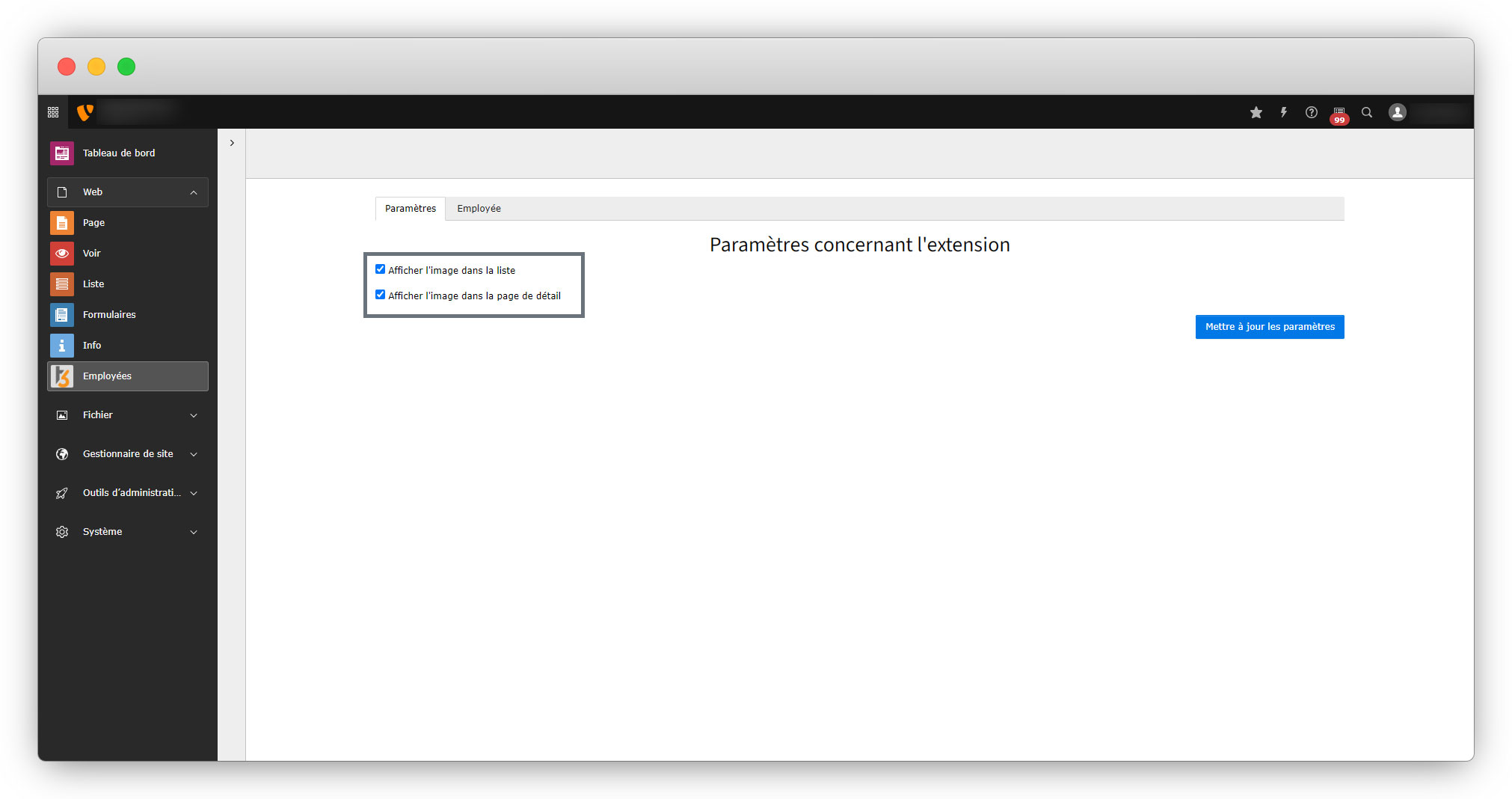
8.9. You can see the updates in the below screenshot, note here that everything else has been updated but the settings checkbox titles are still not updated.
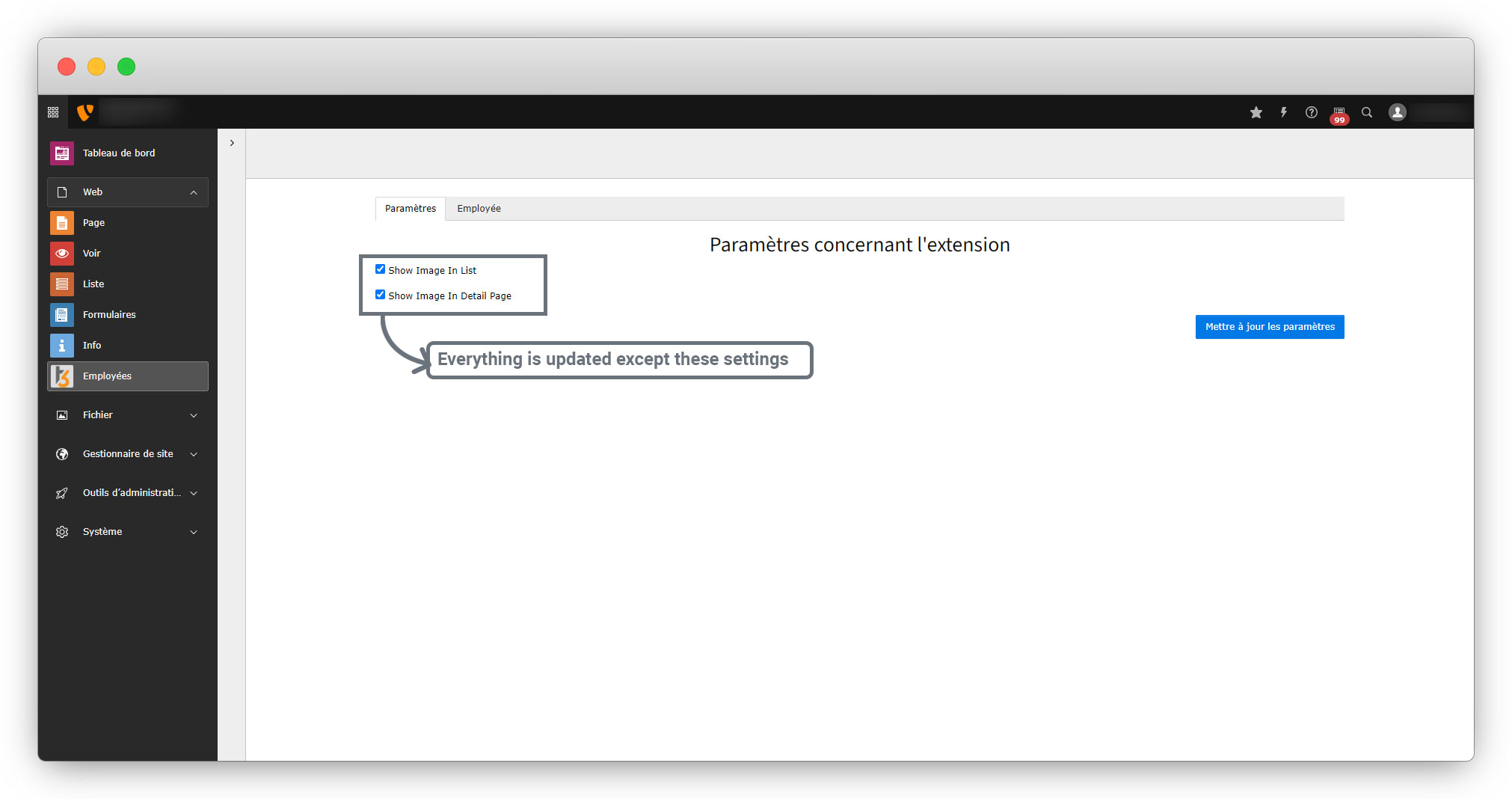
8.9.1. To update these settings we have to update the file employeeResourcesPrivateBackendPartialsConfFormFields.html as those fields are residing in this file.
8.9.2. Below is the screenshot of the file with highlighted the areas we need to update.
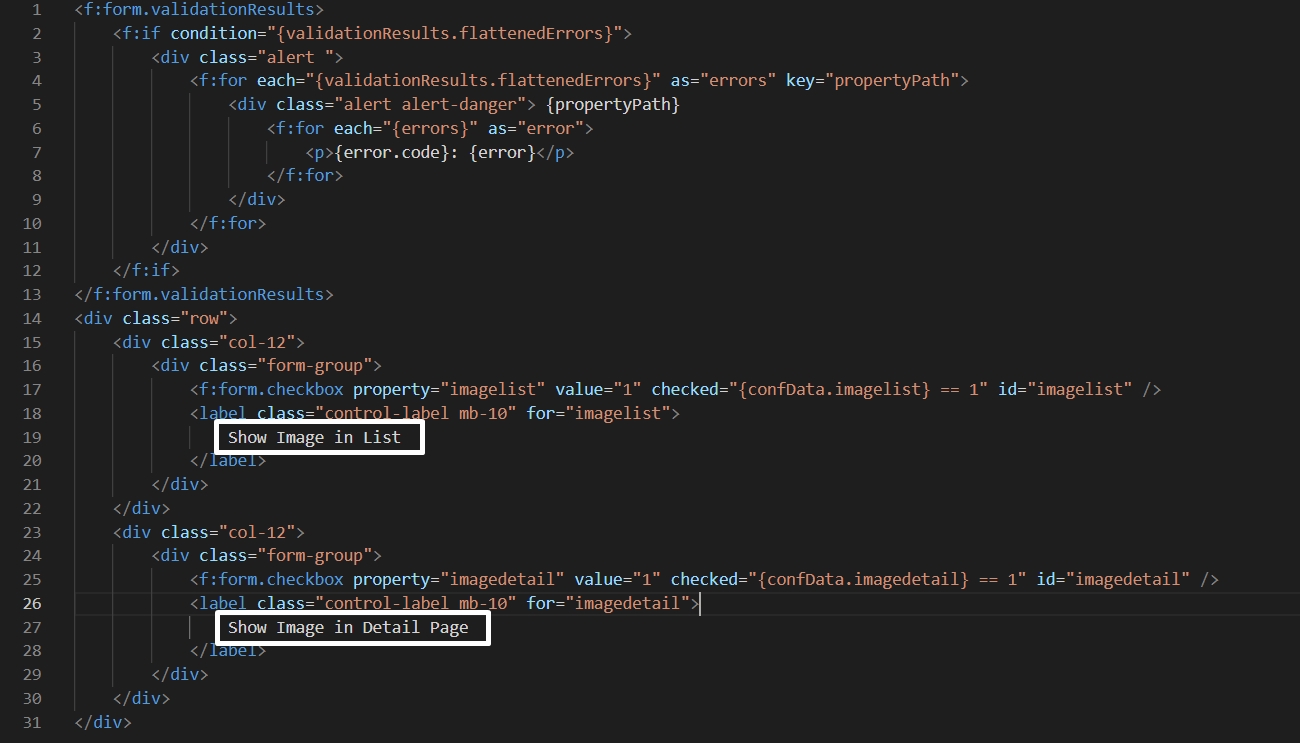
8.9.3. Replace the code in employeeResourcesPrivateBackendPartialsConfFormFields.html file with the code given below
<f:form.validationResults>
    <f:if condition="{validationResults.flattenedErrors}">
        <div>
            <f:for each="{validationResults.flattenedErrors}" as="errors" key="propertyPath">
                <div> {propertyPath}
                    <f:for each="{errors}" as="error">
                        <p>{error.code}: {error}</p>
                    </f:for>
                </div>
            </f:for>
        </div>
    </f:if>
</f:form.validationResults>
<div>
    <div>
        <div>
            <f:form.checkbox property="imagelist" value="1" checked="{confData.imagelist} == 1" id="imagelist" />
            <label for="imagelist">
                <f:translate key="LLL:EXT:employee/Resources/Private/Language/locallang_employee.xlf:conf.imagelist" />
            </label>
        </div>
    </div>
    <div>
        <div>
            <f:form.checkbox property="imagedetail" value="1" checked="{confData.imagedetail} == 1" id="imagedetail" />
            <label for="imagedetail">
                <f:translate key="LLL:EXT:employee/Resources/Private/Language/locallang_employee.xlf:conf.imagedetail" />

            </label>
        </div>
    </div>
</div>
8.9.4. Add the below code to the file employeeResourcesPrivateLanguagelocallang_employee.xlf
<trans-unit id="conf.imagelist" resname="conf.imagelist">
    <source>Show Image in List</source>
</trans-unit>
<trans-unit id="conf.imagedetail" resname="conf.imagedetail">
    <source>Show Image in Detail Page</source>
</trans-unit>
8.9.5. Add the below code to the file employeeResourcesPrivateLanguagefr.locallang_employee.xlf
<trans-unit id="conf.imagelist" resname="conf.imagelist"  approved="yes">
    <source>Show Image in List</source>
    <target>Afficher l'image dans la liste</target>
</trans-unit>
<trans-unit id="conf.imagedetail" resname="conf.imagedetail"  approved="yes">
    <source>Show Image in Detail Page</source>
    <target>Afficher l'image dans la page de détail</target>
</trans-unit>
8.9.6. You can see in the screenshot below that the settings fields are rendering in French now.
Add multi-language in the front-end plugin and flexform
In the front-end plugin, there are some areas that need to be translated. Let’s check them one by one and translate all of them for the plugin JobList. Please note here that we are going to translate only for the JobList plugin.
1. Wizard:
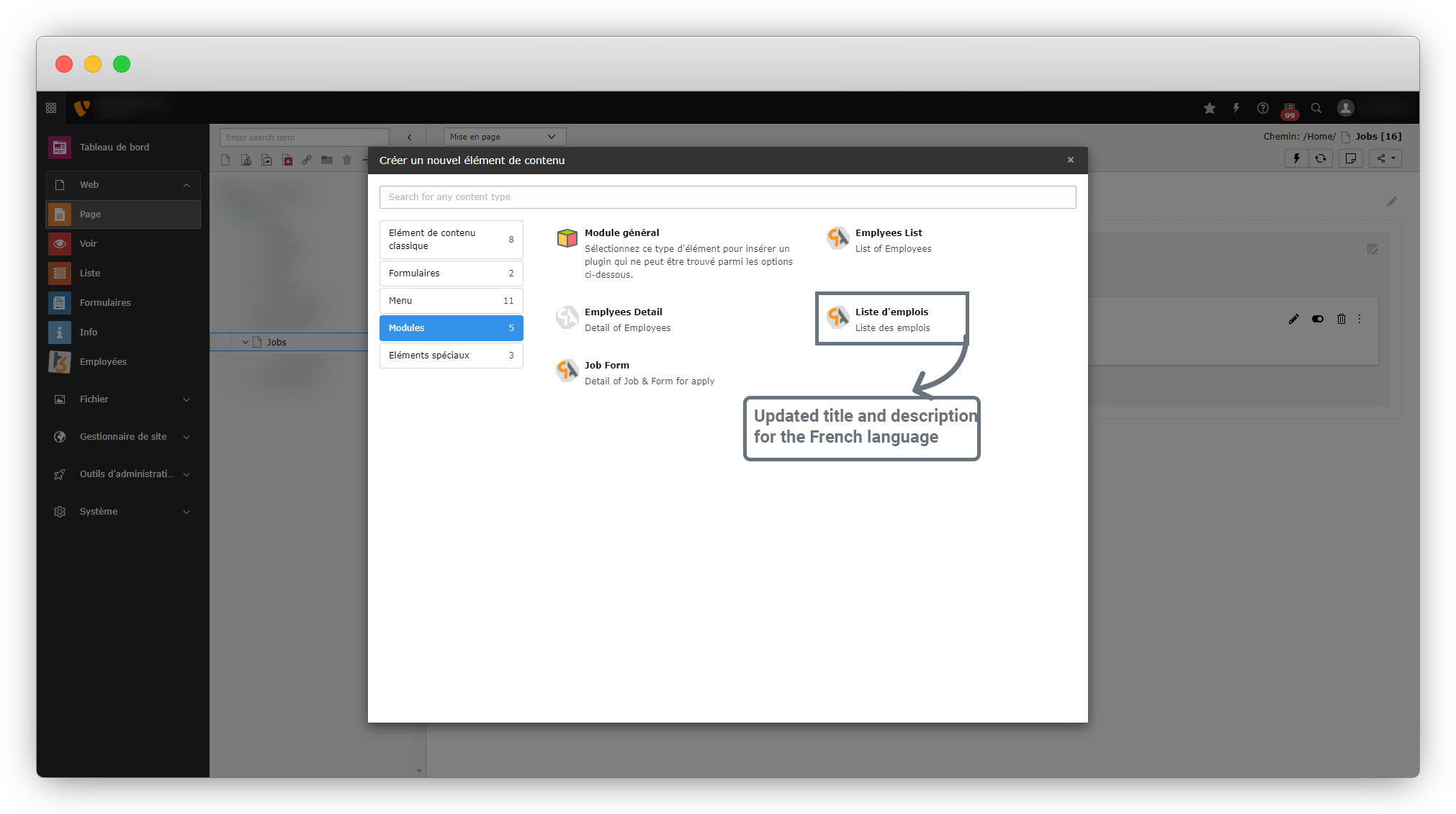
1.1. When you go on any page and click on the button “+content”, you will see a wizard, go to plugins (Modules in French) and you will see all the front-end plugins are rendering in English only as seen in the screenshot below.
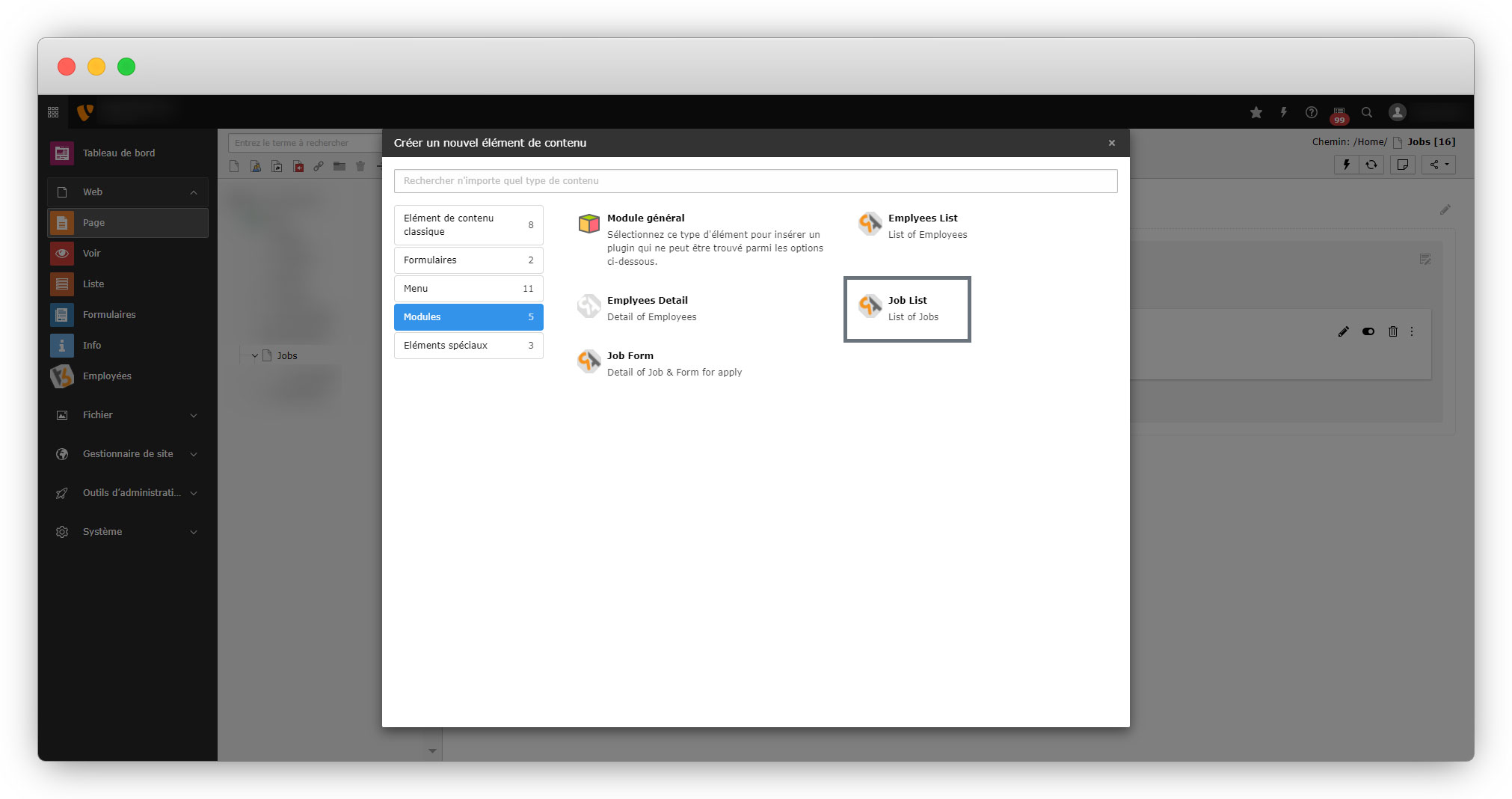
1.2. Let’s translate the plugin title and description in wizard. To make updates in wizard, update the tsconfig file.
1.3. The file path is employeeConfigurationpage.tsconfig.
1.4. Below is the screenshot of the employeeConfigurationpage.tsconfig file with the highlighted area which needs to be updated.
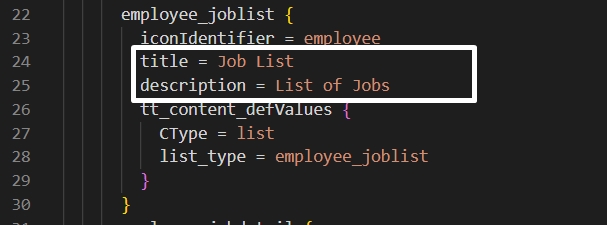
1.5. Update the code for employee_joblist in employeeConfigurationpage.tsconfig file with the given code below
employee_joblist {
  iconIdentifier = employee
  title = LLL:EXT:employee/Resources/Private/Language/locallang_employee.xlf:employee_joblist_title
  description = LLL:EXT:employee/Resources/Private/Language/locallang_employee.xlf:employee_joblist_description
  tt_content_defValues {
    CType = list
    list_type = employee_joblist
  }
}
1.6. Update the file locallang_employee.xlf by adding key and text for the title and description of employee_joblist. Add the given code below to the file employeeResourcesPrivateLanguagelocallang_employee.xlf
<trans-unit id="employee_joblist_title" resname="employee_joblist_title">
    <source>JobList</source>
</trans-unit>
<trans-unit id="employee_joblist_description" resname="employee_joblist_description">
    <source>List of Jobs</source>
</trans-unit>
1.7. Update the file fr.locallang_employee.xlf to add the text in French for the title and description of employee_joblist. Add the given code below to the file employeeResourcesPrivateLanguagefr.locallang_employee.xlf
<trans-unit id="employee_joblist_title" resname="employee_joblist_title" approved="yes">
    <source>JobList</source>
    <target>Liste d'emplois</target>
</trans-unit>
<trans-unit id="employee_joblist_description" resname="employee_joblist_description" approved="yes">
    <source>List of Jobs</source>
    <target>Liste des emplois</target>
</trans-unit>
1.8. After the above updates, you can see in the screenshot below that the plugin title and description for the “Job List” plugin are updated language-wise in the wizard.
2. Update the plugin title on the page in back-end after adding the plugin
2.1. Below is the screenshot where the title needs to be updated.
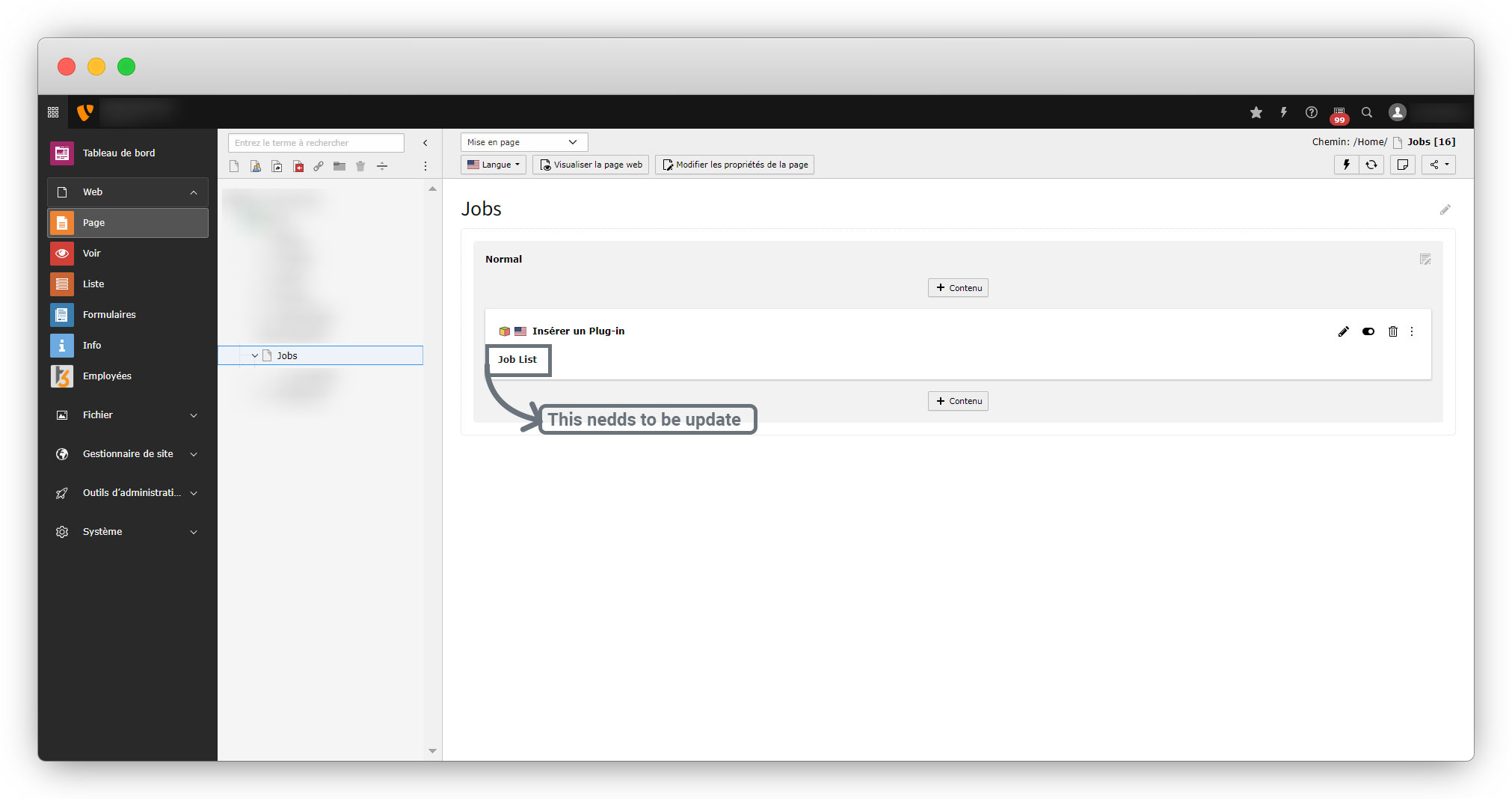
2.2. To update the title seen in the above screenshot, update the file tt_content.php where there is the fixed text for the title, below is the screenshot of tt_content.php file with the highlighted area that needs to be updated.

2.3. Update the highlighted title “Job List” with the line “LLL:EXT:employee/Resources/Private/Language/locallang_employee.xlf:employee_joblist_title“, the full code for the Job List plugin is below
TYPO3CMSExtbaseUtilityExtensionUtility::registerPlugin(
        'Employee',
        'Joblist',
        'LLL:EXT:employee/Resources/Private/Language/locallang_employee.xlf:employee_joblist_title',
        'EXT:employee/Resources/Public/Icons/Extension.png',
    );
2.4. Save the file, flush the cache and you will see that the title has been updated language-wise.
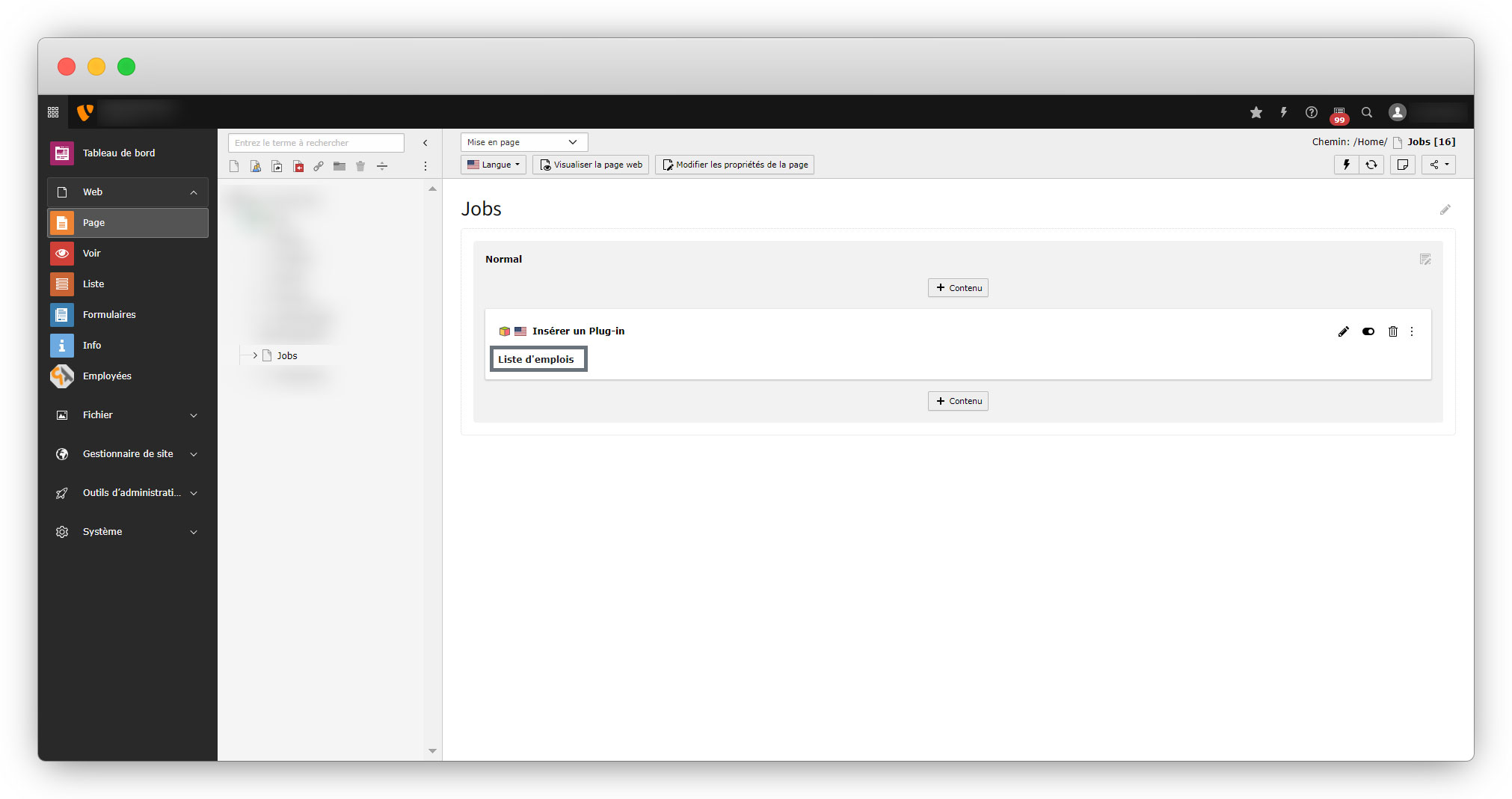
3. Update the title of the field to select the detail page at the time of editing the plugin.
3.1. After adding the plugin when you click on the edit icon to open it, go to the plugin tab to select the detail page for the job and you will see the title in English while the selected language is French as you can see in the screenshot below
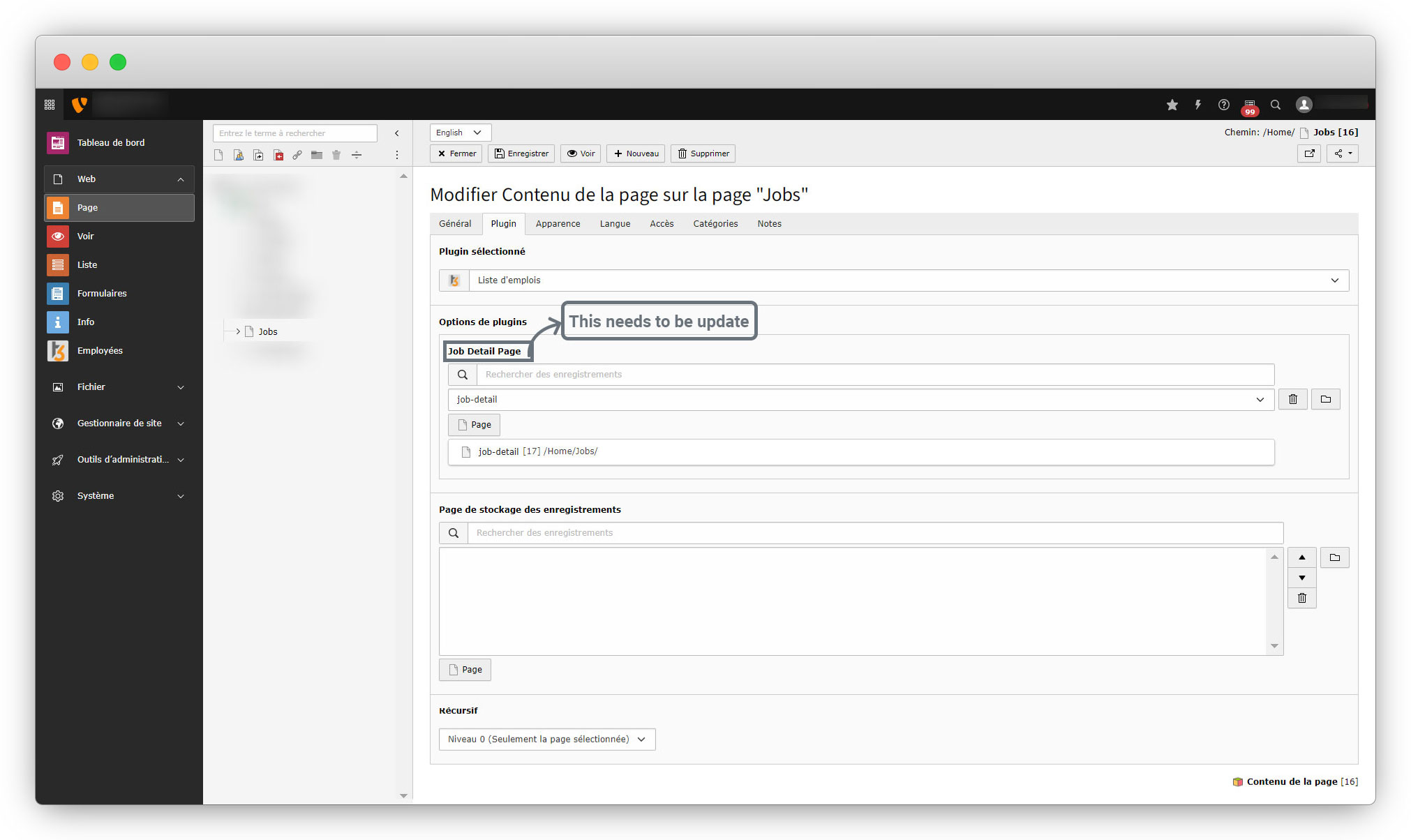
3.2. What you can see in the above screenshot is the part of a flexform. Let’s update the flexform for the job configs to translate the highlighted title.
3.3. Open the file employeeConfigurationFlexFormsJobConfigs.xml, below is the screenshot with the highlighted area that needs to be updated in order to translate the title from the above screenshot.
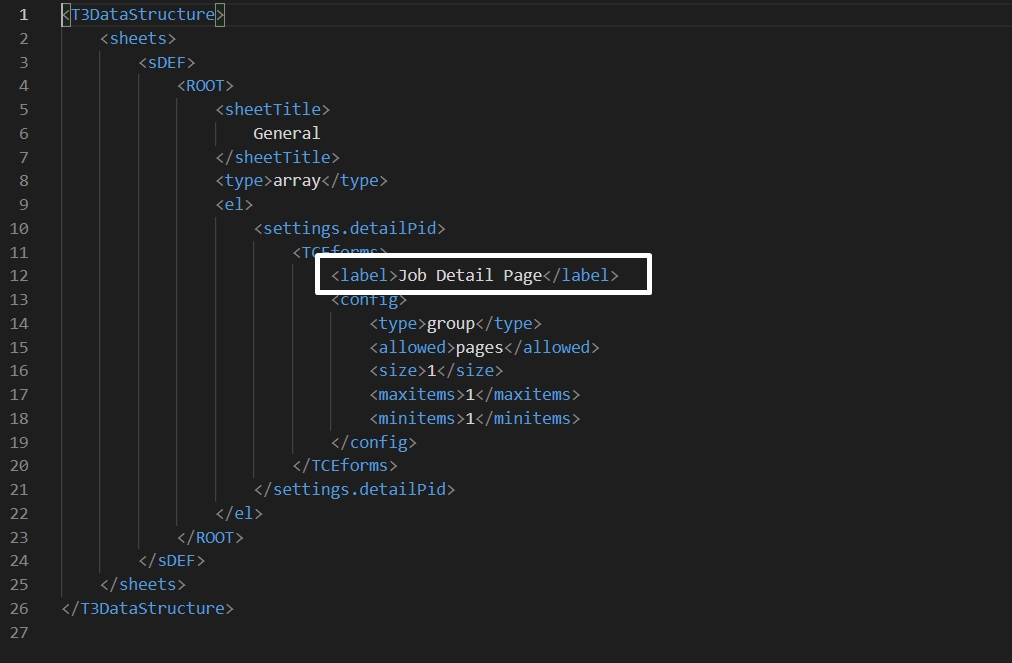
3.4. Replace the “Job Detail Page” with the line “LLL:EXT:employee/Resources/Private/Language/locallang_employee.xlf:detail_page_id” to translate the title. Below is the full code of the file employeeConfigurationFlexFormsJobConfigs.xml file after translation, you can replace the code.
<T3DataStructure>
    <sheets>
        <sDEF>
            <ROOT>
                <sheetTitle>
                    General
                </sheetTitle>
                <type>array</type>
                <el>
                    <settings.detailPid>
		      <TCEforms>
			<label>LLL:EXT:employee/Resources/Private/Language/locallang_employee.xlf:detail_page_id</label>
			<config>
				<type>group</type>
				<allowed>pages</allowed>
				<size>1</size>
				<maxitems>1</maxitems>
				<minitems>1</minitems>
			</config>
		      </TCEforms>
		    </settings.detailPid>
                </el>
            </ROOT>
        </sDEF>
    </sheets>
</T3DataStructure>
3.5. After updating the flexform, update the file employeeResourcesPrivateLanguagelocallang_employee.xlf to add the key and text for the above title. Add the code given below to the file employeeResourcesPrivateLanguagelocallang_employee.xlf
<trans-unit id="detail_page_id" resname="detail_page_id">
    <source>Job DEtail page</source>
</trans-unit>
3.6. Add the code given below to the file employeeResourcesPrivateLanguagefr.locallang_employee.xlf to add the language-wise text for the title or label “Job Detail Page”.
<trans-unit id="detail_page_id" resname="detail_page_id"  approved="yes">
    <source>Job Detail page</source>
    <target>Page de détails du travail</target>
</trans-unit>
3.7. Save the file and flush the cache and reload the back-end and you will see the updated title which is rendering now language-wise.
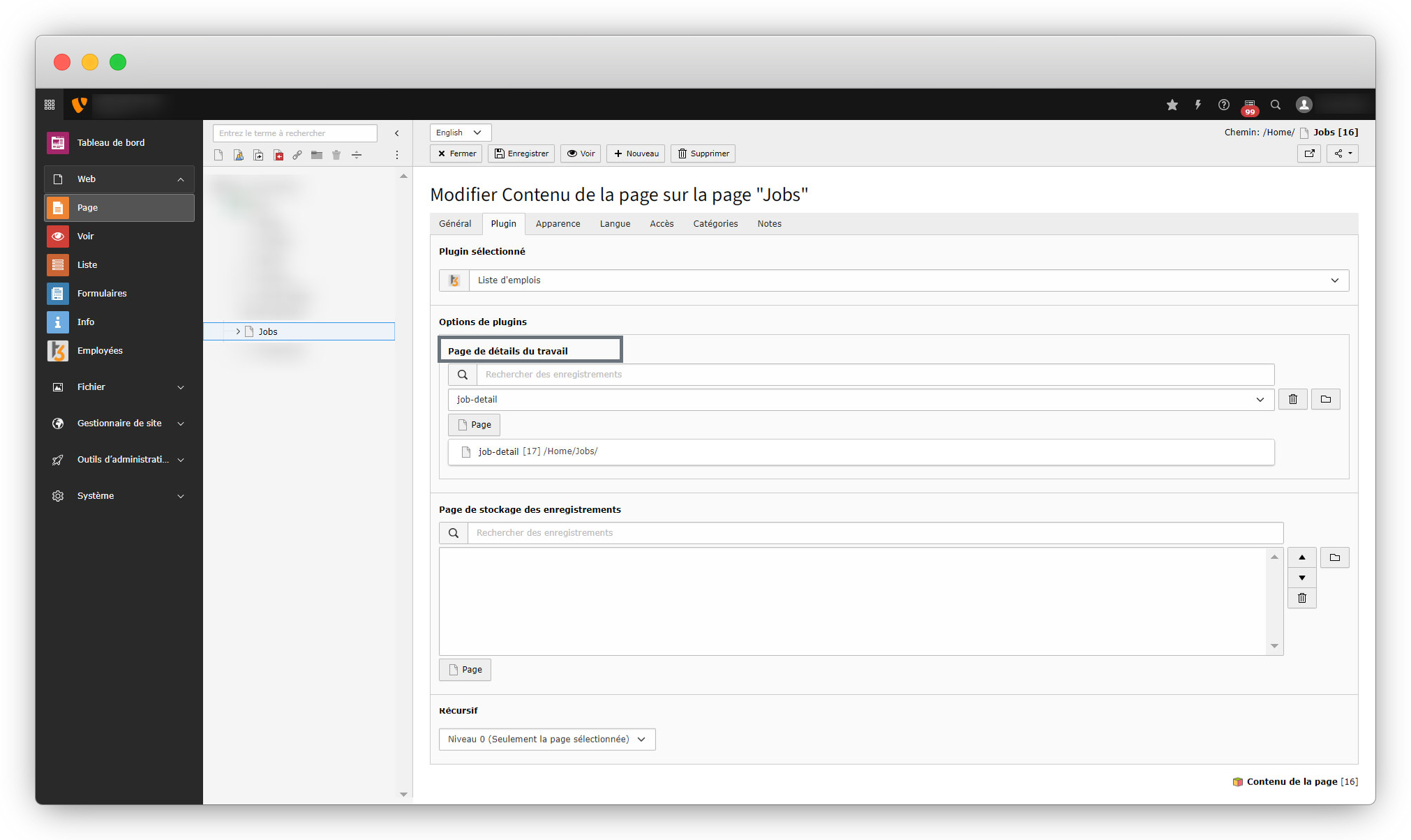
With the above updates, the translation for the front-end plugin and flexform for the Job List plugin is now complete, and with that, the section “Add multi-language in the back-end” is also completed, now let’s go for the “Add multi-language in the front-end“.
Share



