



URL copied to clipboard

6 views
__readtime__ Min
read
To use the TYPO3 Forms, you have to install the extension ‘forms’ and then you will be able to create a form in TYPO3. It can be a simple form like a contact form or feedback form, or you can also create the form with multi-step. You can not make a login/registration form with this. Here is the reference link for the TYPO3 forms – https://docs.typo3.org/c/typo3/cms-form/main/en-us/Index.html
Let’s start with the installation. You can install the form extension with composer and without composer. Here we are going with ‘installation of form extension without composer’.
Follow the given steps below to install the ‘form’ extension.
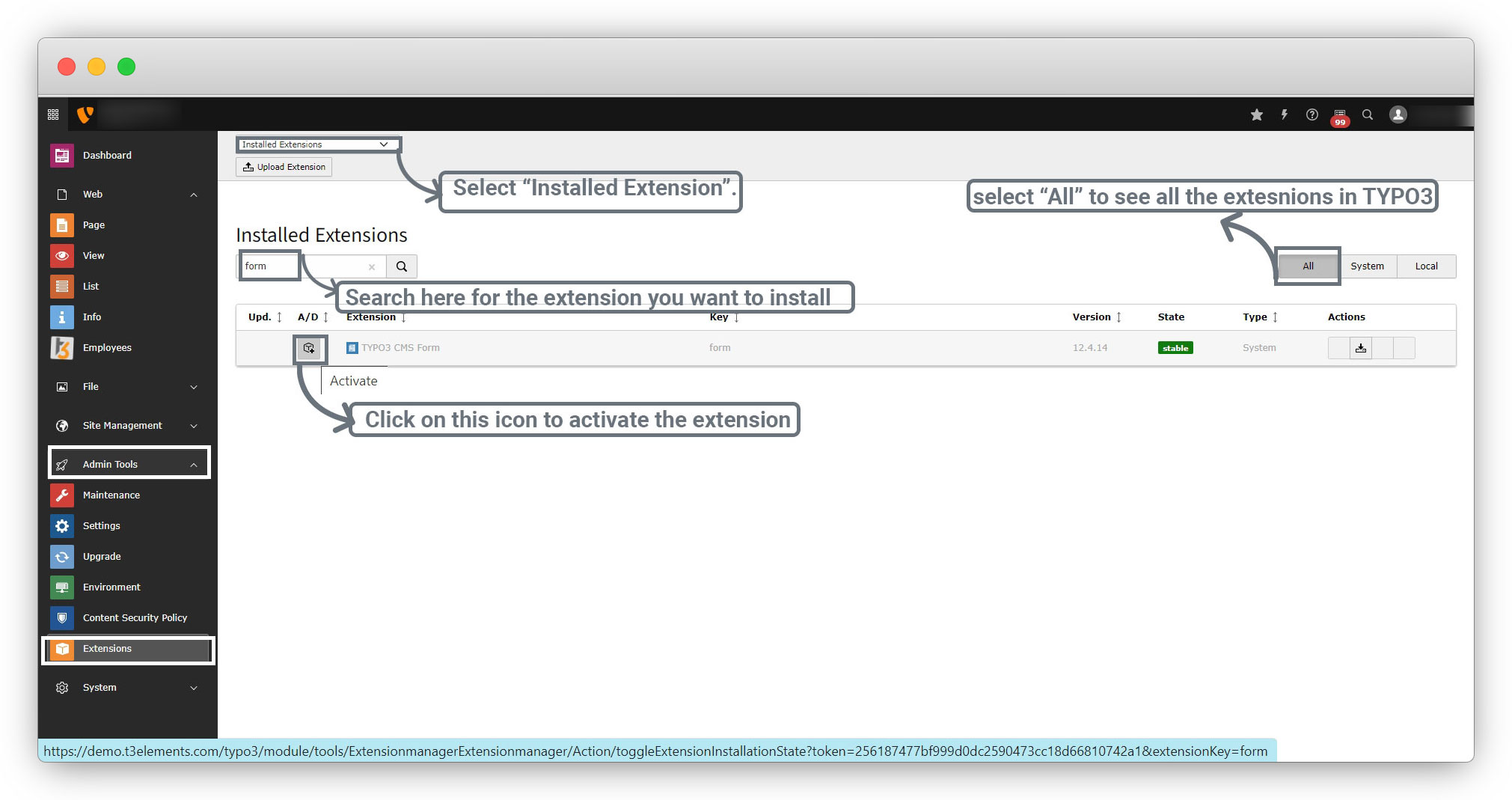
1. Go to Admin tools > Extension and select the “Installed Extension” in the dropdown at the top-left and search for the “form” and you will see the form extension on the screen, see the screenshot below for reference.
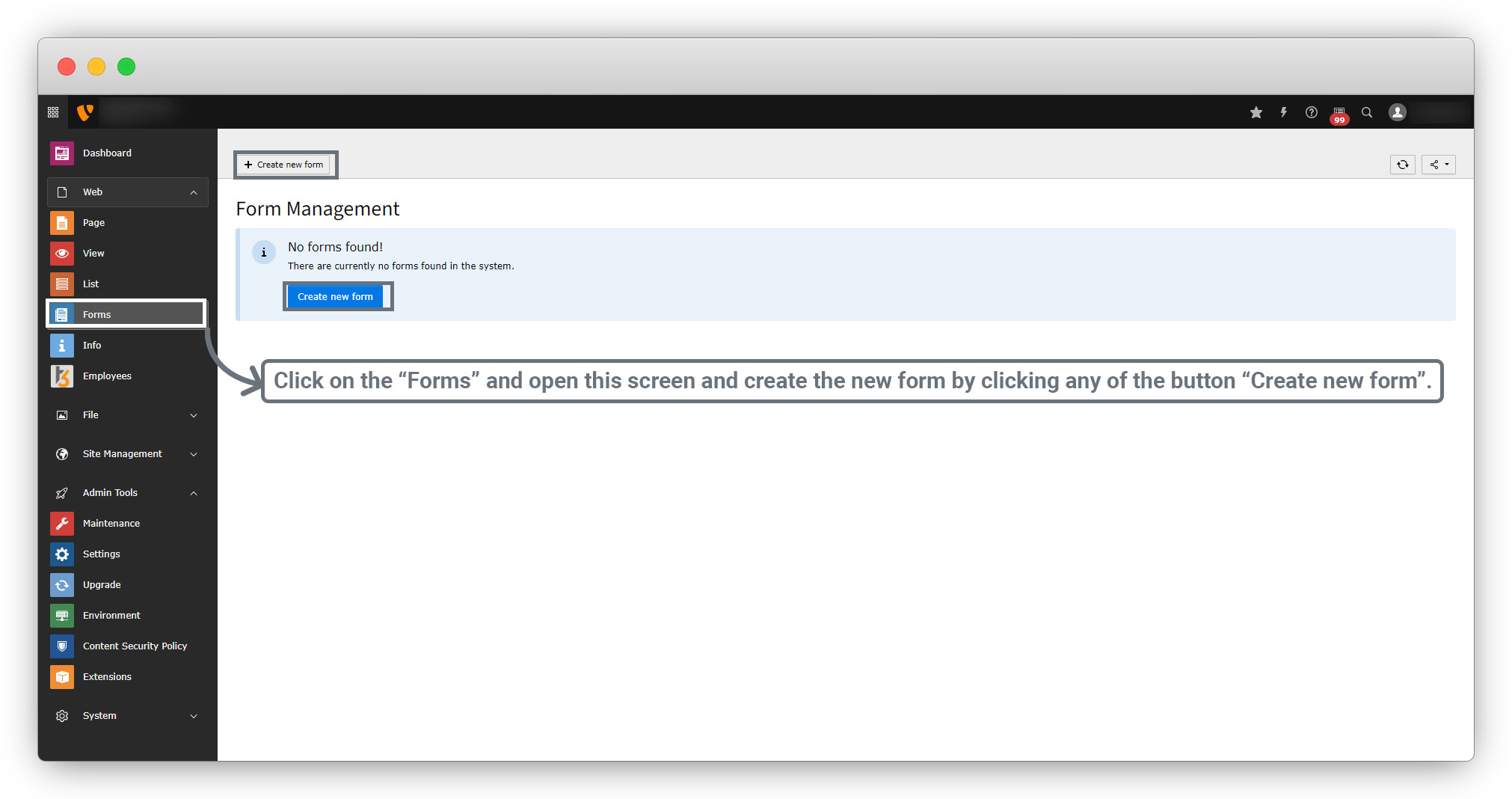
2. As you activate the extension, it will be added as a back-end module in the left sidebar under the “Web” menu as you can see in the screenshot below. Click on that back-end module “Forms” and then click on the “Create a new form” button.
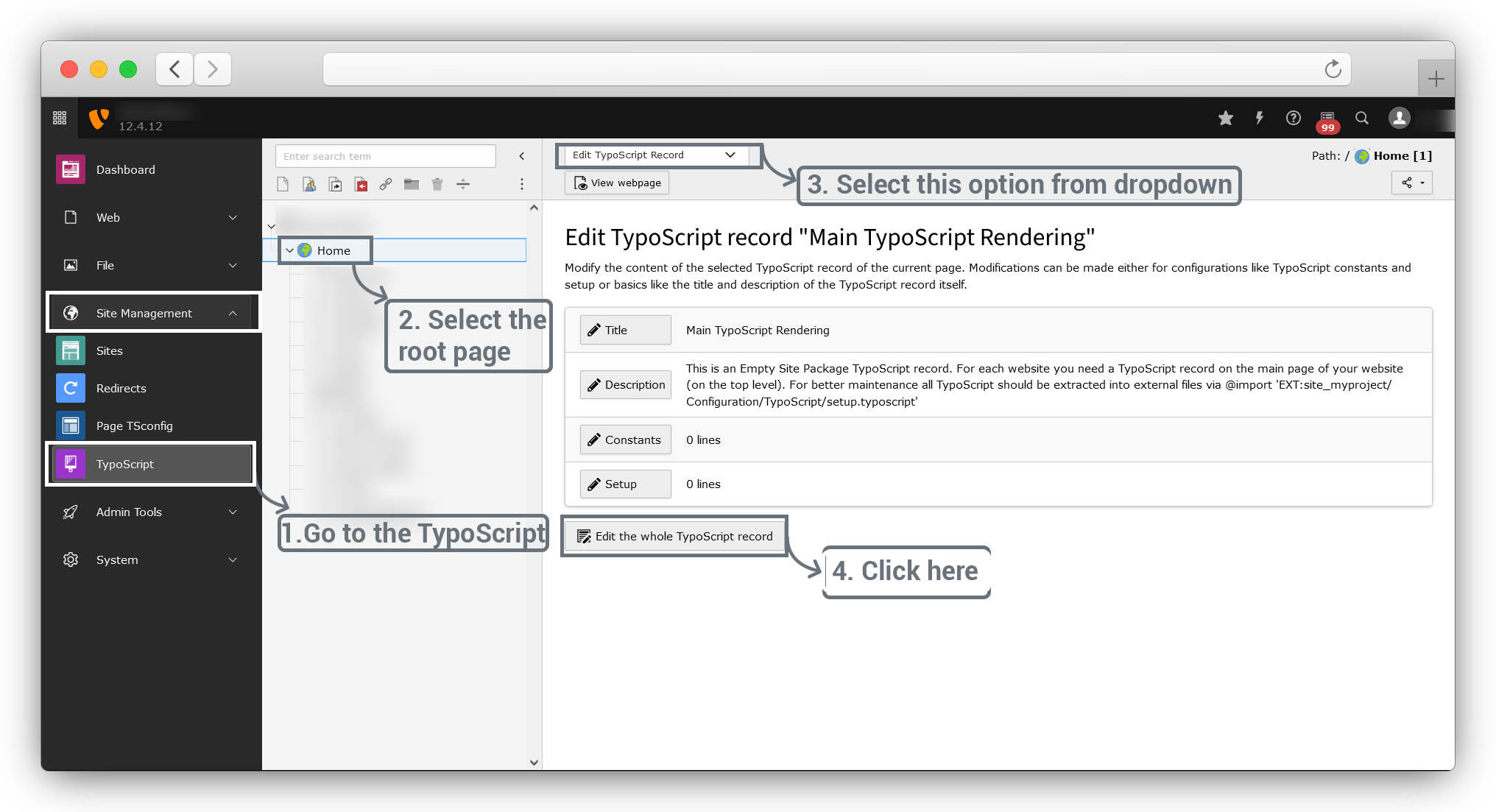
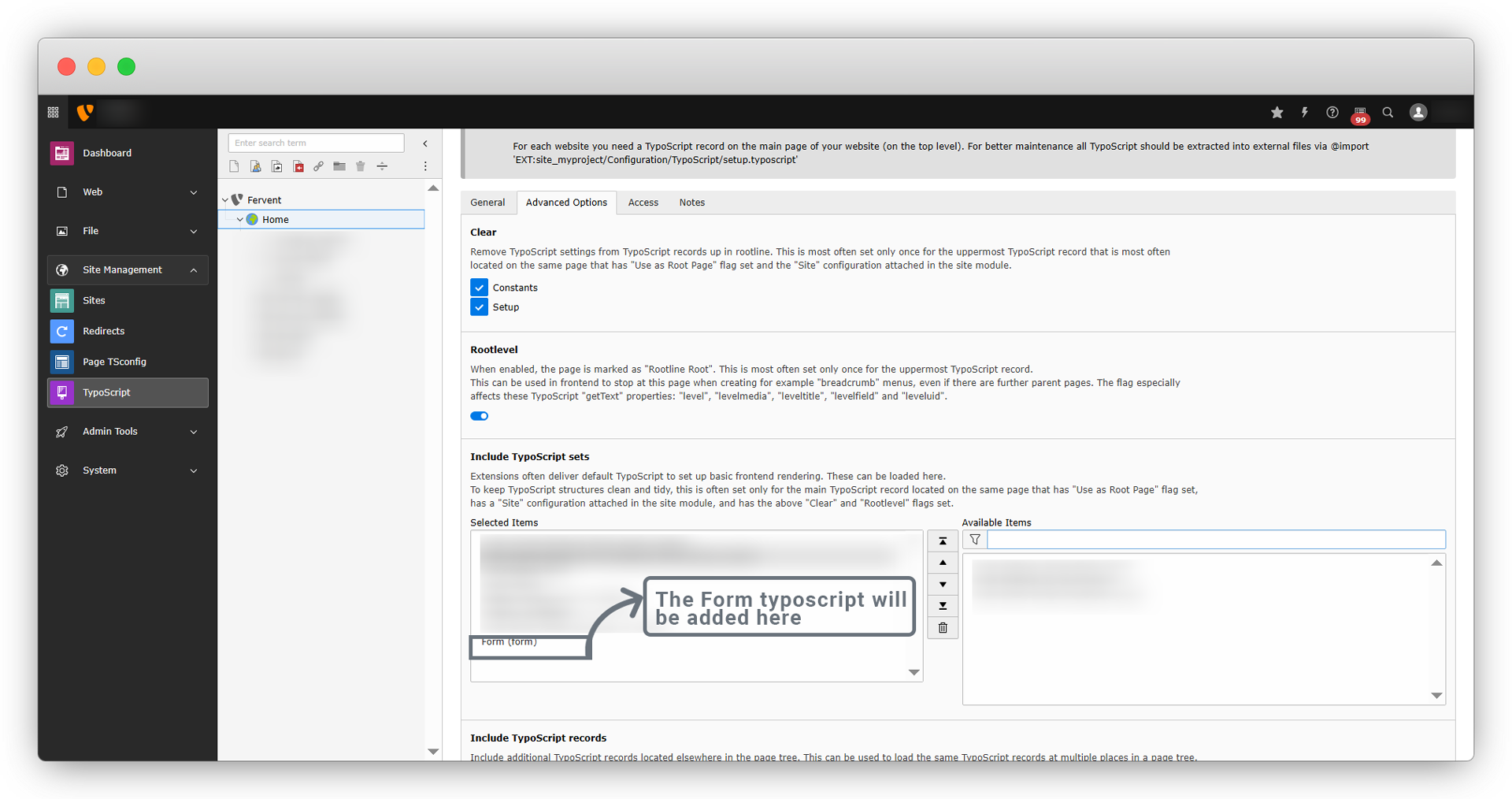
3. Now include the typoscript of form extension. Go to Site Management > TypoScript > select root page > Edit TypoScript Record and click on Edit the whole TypoScript record button.
Go to “Advanced Options” and select the Form extension from “Available Items”as seen in the screenshot below
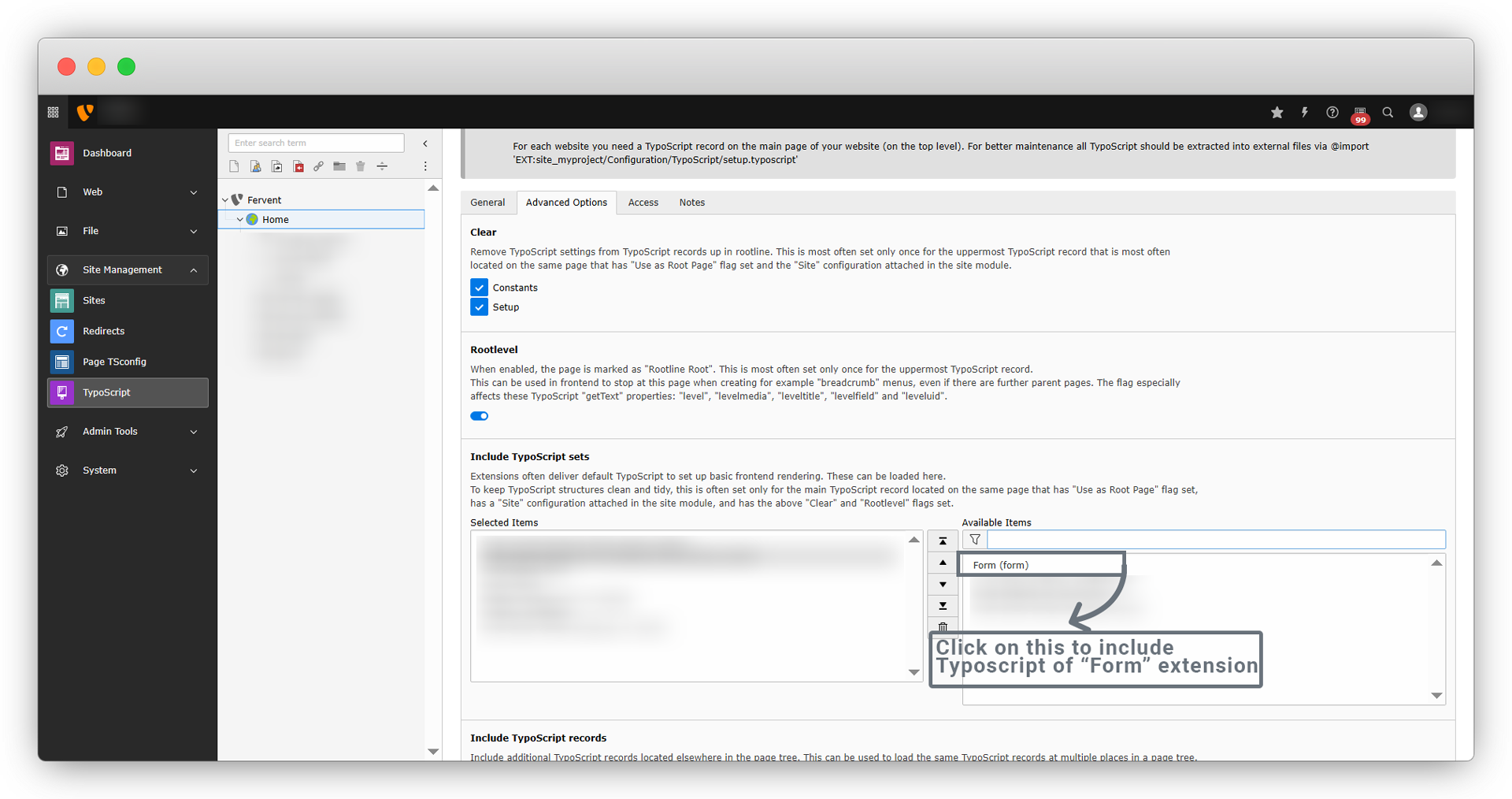
Click on the Form(form) to add the Typoscript of it, and it will be added as seen in the screenshot below
4. When you click on the “Create New Form” button, you will see the options to select the form type, the options are a ‘Blank form’ and ‘Predefined form’ as you can see in the screenshot below.
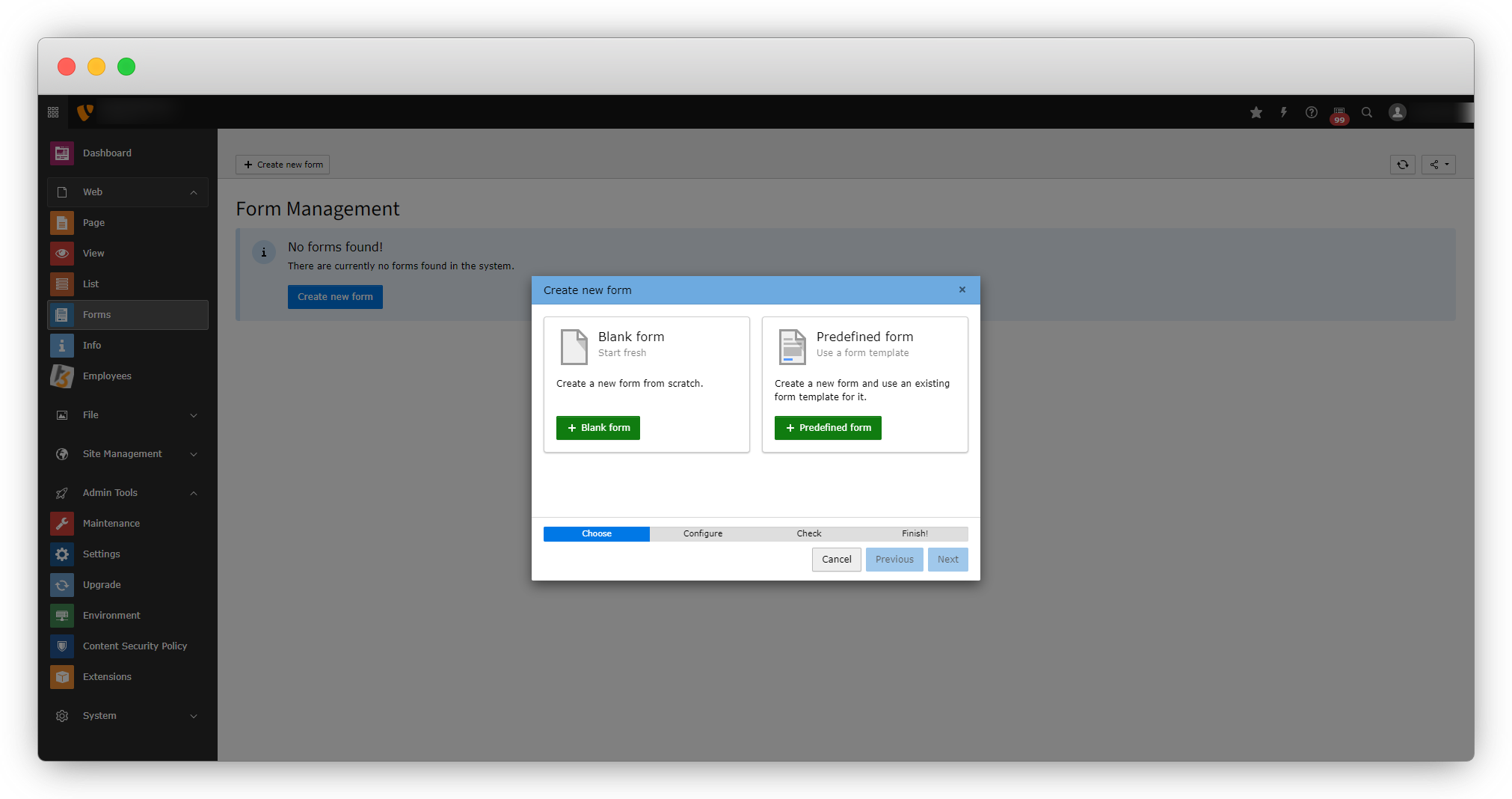
Let’s see the “Blank form” and “Predefined form” one by one.
Share



