



URL copied to clipboard

5 views
__readtime__ Min
read
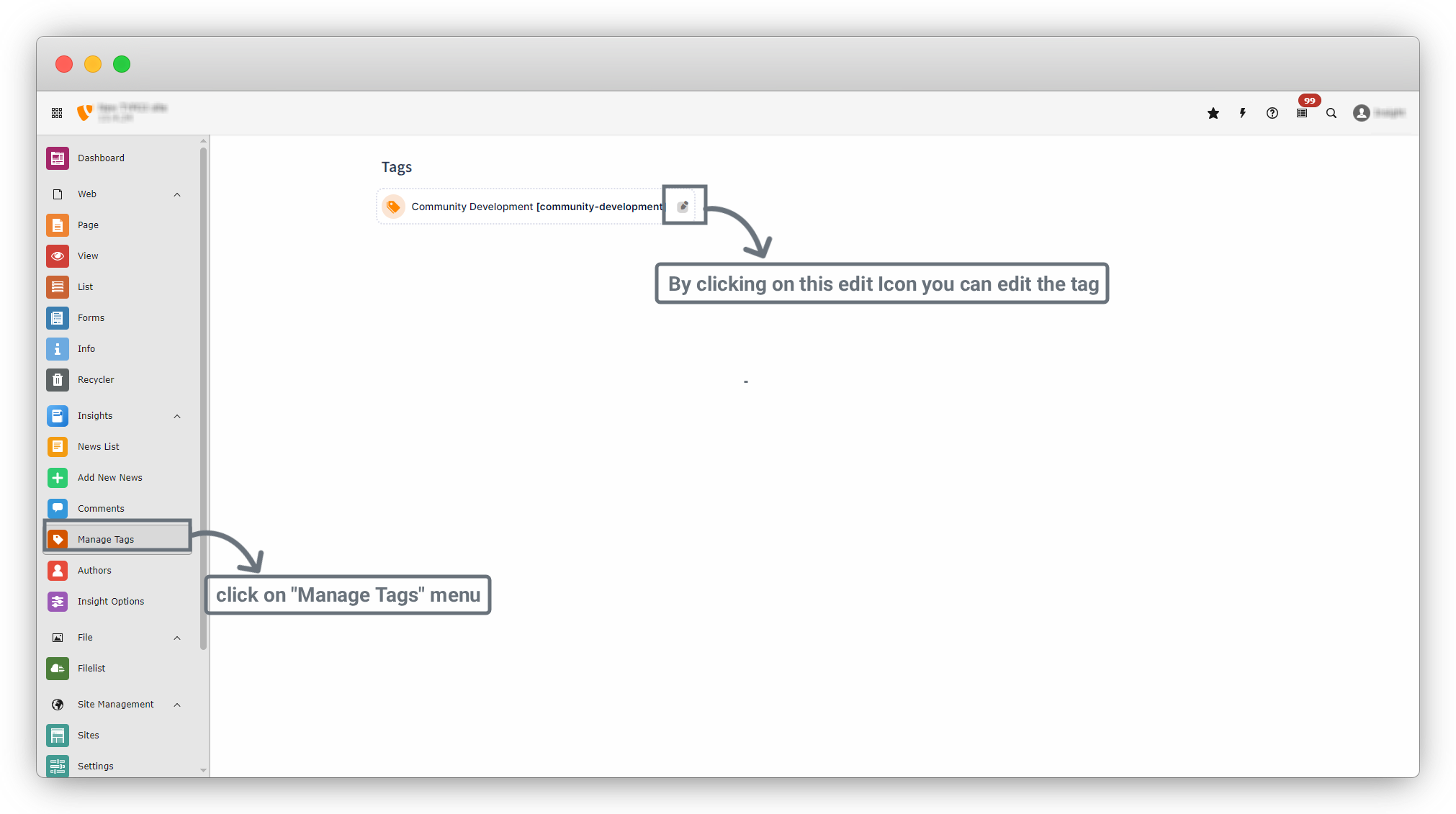
Navigate to: Insights > Manage Tags
You will see a screen similar to the screenshot below, where all Tags are listed.
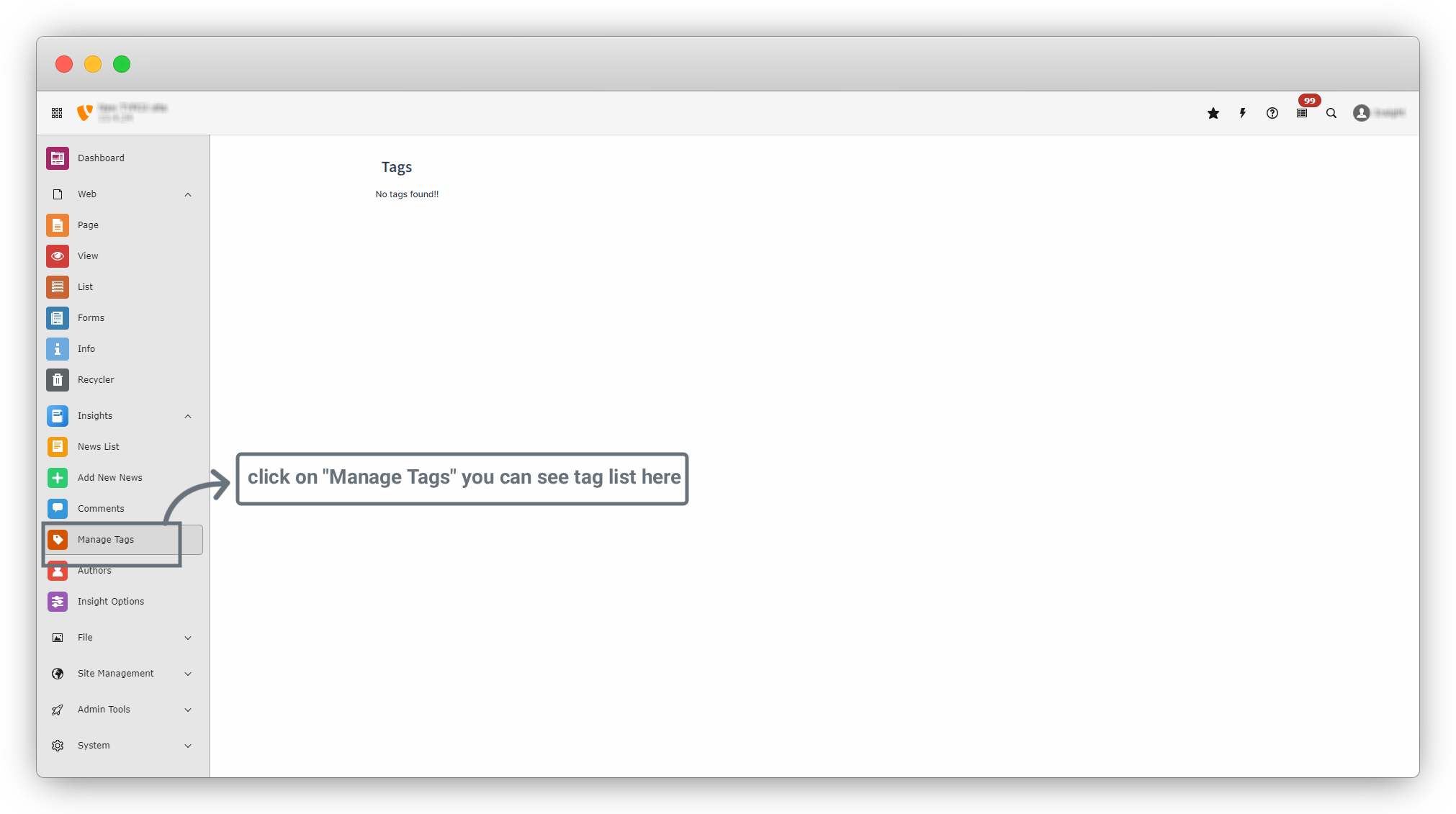
- From here you can:
- Edit existing tags
- Delete unused tags
- Tags help organize news and improve frontend filtering.
Add New Tag
1. From the left sidebar, click on the “List” menu. In the List menu, navigate to Home > News Details. This folder is used to store news-related data.
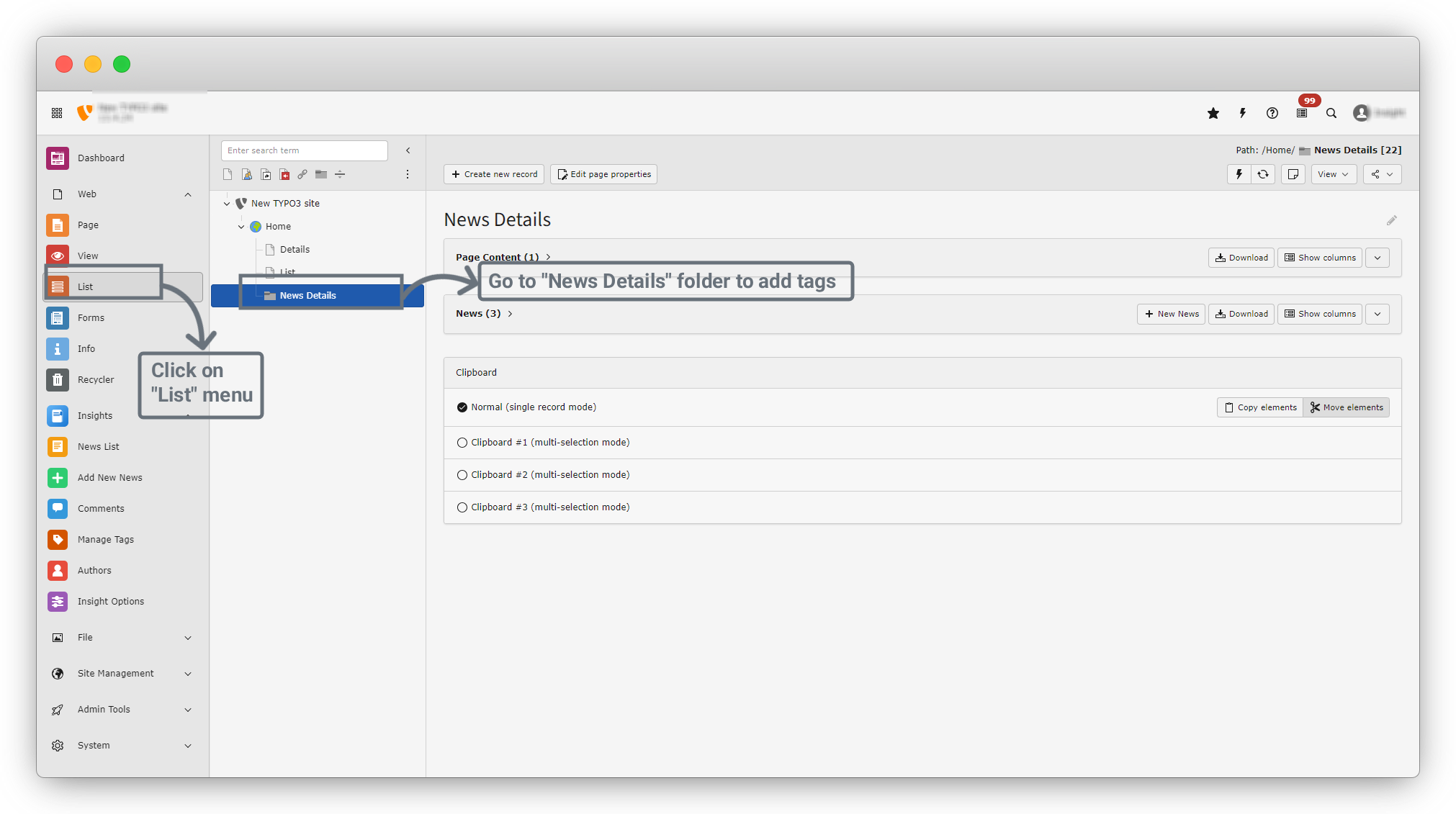
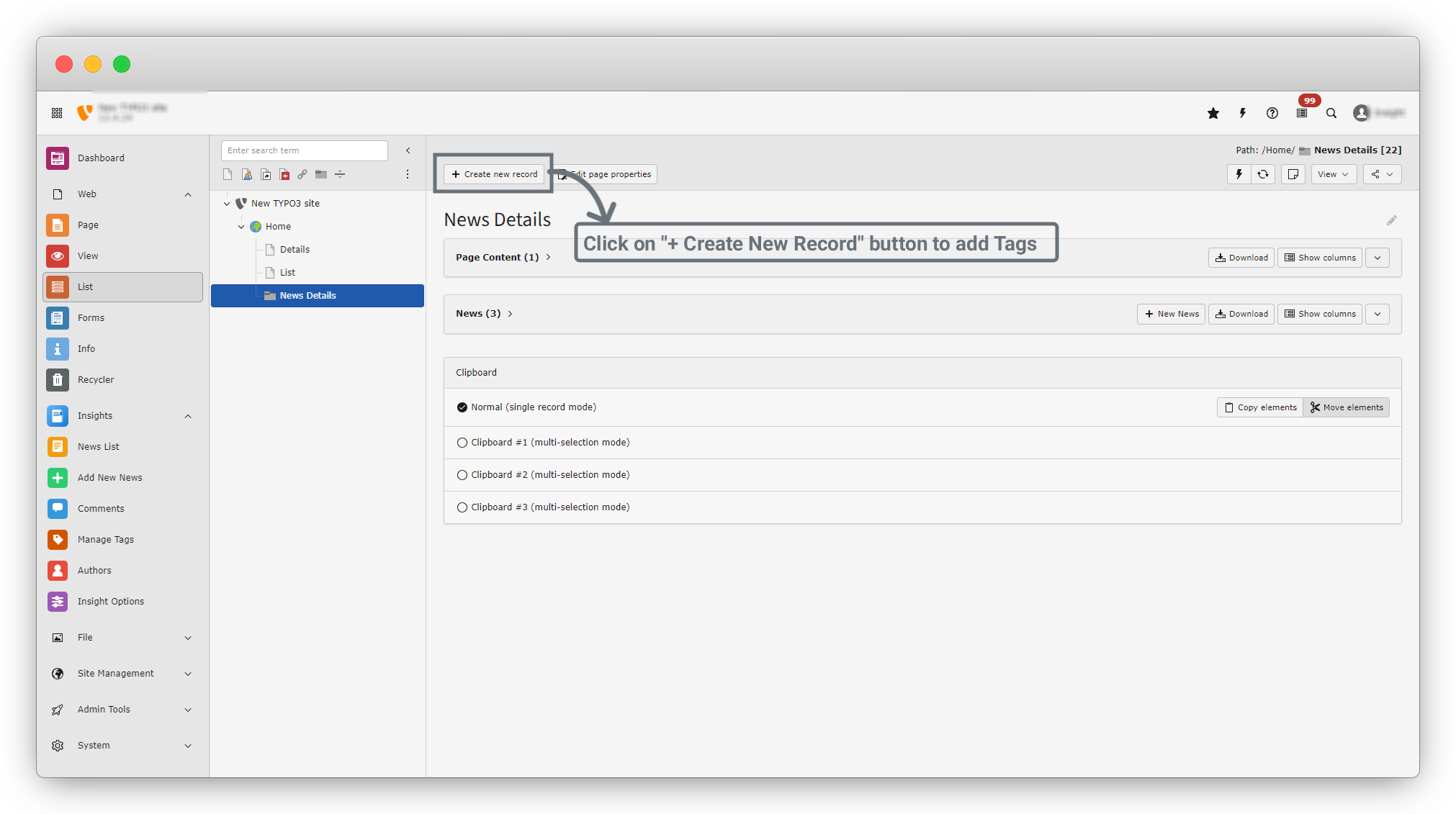
2. In the News Details folder, you will see a screen like the screenshot below. Click on the “+ Create New Record” button to create a new tag.
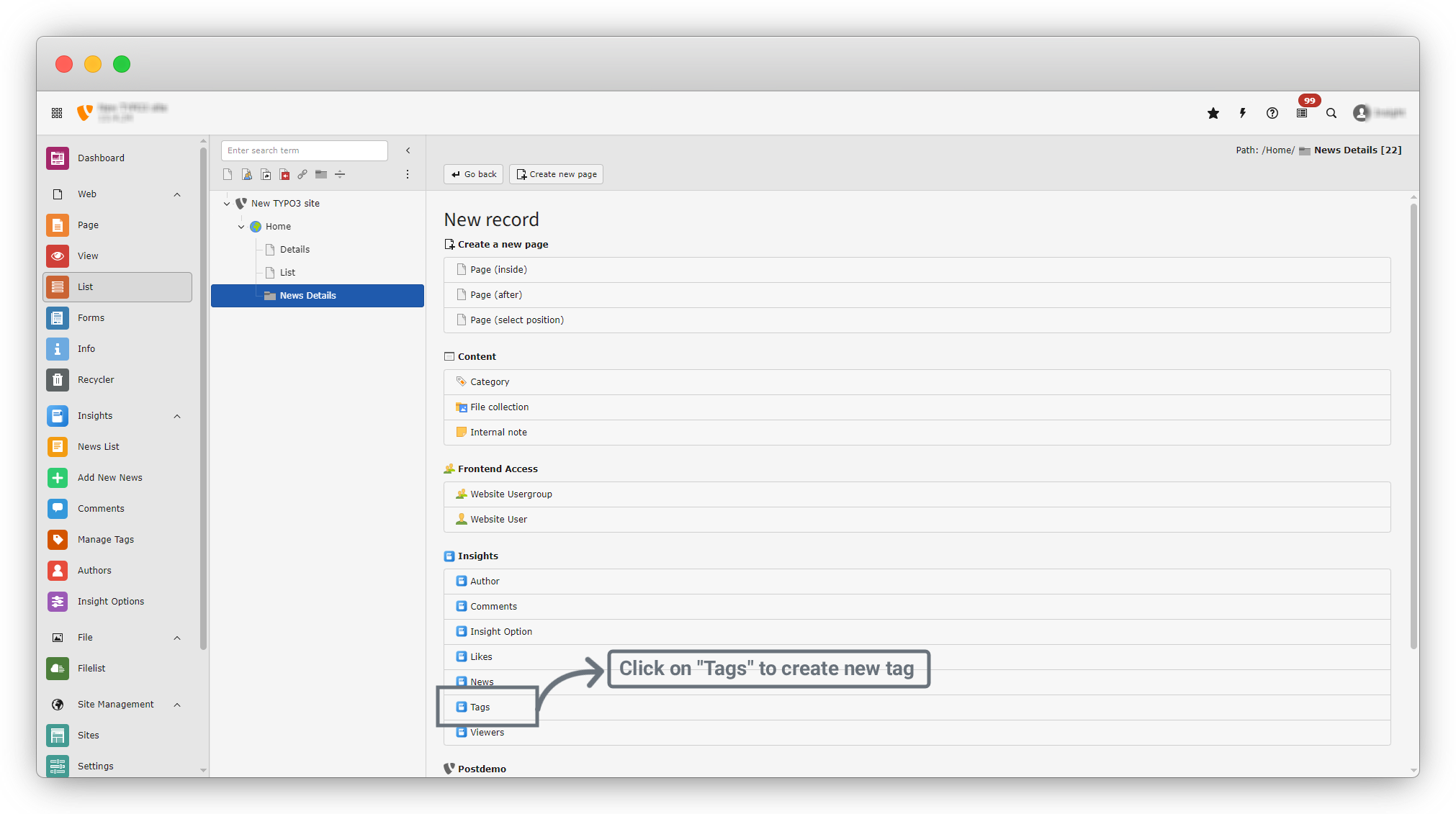
3. A new screen will open. Now Click on Insights > Tags to add a tag.
4. This will open a blank Add Tag form, as shown in the screenshot below.
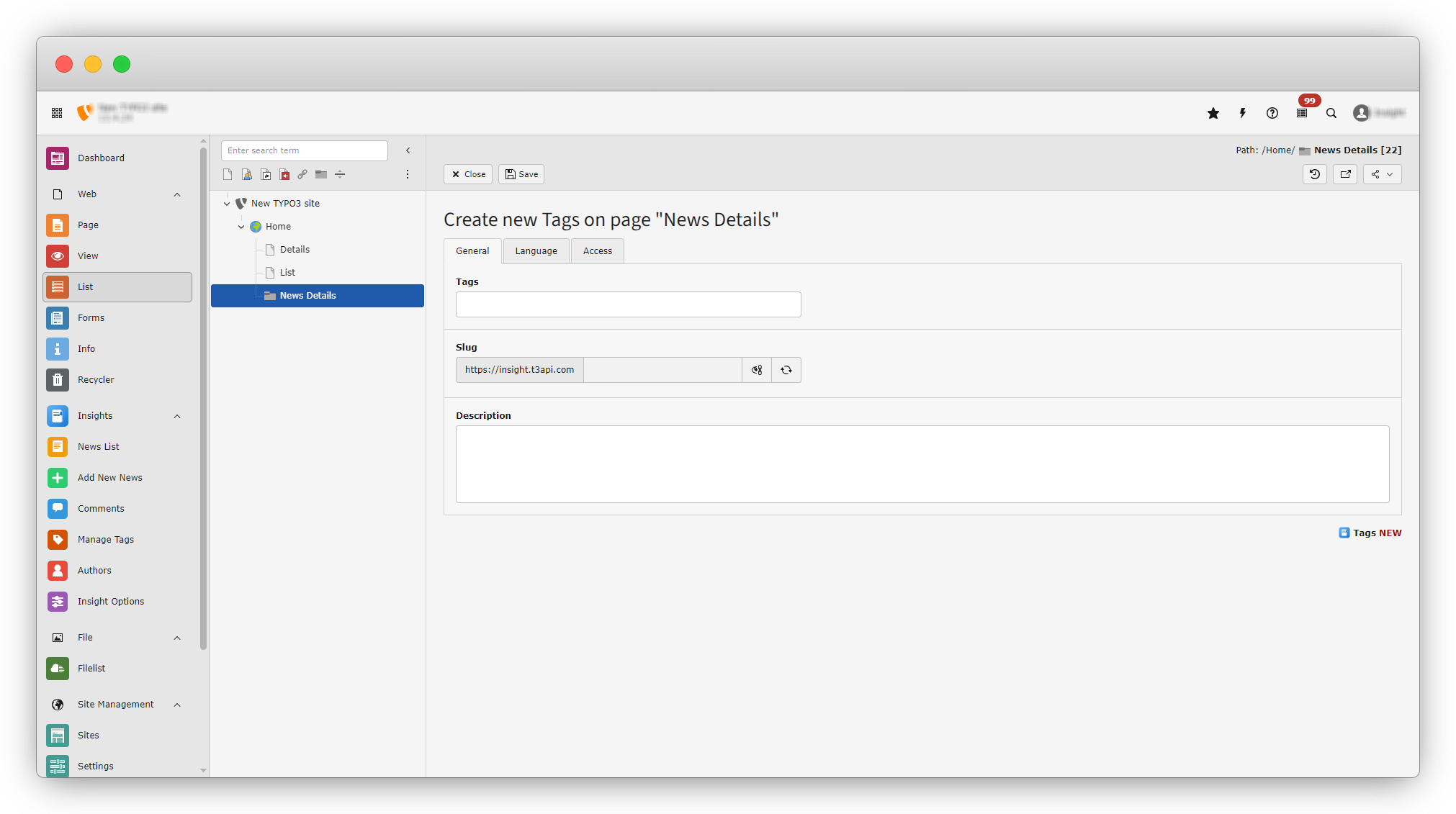
5. There are three basic fields in the General tab required to create a tag:
- Tags: Enter the tag name.
- Slug: Automatically generated after entering the tag name.
- Description: Enter a short description for the tag.
6. Fill in all the fields in the General tab and then click the “Save” button at the top of the page.
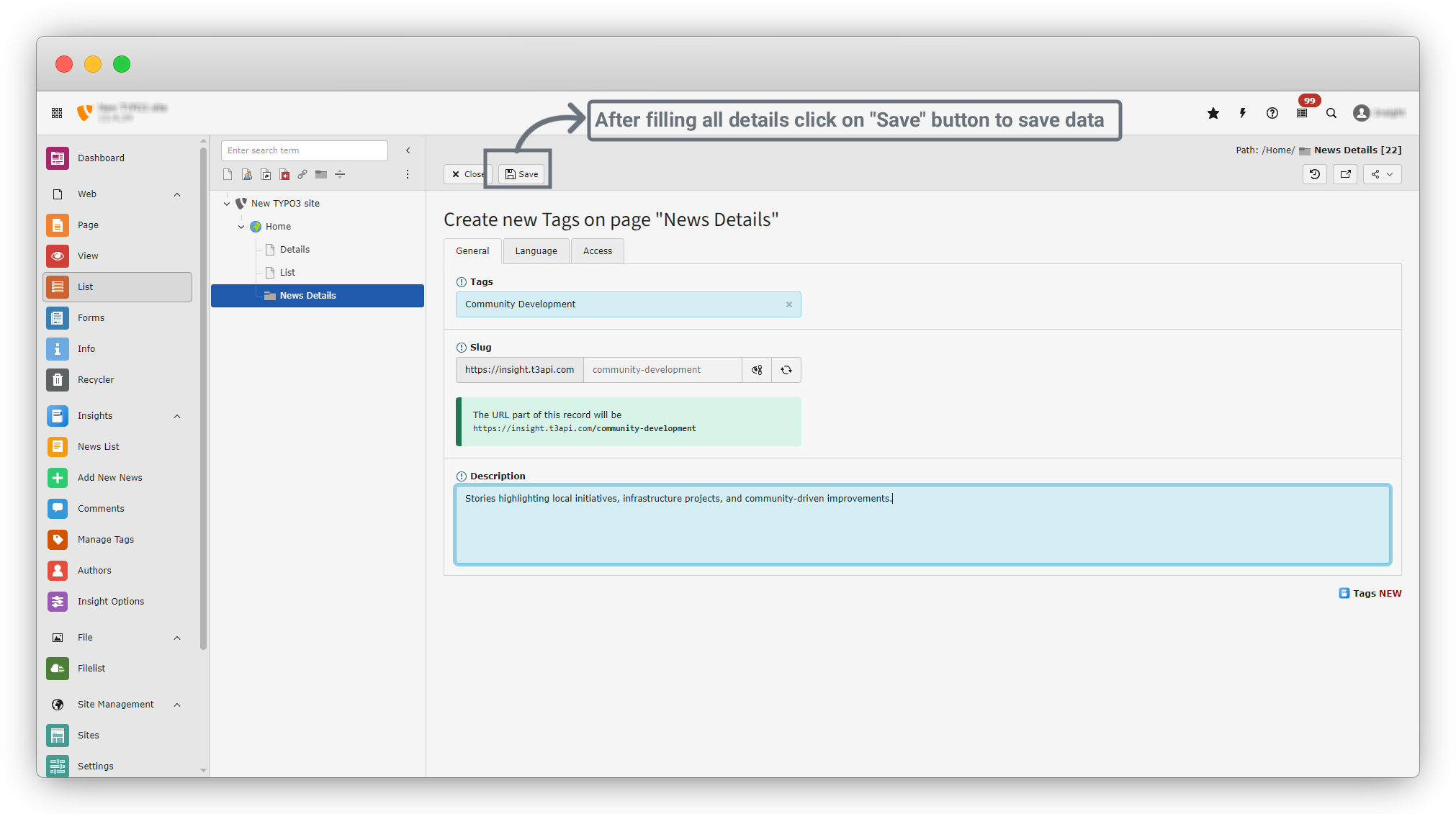
7. After saving successfully, a success message will appear as shown in the screenshot below. Click the “Close” button (next to the Save button) to close the form and return to the list.
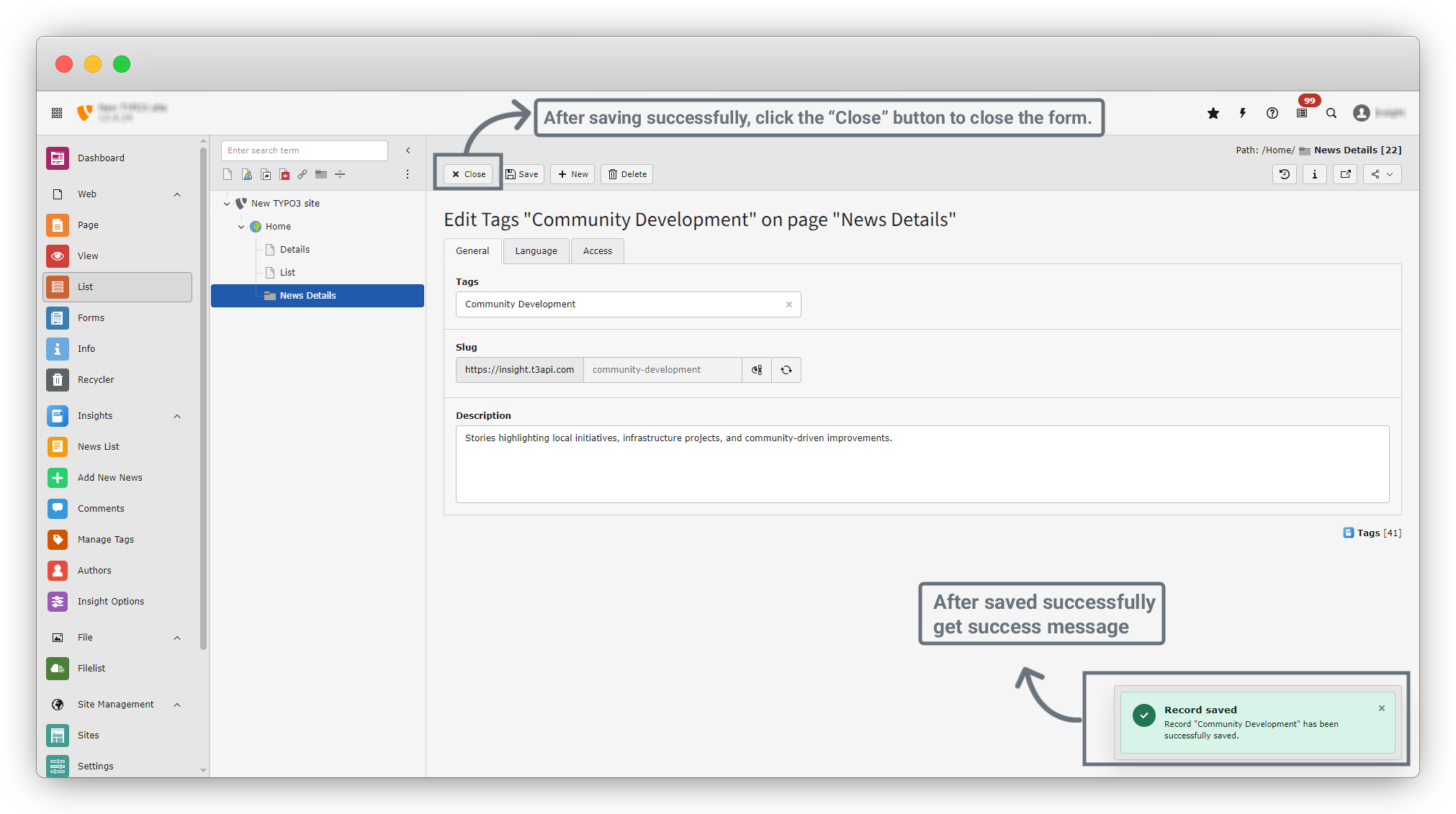
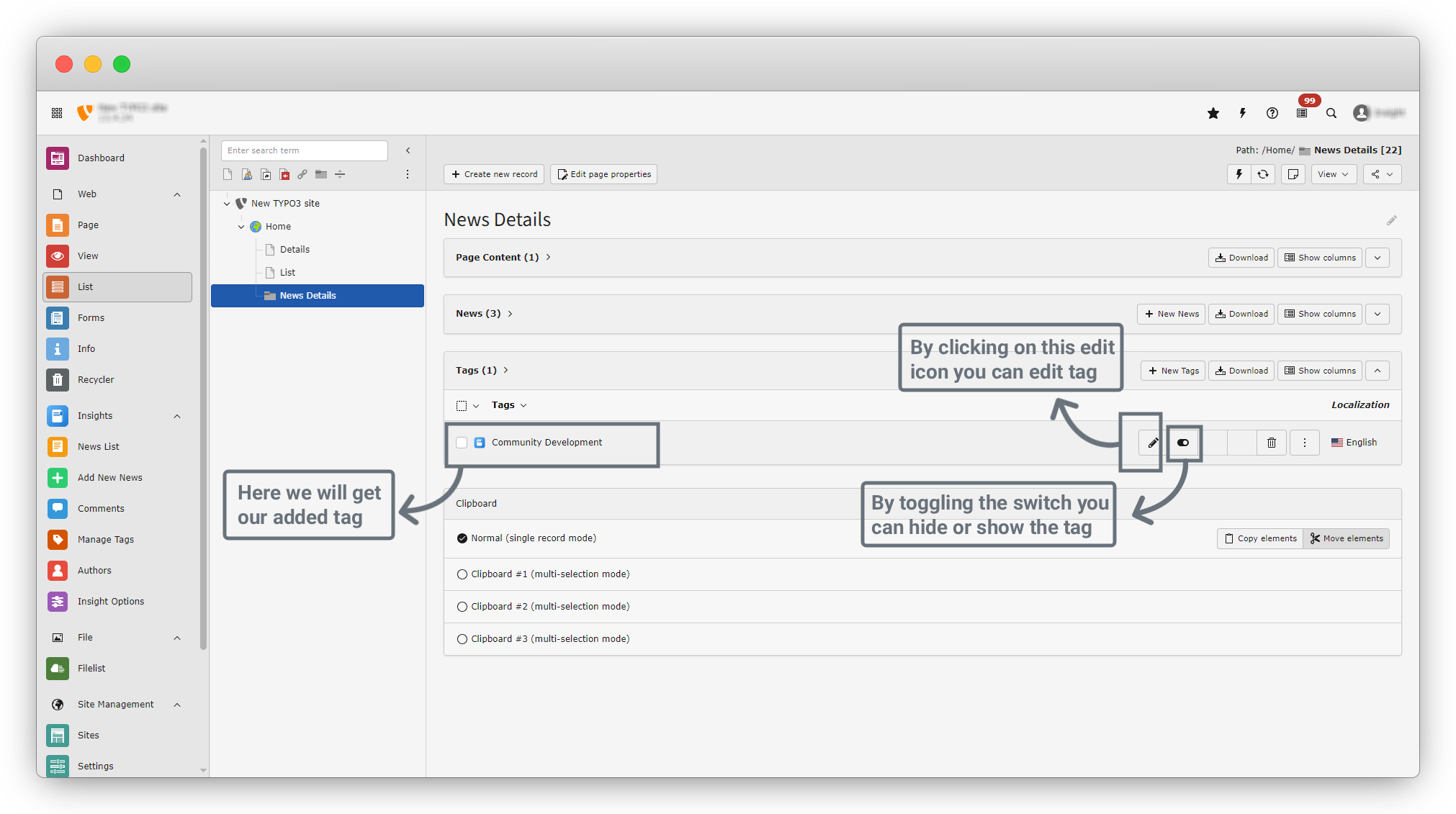
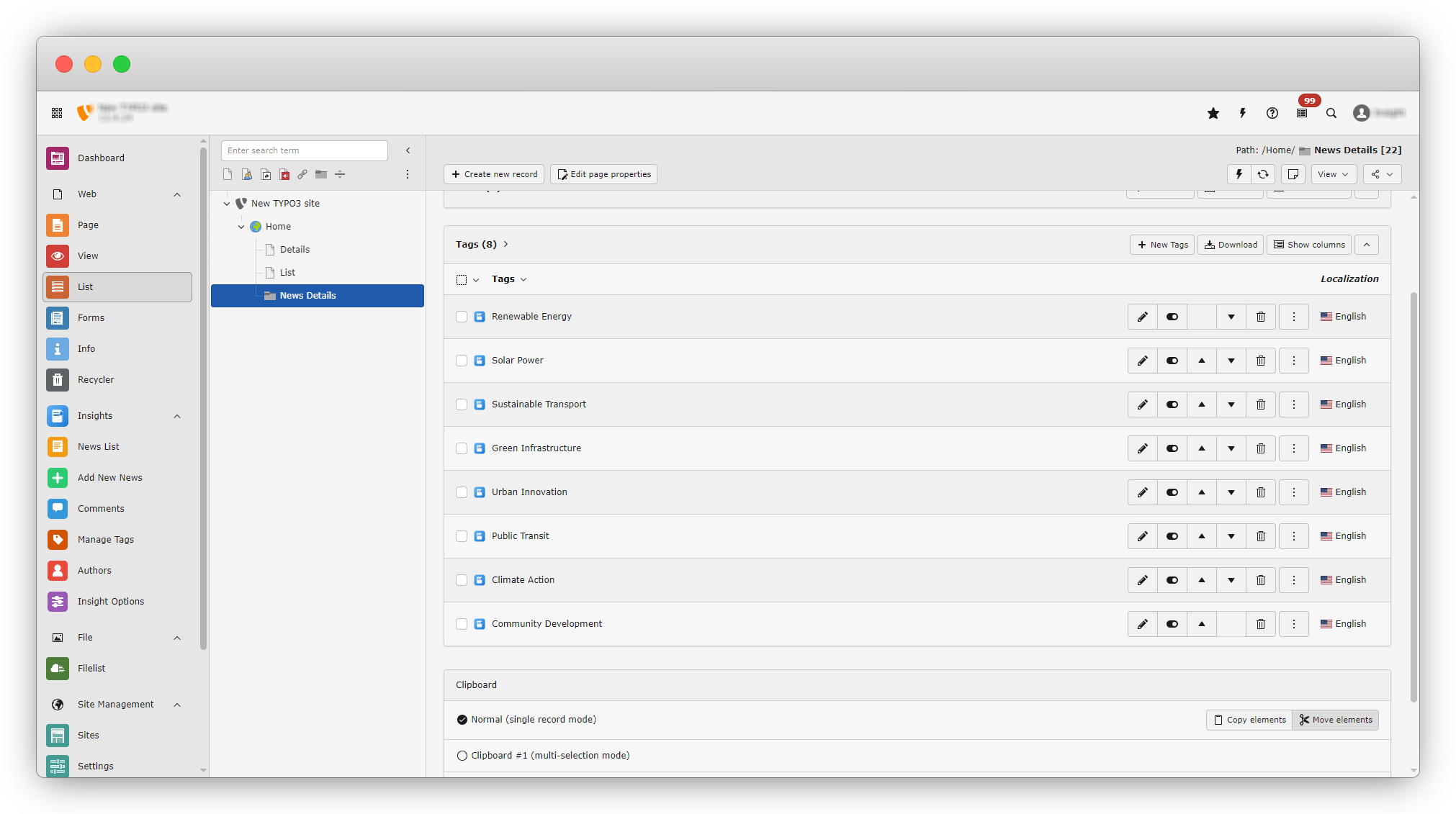
8. After closing the form, you will be redirected to the News Details folder. You will see the newly added tag listed there. The following options are available:
- Edit: Click the Edit icon to modify the tag.
- Toggle Switch: Enable or disable the tag to show or hide it.
9. Now go to Insights > Manage Tags from the sidebar menu. Click on Manage Tags, and you will see a screen similar to the screenshot below. Your added tag will be listed here with an Edit icon.
10. Add a few more tags from the list. After adding multiple tags, the News Details folder will look like the screenshot below.
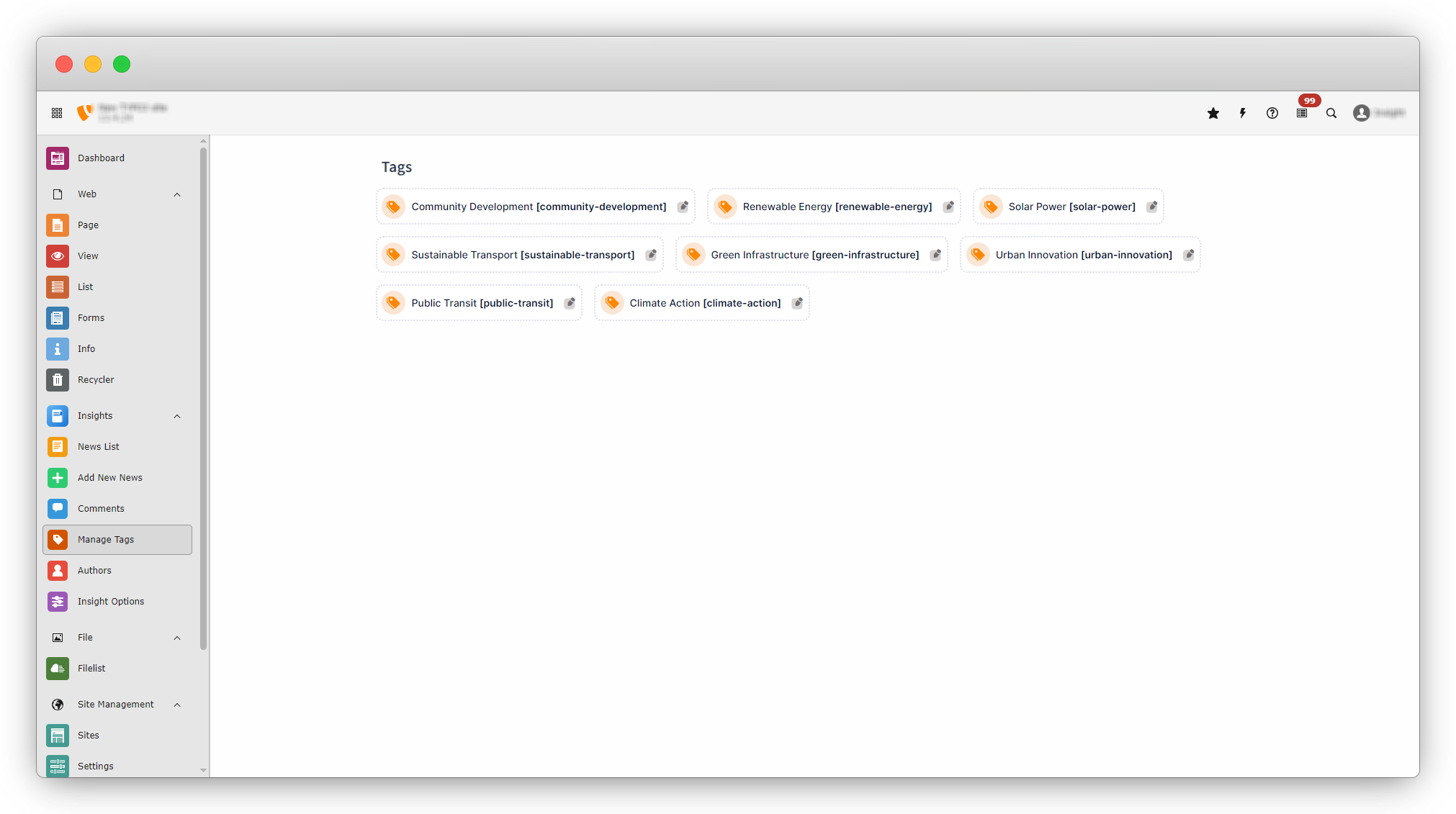
11. Check the Manage Tags menu again. You will now see multiple tags listed, as shown in the screenshot below.
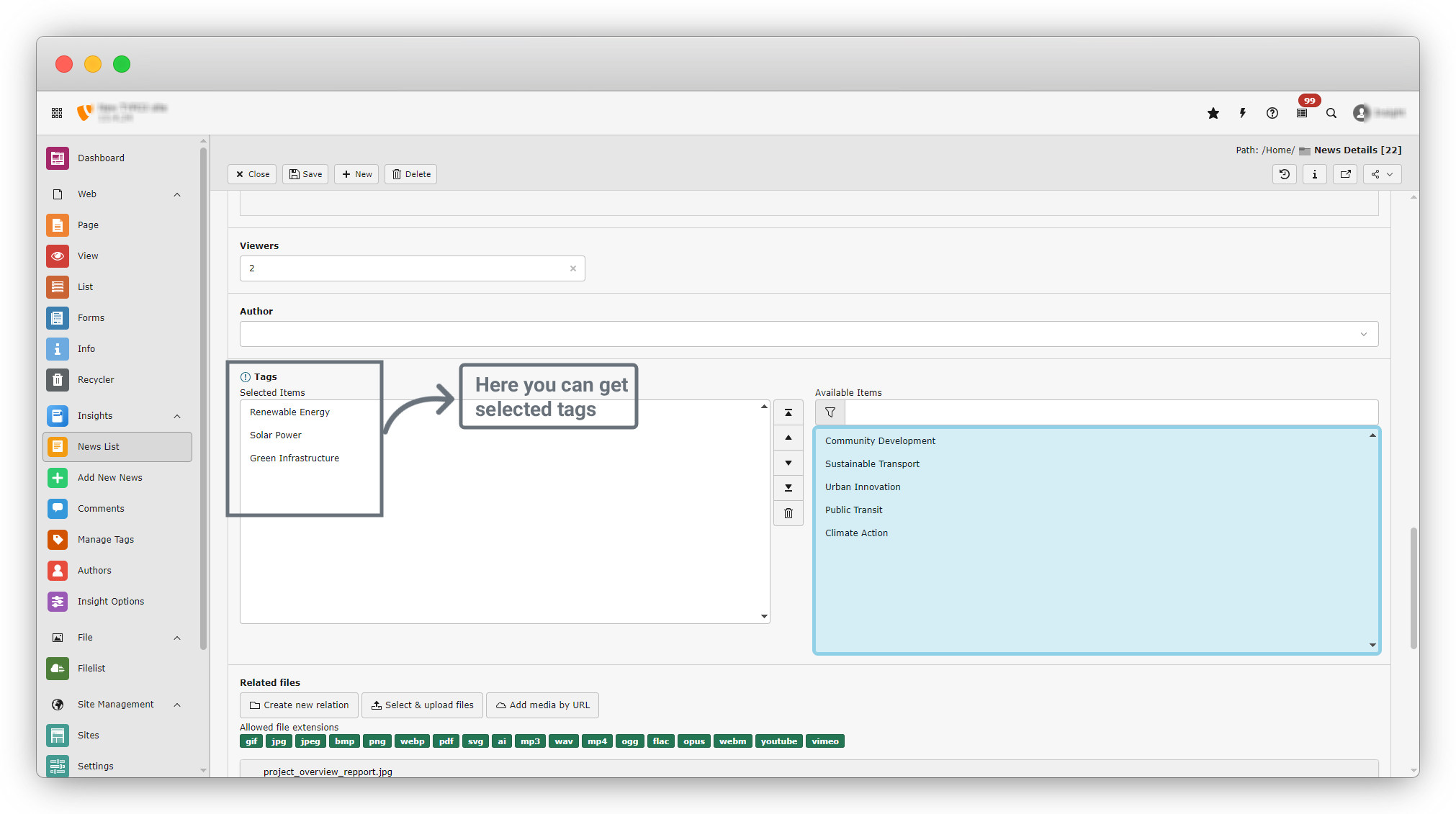
12. Now edit the news item “Community Launches Solar-Powered Transit Hub.” In the edit form, you will see the list of tags in the Tags field.
13. The Tags field has two sections:
- Available Items: Displays all available tags.
- Selected Items: When you click a tag from Available Items, it moves to Selected Items and is removed from the Available Items list.
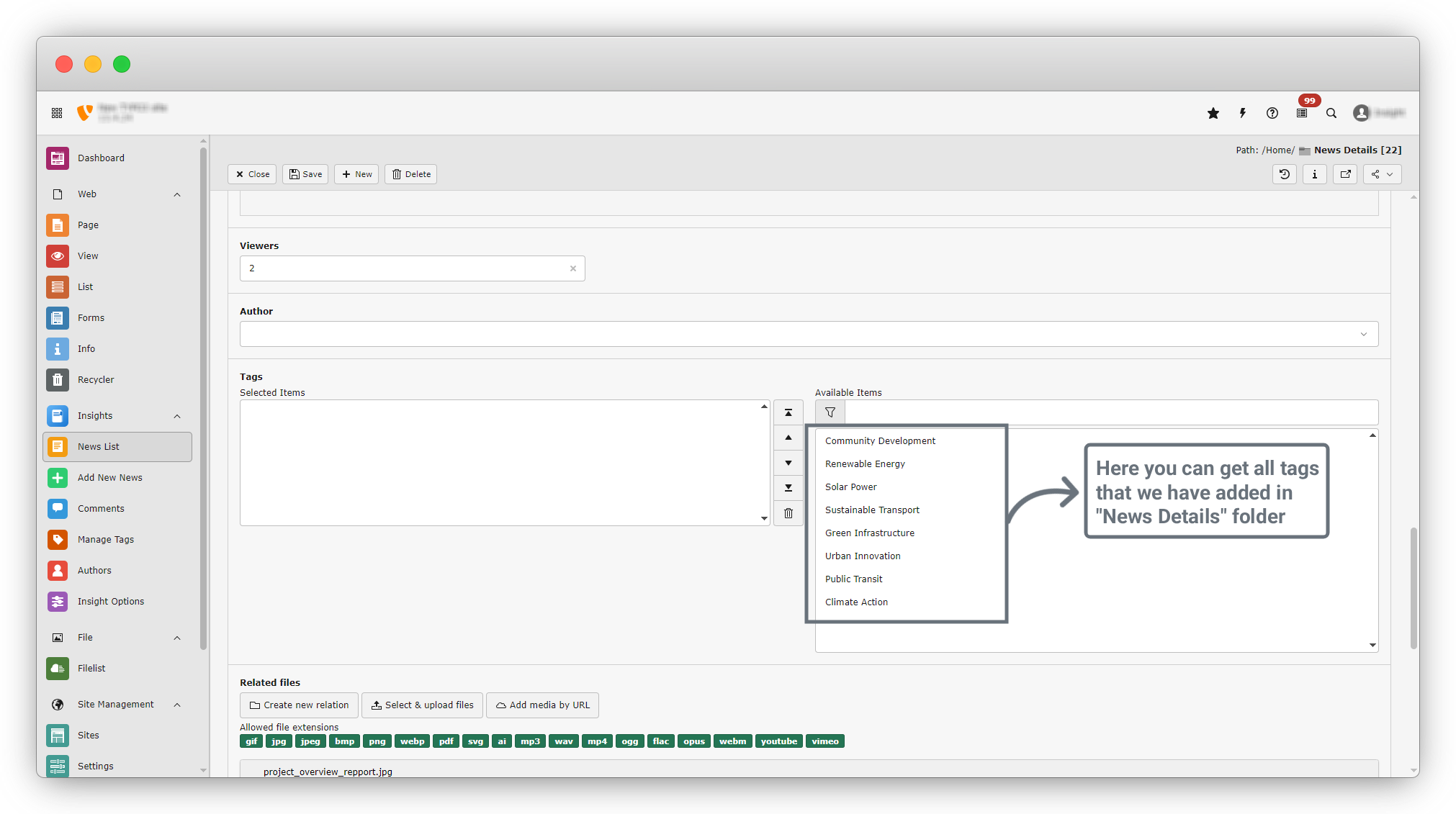
14. Select the following three tags:
- Renewable Energy
- Solar Power
- Green Infrastructure
15. Then click the “Save” button to save the changes.
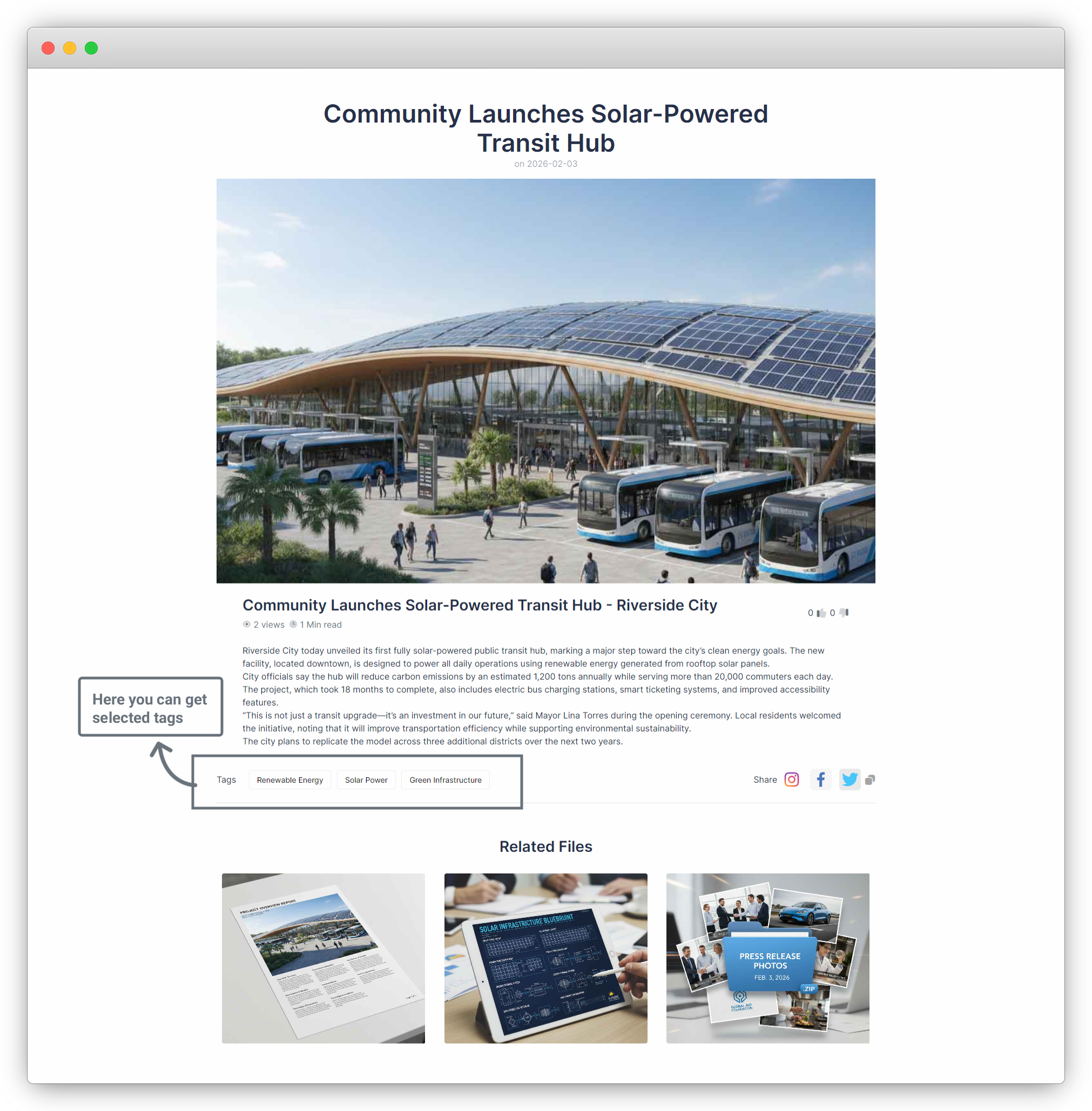
16. Finally, go to the “News Details” page on the frontend. You will see the selected tags displayed there.
Share



