



URL copied to clipboard

Back-end module configuration options
3 views
__readtime__ Min
read
1. Let’s add the configuration options in the back-end module so you can change the settings for the extension.
2. Here we are using the back-end module we already have created, you can create a new back-end module also as per your requirements.
3. First of all, add the fields for the configurations in the template file: employeeResourcesPrivateBackendTemplatesEmployBelist.html
4. Replace the code in Belist.html file with the given code below
<html xmlns:f="http://typo3.org/ns/TYPO3/CMS/Fluid/ViewHelpers"
    xmlns:core="http://typo3.org/ns/TYPO3/CMS/Core/ViewHelpers"
    xmlns:be="http://typo3.org/ns/TYPO3/CMS/Backend/ViewHelpers" data-namespace-typo3-fluid="true">
<f:layout name="Default" />

<f:section name="Content">
    <div>
        <div>
            <f:flashMessages />
            <ul id="myTab" role="tablist">
                <li role="presentation">
                    <button id="config-tab" data-bs-toggle="tab" data-bs-target="#config"
                        type="button" role="tab" aria-controls="config" aria-selected="true">
                        Settings
                    </button>
                </li>
                <li role="presentation">
                    <button id="employ-tab" data-bs-toggle="tab" data-bs-target="#employ" type="button"
                        role="tab" aria-controls="employ" aria-selected="false">
                        Employees
                    </button>
                </li>
            </ul>
            <div id="myTabContent">
                <div id="config" role="tabpanel" aria-labelledby="config-tab">
                    <div>
                        <h1>Settings Regarding Extension</h1>
                        <div>
                            <f:form action="updatesetting" enctype="multipart/form-data" name="confData" object="{confData}">
                                <f:render partial="Conf/FormFields" arguments="{_all}" />
                                <div>
                                    <f:form.submit value= "Update Settings" />
                                </div>
                            </f:form>
                        </div>
                    </div>
                </div>
                <div id="employ" role="tabpanel" aria-labelledby="employ-tab">
                    <div>
                        <div>
                            <f:link.action action="new">Add New Employee</f:link.action>
                        </div>
                        <table>
                            <thead>
                                <tr>
                                    <th>Image</th>
                                    <th>FirstName</th>
                                    <th>LastName</th>
                                    <th>Gender</th>
                                    <th>Action</th>
                                </tr>
                            </thead>
                            <tbody>
                                <f:for each="{employs}" as="emp">
                                    <tr>
                                        <td>
                                            <f:if condition="{emp.image}">
                                                <f:for each="{emp.image}" as="img">
                                                    <f:image image="{img}" alt="{emp.firstName}" width="100c"
                                                        height="100c" />
                                                </f:for>
                                            </f:if>
                                        </td>
                                        <td>{emp.firstName}</td>
                                        <td>{emp.lastName}</td>
                                        <td>{emp.gender == 1 ? "Male" :"Female"}</td>
                                        <td>
                                            <f:link.action action="edit"
                                                arguments="{uid:emp.uid}">
                                                Edit
                                            </f:link.action>
                                            <f:link.action action="delete"
                                                arguments="{uid:emp.uid}">Delete
                                            </f:link.action>
                                        </td>
                                    </tr>
                                </f:for>
                            </tbody>
                        </table>
                    </div>
                </div>
            </div>
        </div>
    </div>
</f:section>
</html>
By adding the above code, you are adding the tabs in the back-end module, one tab is for settings and another one is for the employee listing.
5. After adding the above code in Belist.html file, and then after reloading the back-end module, you will see an error as in the screenshot below:
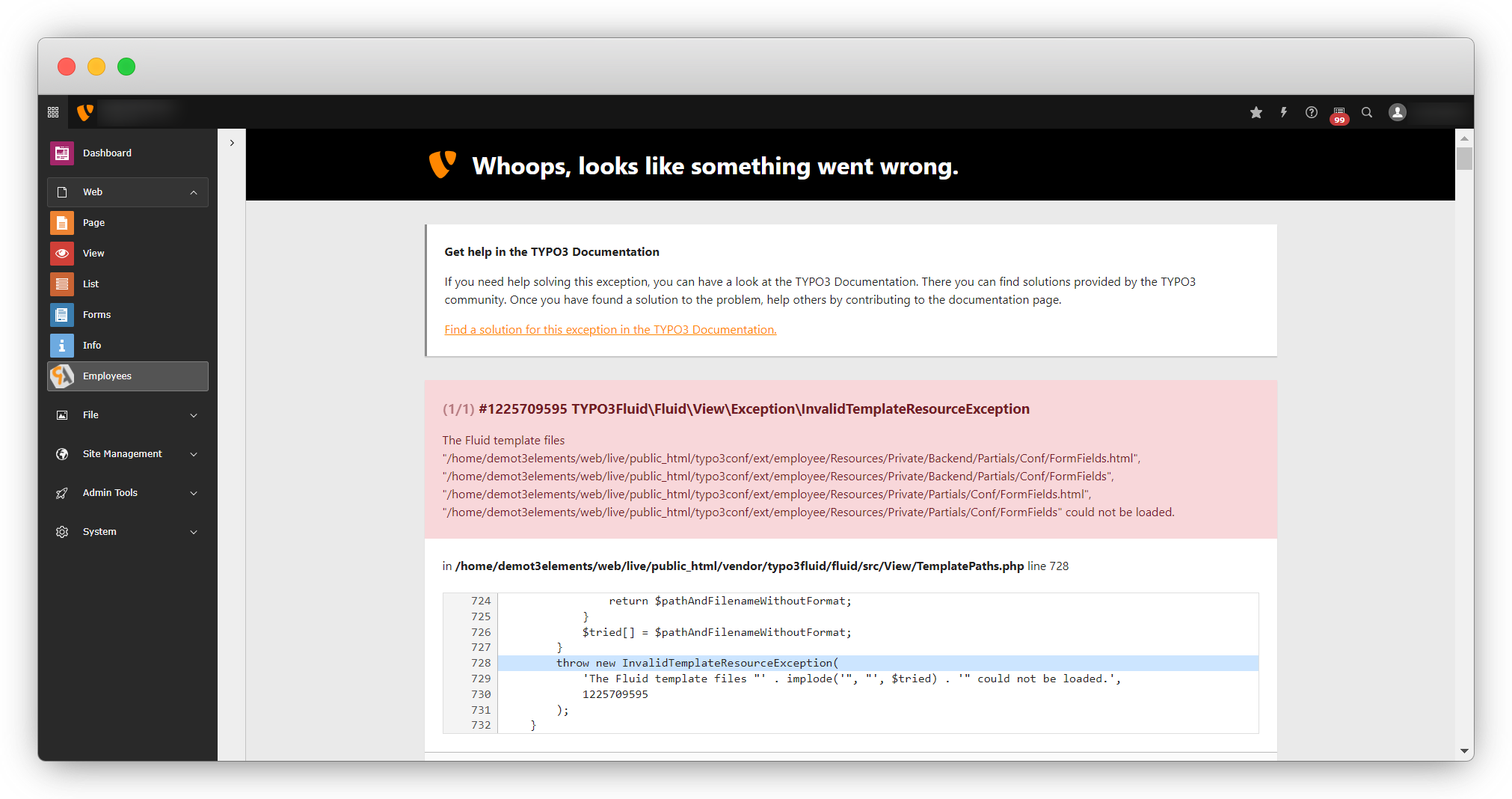
6. The above error is occurring as we don’t have the template file in partial and the code for the partial template file has been added in the above code of Belist.html file to render the partial=”Conf/FormFields”.
7. Let’s create the FormFields.html for the backend module settings, to add the field for the settings we are going to provide.
8. Create the FormFields.html and the file path is employeeResourcesPrivateBackendPartialsConfFormFields.html
9. Add the code below to the employeeResourcesPrivateBackendPartialsConfFormFields.html file
<f:form.validationResults>
    <f:if condition="{validationResults.flattenedErrors}">
        <div>
            <f:for each="{validationResults.flattenedErrors}" as="errors" key="propertyPath">
                <div> {propertyPath}
                    <f:for each="{errors}" as="error">
                        <p>{error.code}: {error}</p>
                    </f:for>
                </div>
            </f:for>
        </div>
    </f:if>
</f:form.validationResults>
<div>
    <div>
        <div>
            <f:form.checkbox property="imagelist" value="1" checked="{confData.imagelist} == 1" id="imagelist" />
            <label for="imagelist">
                Show Image in List
            </label>
        </div>
    </div>
    <div>
        <div>
            <f:form.checkbox property="imagedetail" value="1" checked="{confData.imagedetail} == 1" id="imagedetail" />
            <label for="imagedetail">
                Show Image in Detail Page
            </label>
        </div>
    </div>
</div>
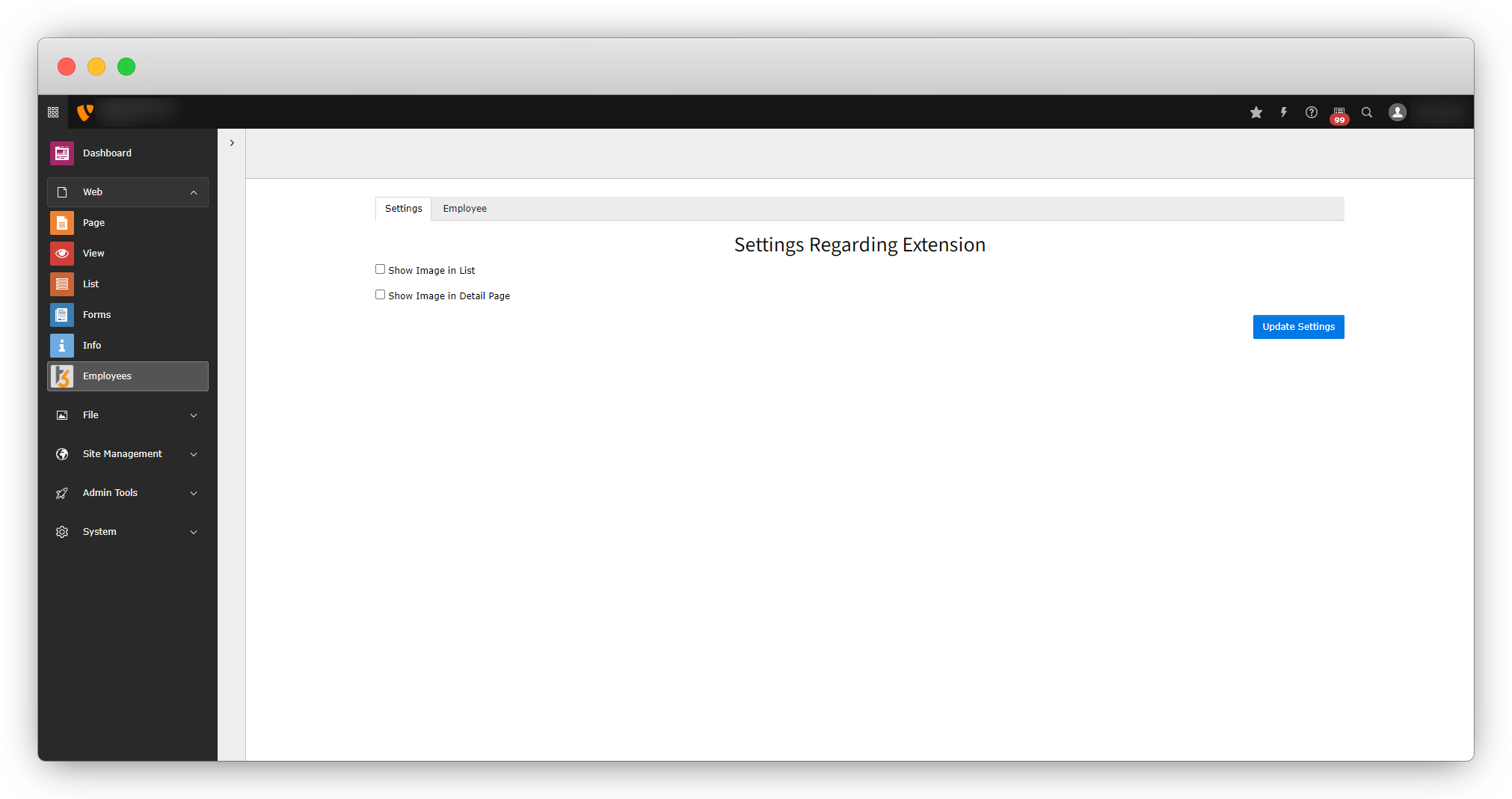
After adding the above code, save the file, flush all the cache, and reload the back-end module, and you will see the tabs are rendering for settings and the employee list, and also the fields are rendering for the settings as seen in the screenshot below:
10. After this, when you will click on the button “Update Settings”, nothing will happen as still there is no action defined for it. To resolve the issue and make it functional, let’s create an action updatesettingAction() and add the action in the Modules.php file to make it available.
11. Add the code below in the employeeClassesControllerEmployController.php file to create an action updatesettingAction().
public function updatesettingAction(): ResponseInterface
    {
        $data = $this->request->getArgument('confData');
        $existSettings = $this->confRepository->findByUid(1);
        if($existSettings){
            $existSettings->setImagelist($data['imagelist']);
            $existSettings->setImagedetail($data['imagedetail']);
            $this->confRepository->update($existSettings);
        }else{
            $Conff = GeneralUtility::makeInstance(CompanyEmployeeDomainModelConf::class);
            $Conff->setImagelist($data['imagelist']);
            $Conff->setImagedetail($data['imagedetail']);
            $this->confRepository->add($Conff);
        }
        $this->addFlashMessage('Settings  Updated successfully!!', 'Success', ContextualFeedbackSeverity::OK, true);
        return $this->redirect('belist');
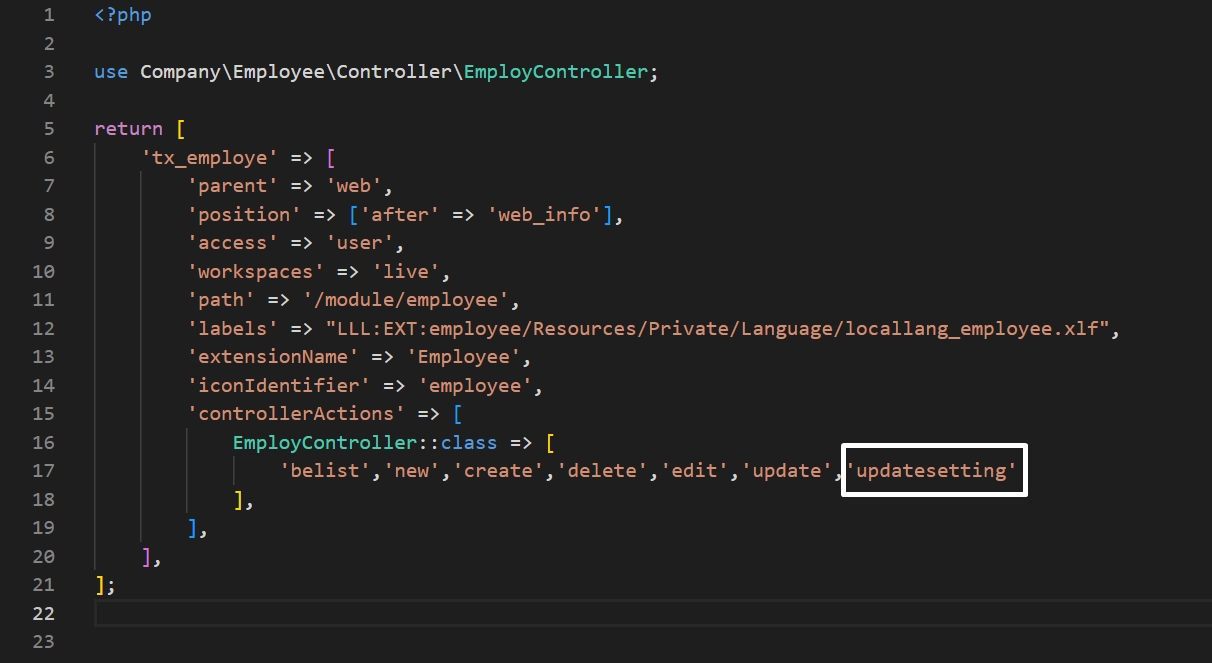
12. After creating the action, now add this action to the Modules.php file to make it available. The file path is employeeConfigurationBackendModules.php
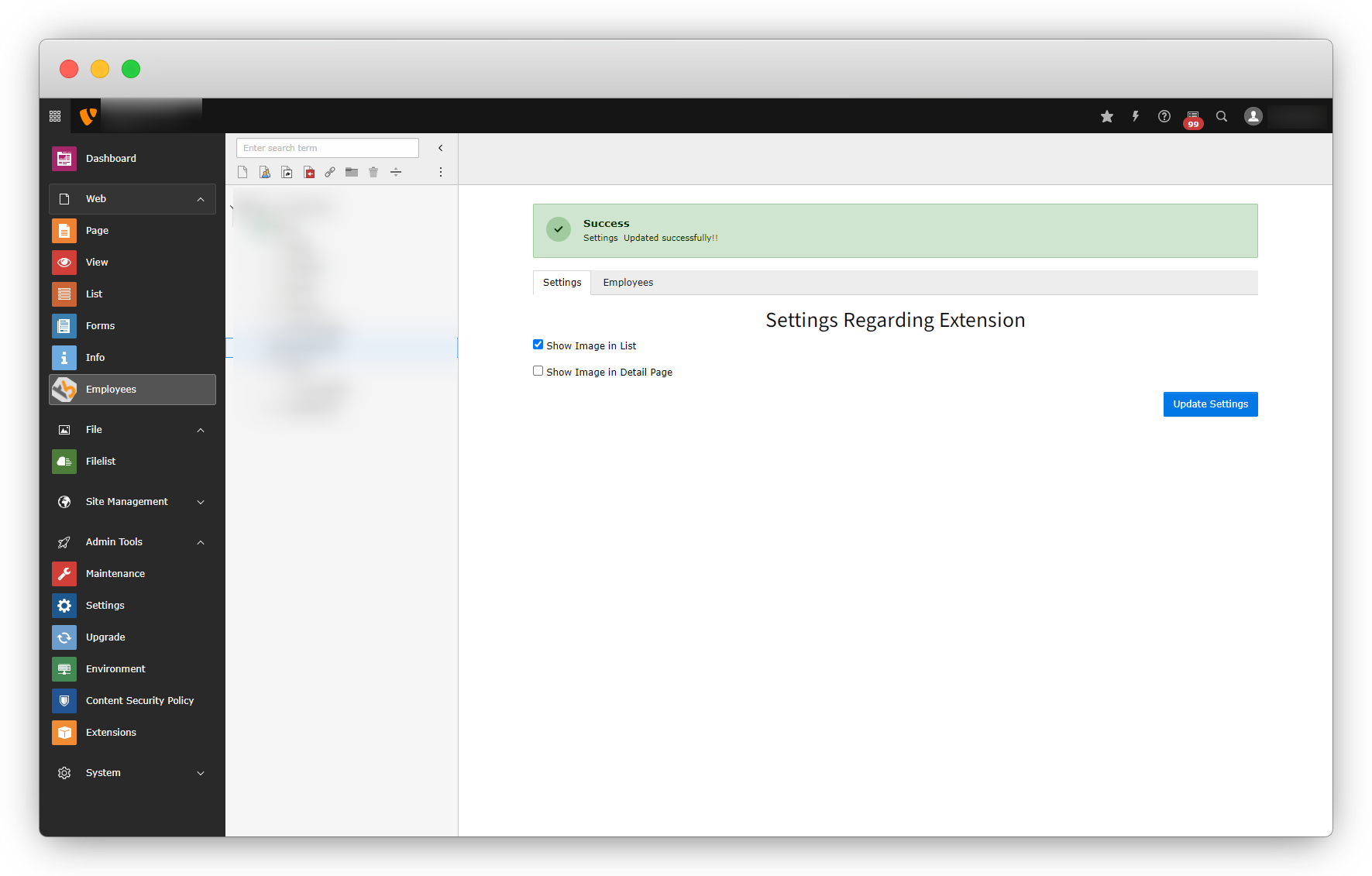
13. After all the above updates, check/uncheck the checkbox settings and then click on the button “Update Settings” and you will see that it’s working.
14. Now we need to update it so the changes can be reflected on the front-end.
Share



