



URL copied to clipboard

Create a form in the front-end
3 views
__readtime__ Min
read
To add the new form in the front-end of TYPO3, it is required to create a new plugin that will render the form of employee into the front-end.
Create the plugin for the job listing
Plugin configuration
1. Configure the plugin in the ext_localconf.php file. The file path is employeeext_localconf.php
2. Add the code below in employeeext_localconf.php file to configure the job list plugin
// job list plugin
ExtensionUtility::configurePlugin(
    // extension key or extension name in UpperCamelCase (if the extension name is my_products then the name here will be MyProducts)
    'Employee',
    // A unique identifier for your plugin in UpperCamel Case that will be the name of your plugin
    'Joblist',
    // all actions
    [JobController::class => 'index'],
    // non-cacheable actions
    [JobController::class => 'index'],
);
3. Here a controller and action are defined in the ext_localconf.php file, and you will need to create that controller and action.
Controller
- Create the controller file JobController.php to manage jobs.
- The path of the file will be employeeClassesControllerJobController.php.
- Add the below code to the JobController.php file:
<?php
declare(strict_types=1);

namespace CompanyEmployeeController;

use TYPO3CMSExtbaseMvcControllerActionController;
use TYPO3CMSBackendTemplateModuleTemplateFactory;
use PsrHttpMessageResponseInterface;
use TYPO3CMSCoreContextContext;

class JobController extends ActionController
{
    /**
     * jobRepository
     *
     * @var CompanyEmployeeDomainRepositoryJobRepository
     */
    protected $jobRepository = null;
    /**
     * @param CompanyEmployeeDomainRepositoryJobRepository $jobRepository
     */
    public function injectJobRepository(CompanyEmployeeDomainRepositoryJobRepository $jobRepository)
    {
        $this->jobRepository = $jobRepository;
    }
    public function __construct(
        protected readonly ModuleTemplateFactory $moduleTemplateFactory,
        Context $context,
    ) {
        $this->context = $context;
    }

    /**
     * action list
     *
     * @return string|object|null|void
     */
    public function indexAction(): ResponseInterface
    {
        $settings = $this->settings;
        $this->view->assign('settings', $settings);
        $jobs = $this->jobRepository->findAll();
        $this->view->assign('jobs', $jobs);
        return $this->htmlResponse();
    }


}
In the controller file, we have created the indexAction(). Save the controller file and now proceed to plugin registration.
Plugin Registration
1. We can register the new plugin from the file tt_content.php. The file path is employeeConfigurationTCAOverridestt_content.php
2. Add the below code in tt_content.php file
TYPO3CMSExtbaseUtilityExtensionUtility::registerPlugin(

        // extension name, matching the PHP namespaces (but without the vendor)
        'Employee',
         // arbitrary, but unique plugin name (not visible in the backend), must be the same as used in configurePlugin()
        'Joblist',
        // plugin title, as visible in the drop-down in the backend, use "LLL:" for localization
        'Job List',
        // icon identifier
        'EXT:employee/Resources/Public/Icons/Extension.png',
    );
3. After registration, you will be able to use the extension as you will get it in General Plugin, but still, you can not see the plugin in the wizard. To add the plugin in the wizard, you will need to update the tsconfig file. The file path is employeeConfigurationpage.tsconfig.
Add the new plugin in the wizard
1. Add the code below in the file page.tsconfig to make the plugin job list available in the wizard.
employee_joblist {
        iconIdentifier = employee
        title = Job List
        description = List of Jobs
        tt_content_defValues {
          CType = list
          list_type = employee_joblist
        }
      }
// Add the employee_joblist
    show := addToList(employee_employlist,employee_employdetail,employee_joblist)
2. After updating the tsconfig file, you will see the job list plugin in the wizard, as seen in the screenshot below:
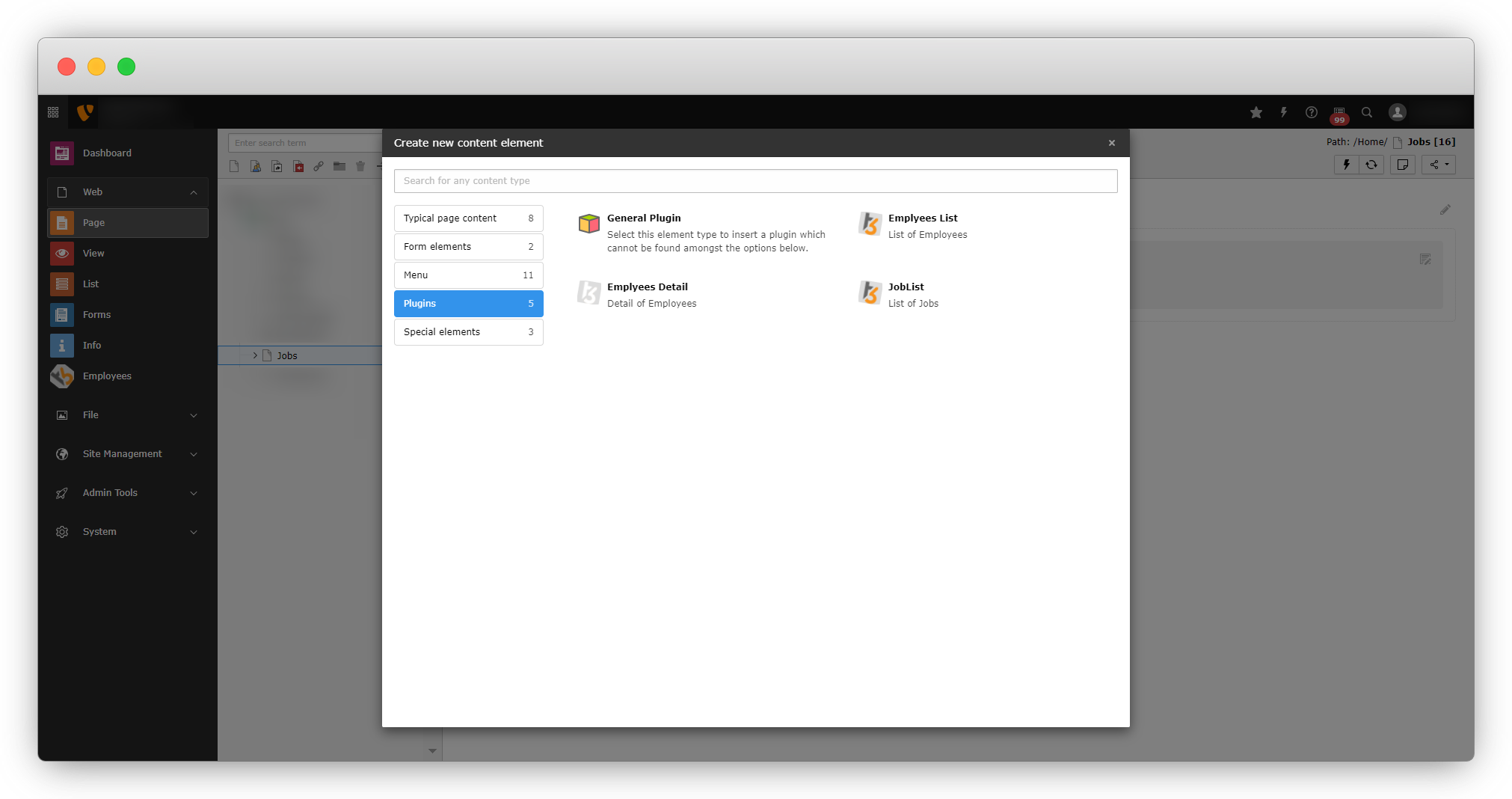
3. Create the page to add jobs, here we have created the page “Jobs”, then click on the button “+Content” and you will see the wizard, select the plugin “JobList” and save the page.
4. After adding the job list plugin to the page, check the job page in the front-end, and you will see the error as seen in the screenshot below
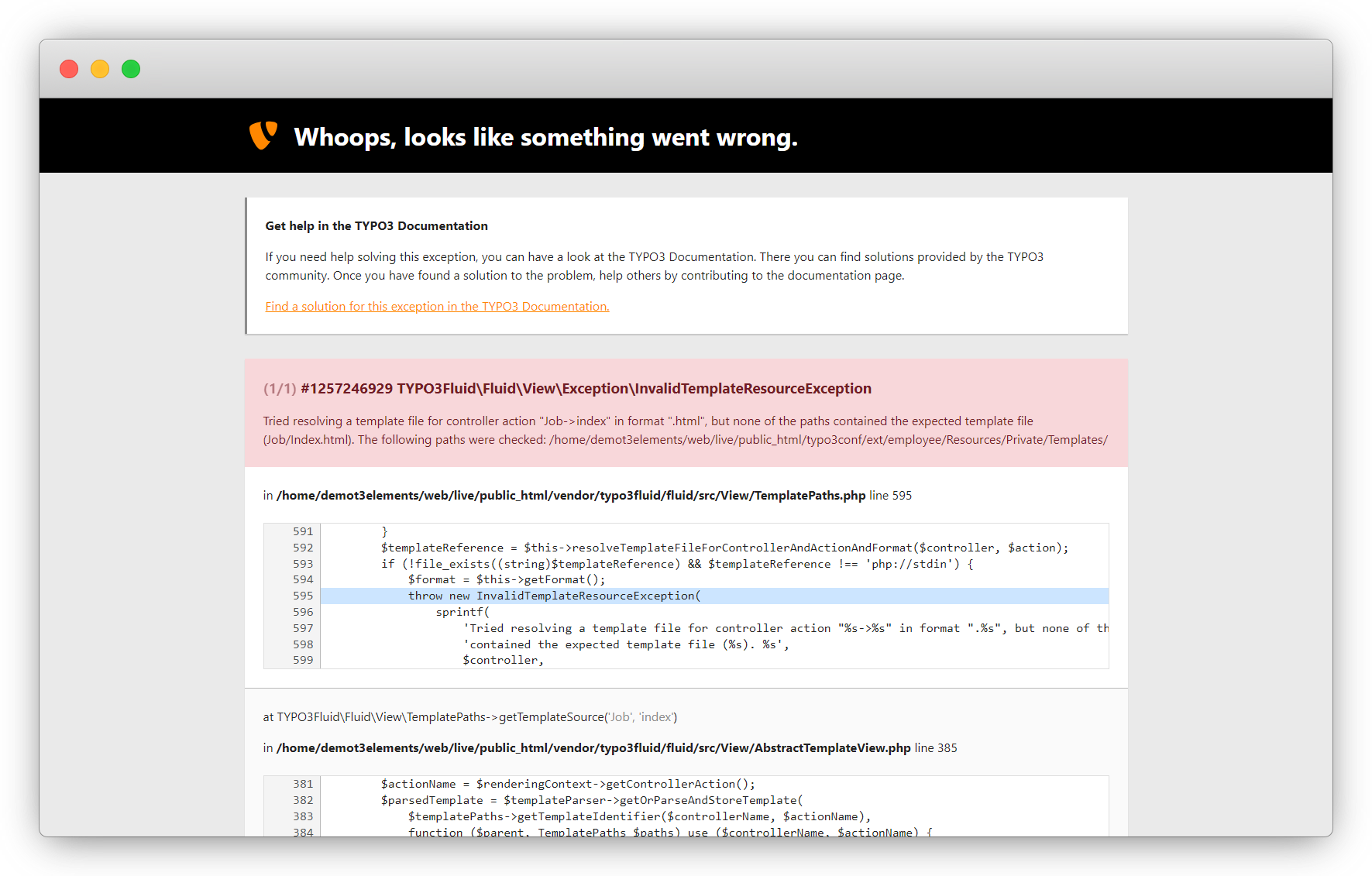
5. The above error is occurring because we still didn’t create the template file for the joblist plugin. Let’s create the template file for the job list plugin. According to the controller and indexAction, create the folder named Job and create the template file index.html into that Job folder. the template file path will be employeeResourcesPrivateTemplatesJobIndex.html.
6. Add the code below in the template file employeeResourcesPrivateTemplatesJobIndex.html.
<div>
    <div>
        <div>
            <f:for each="{jobs}" as="job">
                <div>
                    <div>
                        <div>
                            <f:if condition="{job.bannerImage}">
                                <f:for each="{job.bannerImage}" as="img">
                                    <f:image image="{img}" alt="{job.firstName}" width="400c" height="200c" />
                                </f:for>
                            </f:if>
                        </div>
                        <div>
                            <div>
                                <h2>
                                        {job.jobTitle}
                                </h2>
                            </div>
                            <div>
                                <div><strong>Vacancy : </strong>{job.vacancy}</div>
                                <div><strong>Location : </strong>{job.jobLocation }</div>
                                <div><strong>job Type : </strong>{job.jobType }</div>
                                <div><strong>Experiance of Years : </strong>{job.yearsOfExperience }</div>
                                <div><strong>Working hours : </strong>{job.workingHrs }</div>
                                <div><strong>Working days : </strong>{job.workingDays }</div>
                            </div>

                        </div>
                    </div>
                </div>
            </f:for>
        </div>
    </div>
</div>
7. Save the file, flush the cache, and reload the front-end page for the job list and you will see the jobs are rendering on front-end according to the template layout and design.
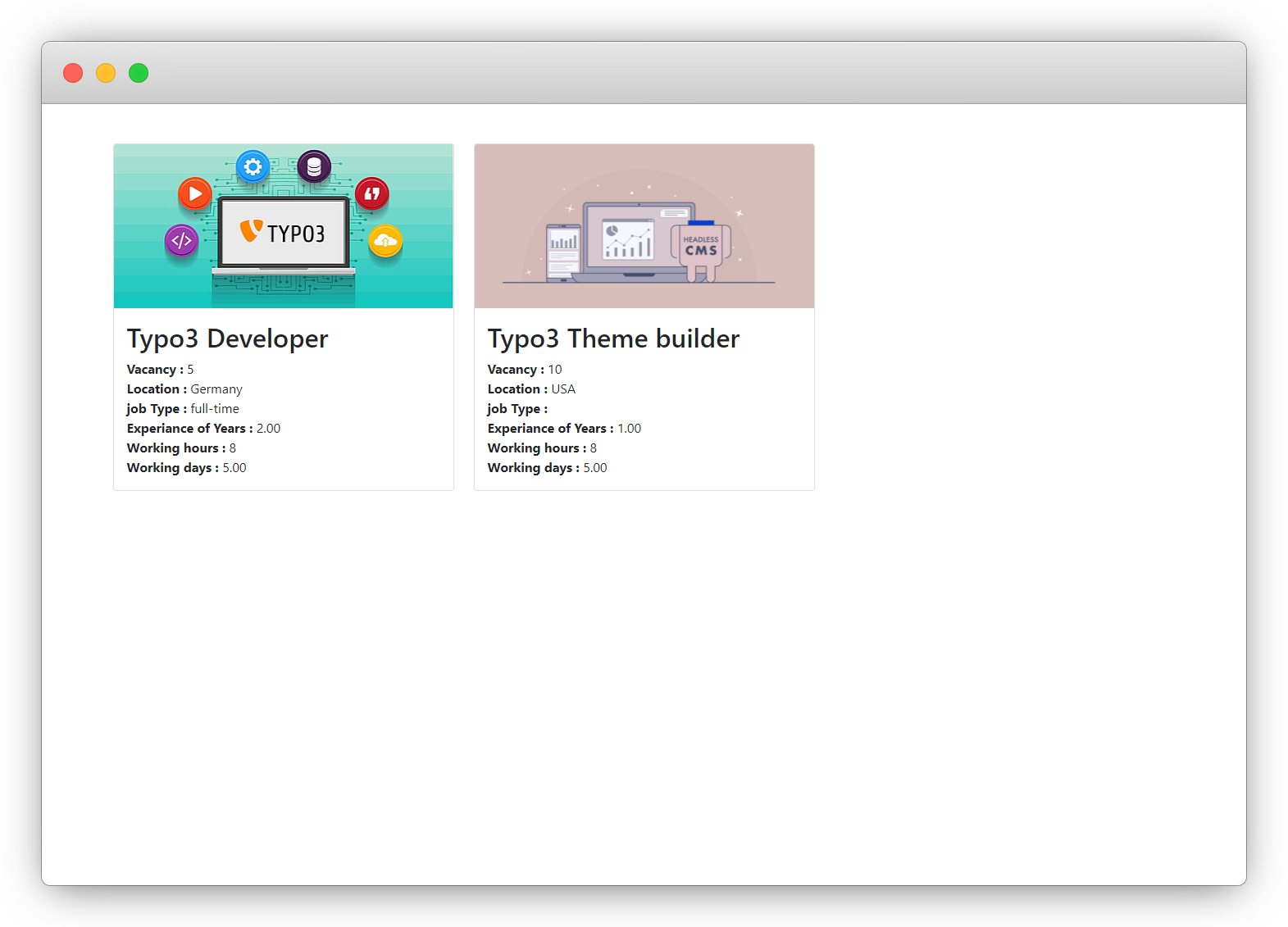
8. After getting the list of jobs, we need to create the detail page of jobs, so when we click on any of the jobs we can get the form of that particular job, and for that we need to create the job detail plugin, so let’s create the job details plugin. Notify here that still there is no button added in the job listing to open the form of any particular job.
Create the plugin for the job detail
Create a new plugin for the job details to render the job details and form to apply for that job.
Plugin configuration
1. Configure the plugin in the ext_localconf.php file. The file path is employeeext_localconf.php
2. Add the code below in employeeext_localconf.php file to configure the job detail plugin
// job detail plugin
ExtensionUtility::configurePlugin(
    // extension key or extension name in UpperCamelCase (if the extension name is my_products then the name here will be MyProducts)
    'Employee',
    // A unique identifier for your plugin in UpperCamel Case that will be the name of your plugin
    'Jobdetail',
    // all actions
    [JobController::class => 'detail'],
    // non-cacheable actions
    [JobController::class => 'detail'],
);
3. Here a controller and action are defined in the ext_localconf.php file, we already created the controller at the time of the job list plugin, so now we just need to create an action for the job detail plugin.
Jobdetail action
Add the code below to create the detail action in JobController.php file. The file path is employeeClassesControllerJobController.php
    /**
     * action detail
     *
     * @return string|object|null|void
     */
    public function detailAction(): ResponseInterface
    {
        $uid = GeneralUtility::_GP('uid');
        if ($uid) {
            $details = $this->jobRepository->findByUid($uid);
            $this->view->assign('details', $details);
        } else {
            $this->view->assign('details', null);
        }
        return $this->htmlResponse();
    }
Plugin Registration
1. We can register the new plugin from the file tt_content.php. The file path is employeeConfigurationTCAOverridestt_content.php
2. Add the below code in tt_content.php file to register the job detail plugin
TYPO3CMSExtbaseUtilityExtensionUtility::registerPlugin(
        // extension name, matching the PHP namespaces (but without the vendor)
        'Employee',
        // arbitrary, but unique plugin name (not visible in the backend), must be the same as used in configurePlugin() in ext_localconf.php
        'Jobdetail',
        // plugin title, as visible in the drop-down in the backend, use "LLL:" for localization
        'Job Form',
         // icon identifier
        'EXT:employee/Resources/Public/Icons/Extension.png',
    );
3. After registration, you will be able to use the extension as you will get it in General Plugin, but still, you can not see the plugin in the wizard. To add the plugin in the wizard, you will need to update the tsconfig file.
Add the new plugin in the wizard
1. Add the code below in the file page.tsconfig to make the plugin job list available in the wizard. The file path is employeeConfigurationpage.tsconfig.
employee_jobdetail {
        iconIdentifier = employee
        title = Job Form
        description = Detail of Job & Form for apply
        tt_content_defValues {
          CType = list
          list_type = employee_jobdetail
        }
      }
// Add the employee_jobdetail
show := addToList(employee_employlist,employee_employdetail,employee_joblist,employee_jobdetail)
2. After updating the tsconfig file, you will see the job list plugin in the wizard, as seen in the screenshot below:
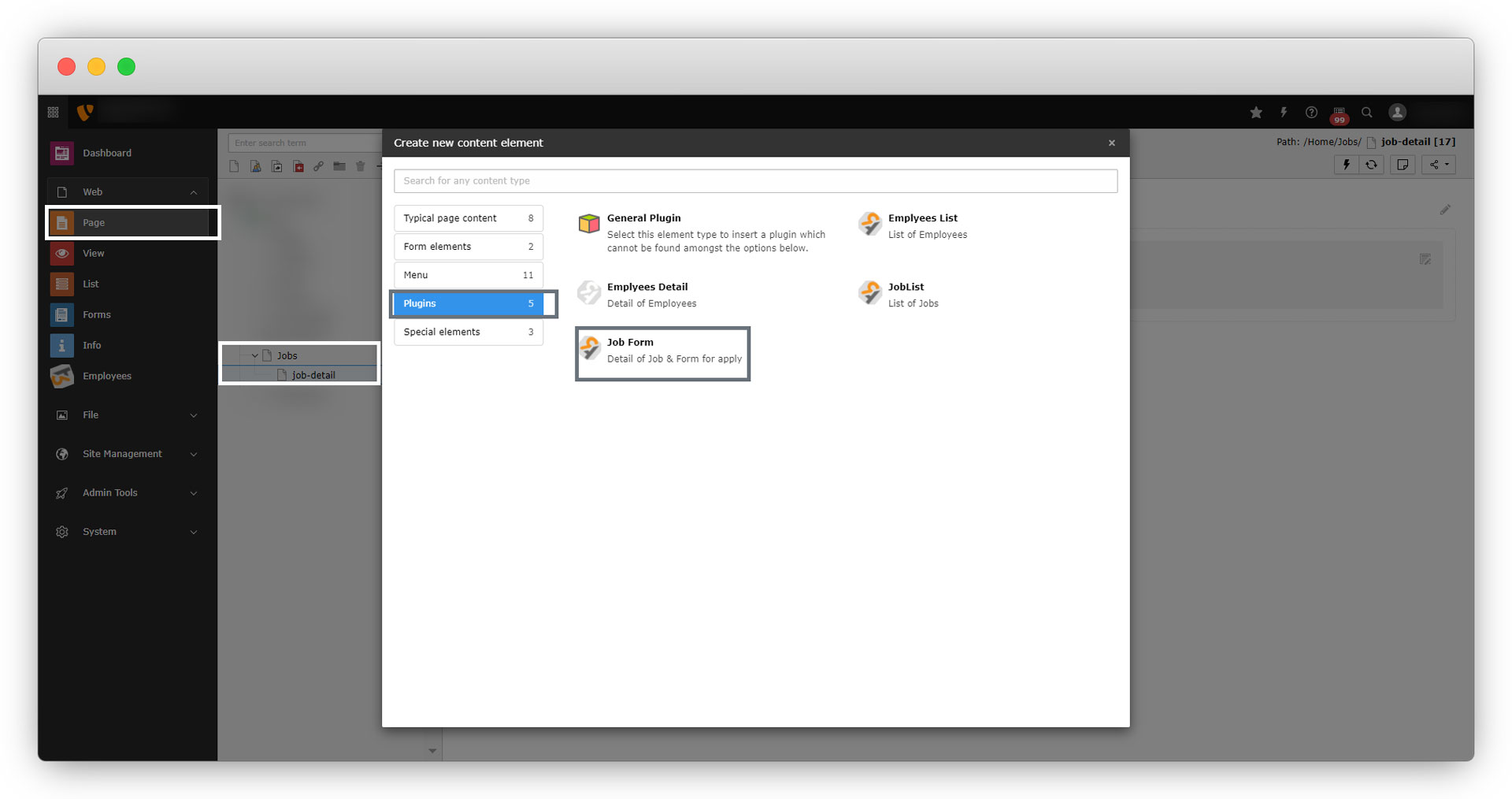
3. To link the detail page or form with the corresponding job, we need to add the flexform in the job list plugin so we can select the detail page ID and link the detail page/form to the corresponding job.
4. To add the flexform, add the code below in the file employeeConfigurationTCAOverridestt_content.php
 $GLOBALS['TCA']['tt_content']['types']['list']['subtypes_addlist']['employee_joblist'] = 'pi_flexform';
    TYPO3CMSCoreUtilityExtensionManagementUtility::addPiFlexFormValue(
        'employee_joblist',
        'FILE:EXT:employee/Configuration/FlexForms/JobConfigs.xml'
    );
5. Now create the XML file, as you know already we can give any name to the XML file, here the file name is JobConfigs.xml, and the file path is employeeConfigurationFlexFormsJobConfigs.xml
6. Add the code below to the JobConfigs.xml file
<T3DataStructure>
    <sheets>
        <sDEF>
            <ROOT>
                <sheetTitle>
                    General
                </sheetTitle>
                <type>array</type>
                <el>
                    <settings.detailPid>
		     <TCEforms>
			<label>Job Detail Page</label>
                	   <config>
			     <type>group</type>
		                <allowed>pages</allowed>
				<size>1</size>
				<maxitems>1</maxitems>
				<minitems>1</minitems>
			   </config>
		     </TCEforms>
		    </settings.detailPid>
                </el>
            </ROOT>
        </sDEF>
    </sheets>
</T3DataStructure>
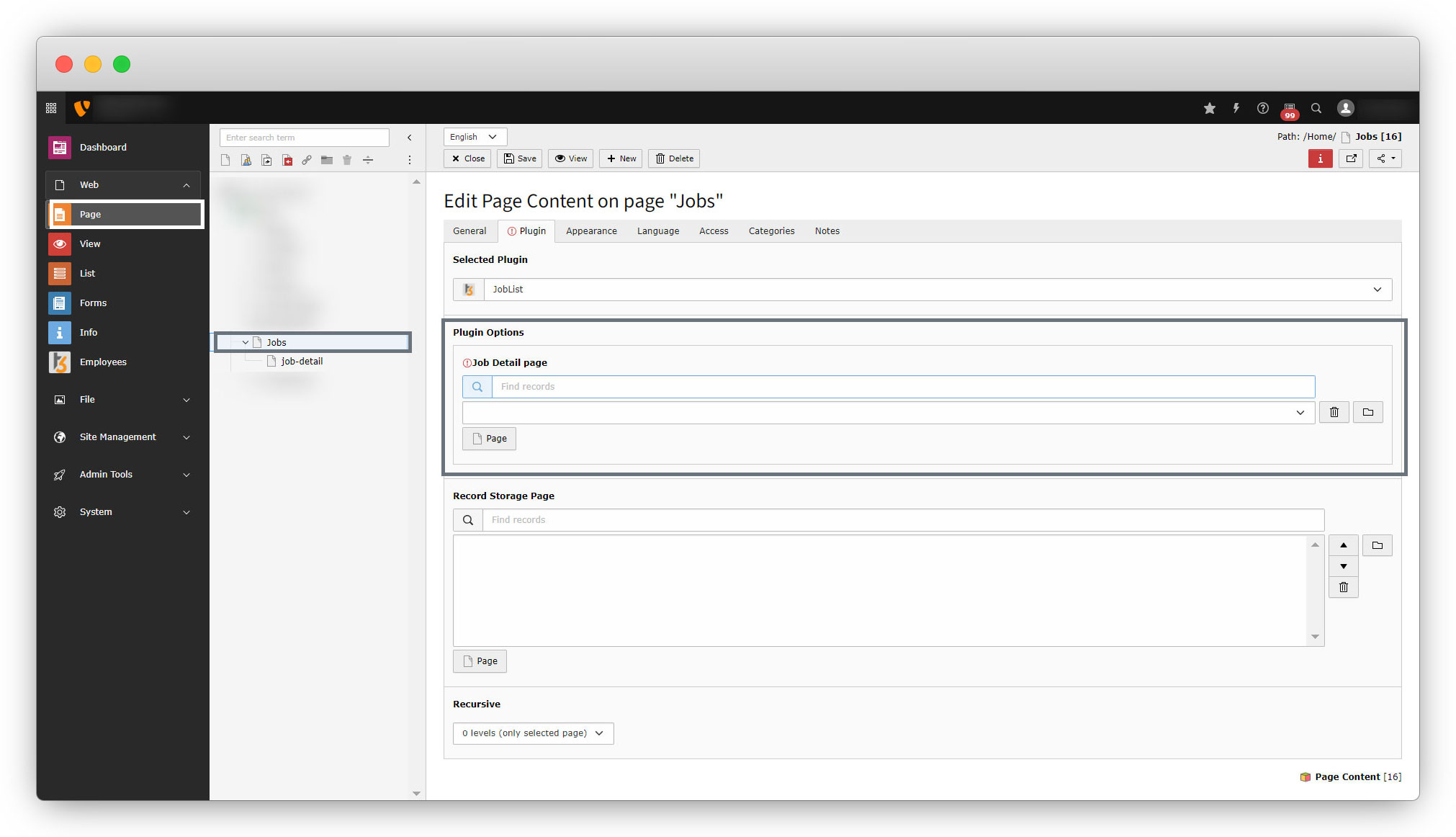
7. Now let’s add the job detail page ID to the job list plugin in the page Jobs. Go to Page > Jobs > Plugin tab and you will see a field to add the Page ID. see the screenshot below:
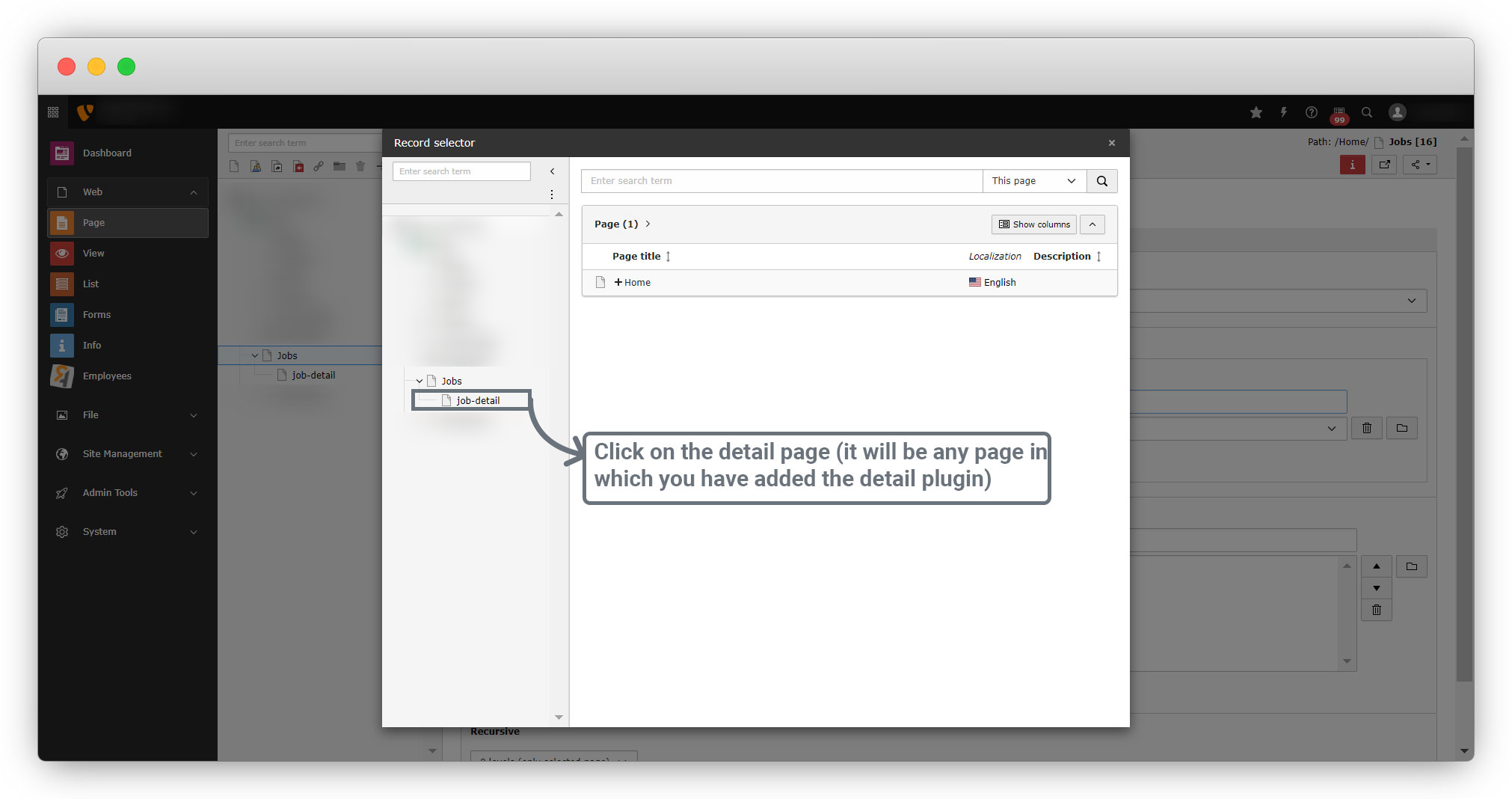
8. Click on the “Page” button and you will get the option to select the detail page as you can see in the screenshot below:
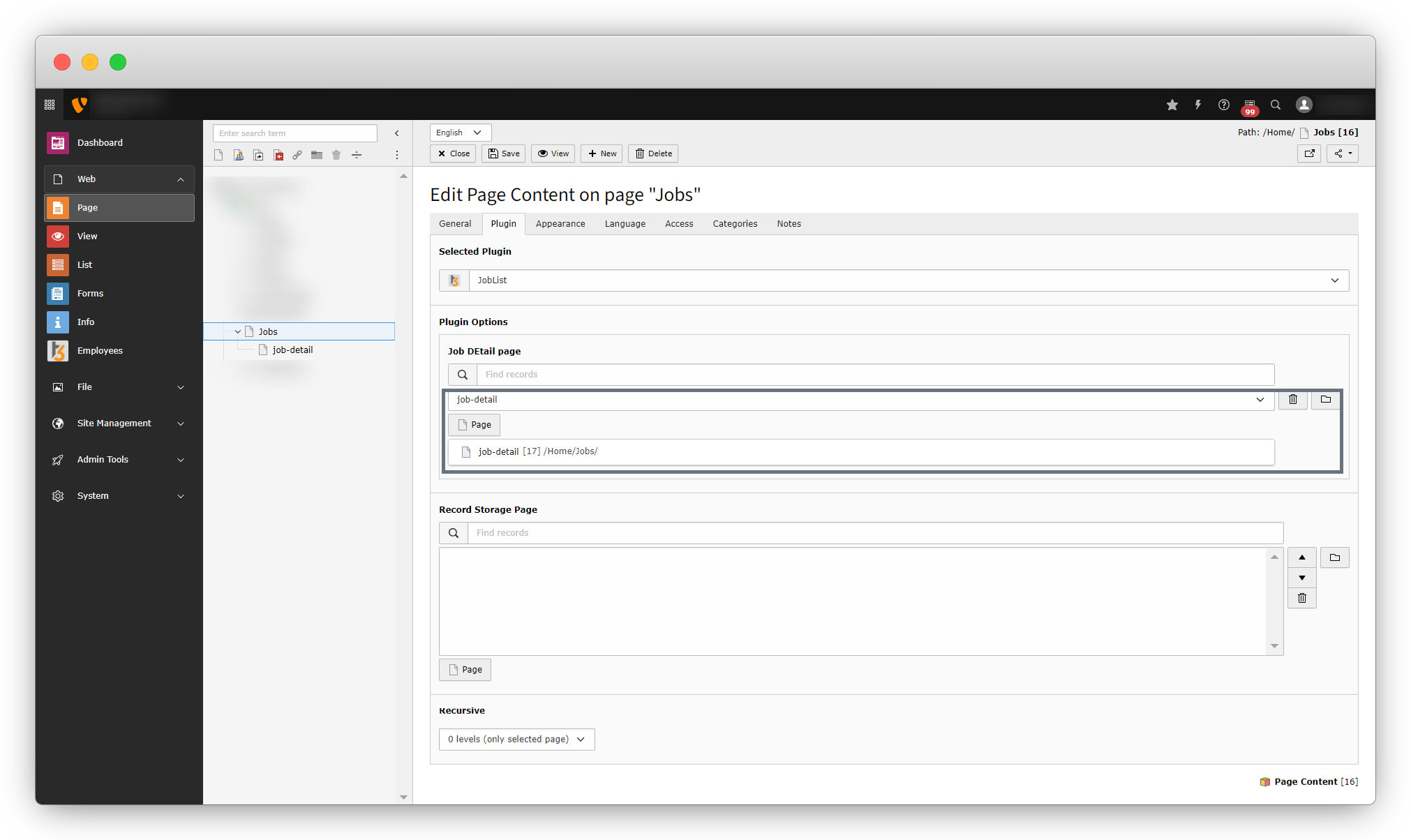
9. After selecting, you will see the below screen.
10. After saving the page, flush the cache, and now let’s add the link to the detail page on the job name in joblist plugin’s template.
11. Go to the employeeResourcesPrivateTemplatesJobIndex.html and replace that code with the code given below
<div>
    <div>
        <div>
            <f:for each="{jobs}" as="job">
                <div>
                    <div>
                        <div>
                            <f:if condition="{job.bannerImage}">
                                <f:for each="{job.bannerImage}" as="img">
                                    <f:image image="{img}" alt="{job.firstName}" width="400c" height="200c" />
                                </f:for>
                            </f:if>
                        </div>
                        <div>
                            <div>
                                <h2>
                                    <f:link.page pageUid="{settings.detailPid}" additionalParams="{uid: job.uid}">
                                        {job.jobTitle}
                                    </f:link.page>
                                </h2>
                            </div>
                            <div>
                                <div><strong>Vacancy : </strong>{job.vacancy}</div>
                                <div><strong>Location : </strong>{job.jobLocation }</div>
                                <div><strong>job Type : </strong>{job.jobType }</div>
                                <div><strong>Experiance of Years : </strong>{job.yearsOfExperience }</div>
                                <div><strong>Working hours : </strong>{job.workingHrs }</div>
                                <div><strong>Working days : </strong>{job.workingDays }</div>
                            </div>
                            <div>
                                <div>
                                    <f:link.page pageUid="{settings.detailPid}" additionalParams="{uid: job.uid}"
                                       >
                                        Apply For Job
                                    </f:link.page>
                                </div>
                            </div>
                        </div>
                    </div>
                </div>
            </f:for>
        </div>
    </div>
</div>
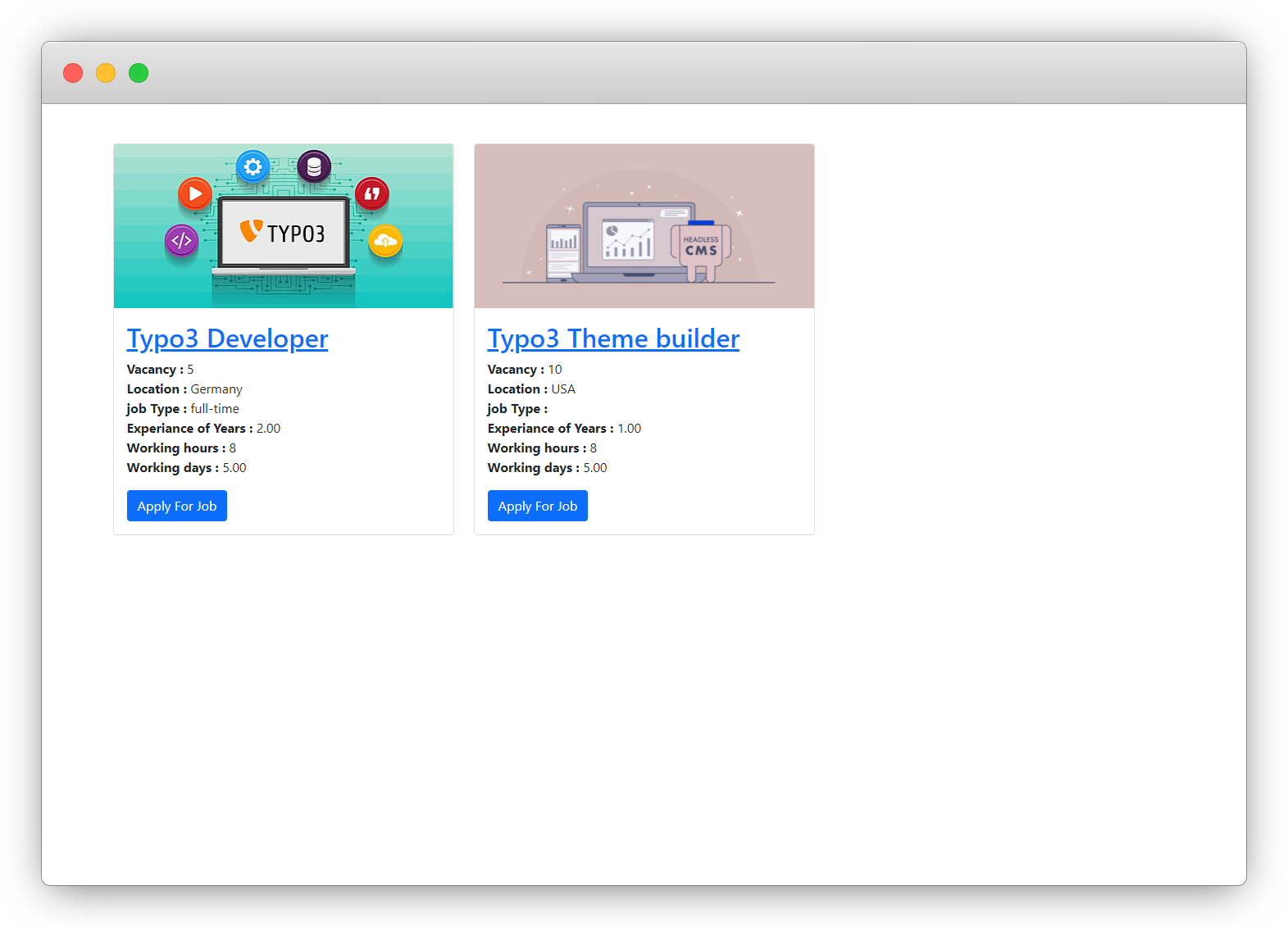
In the above code, we have linked the job title to the detail page of the particular job and added a button to apply for the job.
12. Now flush the cache and check the front-end and you will see the updates on the job listing page.
13. Now click on the button “Apply For Job” or on the job title, and you will see the error as seen in the screenshot below
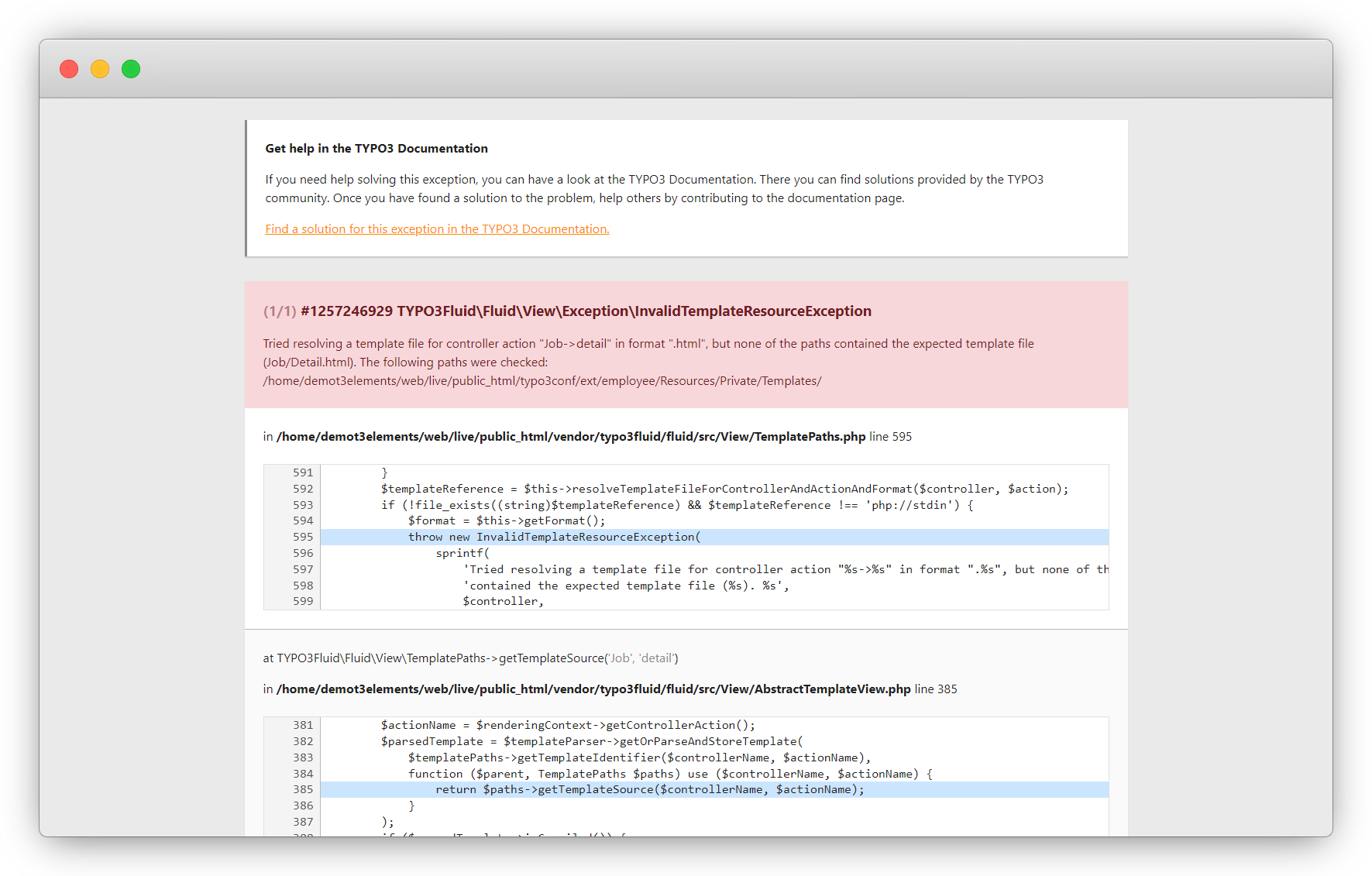
14. The error is occurring because we still don’t have created the template file for the job detail page, let’s create the template file for the detail action from the JobController.php
15. Create the file Detail.html, the file path is employeeResourcesPrivateTemplatesJobDetail.html
16. Add the code below to the Detail.html file
<div>
    <div>
        <div>
            <f:if condition="{details}">
                <f:then>
                    <h1>{details.jobTitle}</h1>
                    <f:if condition="{details.bannerImage}">
                        <f:for each="{details.bannerImage}" as="img">
                            <div>
                                <f:image image="{img}" alt="{details.firstName}" />
                            </div>
                        </f:for>
                    </f:if>
                    <div>
                        <div>
                            <h3>Details</h3>
                            <div>
                                <div>
                                    <strong>Job Title  </strong>
                                </div>
                                <div>
                                    <p>{details.jobTitle }</p>
                                </div>
                            </div>
                            <div>
                                <div>
                                    <strong>Vacancy</strong>
                                </div>
                                <div>
                                    <p>{details.vacancy}</p>
                                </div>
                            </div>
                            <div>
                                <div>
                                    <strong>Job Location</strong>
                                </div>
                                <div>
                                    <p>{details.jobLocation }</p>
                                </div>
                            </div>
                            <div>
                                <div>
                                    <strong>Salary </strong>
                                </div>
                                <div>
                                    <p>{details.salary}</p>
                                </div>
                            </div>
                            <div>
                                <div>
                                    <strong>Country </strong>
                                </div>
                                <div>
                                    <p>{details.country}</p>
                                </div>
                            </div>
                            <div>
                                <div>
                                    <strong>jobType</strong>
                                </div>
                                <div>
                                    <p>{details.jobType }</p>
                                </div>
                            </div>
                            <div>
                                <div>
                                    <strong>yearsOfExperience</strong>
                                </div>
                                <div>
                                    <p>{details.yearsOfExperience }</p>
                                </div>
                            </div>
                            <div>
                                <div>
                                    <strong>workingHrs</strong>
                                </div>
                                <div>
                                    <p>{details.workingHrs}</p>
                                </div>
                            </div>
                            <div>
                                <div>
                                    <strong>workingDays</strong>
                                </div>
                                <div>
                                    <p>{details.workingDays}</p>
                                </div>
                            </div>
                            <div>
                                <div>
                                    <strong>jobDescription</strong>
                                </div>
                                <div>
                                    <p>
                                        <f:format.html>{details.jobDescription}</f:format.html>
                                    </p>
                                </div>
                            </div>
                            <div>
                                <div>
                                    <strong>jobRequirements</strong>
                                </div>
                                <div>
                                    <p>
                                        <f:format.html>{details.jobRequirements}</f:format.html>
                                    </p>
                                </div>
                            </div>
                            <div>
                                <div>
                                    <strong>educationQualification </strong>
                                </div>
                                <div>
                                    <p>
                                        <f:format.html>{details.educationQualification }</f:format.html>
                                    </p>
                                </div>
                            </div>
                            <div>
                                <div>
                                    <strong>perksBenefits </strong>
                                </div>
                                <div>
                                    <p>
                                        <f:format.html>{details.perksBenefits }</f:format.html>
                                    </p>
                                </div>
                            </div>
                        </div>
                    </div>
                </f:then>
                <f:else>
                    <div>
                        Job not found!!
                    </div>
                </f:else>
            </f:if>
        </div>
    </div>
</div>
17. Save the file, flush the cache, and reload the front-end, click on the button”Apply For Job” or click on the job title in the job listing and you will see that the detail page does open now.
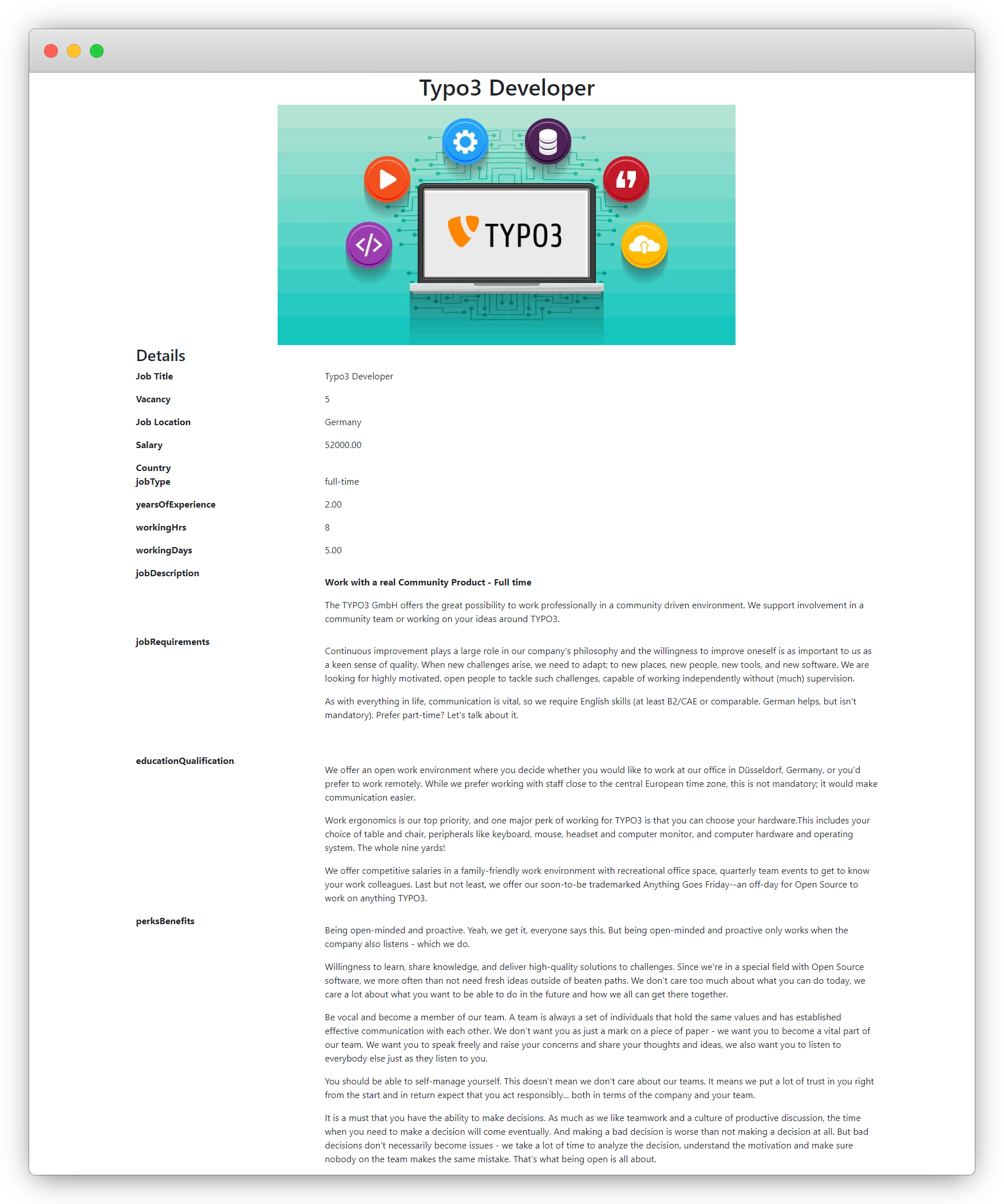
18. Let’s add a form to the detail page to apply for the job.
Create the front-end form
Let’s create a form in the detail page of the job. Follow the steps given below to create a form to apply for the job.
1. Add the below code in the template file of the detail page, the file path is employeeResourcesPrivateTemplatesJobDetail.html
<div>
    <div>
        <f:form action="create" enctype="multipart/form-data" name="newEmploy" object="{newEmploy}">
            <h2>Apply For Job </h2>
            <f:render partial="Employe/FormFields" arguments="{_all}" />
            <div>
                <f:form.submit value="Apply" />
            </div>
        </f:form>
    </div>
</div>
Add the above code after the description for the detail page is completed, specifically after the <div> is completed, as you can see in the screenshot below
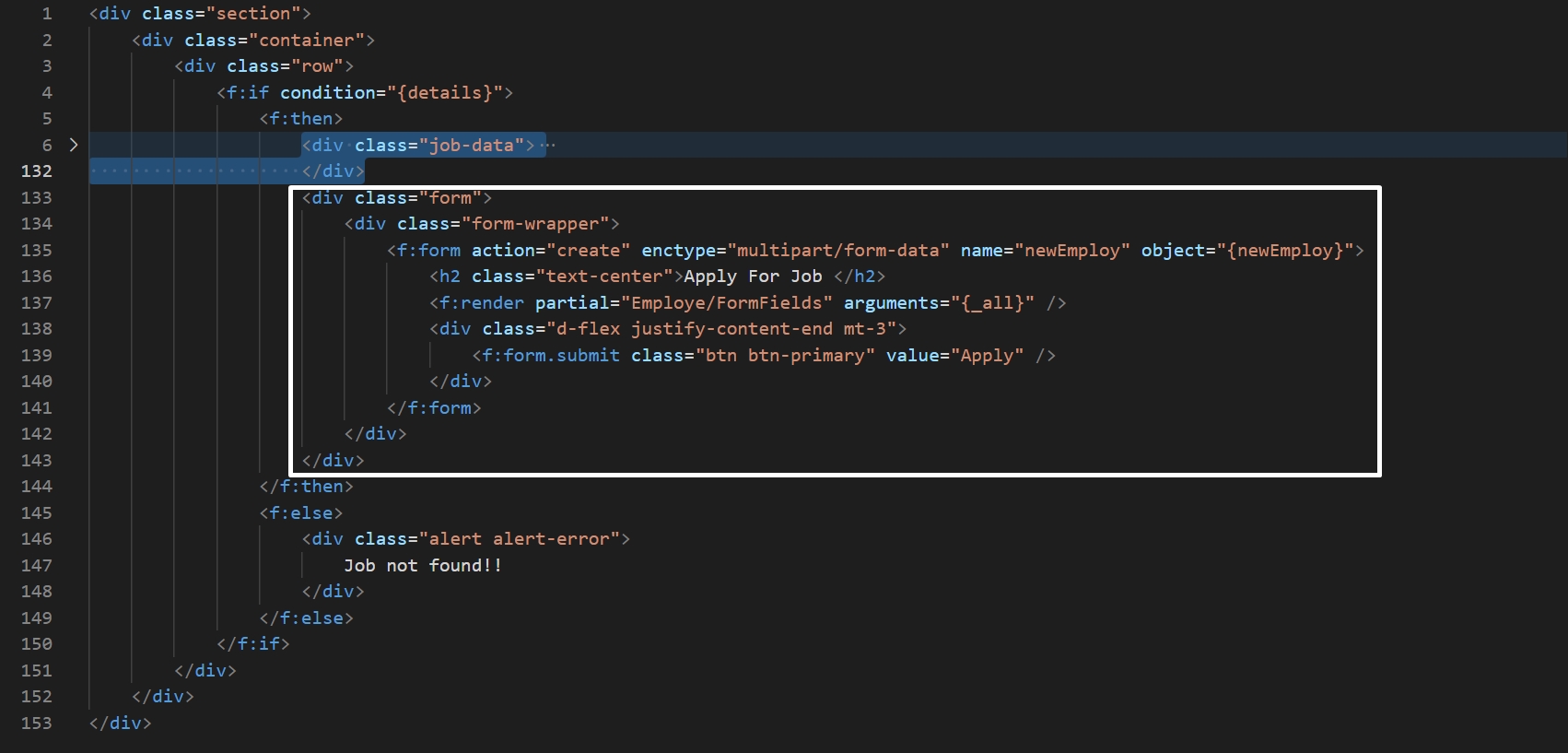
2. Save the file, flush the cache, and open the detail page of any job, you will see an error as in the screenshot below:
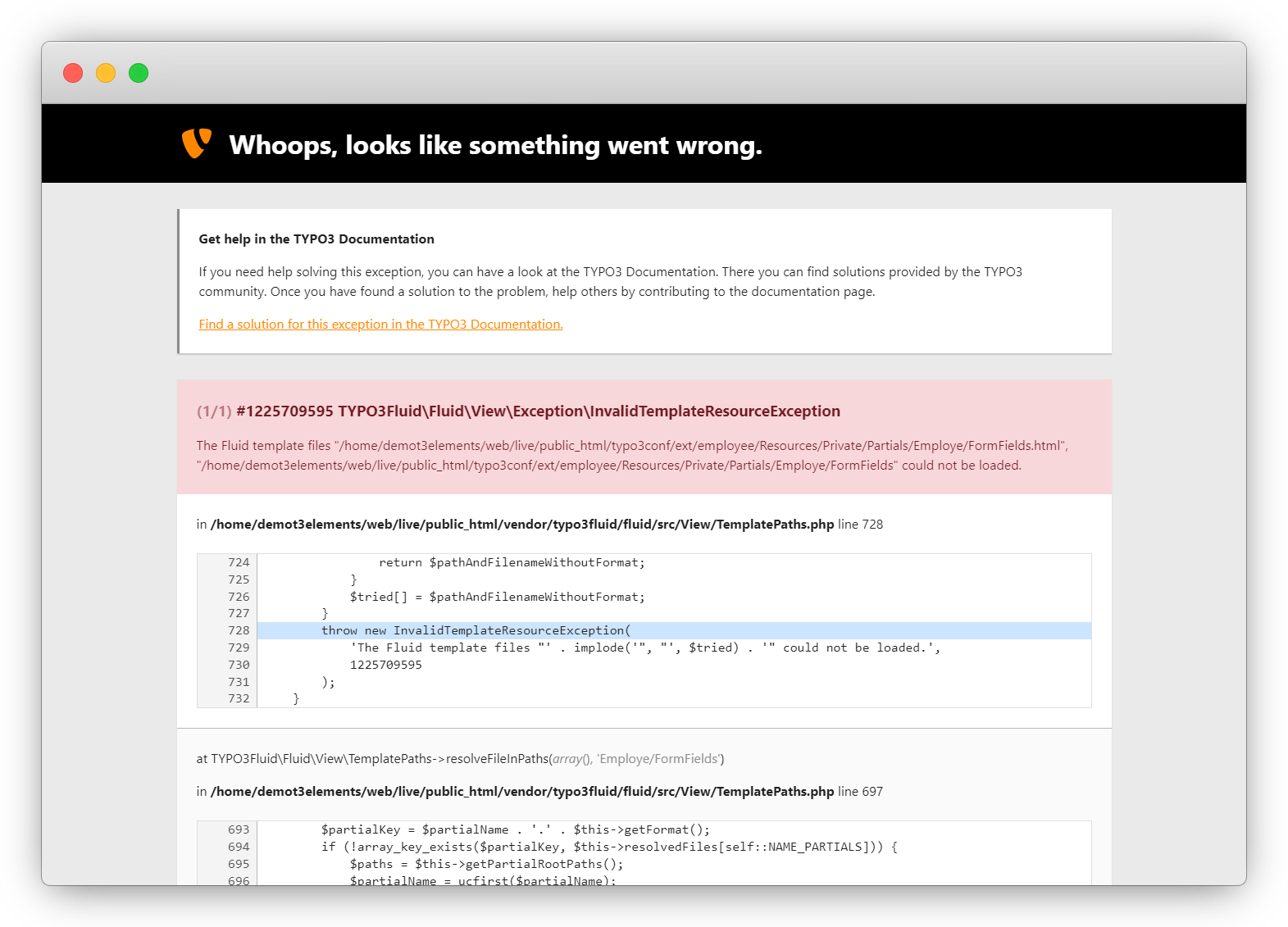
3. The error is occurring because we had added a line of code in Detail.html to render the partial:
<f:render partial="Employe/FormFields" arguments="{_all}" />
But we don’t have the file on that path. Let’s create the file ‘FormFields.html‘ in partial. The file path is employeeResourcesPrivatePartialsEmployeFormFields.html
4. Add the code below to the employeeResourcesPrivatePartialsEmployeFormFields.html file.
<f:form.validationResults>
    <f:if condition="{validationResults.flattenedErrors}">
        <div>
            <f:for each="{validationResults.flattenedErrors}" as="errors" key="propertyPath">
                <div> {propertyPath}
                    <f:for each="{errors}" as="error">
                        <p>{error.code}: {error}</p>
                    </f:for>
                </div>
            </f:for>
        </div>
    </f:if>
</f:form.validationResults>

<!-- this hidden field will bind the job and the job form, so it can be identify that the submitted form is applied for which job -->
<f:form.hidden property="job" value="{details.uid}" />
<f:form.hidden property="salary" value="0" />
<f:form.hidden property="pid" value="{details.pid}" />

<div>
    <div>
        <div>
            <label for="firstName">
                First Name
            </label><br />
            <f:form.textfield property="firstName" placeholder="Enter First Name"
                required="true" />
        </div>
    </div>
    <div>
        <div>
            <label for="lastName">
                Last Name
            </label><br />
            <f:form.textfield property="lastName" placeholder="Enter Last Name" required="true" />
        </div>
    </div>
    <div>
        <div>
            <label for="country">
                Country
            </label><br />
            <f:form.select property="country"
                options="{english: 'English', german: 'German', french:'French'}" />
        </div>
    </div>
    <div>
        <div>
            <label for="gender">
                Gender
            </label><br />
            <label for="male">
                <f:form.radio property="gender" value="1" id="male" /> Male
            </label>
            <label for="female">
                <f:form.radio property="gender" value="2" id="female" /> FeMale
            </label>
        </div>
    </div>
    <f:comment>
        <div>
            <div>
                Languages<br />
                <f:form.checkbox property="languages" value="en" multiple="1" /> English
                <f:form.checkbox property="languages" value="fr" multiple="1" /> French
                <f:form.checkbox property="languages" value="de" multiple="1" /> German
            </div>
        </div>
    </f:comment>
    <div>
        <div>
            <label for="birthDate">
                Birth Date
            </label><br />
            <f:form.textfield property="birthDate" value="{employ.birthDate -> f:format.date()}"
                type="date" required="true" />
        </div>
    </div>
    <div>
        <div>
            <label for="joiningDate">
                Joining Date
            </label><br />
            <f:form.textfield property="joiningDate" value="{employ.joiningDate -> f:format.date()}"
                type="date" required="true" />
        </div>
    </div>
    <div>
        <div>
            <label for="bio">
                Bio
            </label><br />
            <f:form.textarea property="bio" />
        </div>
    </div>
    <div>
        <div>
            <label for="experiance">
                Experience
            </label><br />
            <f:form.textarea property="experiance" />
        </div>
    </div>
    <div>
        <div>
            <label for="image">
                Image
            </label><br />
            <f:form.upload property="image" accept=".png,.jpg,.jpeg" />
        </div>
    </div>
</div>
Save the file, flush the cache, and reload the detail page of the job and you will see the error has been resolved and the form is rendering after the job description as you can see in the screenshot below:
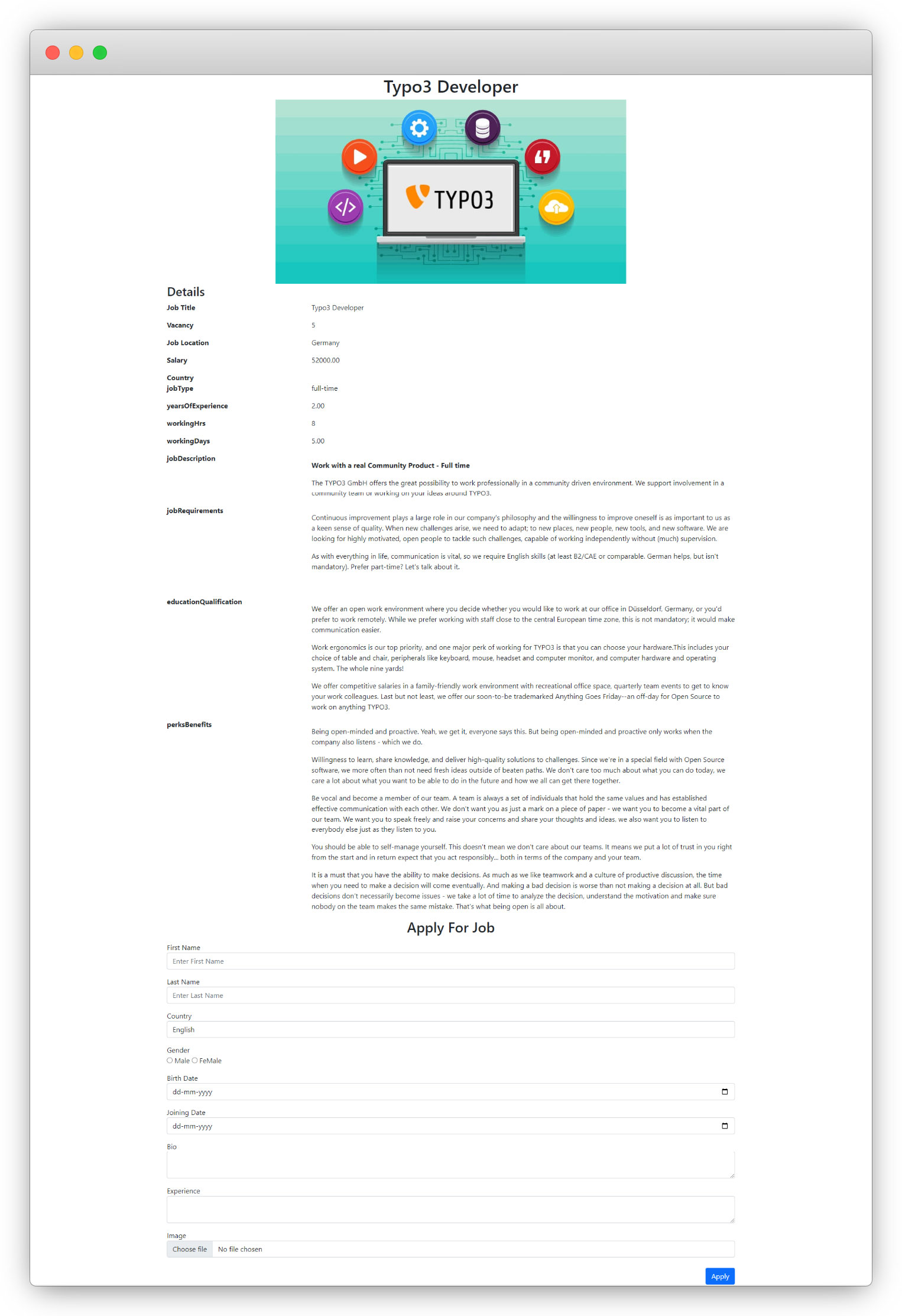
5. Fill up the above form and click on the Apply button to submit the form, but you will see an error as seen in the screenshot below:
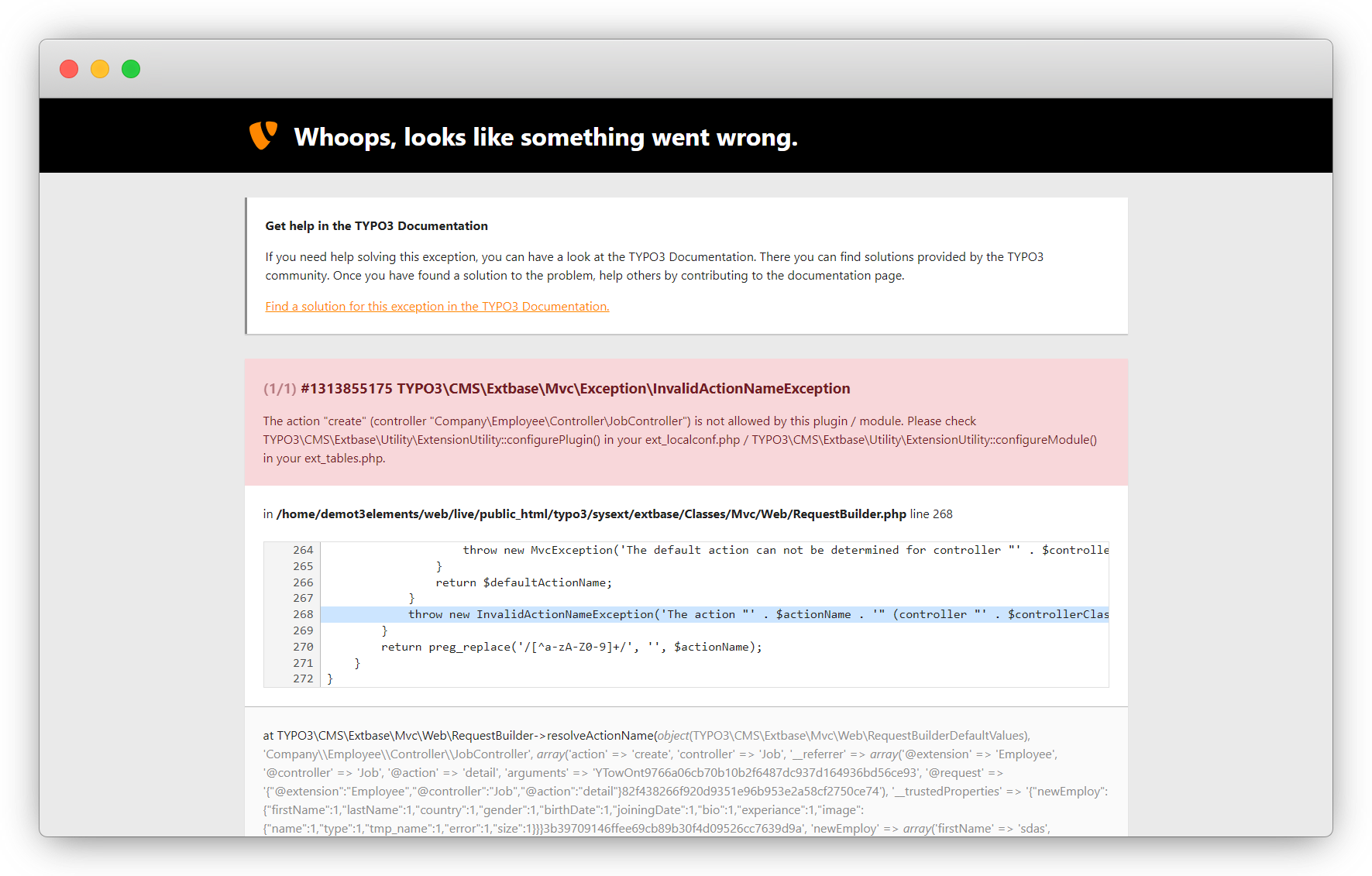
The error is occurring because we didn’t add the action “Create” in ext_localconf.php file to allow it for the form, and we have already added the action attribute with the “Create” action into the job application form.
Infect we didn’t create the action “create” for the JobController.
6. Let’s create the action createAction() for the JobController.php and make it available by adding it to the ext_localconf.php file.
7. Replace the code with the code below in the JobController.php file to create an action createAction().
<?php
declare(strict_types=1);

namespace CompanyEmployeeController;

use TYPO3CMSExtbaseMvcControllerActionController;
use TYPO3CMSBackendTemplateModuleTemplateFactory;
use PsrHttpMessageResponseInterface;
use TYPO3CMSCoreContextContext;
use TYPO3CMSExtbaseUtilityDebuggerUtility;
use TYPO3CMSCoreUtilityGeneralUtility;
use CompanyEmployeeDomainModelEmploy;
use TYPO3CMSCoreTypeContextualFeedbackSeverity;

class JobController extends ActionController
{
    /**
     * jobRepository
     *
     * @var CompanyEmployeeDomainRepositoryJobRepository
     */
    protected $jobRepository = null;
    /**
     * @param CompanyEmployeeDomainRepositoryJobRepository $jobRepository
     */
    public function injectJobRepository(CompanyEmployeeDomainRepositoryJobRepository $jobRepository)
    {
        $this->jobRepository = $jobRepository;
    }


    /**
     * employRepository
     *
     * @var CompanyEmployeeDomainRepositoryEmployRepository
     */
    protected $employRepository = null;
    /**
     * @param CompanyEmployeeDomainRepositoryEmployRepository $employRepository
     */
    public function injectEmployRepository(CompanyEmployeeDomainRepositoryEmployRepository $employRepository)
    {
        $this->employRepository = $employRepository;
    }


    public function __construct(
        protected readonly ModuleTemplateFactory $moduleTemplateFactory,
        Context $context,
    ) {
        $this->context = $context;
    }

    /**
     * action list
     *
     * @return string|object|null|void
     */
    public function indexAction(): ResponseInterface
    {
        $settings = $this->settings;
        $this->view->assign('settings', $settings);
        $jobs = $this->jobRepository->findAll();
        $this->view->assign('jobs', $jobs);
        return $this->htmlResponse();
    }

    /**
     * action detail
     *
     * @return string|object|null|void
     */
    public function detailAction(): ResponseInterface
    {
        $uid = GeneralUtility::_GP('uid');
        if ($uid) {
            $details = $this->jobRepository->findByUid($uid);
            $this->view->assign('details', $details);
        } else {
            $this->view->assign('details', null);
        }
        return $this->htmlResponse();
    }
    /**
     * action create
     * @param Employ $newEmploy
     * @return void
     */
    public function createAction(Employ $newEmploy): ResponseInterface
    {

        $redirectPid = (int) $this->settings['listPid'];
        $uriBuilder = $this->uriBuilder;
        $uri = $uriBuilder
            ->setTargetPageUid($redirectPid)
            ->build();
        $this->addFlashMessage('Employee Added successfully!!', 'Success', ContextualFeedbackSeverity::OK, true);
        $this->employRepository->add($newEmploy);
        return $this->redirectToUri($uri);
    }

}
Now let’s add the createAction() into the ext_localconf.php file to allow the action or make it available for the JobController. See the screenshot below and add the create action into the existing ExtensionUtility::configurePlugin

Note: Here we don’t need to write the code for the job plugin specifically as the code has already been written for the employee extension in setup.typoscript and constants.typoscript files.
8. Now fill up the form and submit the form by clicking on the “Apply” button and you will see the screen below:
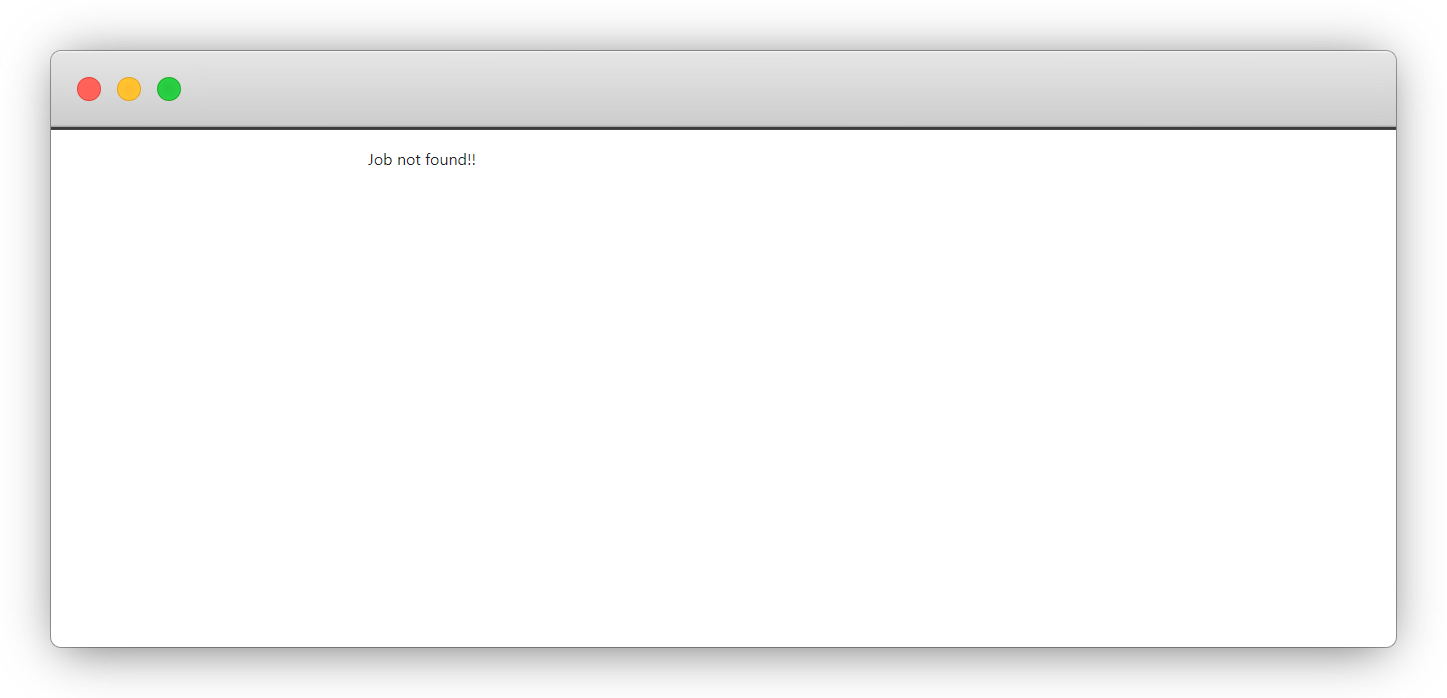
9. Once the form is submitted, the page should be redirected to the job listing page, but we don’t have any configurations to redirect to the job listing page right after the job application for has been submitted. So let’s add the configs to redirect the page after form submission done successfully.
10. To add the flexform, add the code below in the file employeeConfigurationTCAOverridestt_content.php
    $GLOBALS['TCA']['tt_content']['types']['list']['subtypes_addlist']['employee_jobdetail'] = 'pi_flexform';
    TYPO3CMSCoreUtilityExtensionManagementUtility::addPiFlexFormValue(
        'employee_jobdetail',
        'FILE:EXT:employee/Configuration/FlexForms/Jobdetail.xml'
    );
11. Now create the XML file, the file name is Jobdetail.xml, and the file path is employeeConfigurationFlexFormsJobdetail.xml
12. Add the code below to the Jobdetail.xml file
<T3DataStructure>
    <sheets>
        <sDEF>
            <ROOT>
                <sheetTitle>
                    General
                </sheetTitle>
                <type>array</type>
                <el>
                    <settings.listPid>
			<TCEforms>
				<label>Job List Page</label>
				<config>
					<type>group</type>
					<allowed>pages</allowed>
					<size>1</size>
					<maxitems>1</maxitems>
					<minitems>1</minitems>
				</config>
			</TCEforms>
		    </settings.listPid>
                </el>
            </ROOT>
        </sDEF>
    </sheets>
</T3DataStructure>
Save the file and now set the page ID in the job detail page to define which page should be shown once the form is submitted successfully.
13. Go to Page > job-detail > Plugin tab and you will see a field to add the Page ID. see the screenshot below:
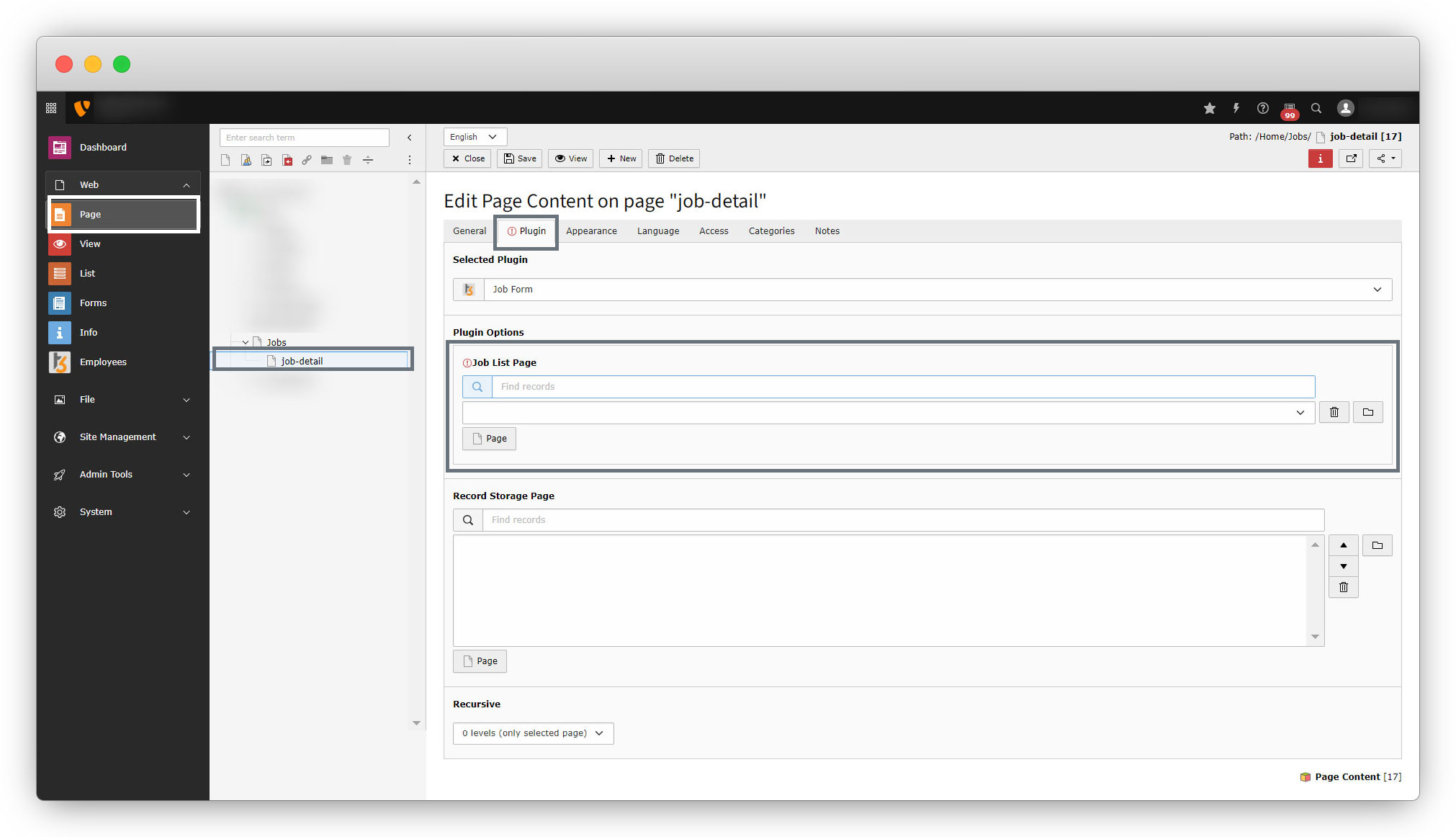
14. Select the page you want to show once the detail page’s form is submitted successfully. Here we are going to select the page “Jobs” to redirect on job list.
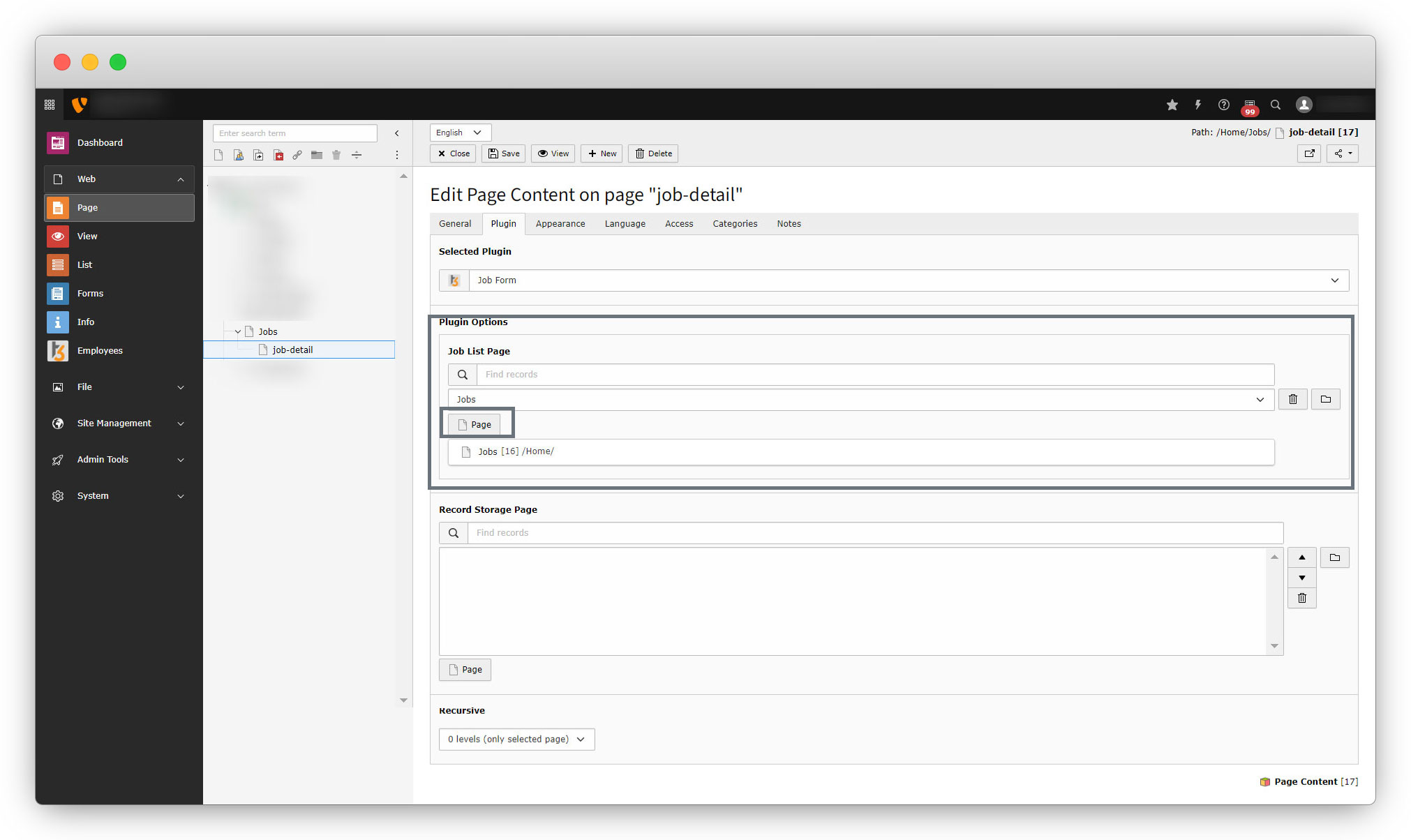
15. Now fill out the form on the job detail page and click on the “Apply” button and you will be redirected to the job listing page instead of “Job not found!!.
16. Please note here that we have added a line of code into employeeResourcesPrivatePartialsEmployeFormFields.html file, to add a hidden field <f:form.hidden property="job" value="{details.uid}" />, so the connection between the form and the job can be established, and it can be identified that the submitted form is applied for which job.
How to upload an image in front-end form without error
If you upload an image to the image field from the front-end form and click on the “Apply” button, you will see an error as seen in the screenshot below
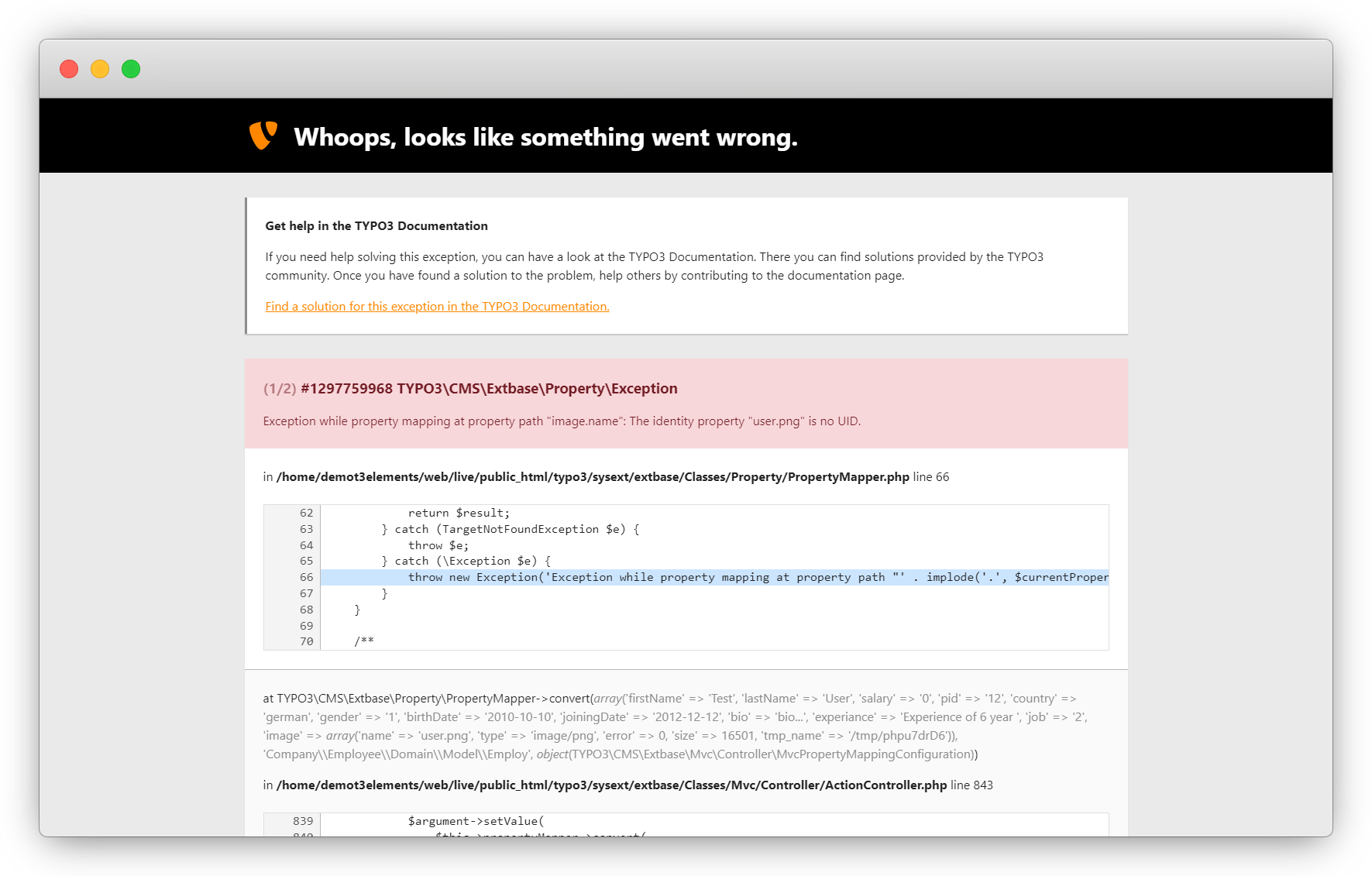
To resolve the above error, we need to update the file of controller, model, and persistence as we already have done in the employee plugin.
1. Update the controller file, file path is: employeeClassesControllerJobController.php
- Add the core functionalities/packages, update the createAction code and add the code for initializeCreateAction. You can see the description for initializeAction in the ‘Create new employees in the back-end module’ section.
- See the below code and just update the existing code of the JobController.php
//Add the initializeCreateAction

/**
* Set TypeConverter option for image upload
*/
public function initializeCreateAction()
    {
    if ($this->arguments['newEmploy']) {
        $propertyMappingConfiguration = $this->arguments['newEmploy']->getPropertyMappingConfiguration();
        $propertyMappingConfiguration->allowAllProperties();
        $propertyMappingConfiguration->forProperty('birthDate')->setTypeConverterOption(TYPO3CMSExtbasePropertyTypeConverterDateTimeConverter::class, TYPO3CMSExtbasePropertyTypeConverterDateTimeConverter::CONFIGURATION_DATE_FORMAT, 'Y-m-d');
        $propertyMappingConfiguration->forProperty('joiningDate')->setTypeConverterOption(TYPO3CMSExtbasePropertyTypeConverterDateTimeConverter::class, TYPO3CMSExtbasePropertyTypeConverterDateTimeConverter::CONFIGURATION_DATE_FORMAT, 'Y-m-d');
        $propertyMappingConfiguration->skipProperties('image');
  }
}


//Update the createAction

/**
* action create
* @param Employ $newEmploy
* @return void
*/
    public function createAction(Employ $newEmploy): ResponseInterface
    {
        $uploaded = $this->request->getUploadedFiles();
        if (sizeOf($uploaded) > 0) {
            $__imag = $uploaded['newEmploy']['image'];
            $resourceFactory =  GeneralUtility::makeInstance(TYPO3CMSCoreResourceResourceFactory::class);
            $storage = $resourceFactory->getDefaultStorage();
            $newFile = $storage->addFile(
                $__imag->getTemporaryFileName(),
                $storage->getRootLevelFolder(),
                $__imag->getClientFilename()
            );
            $fileReference =  GeneralUtility::makeInstance(CompanyEmployeeDomainModelFileReference::class);
            $fileReference->setOriginalResource($newFile);
            $newEmploy->addImage($fileReference);
        }
        $this->employRepository->add($newEmploy);
        $this->addFlashMessage('Employee Added successfully!!', 'Success', ContextualFeedbackSeverity::OK, true);
        $redirectPid = (int) $this->settings['listPid'];
        $uriBuilder = $this->uriBuilder;
        $uri = $uriBuilder
            ->setTargetPageUid($redirectPid)
            ->build();
        return $this->redirectToUri($uri);
    }
}
2. After the controller, it is required to create the filereference model to override the TYPO3 default model, but we already have done this for the employees in the backend module’s ‘FileReference model override‘ section. So there is no need to do the same thing again.
3. After that, it is required to update the persistence file, but we already have updated that too. You can check it in the “Persistence” section.
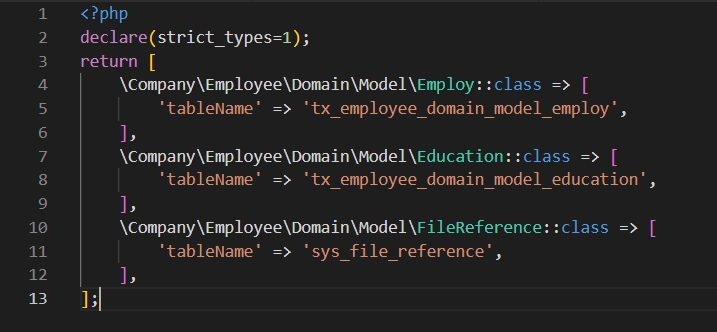
4. Now after the above updates, it is required to update the Employ.php model so the image can be store for the employee. But we already made the changes in the model file for the employees in the backend module.
Sub-table entry for the front-end form
1. There is a table of education which has been used as a field for the employ table. So the education table is a sub-table for the employ table.
2. So we should provide the education field for the front-end job application form.
3. Let’s add the new field in the employeeResourcesPrivatePartialsEmployeFormFields.html file to provide the field for the education of the job applicant.
Add the below code in the new line to add the field for the education field
<div>
    <div>
        <h2>Education Details</h2>
    </div>
    <div>
        <div>
            <label for="education.title">
                Title
            </label><br />
            <f:form.textfield property="education.title" />
        </div>
    </div>
    <div>
        <div>
            <label for="education.rollnumber">
                Roll Number
            </label><br />
            <f:form.textfield property="education.rollnumber"  required="true"  />
        </div>
    </div>
    <div>
        <div>
            <label for="education.cgpa">
                CGPA
            </label><br />
            <f:form.textfield type="number" property="education.cgpa" required="true"  />
        </div>
    </div>
    <div>
        <div>
            <label for="education.university">
                University
            </label><br />
            <f:form.select property="education.university"
            options="{uni-1: 'University 1', uni-2: 'University 2', uni-3:'University 3'}" />
        </div>
    </div>
    <div>
        <div>
            <label for="startDate">
                Start Date
            </label><br />
            <f:form.textfield property="education.startDate" value="{employ.education.startDate -> f:format.date()}"
                type="date" required="true" />
        </div>
    </div>
    <div>
        <div>
            <label for="endDate">
                End Date
            </label><br />
            <f:form.textfield property="education.endDate" value="{employ.education.endDate -> f:format.date()}"
                type="date" required="true" />
        </div>
    </div>

</div>
4. Then update the createAction() in employeeClassesControllerJobController.php file.
Replace the initializeCreateAction() code and createAction() code with the below code
    /**
     * Set TypeConverter option for image upload
     */
    public function initializeCreateAction()
    {
        if ($this->arguments['newEmploy']) {
            DebuggerUtility::var_dump($this->request->getArguments('newEmploy'));
            $propertyMappingConfiguration = $this->arguments['newEmploy']->getPropertyMappingConfiguration();
            $propertyMappingConfiguration->allowAllProperties();
            $propertyMappingConfiguration->forProperty('birthDate')->setTypeConverterOption(TYPO3CMSExtbasePropertyTypeConverterDateTimeConverter::class, TYPO3CMSExtbasePropertyTypeConverterDateTimeConverter::CONFIGURATION_DATE_FORMAT, 'Y-m-d');
            $propertyMappingConfiguration->forProperty('joiningDate')->setTypeConverterOption(TYPO3CMSExtbasePropertyTypeConverterDateTimeConverter::class, TYPO3CMSExtbasePropertyTypeConverterDateTimeConverter::CONFIGURATION_DATE_FORMAT, 'Y-m-d');
            $propertyMappingConfiguration->skipProperties('image');
            $propertyMappingConfiguration->skipProperties('education');
        }
    }
    /**
     * action create
     * @param Employ $newEmploy
     * @return void
     */
    public function createAction(Employ $newEmploy): ResponseInterface
    {
        $requestData = $this->request->getArguments('newEmploy');
        $uploaded = $this->request->getUploadedFiles();
        if (sizeOf($uploaded) > 0) {
            $__imag = $uploaded['newEmploy']['image'];
            $resourceFactory =  GeneralUtility::makeInstance(TYPO3CMSCoreResourceResourceFactory::class);
            $storage = $resourceFactory->getDefaultStorage();
            $newFile = $storage->addFile(
                $__imag->getTemporaryFileName(),
                $storage->getRootLevelFolder(),
                $__imag->getClientFilename()
            );
            $fileReference =  GeneralUtility::makeInstance(CompanyEmployeeDomainModelFileReference::class);
            $fileReference->setOriginalResource($newFile);
            $newEmploy->addImage($fileReference);
        }
        if($requestData['newEmploy']['education']){
            $edu = $requestData['newEmploy']['education'];
            $education = GeneralUtility::makeInstance(CompanyEmployeeDomainModelEducation::class);
            $education->setCgpa((float)$edu['cgpa']);
            $education->setRollnumber($edu['rollnumber']);
            $education->setStartDate(new DateTime($edu['startDate']));
            $education->setEndDate(new DateTime($edu['endDate']));
            $education->setTitle($edu['title']);
            $newEmploy->addEducations($education);
        }
        $this->employRepository->add($newEmploy);
        $this->addFlashMessage('Employee Added successfully!!', 'Success', ContextualFeedbackSeverity::OK, true);
        $redirectPid = (int) $this->settings['listPid'];
        $uriBuilder = $this->uriBuilder;
        $uri = $uriBuilder
            ->setTargetPageUid($redirectPid)
            ->build();
        return $this->redirectToUri($uri);
    }
Save the file, flush the cache, and reload the detail page and you will see the fields for the education details as seen in the screenshot below:
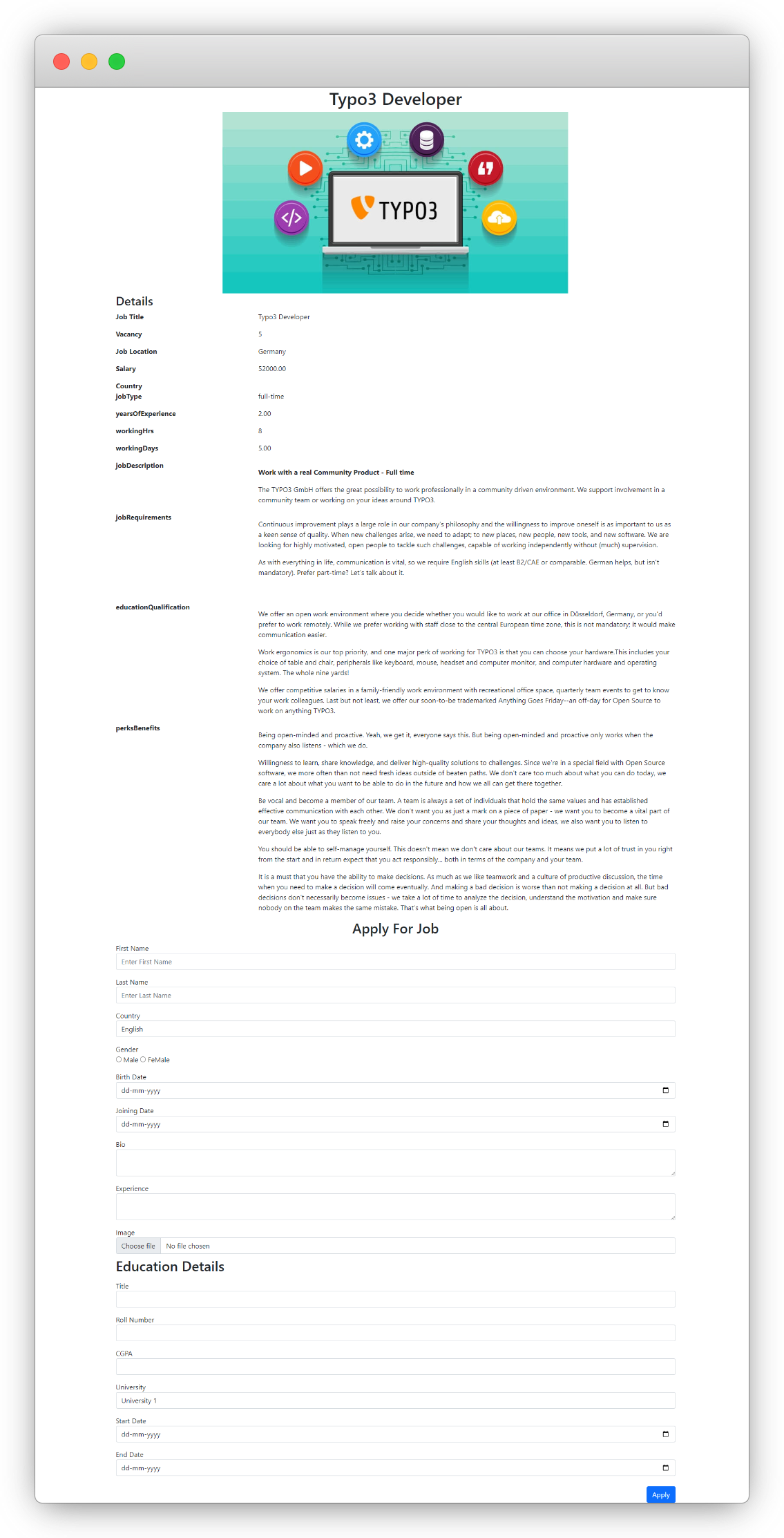
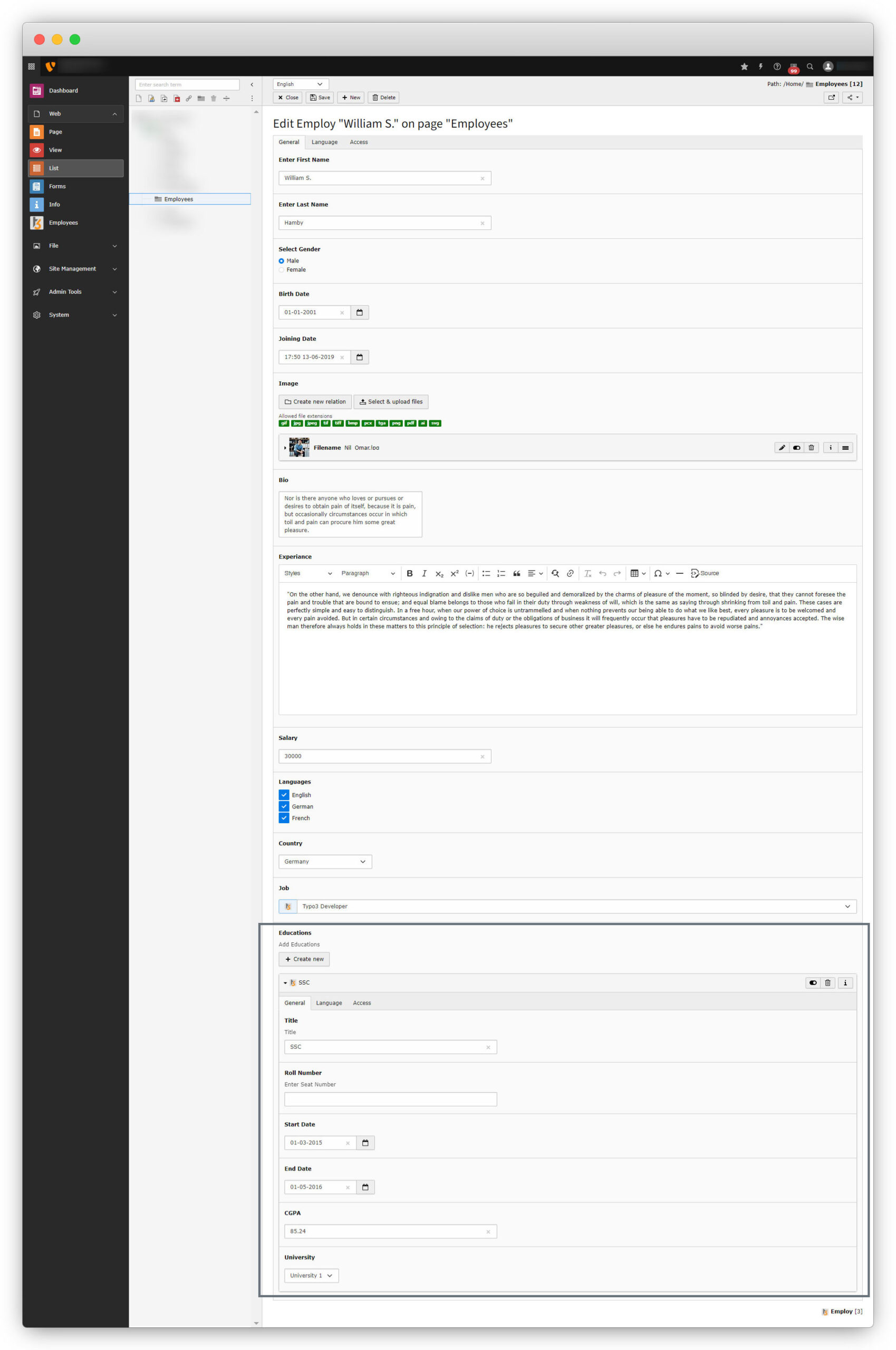
5. When the form is submitted with all the details, we will get all the details of the form in the list module of the TYPO3 admin panel.
Share



