



URL copied to clipboard

Test the extension settings
3 views
__readtime__ Min
read
1. Go to the back-end module and select the first option “Show image in list page”
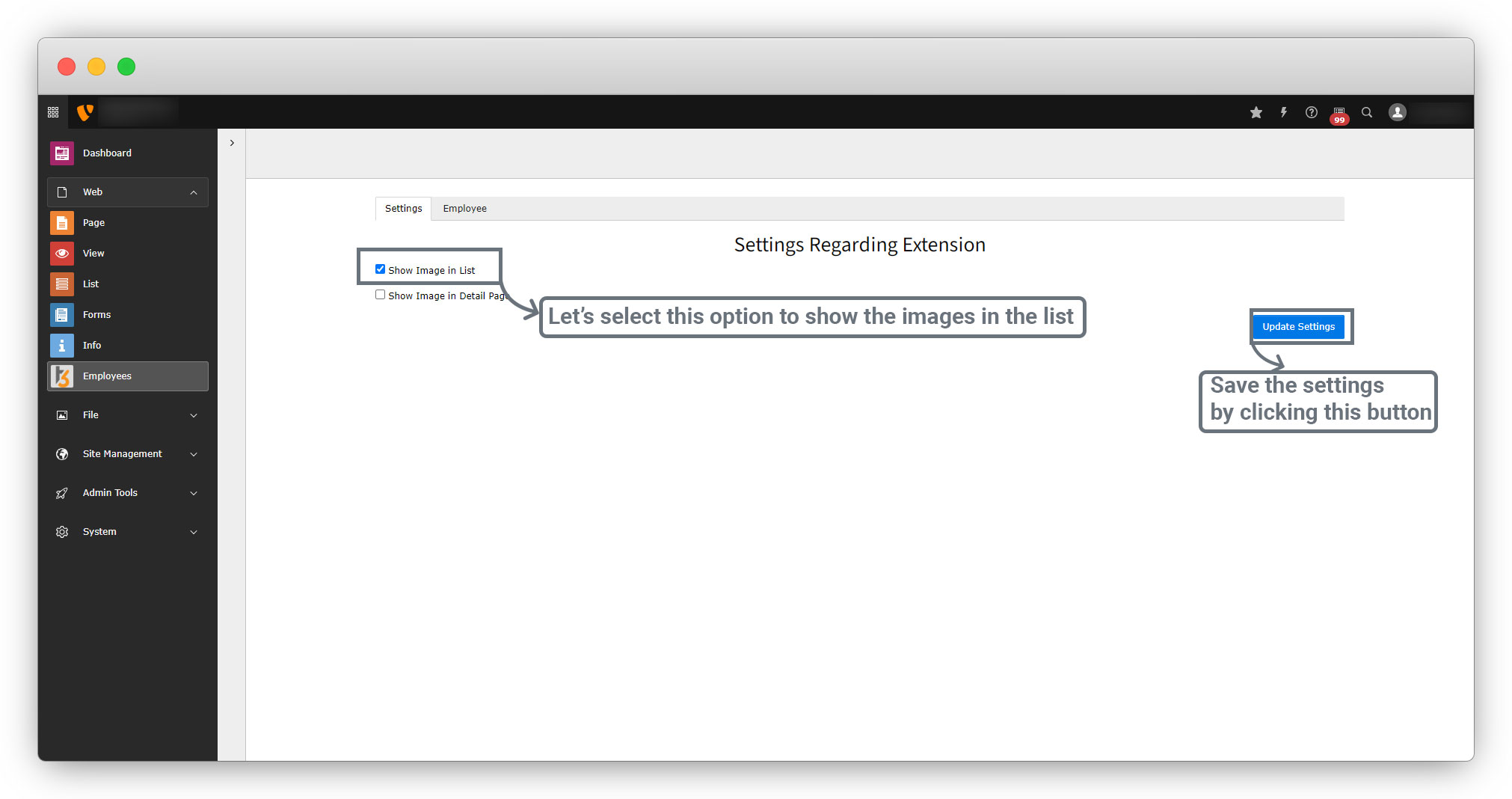
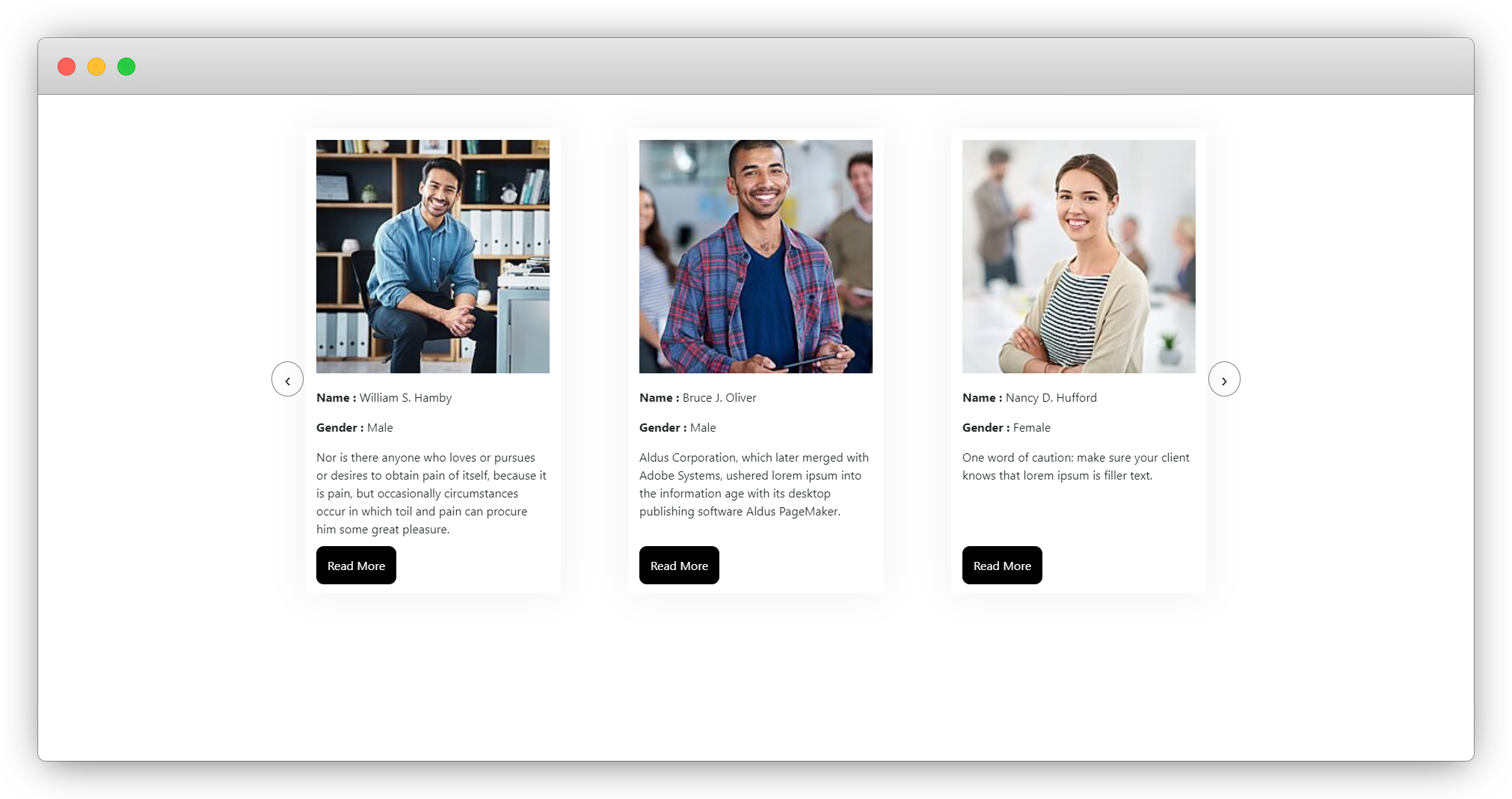
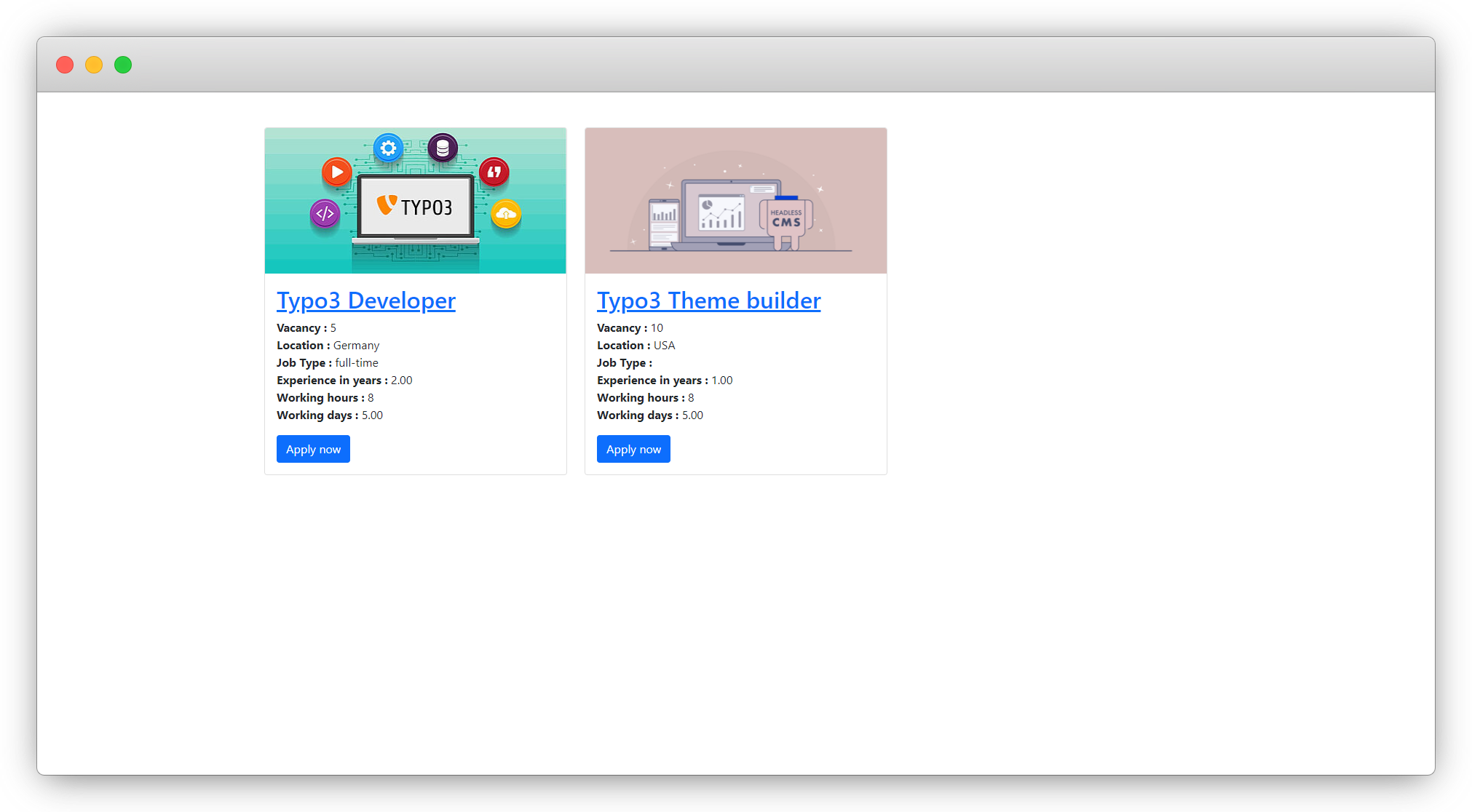
2. After selecting this option you will see the list of employees and the list of jobs containing images as you can see in the screenshots below.
Employee List:
Job list:
3. Now uncheck the “Show Image in List” checkbox and click on the “Update Settings” button and you will see the images are not showing on any of the list pages.
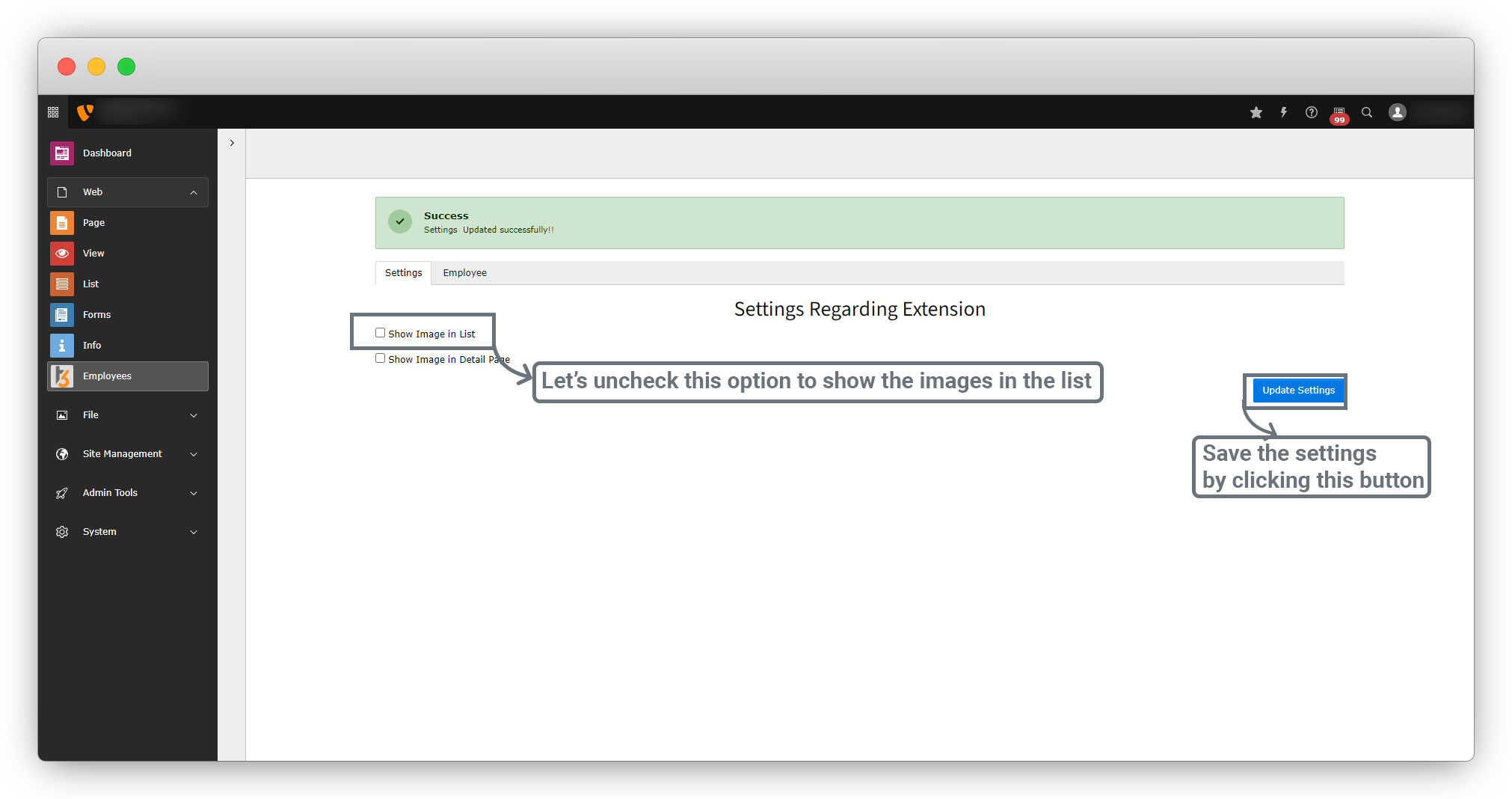
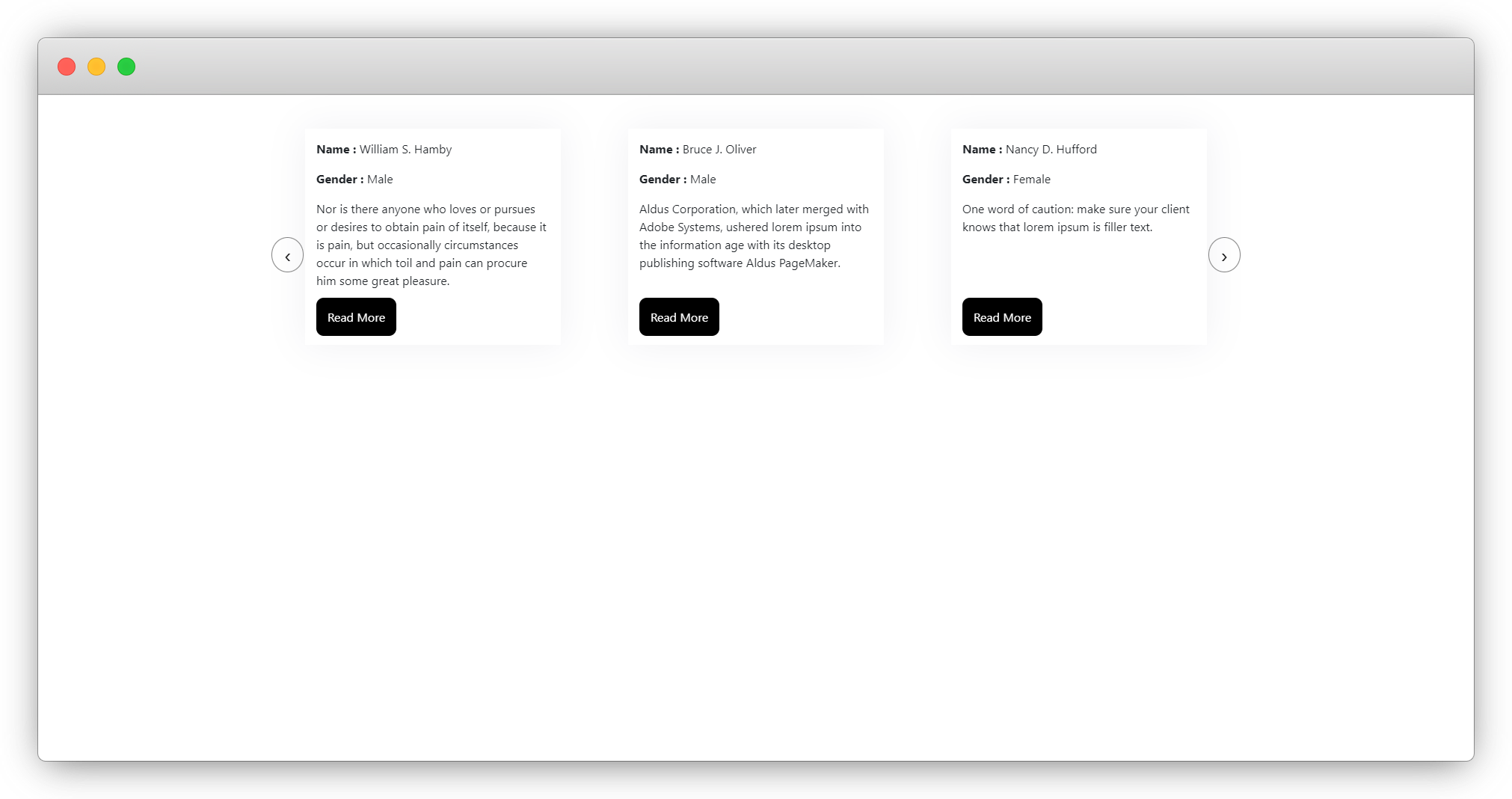
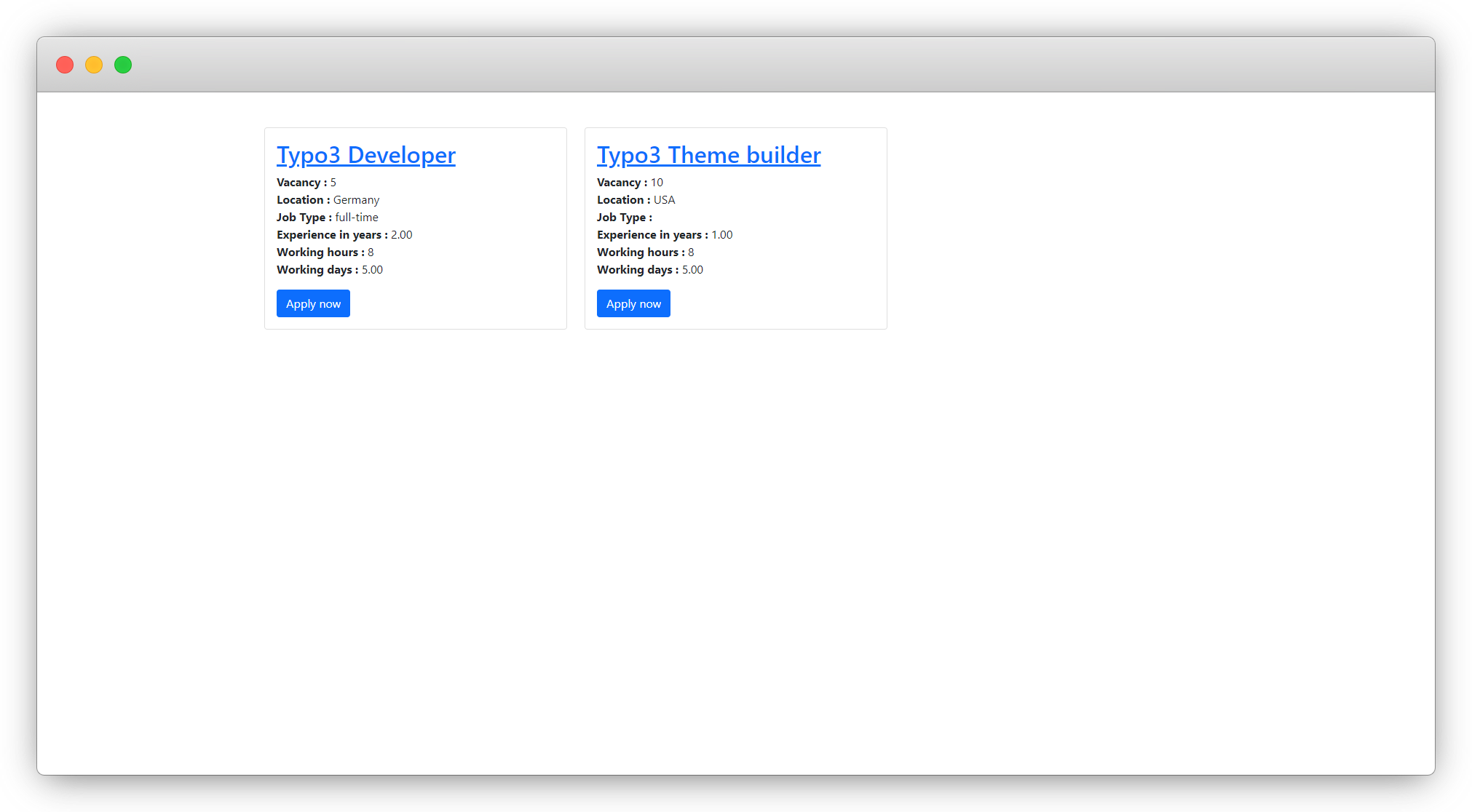
4. After updating the settings you will see the images are not showing now on the list of employees and the list of jobs.
Employee list:
Job list:
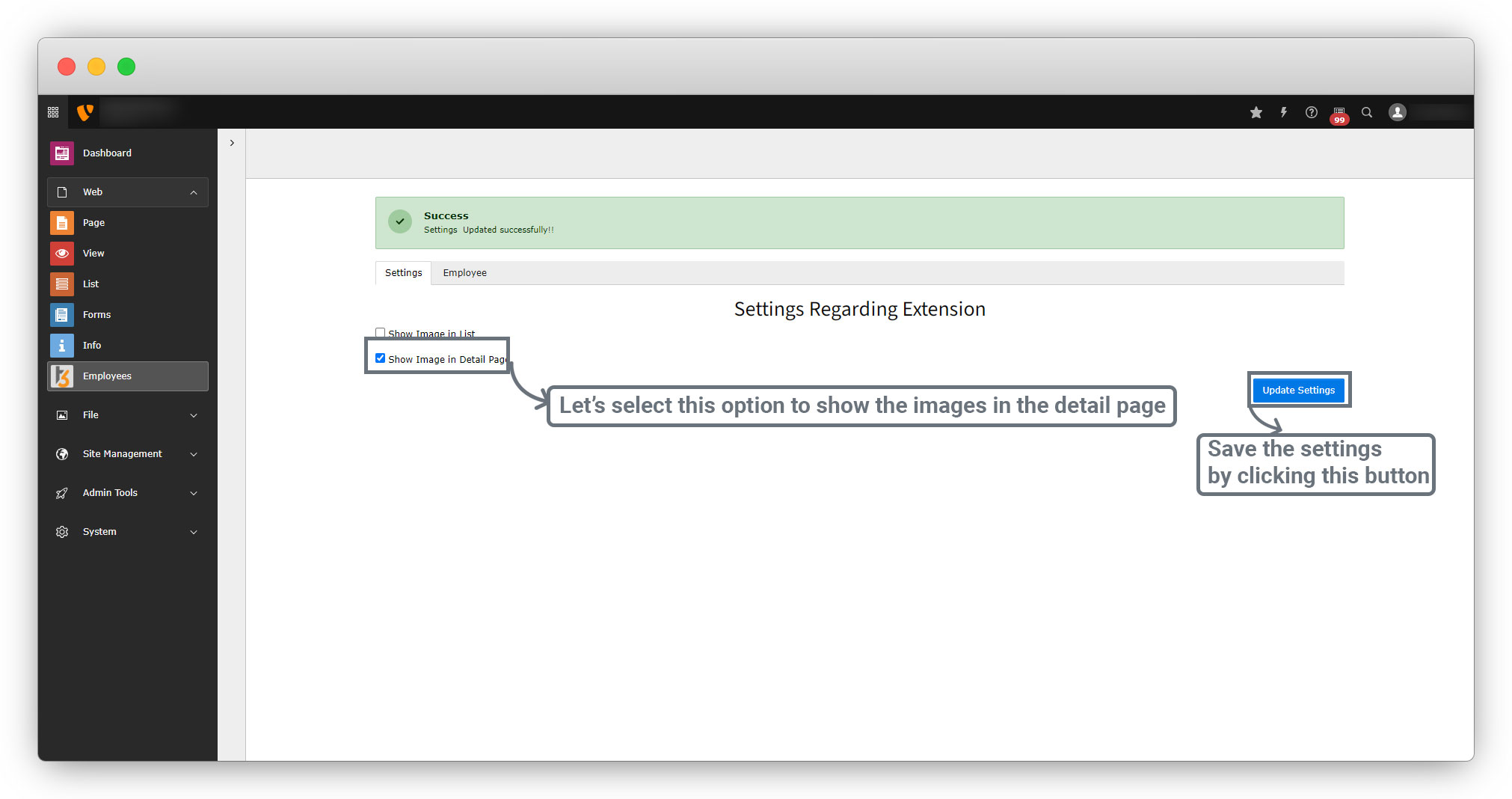
5. Let’s check same for the “Show Image in Detail Page” option. Check the option “Show Image in Detail Page” and click the button “Update Settings”.
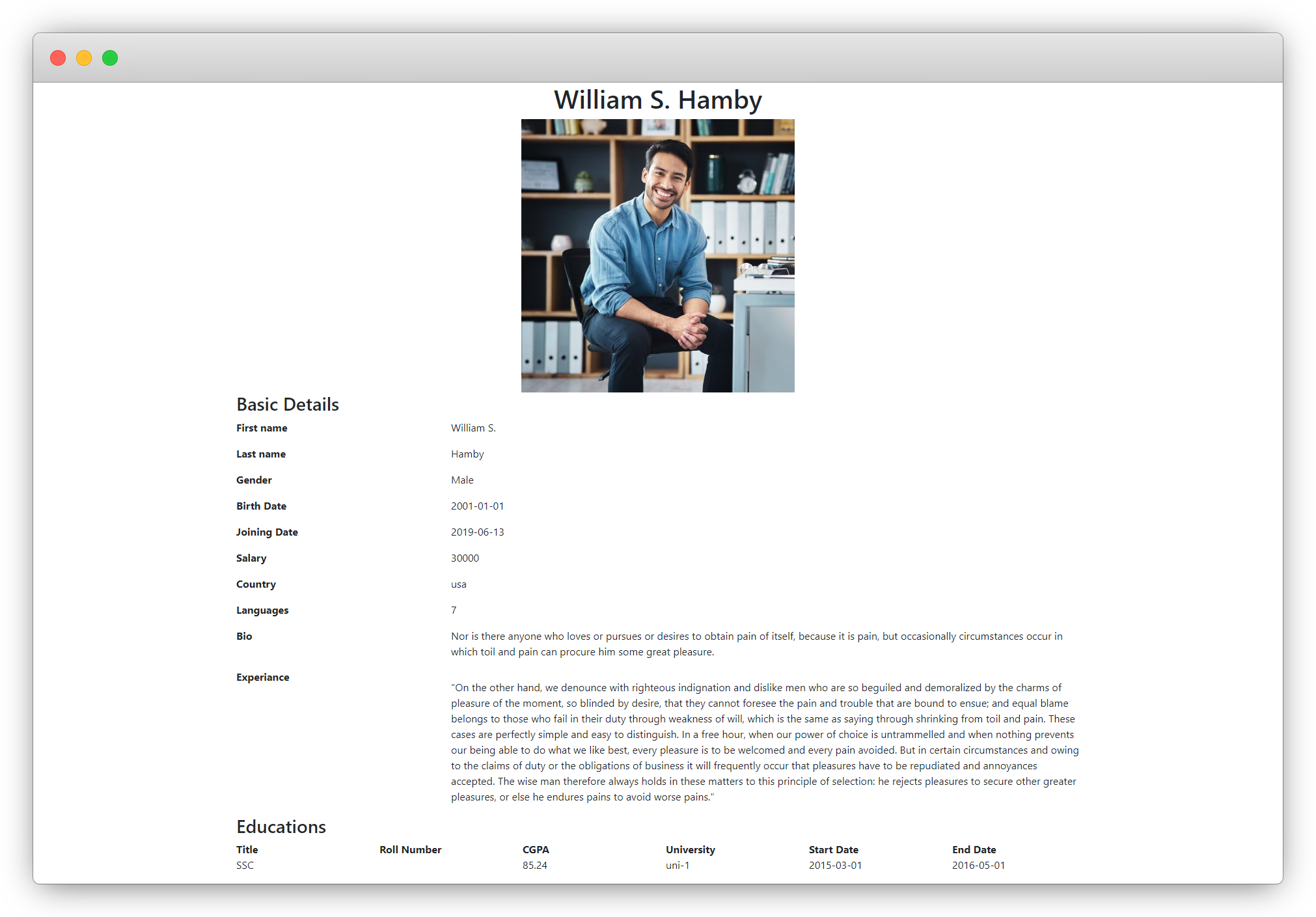
6. Now check the employee detail page and job detail page and you will see the pages containing the images, as you can see in the screenshots below
Employee detail page:
Job detail page:
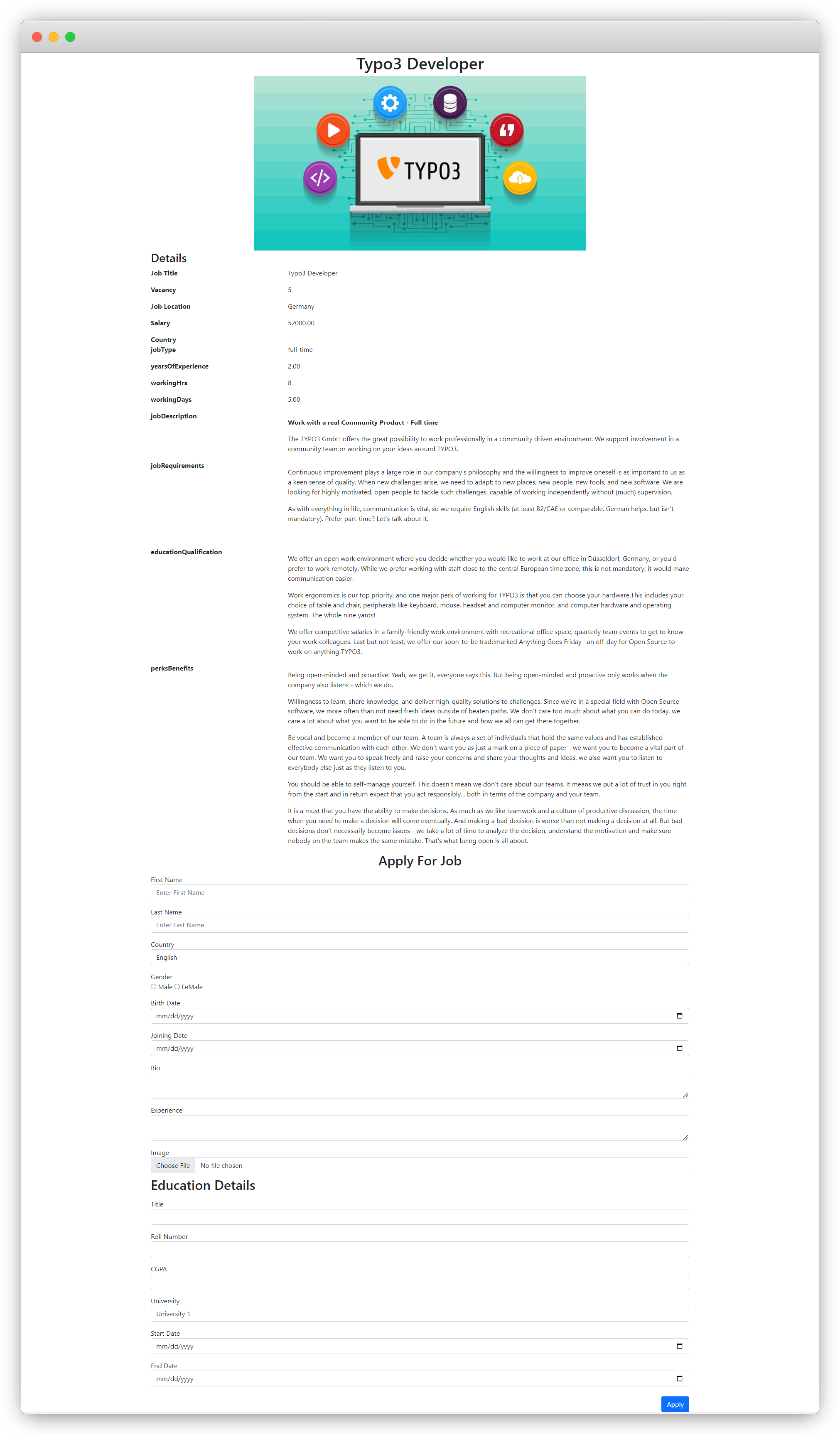
7. Now let’s uncheck the checkbox “Show Image in Detail Page”, and then check the employee detail page and job detail page.
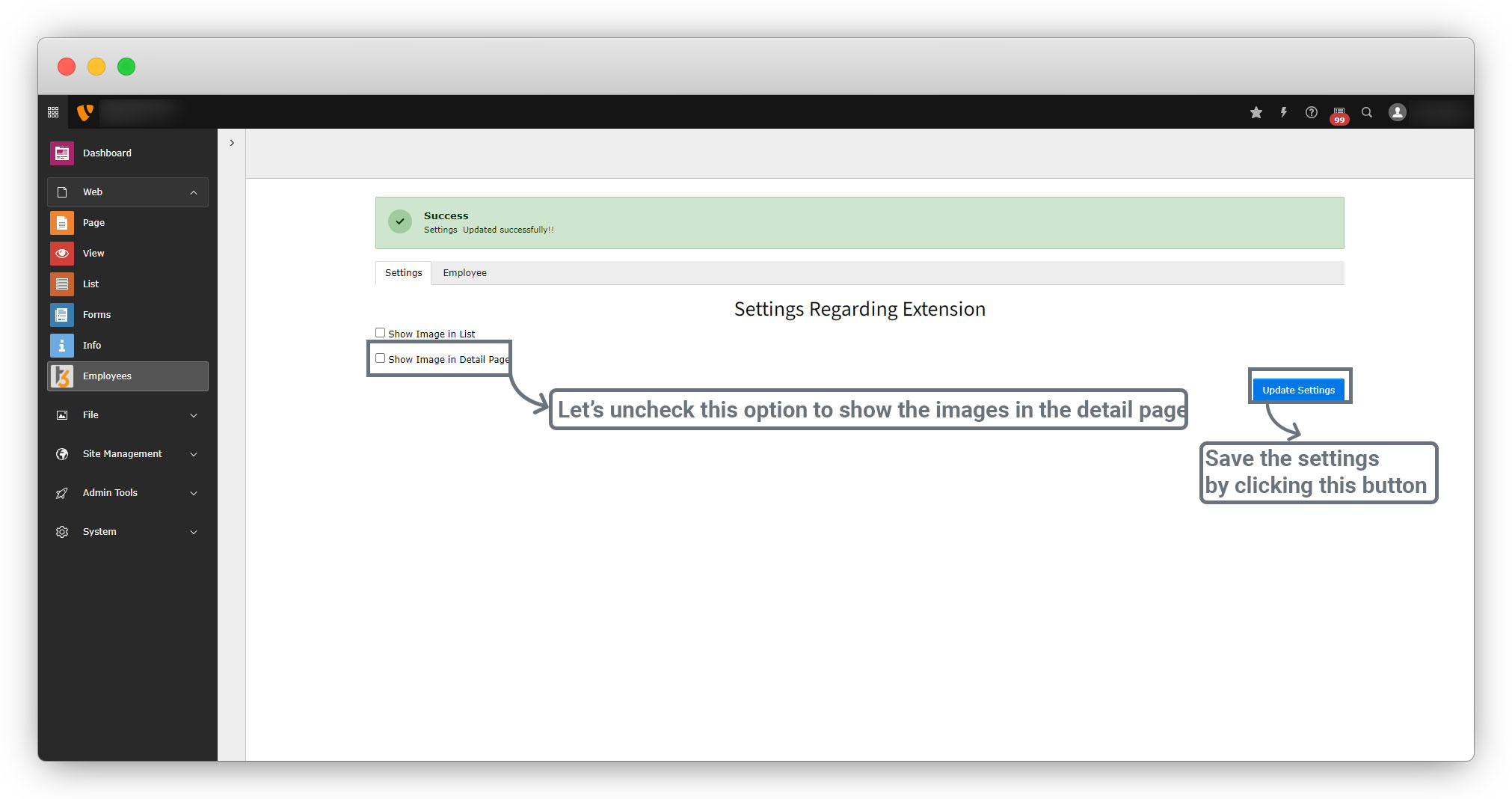
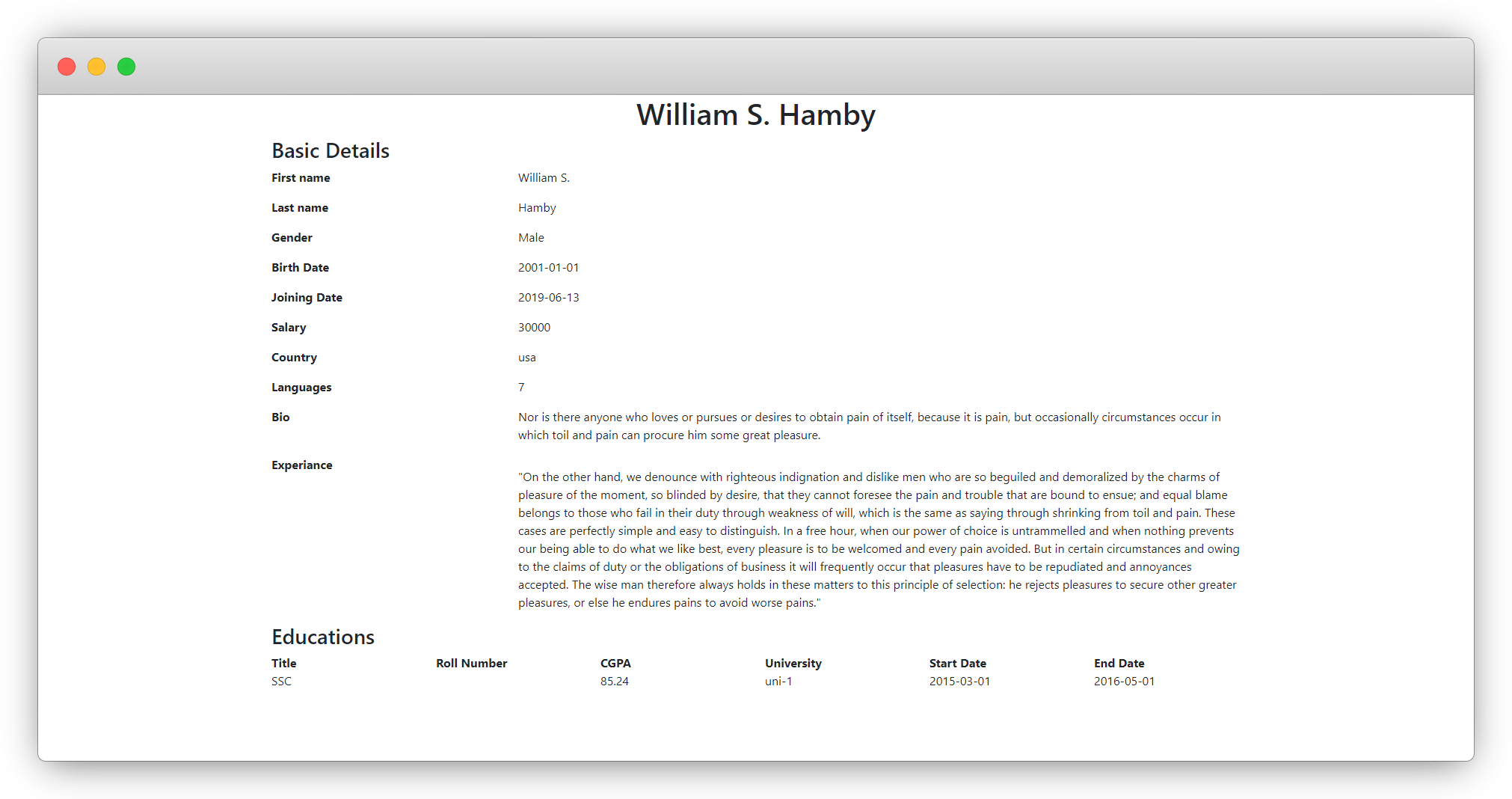
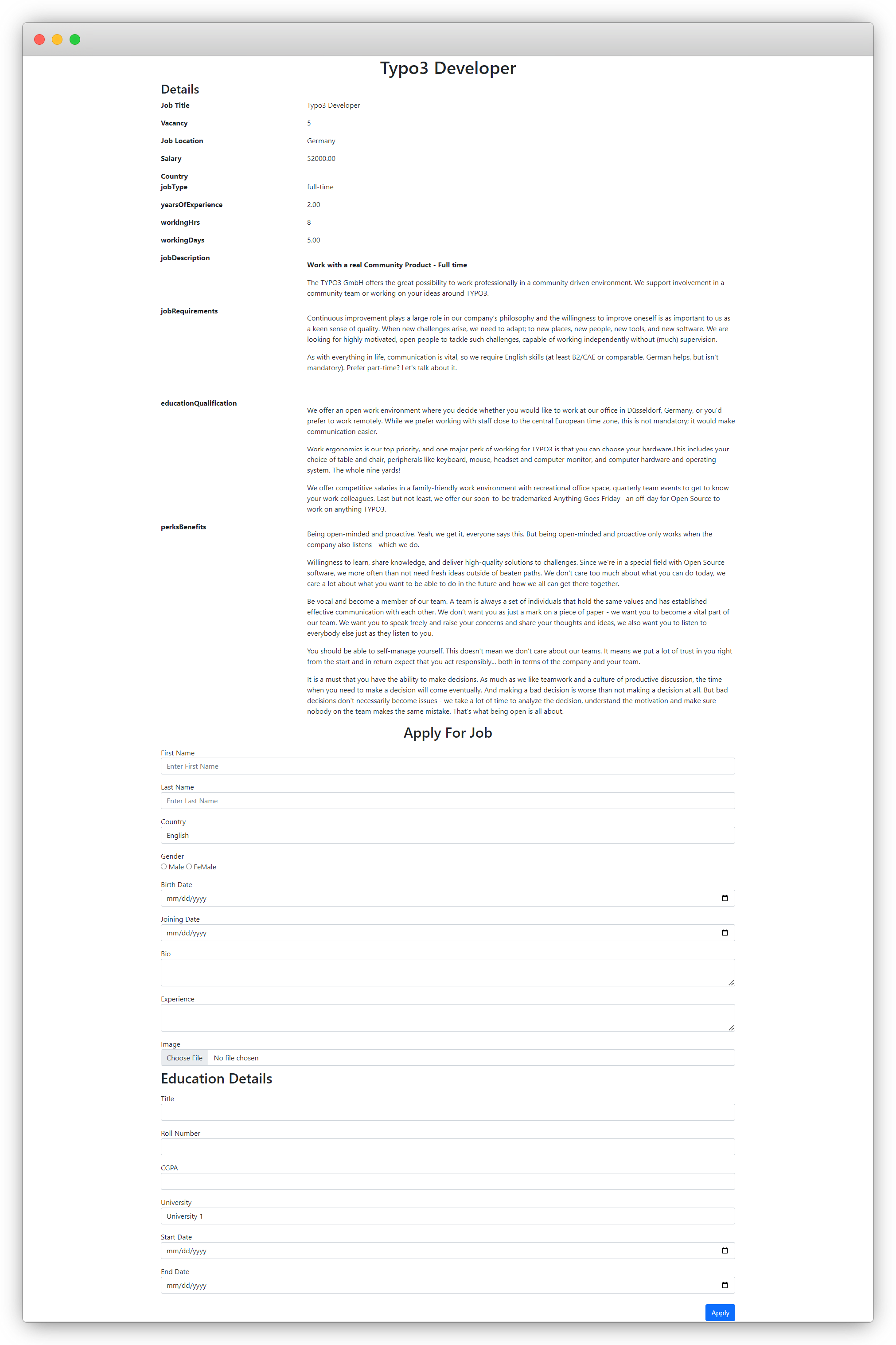
8. After updating the settings, let’s check the detail page for employee and job, and you will see the images disappear on these pages as we have unchecked the checkbox “Show Image in Detail Page”. Below are the screenshots of the detail pages of employee and job.
Employee detail page:
Job detail page:
9. So after testing, the conclusion is that the settings are working properly for both the list and the detail page.
Share



