



URL copied to clipboard

Add a new step to the form
4 views
__readtime__ Min
read
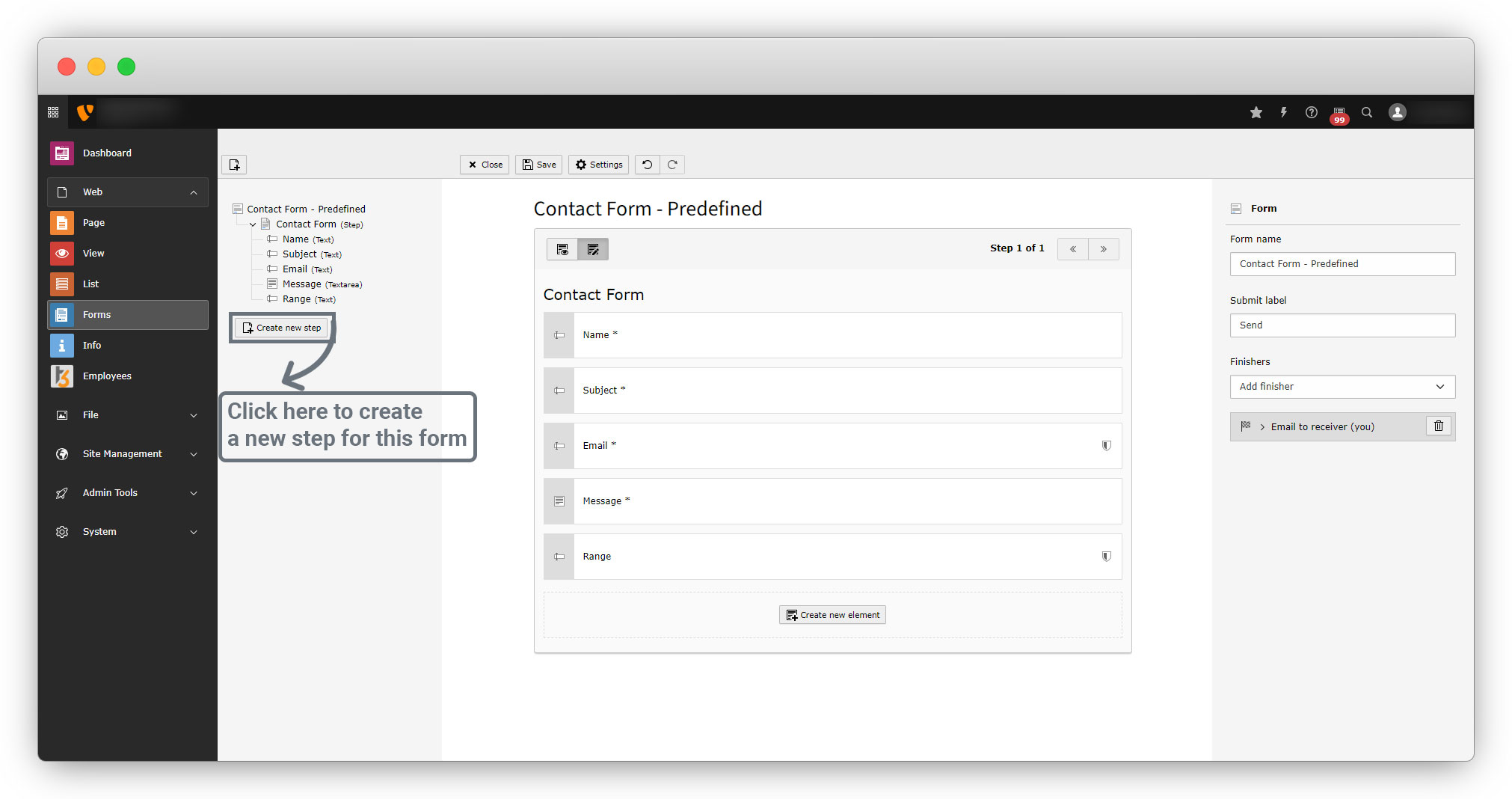
1. When you click the button “Create new step”, you will get the option of whether you want to add a new step or a summary page.
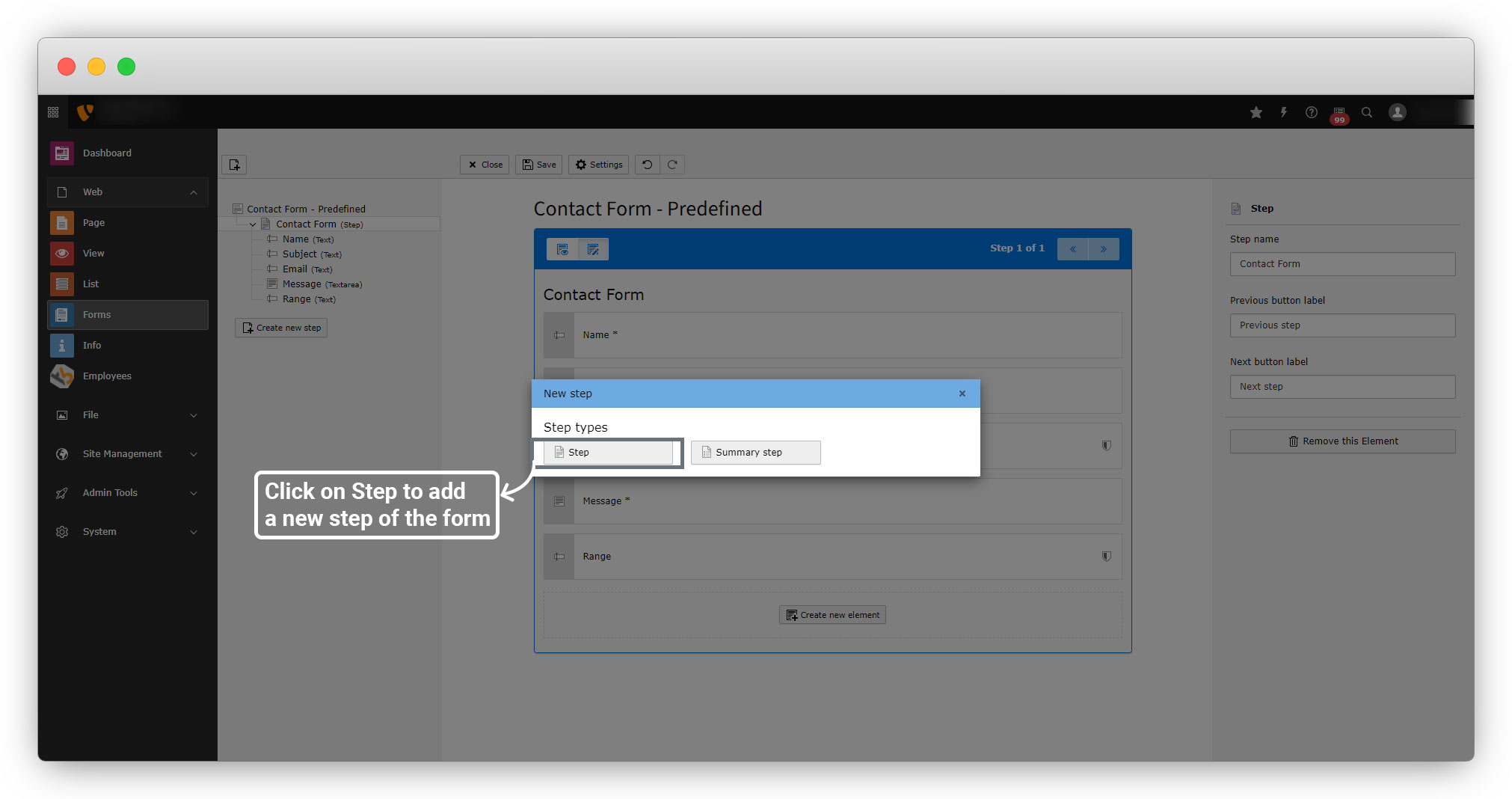
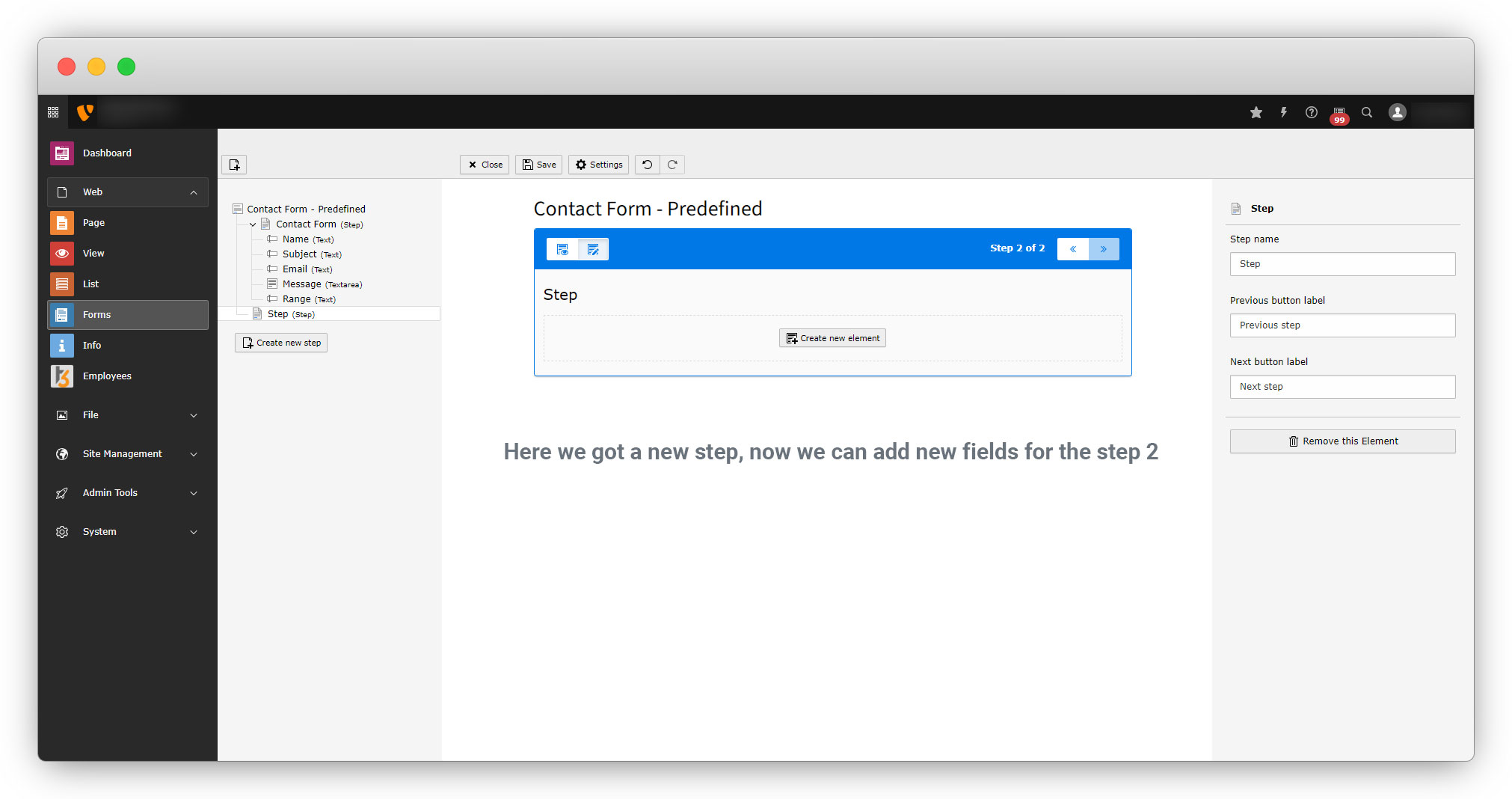
2. As you click on the step, you will get a new step and you can add fields for the new step
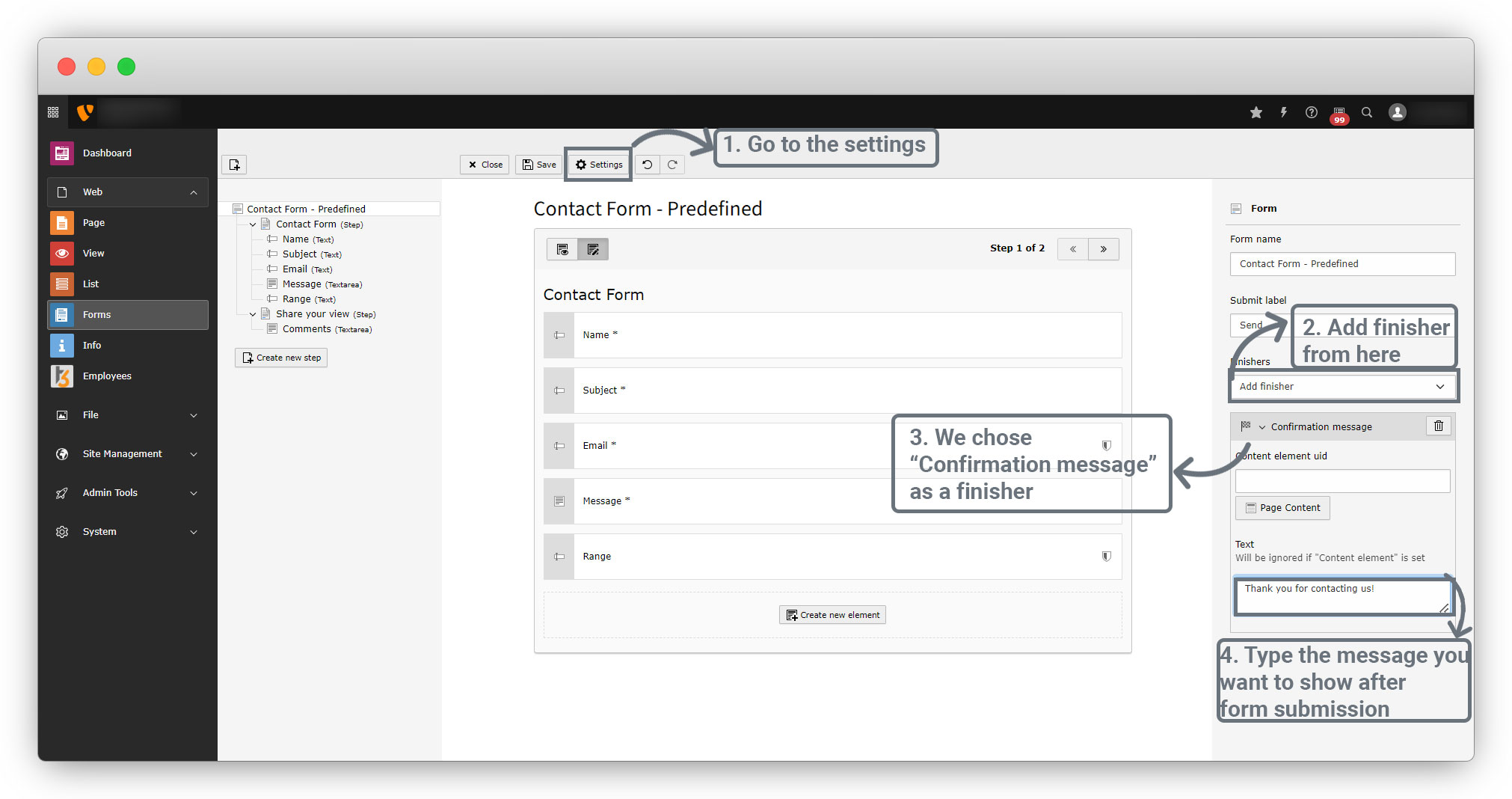
3. Let’s add a field and finisher and then add the form on the contact page as we did for the blank form.
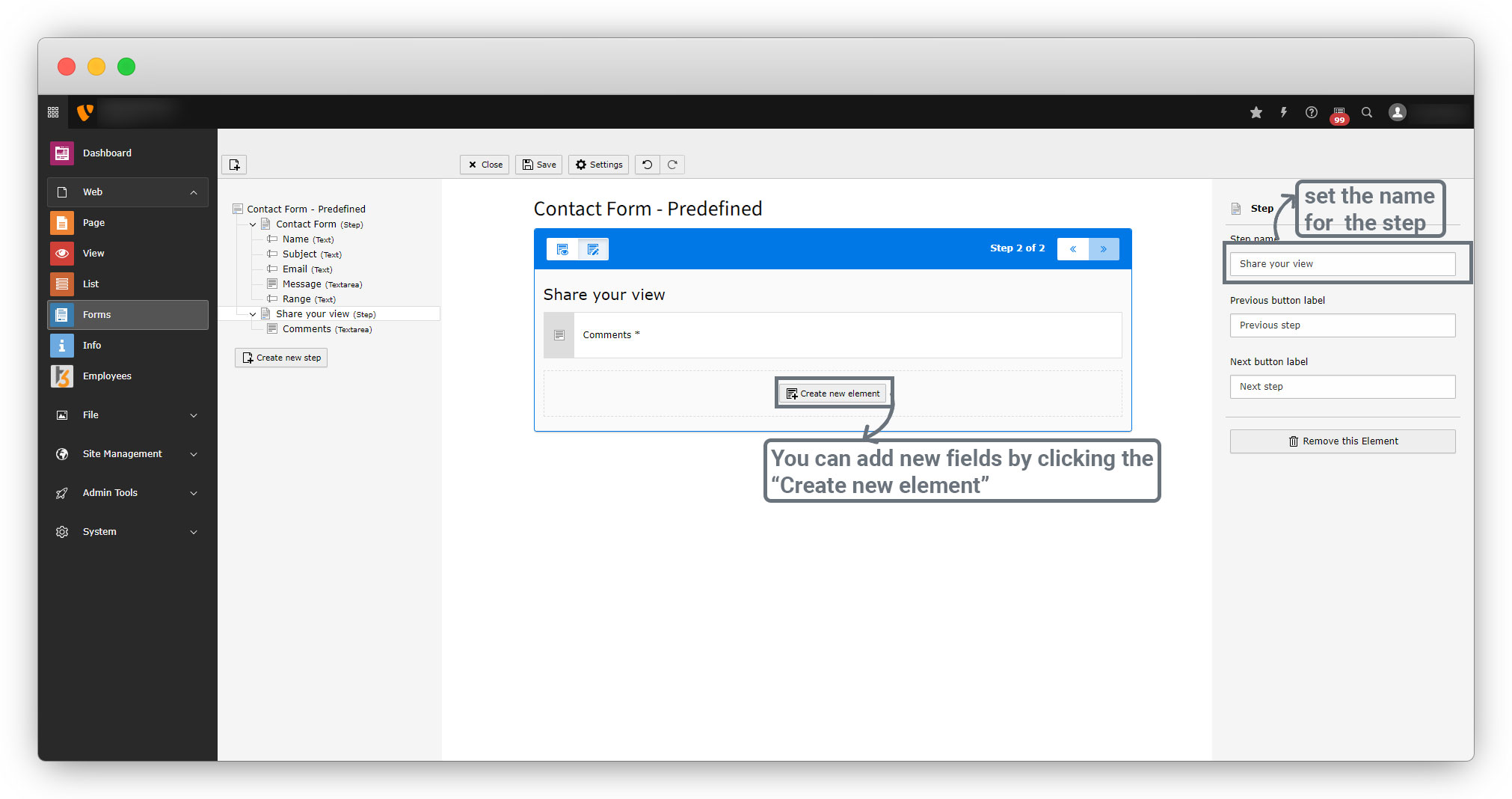
Let’s add the finisher. Here the “Confirmation message” finisher has been used. You can use any finisher you want. The “finishers“ section is explained after the validations.
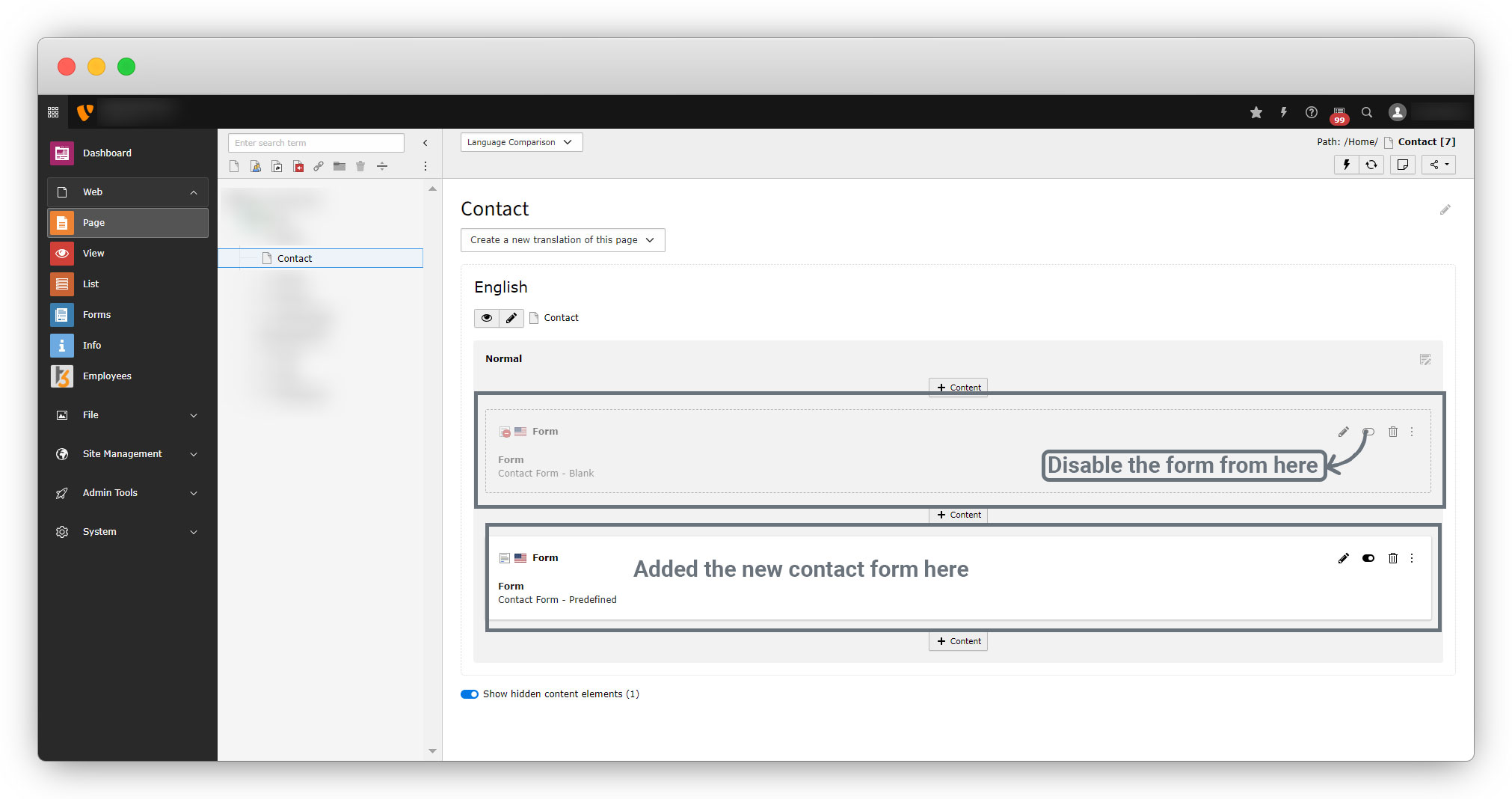
4. Add the form in the contact page, here the previous contact form is disabled now so we will get the new form only.
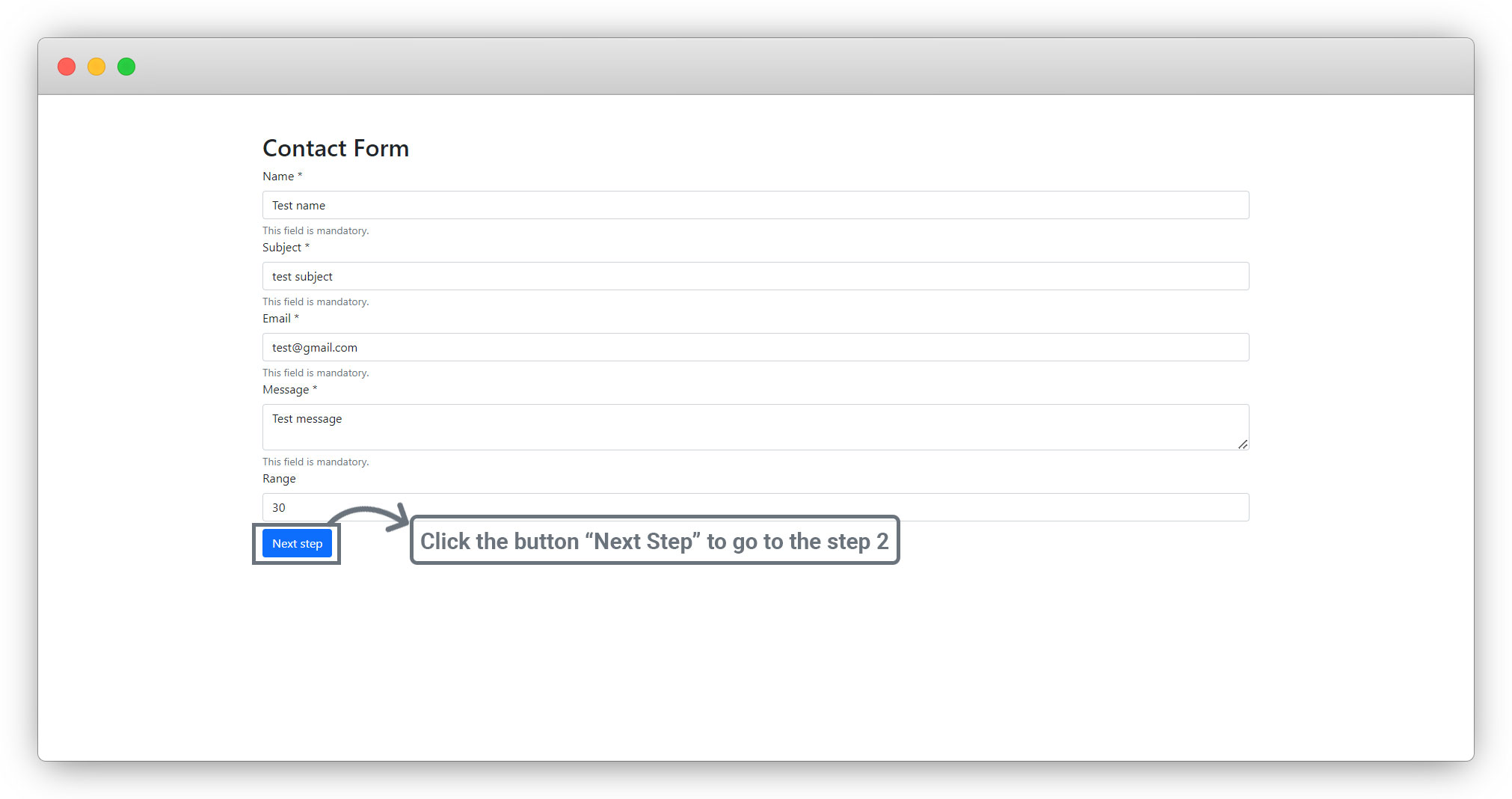
5. Let’s check in the front-end.
Below is the screenshot of the step 2.
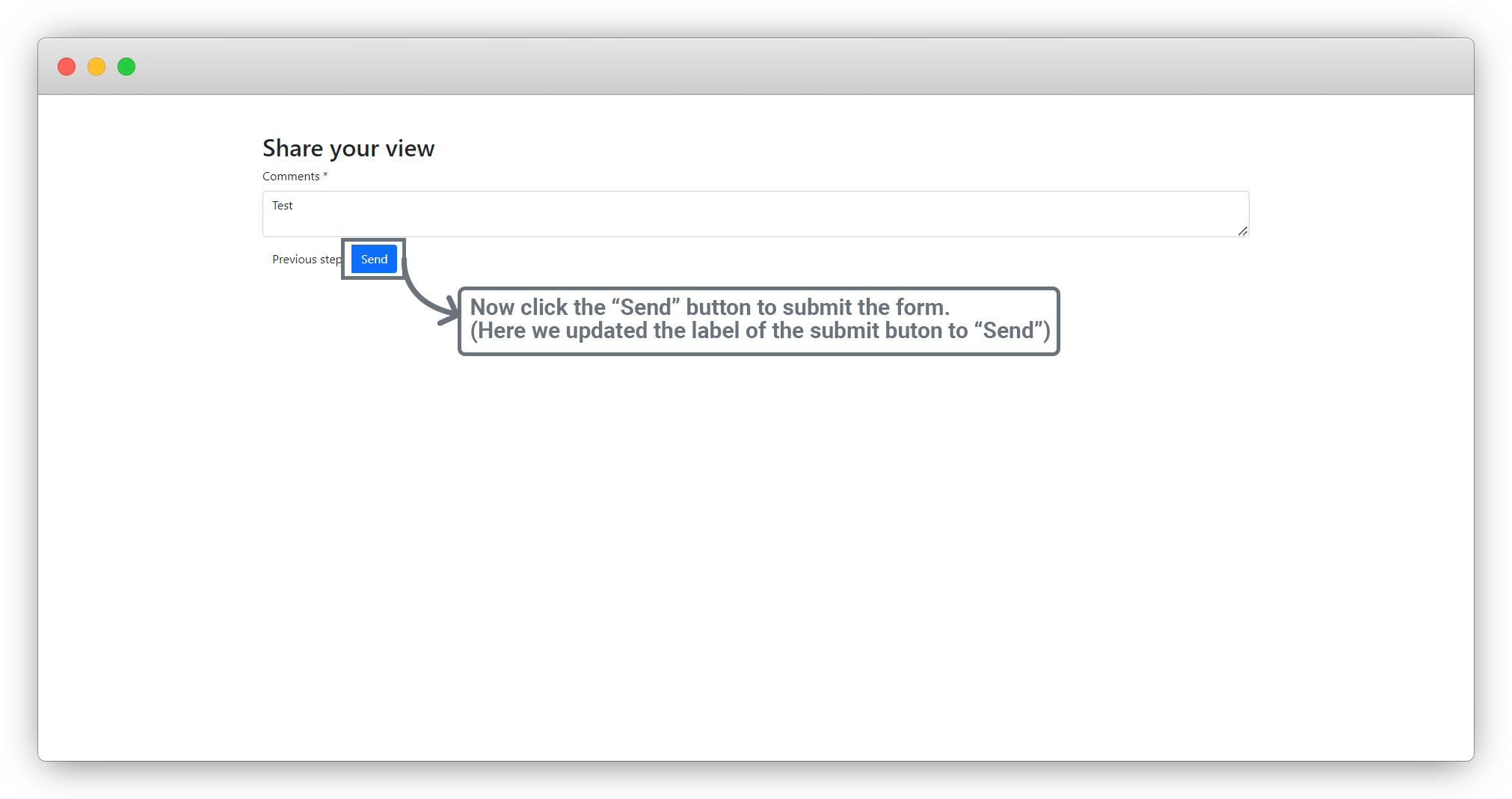
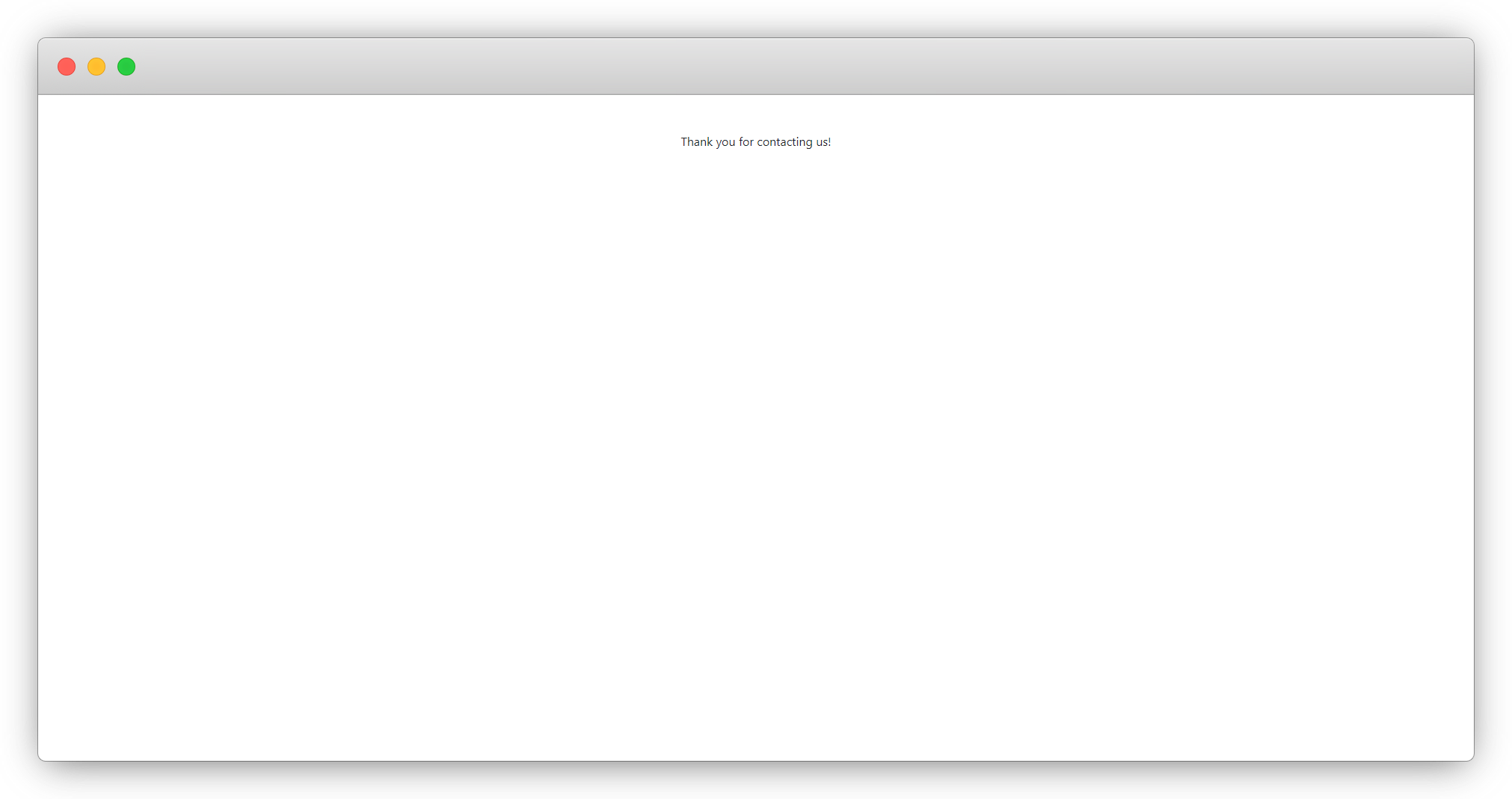
You will get the below message after submitting the form, as we set the “Confirmation message” as the finisher.
Share



