



URL copied to clipboard

Add a summary page to the form
5 views
__readtime__ Min
read
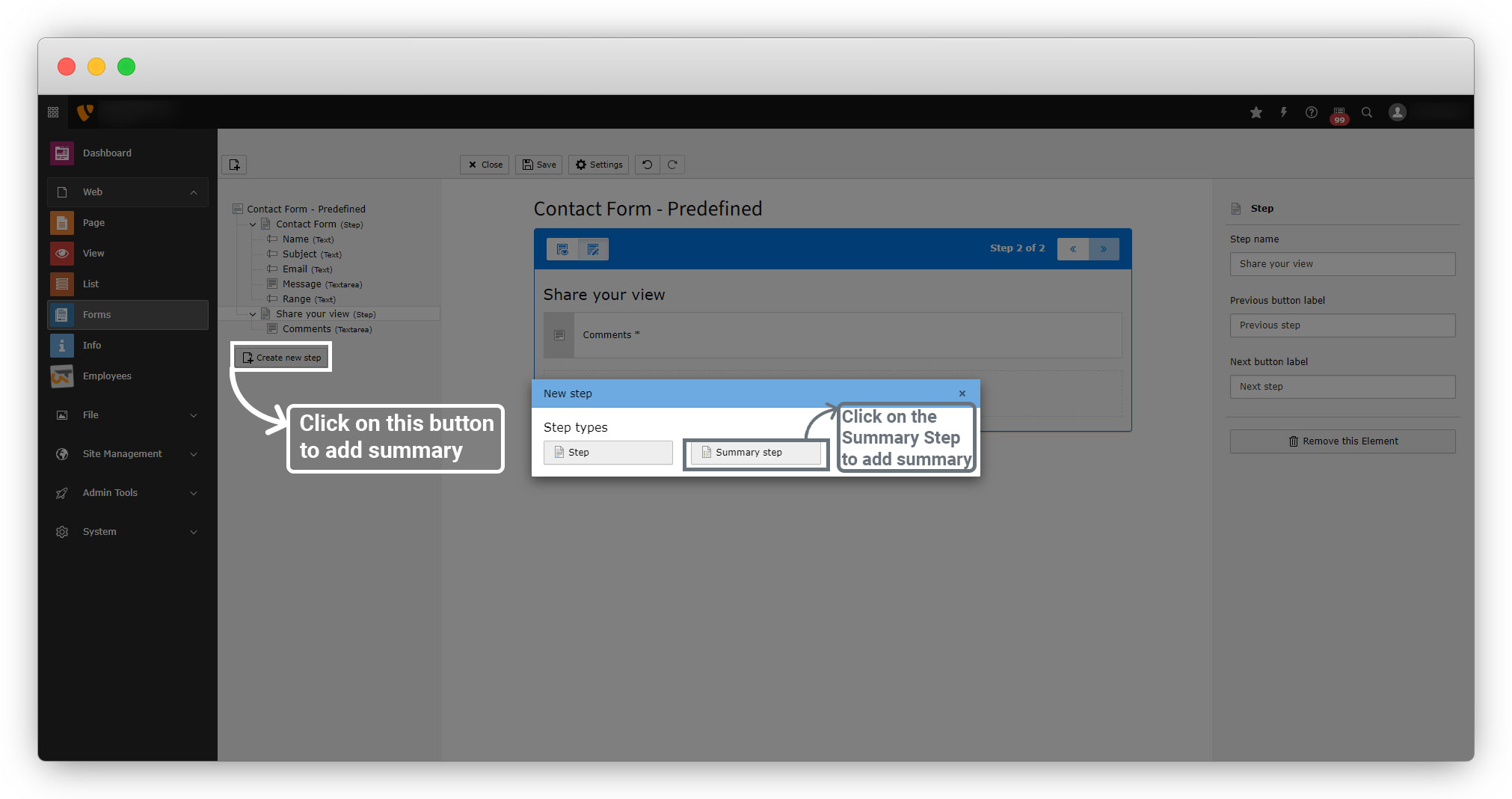
Let’s add a summary page now after step 2.
1. Follow the screenshot below to add the summary page.
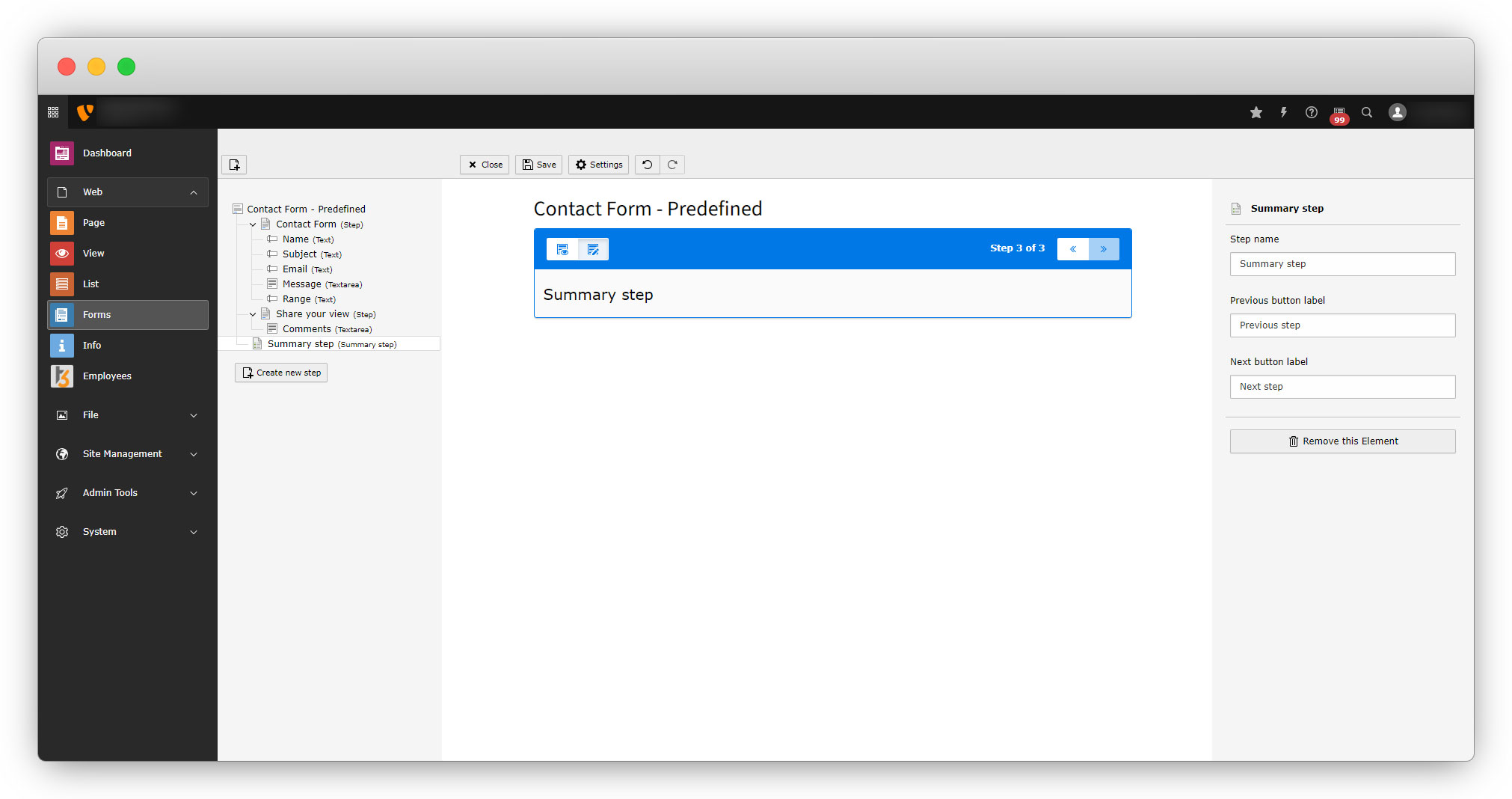
2. After adding the summary page you will get the below screen.
3. Save the form open the front-end and fill up the form again. When you click the “Next Step” in step 2, you will get the summary like the screenshot below:
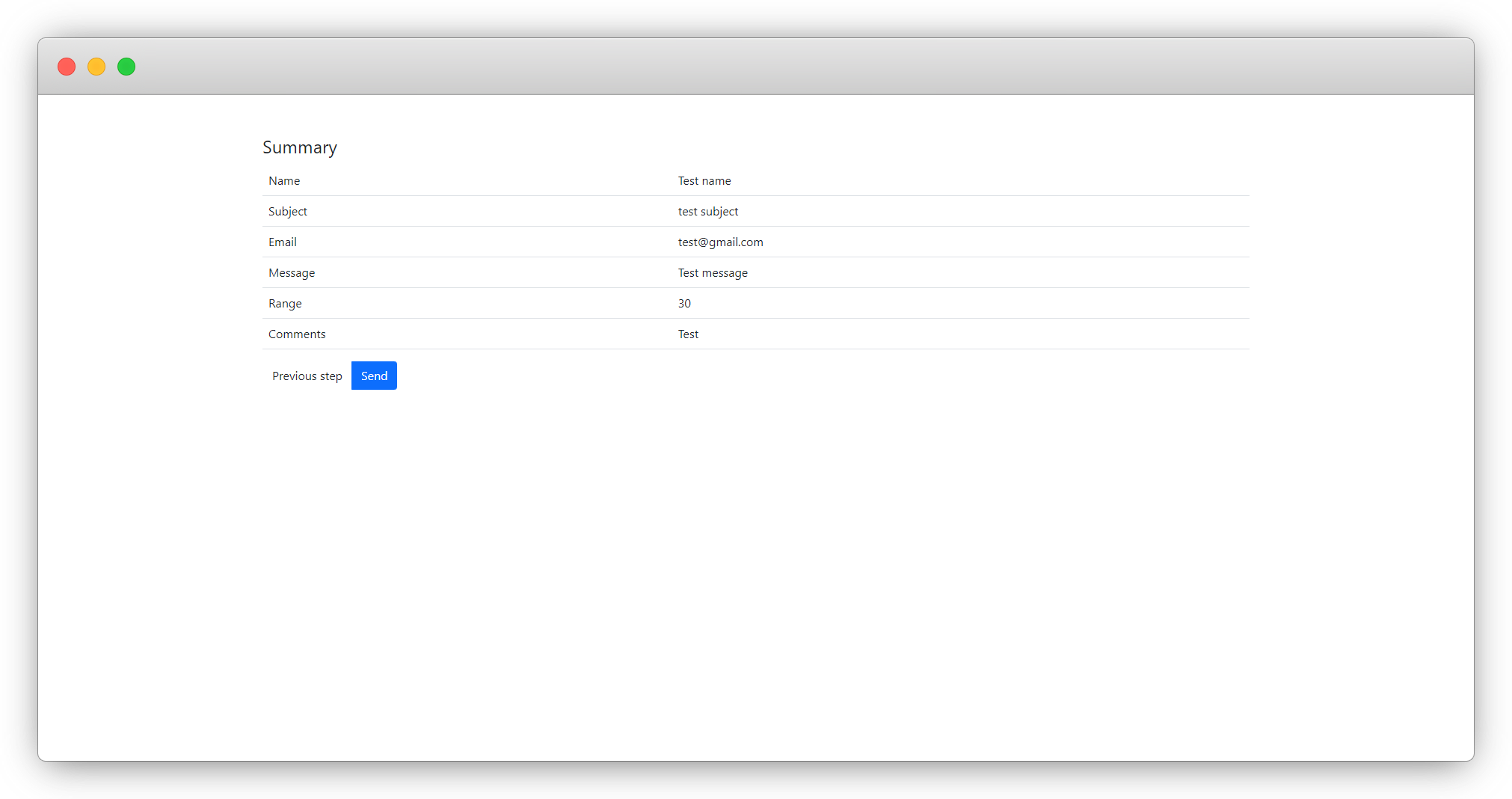
4. You can go previous by clicking the previous button if you want to edit any field.
5. Then Click the Send button to submit the form, and as we added the “Confirmation message” finisher, you will see a message on the screen as you submit the form.
Share



