



URL copied to clipboard

Add countries for the “Country of Origin” table.
4 views
__readtime__ Min
read
1. As we started to add products for the product table, let’s add countries for the “Country of Origin” table.
2. First of all, add a folder to store the records for the countries. Here the folder name is “Countries”. You can choose any name for your folder.
3. Enable the folder and click on the “Create new record” button and select “Countries of Origin”.
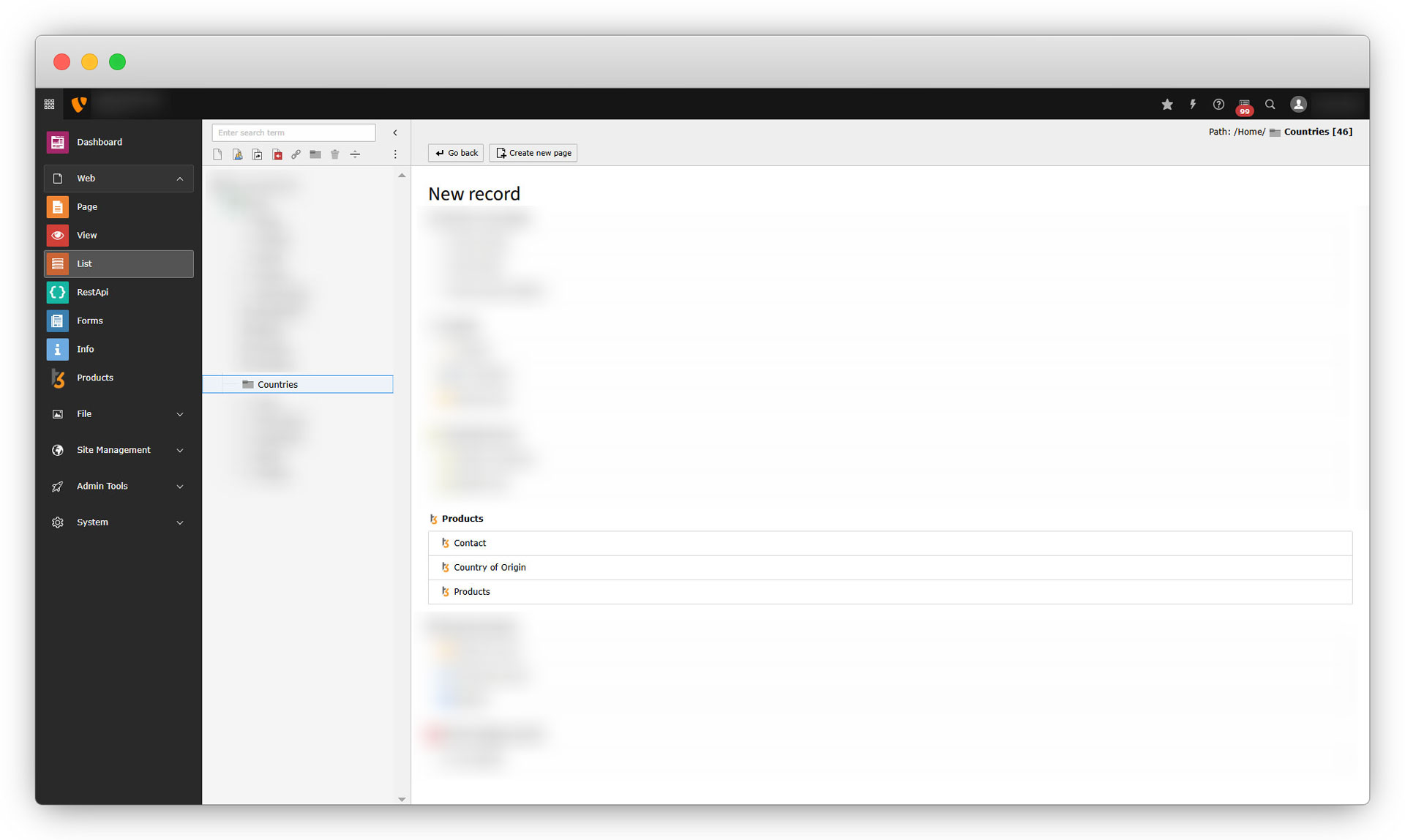
4. When you click on the “Country of Origin”, you will see the fields you added at the time of creating the table. Fill up the details like country name and flag.
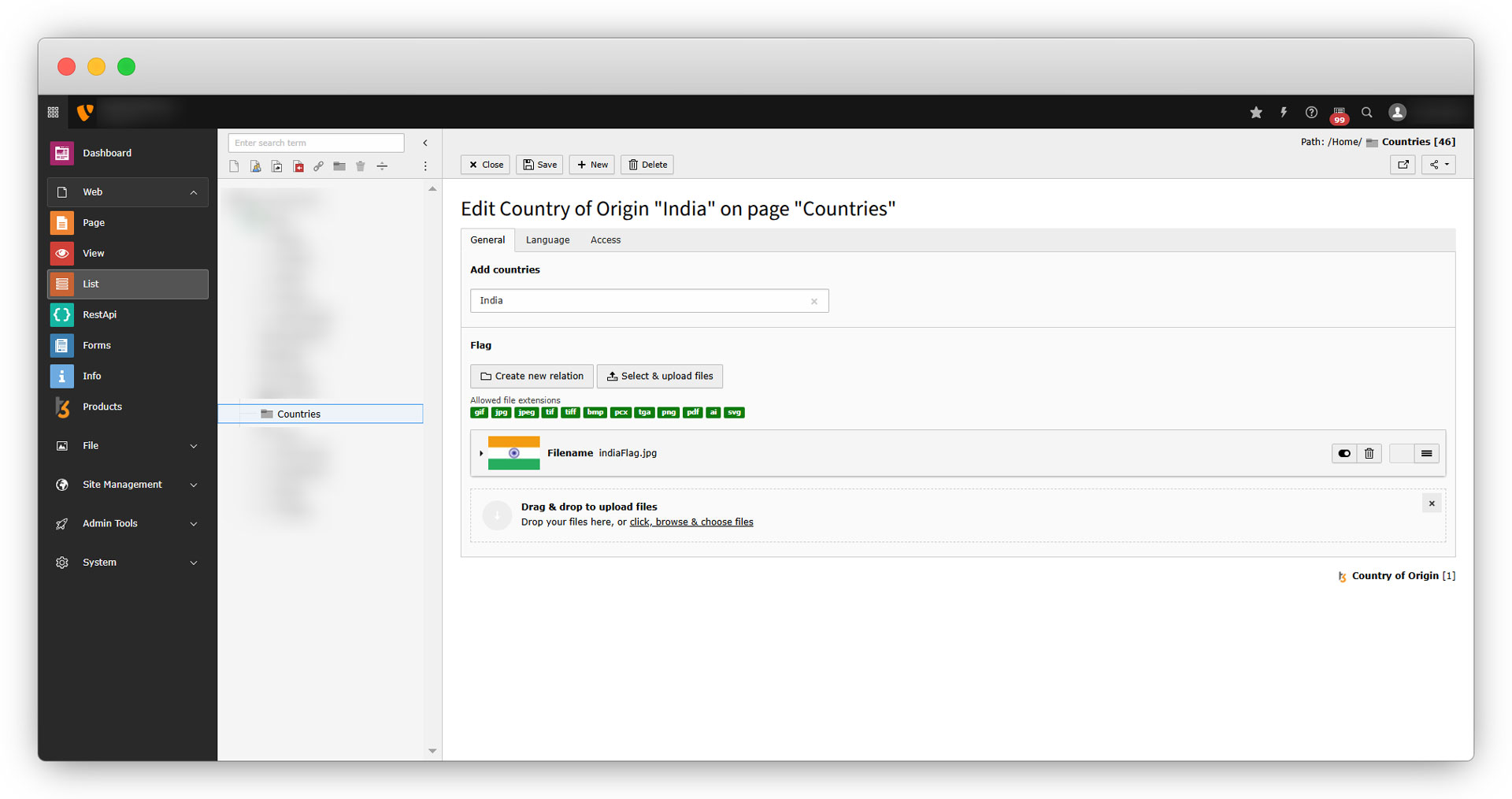
5. After filling up the details, save the country by clicking on the “Save” button from the top left.
6. To see the list of countries, click on the “Countries” folder again from the sidebar, and you will see the list of countries in TYPO3 backend as seen in the screenshot below.
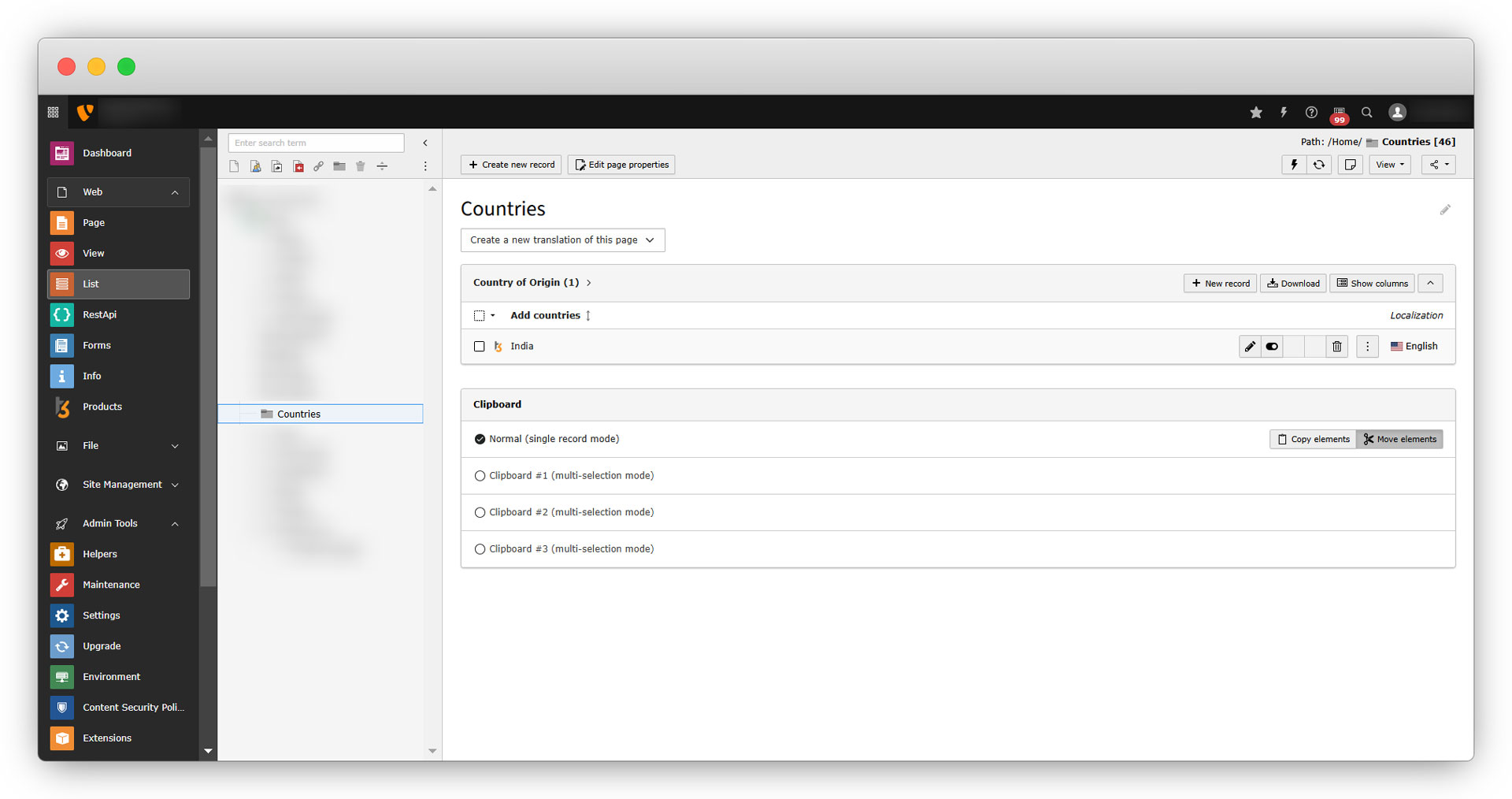
7. Let’s add more countries by clicking on the “+Create new record” button.
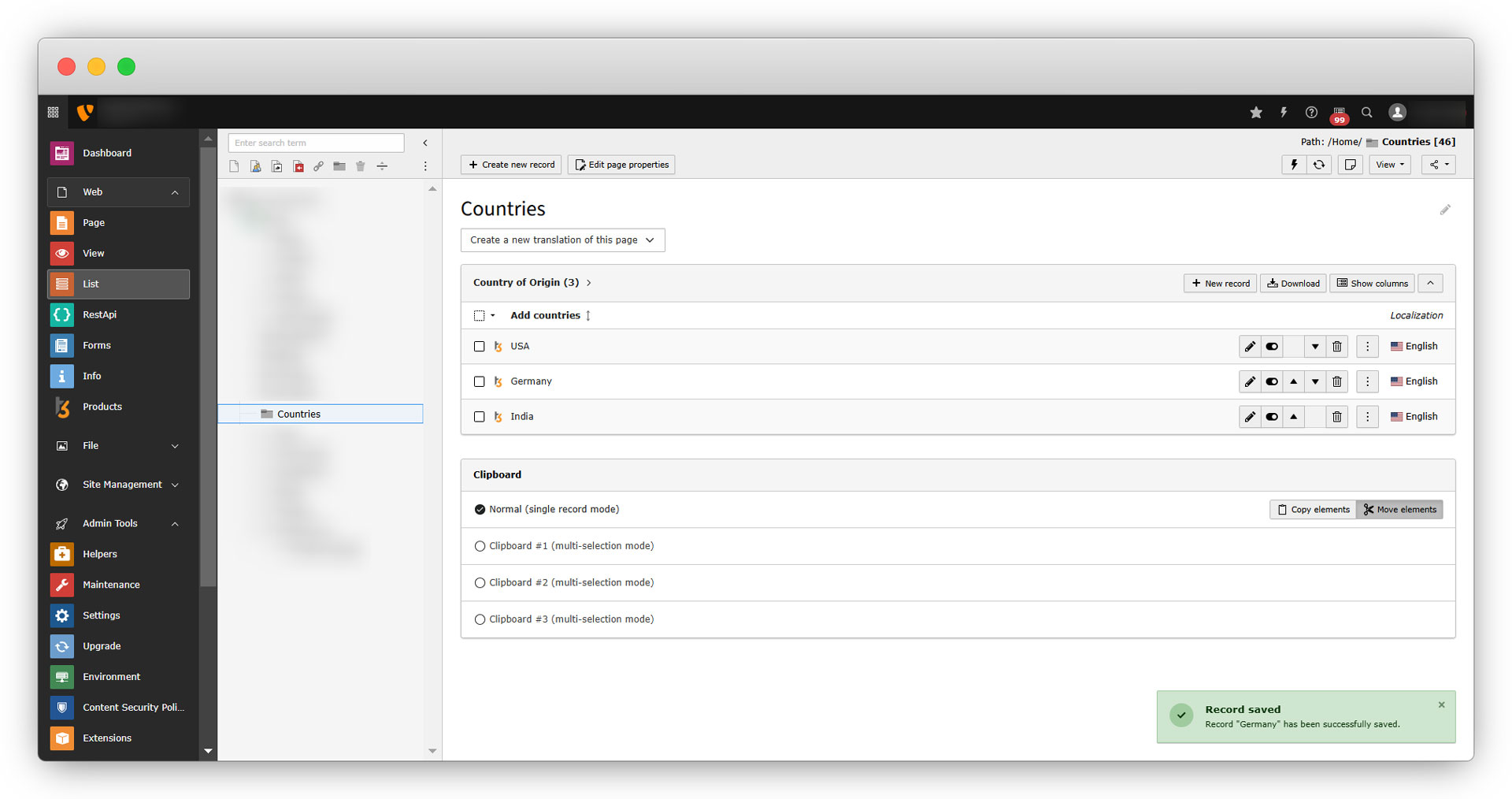
8. As seen in the screenshot above, the newly added countries “USA” and “Germany” can be seen in the countries list in the TYPO3 backend.
9. There is one more option in “Products” which is “Product Category” and it is blank for now as you can see in the screenshot of the product. If we want to add categories for products, we need to add the categories in TYPO3 and then those categories will be rendered in “Products” and we can select the categories for our products. Let’s add TYPO3 categories.
Share



