



URL copied to clipboard

Backend Module
4 views
__readtime__ Min
read
1. The backend module in TYPO3 is a user-friendly option to see or manage the data. It can be dependent on the requirement and can have a variety of functionalities according to the requirement. Here in this extension, the backend module is a user-friendly option to only see the data of the tables in a list form.
2. Generally, we can see the list and manage the data from the “List” module which is the default module of TYPO3, but a non-technical user can be unaware of that, so the backend module has been given here as the user convenience option to see the table data in a list form.
3. In the above screenshot, you can see the option to create the backend module for the available tables, the tables that are created in this extension.
4. You can select the tables for which you want to create the backend module.
5. After selecting the tables, click on the “Save Extension” button and the extension will be saved and you will be redirected to the extension list as seen in the screenshot below:
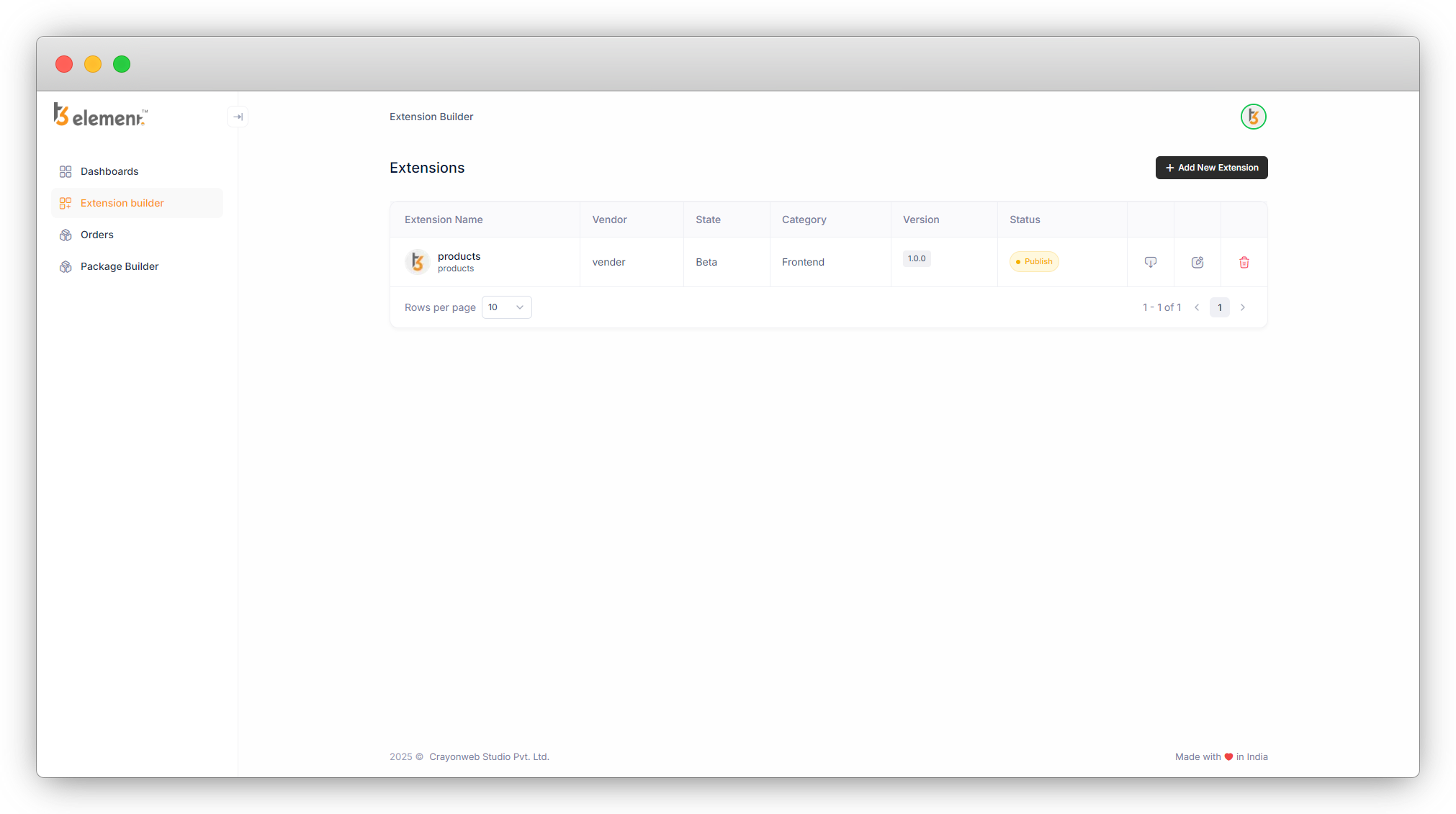
6. As seen in the above screenshot, the extension has been saved and listed. On the far right side, there are 3 action icons, “Download Extension”, “Edit extension” and “Delete extension”.
Download Extension
Once you create the extension, download the extension to use it. Click on the download icon and the extension will be downloaded to your system. Now upload the extension into the TYPO3 setup as seen in the screenshot below.
To upload the extension, open the TYPO3 admin panel > Go to the Admin Tools > Extensions > Click on “Upload Extension” and upload your extension.
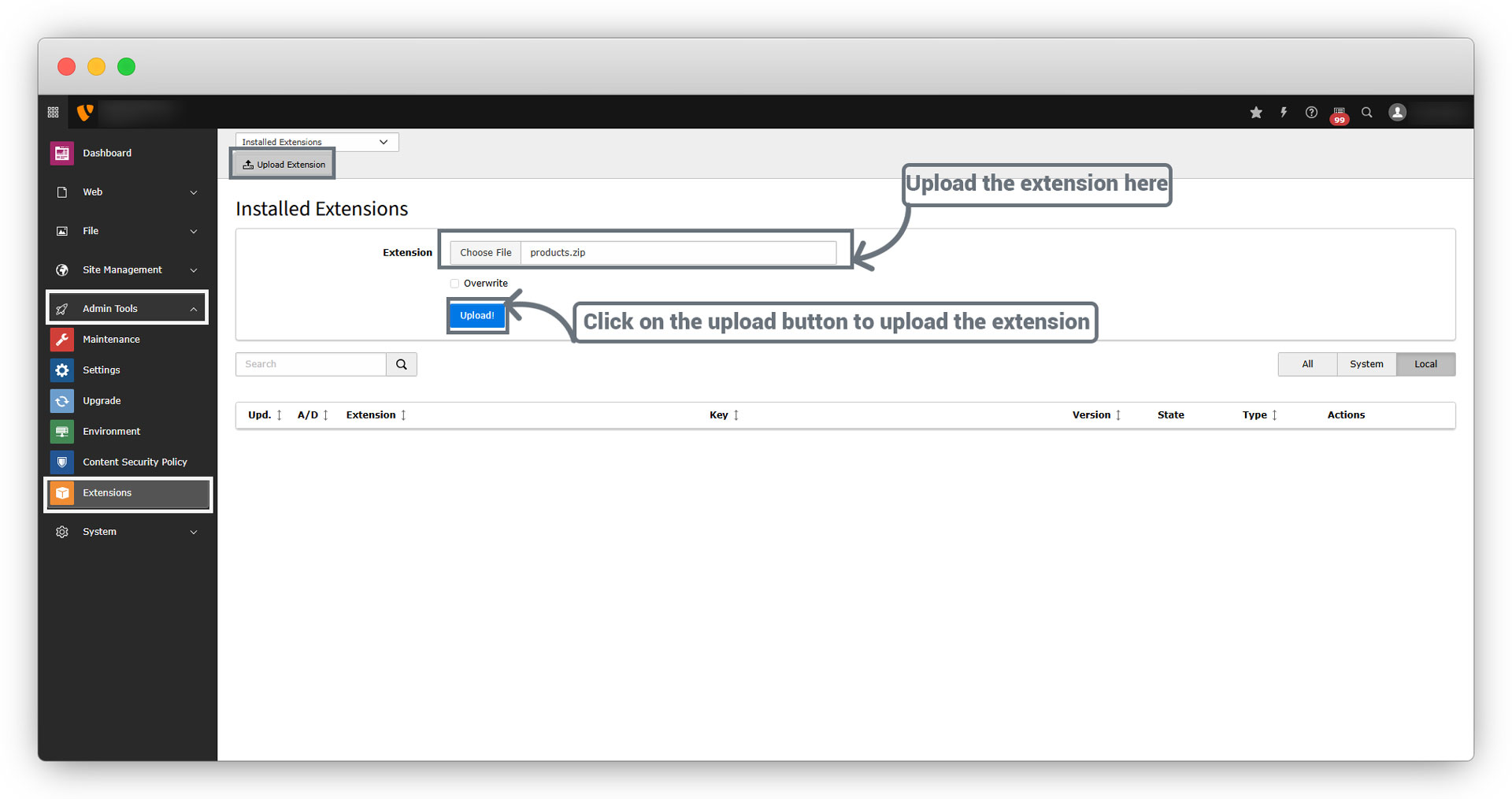
After uploading the extension, the extension will appear in the extension list in the TYPO3 backend.
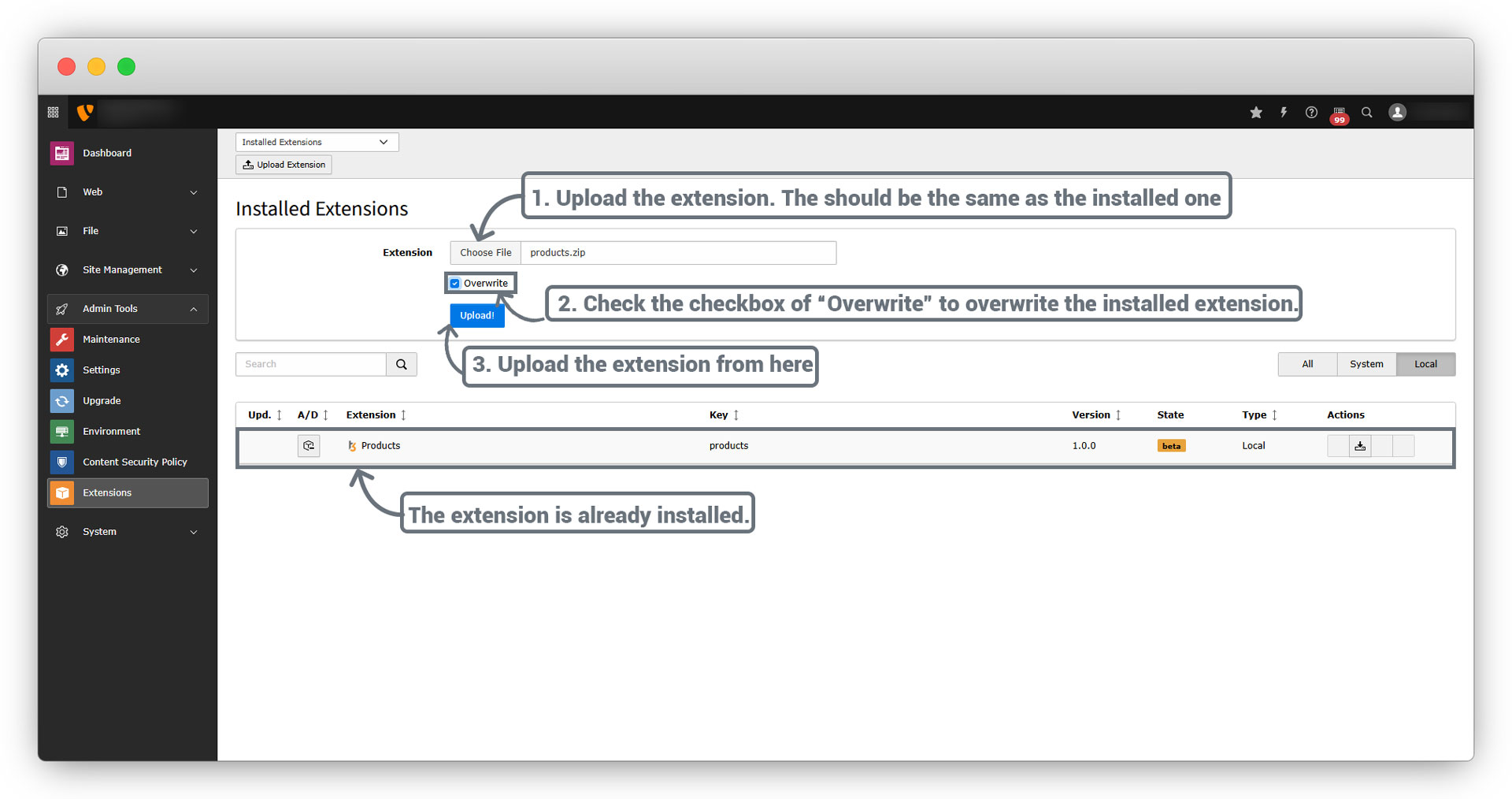
If you already have uploaded the extension before and want to upload the new version of that extension after editing it, just upload by checking the overwrite option. As seen in the screenshot below, upload the extension but be sure the name is the same as the installed version of that extension and check the “Overwrite” checkbox to overwrite the existing extension.
Edit extension
Edit the extension by clicking this icon.
- You can edit the extension by making changes in tables/models or plugins or in the backend module.
- You can edit or delete the tables/models. You can make changes in the fields of the table or update the title or key by editing it. If you are deleting any table, then make sure that table is not used in any other table’s field.
- You can edit or delete the plugins. You can update the plugin name, table, fields, etc., or any other functionality like adding pagination, filter, etc. Or you can delete the plugin but be sure before deleting the plugin, once you delete the plugin it can not be undone.
- You can edit the backend module too, if you want to remove the backend module for any of the tables you can uncheck that table from the backend module tab and inversely you can check the tables you want the backend modules for.
Delete Extension
You can delete the extension if the extension is not needed. If you have downloaded the extension already and are using it in TYPO3 then after deleting the extension from the extension builder you will still be able to use that downloaded extension but you will not be able to make any updates to that extension.
Share



