



URL copied to clipboard

Content Tab
3 views
__readtime__ Min
read
If you want to add content, you can do so using the Content tab.
The Content tab offers many options for designing and formatting your news content.
Now, we will add content to the news item we previously created.
Edit News
1. In the News List, you will see an Edit icon. Click on the Edit button.
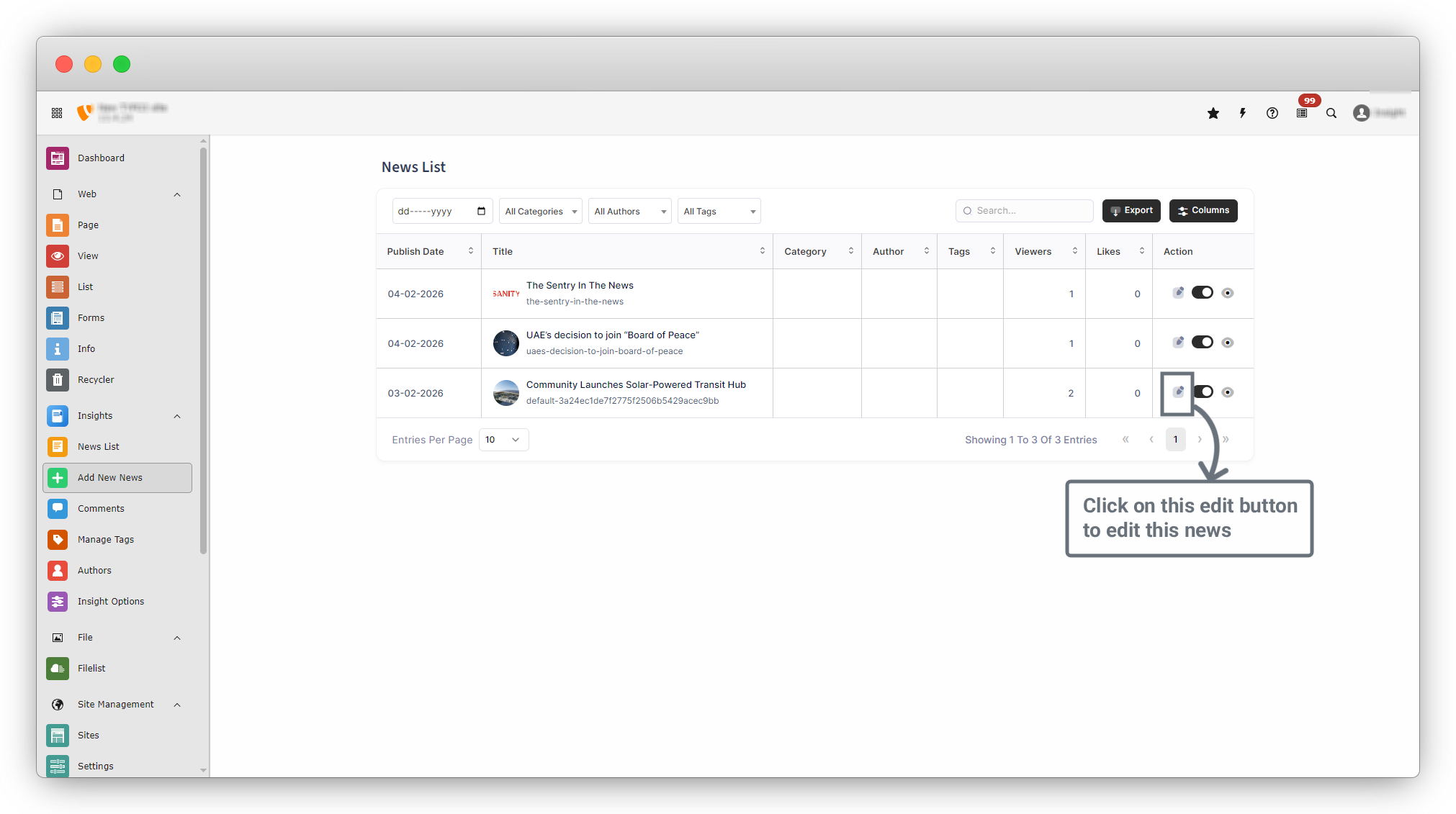
2. The Edit News page will open. This page is similar to the Add New News page, but the fields are already filled with the existing details.
Add Content
1. After clicking the Edit button, the Edit page will open. As shown in the screenshot below, click on the Content tab and then click the “+ Create New” button.
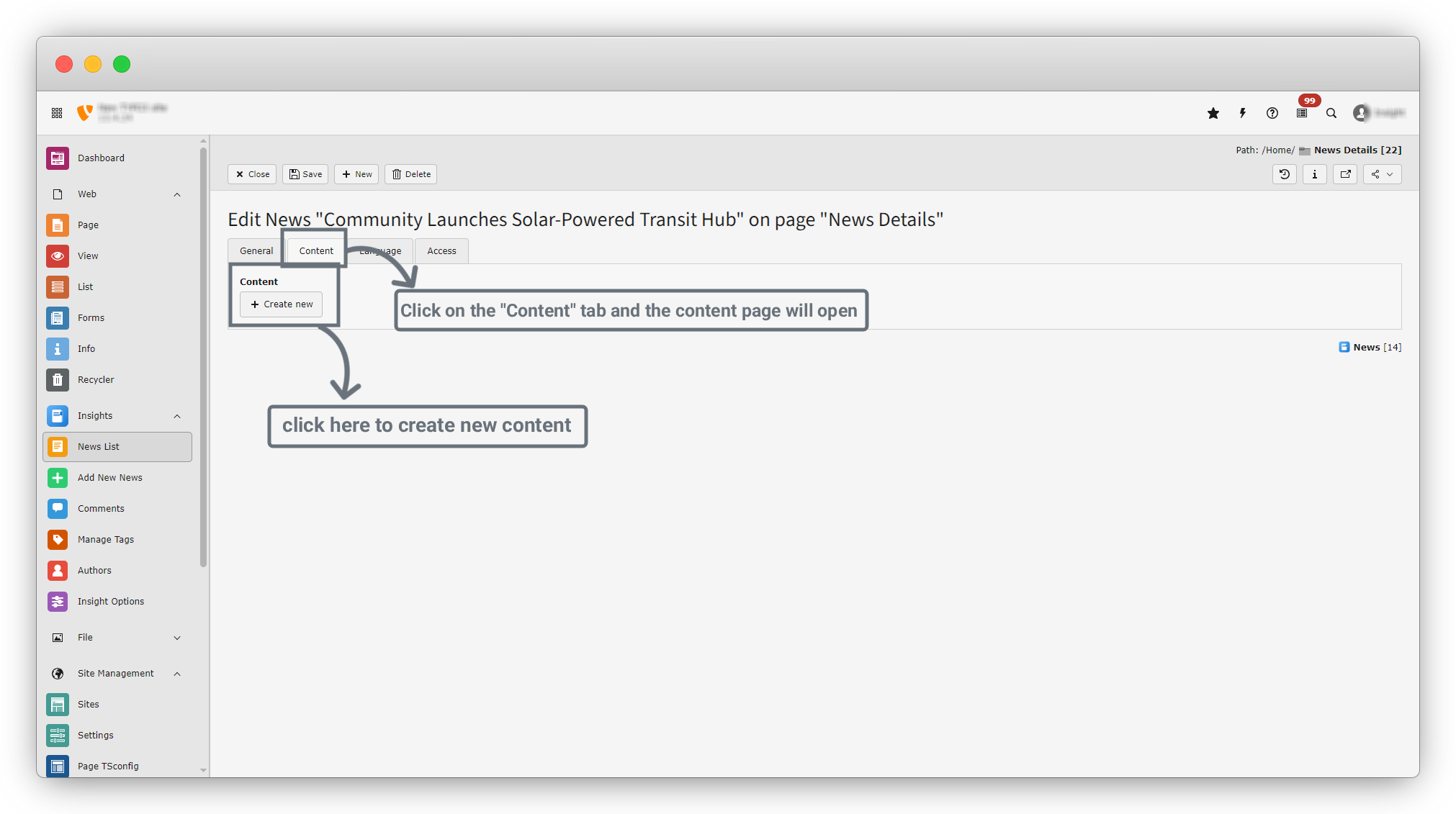
2. After clicking the “+ Create New” button, a new screen will appear as shown in the screenshot.
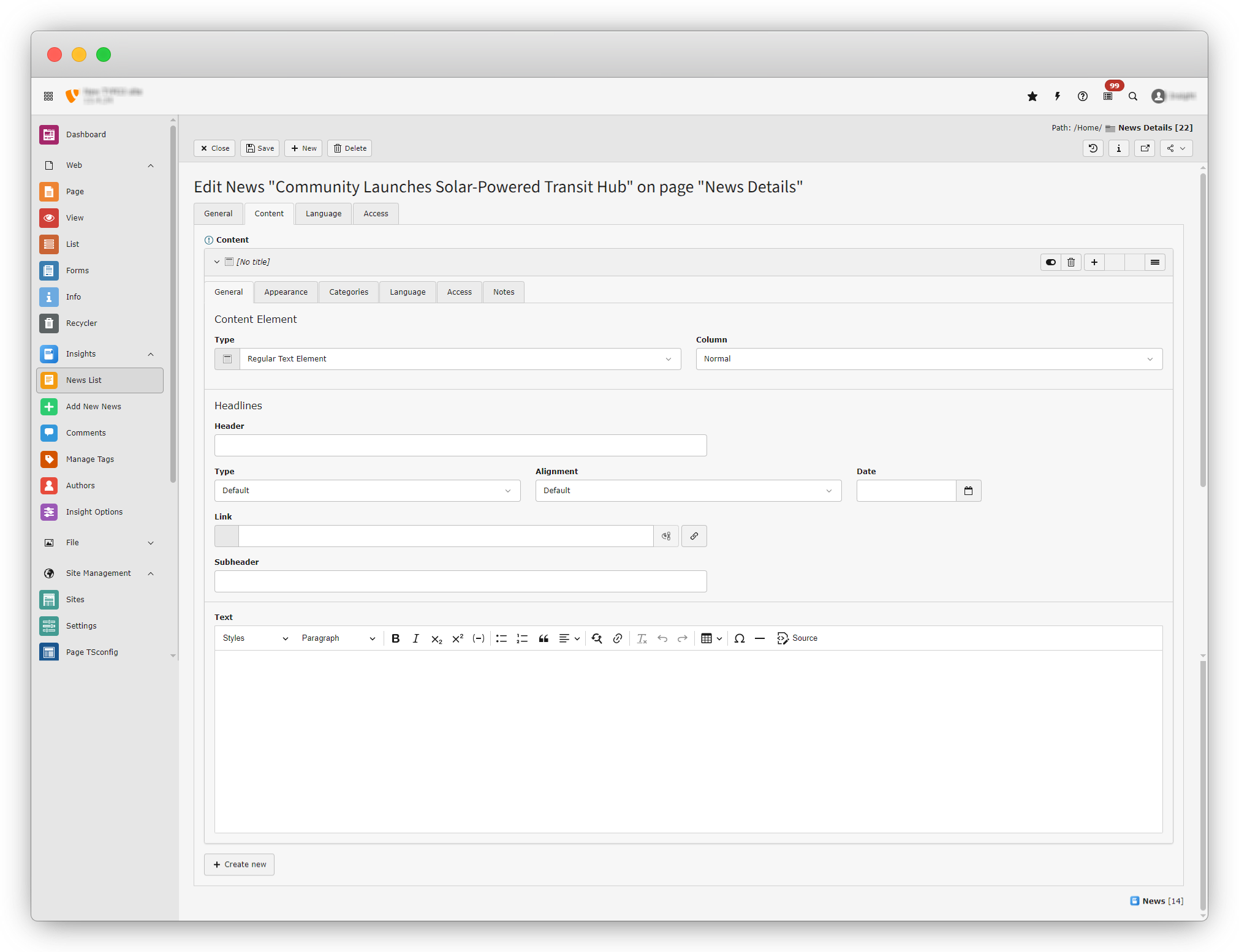
3. You will see a field called “Type”. This is a dropdown field where you can find many content types. You can use these types to add different kinds of content.
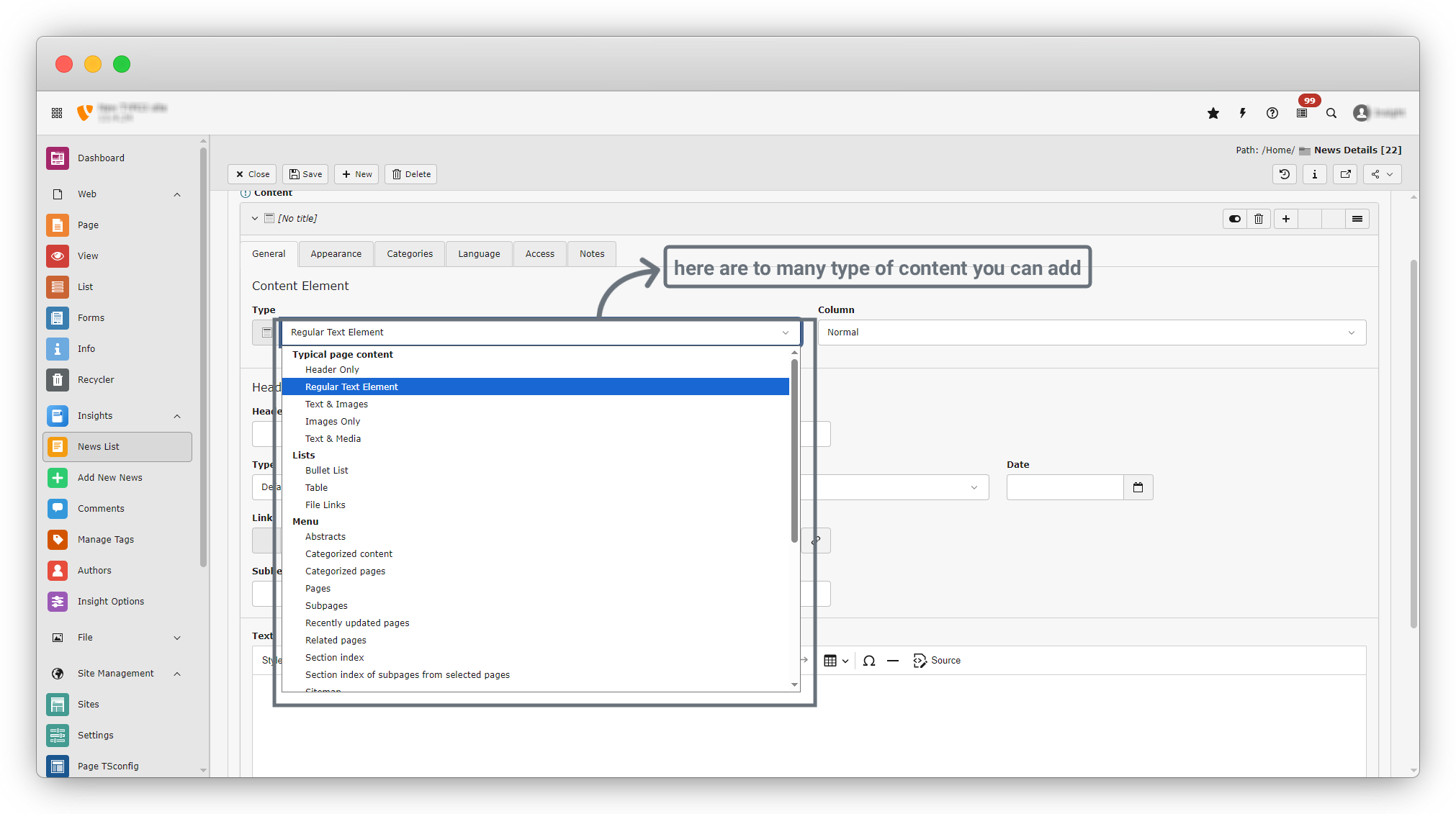
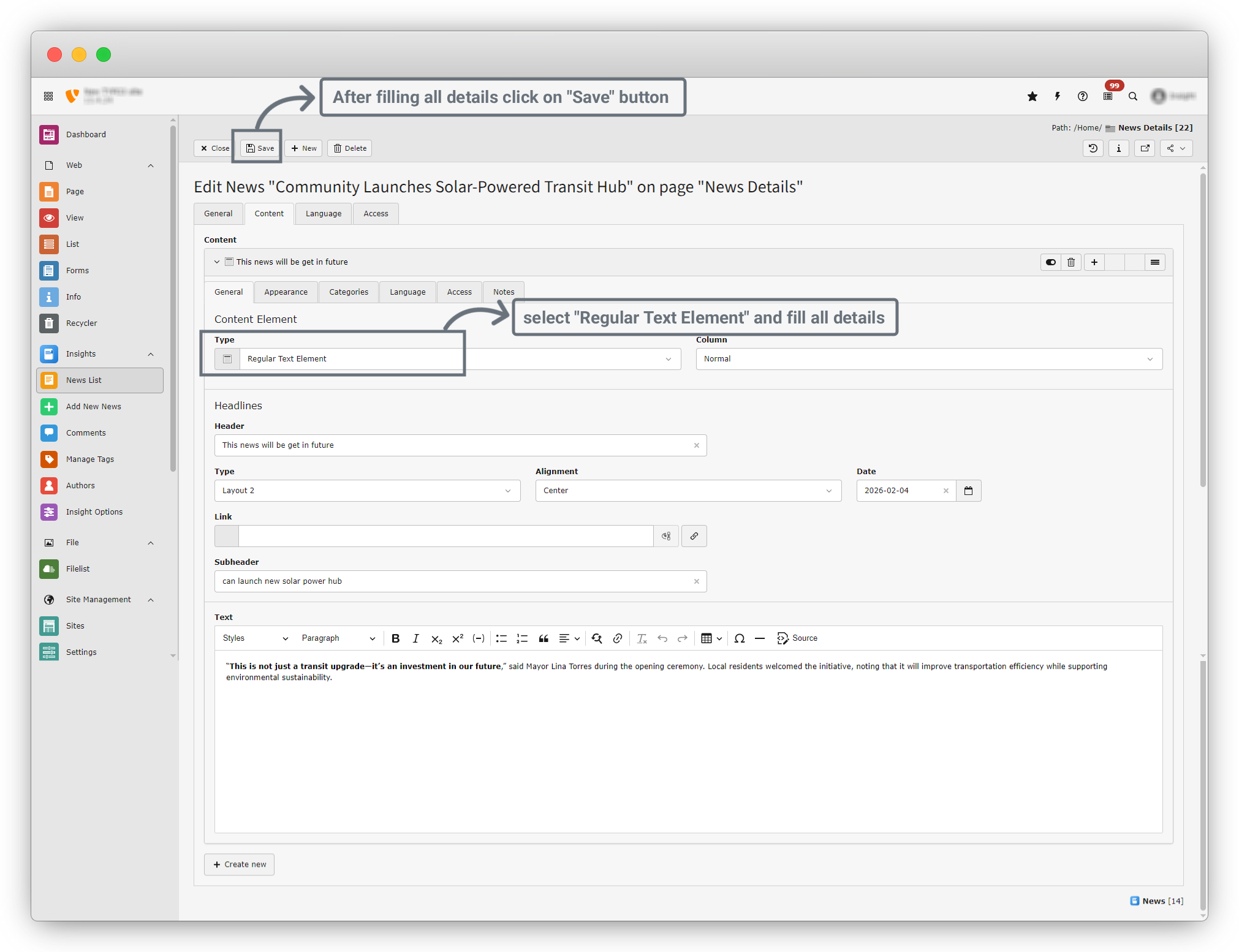
4. Let’s create content using the “Regular Text Element” as an example.
5. Select the “Regular Text Element” type. The related fields will appear. Fill in all the required details and click the Save button.
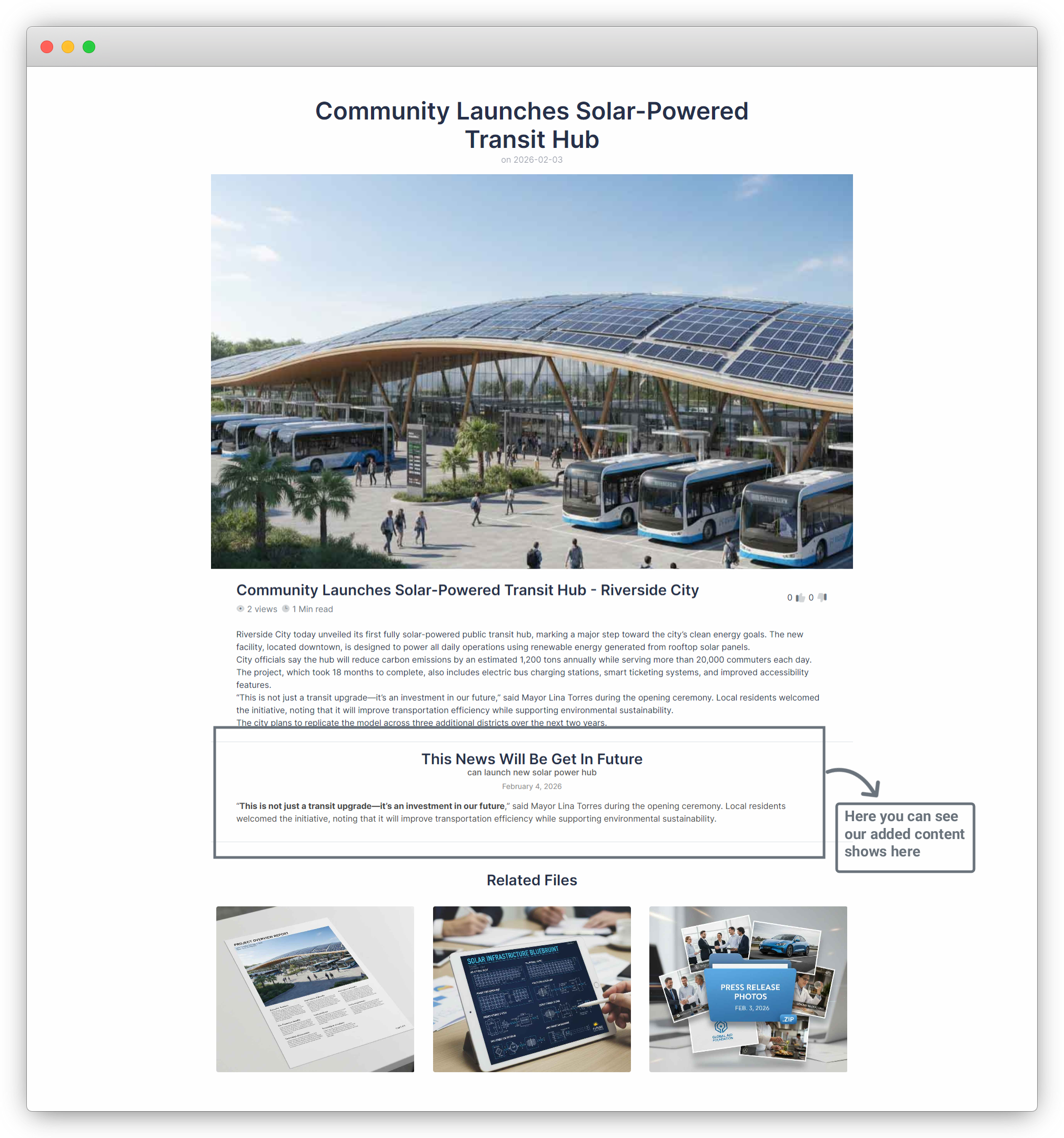
6. Now, open the News Details page. You will see the content displayed there, as shown in the screenshot below.
7. In the Type field dropdown, you can see many options. Each option works differently. You can add them one by one and check how each type works.
Share



