



URL copied to clipboard

General Tab
3 views
__readtime__ Min
read
The first tab is the general tab you can see in this screenshot. If you need to create simple news, by using only the general tab you will create the news.
Some fields are required and some are optional, also some fields are filled by default if you save the news without filling that field.
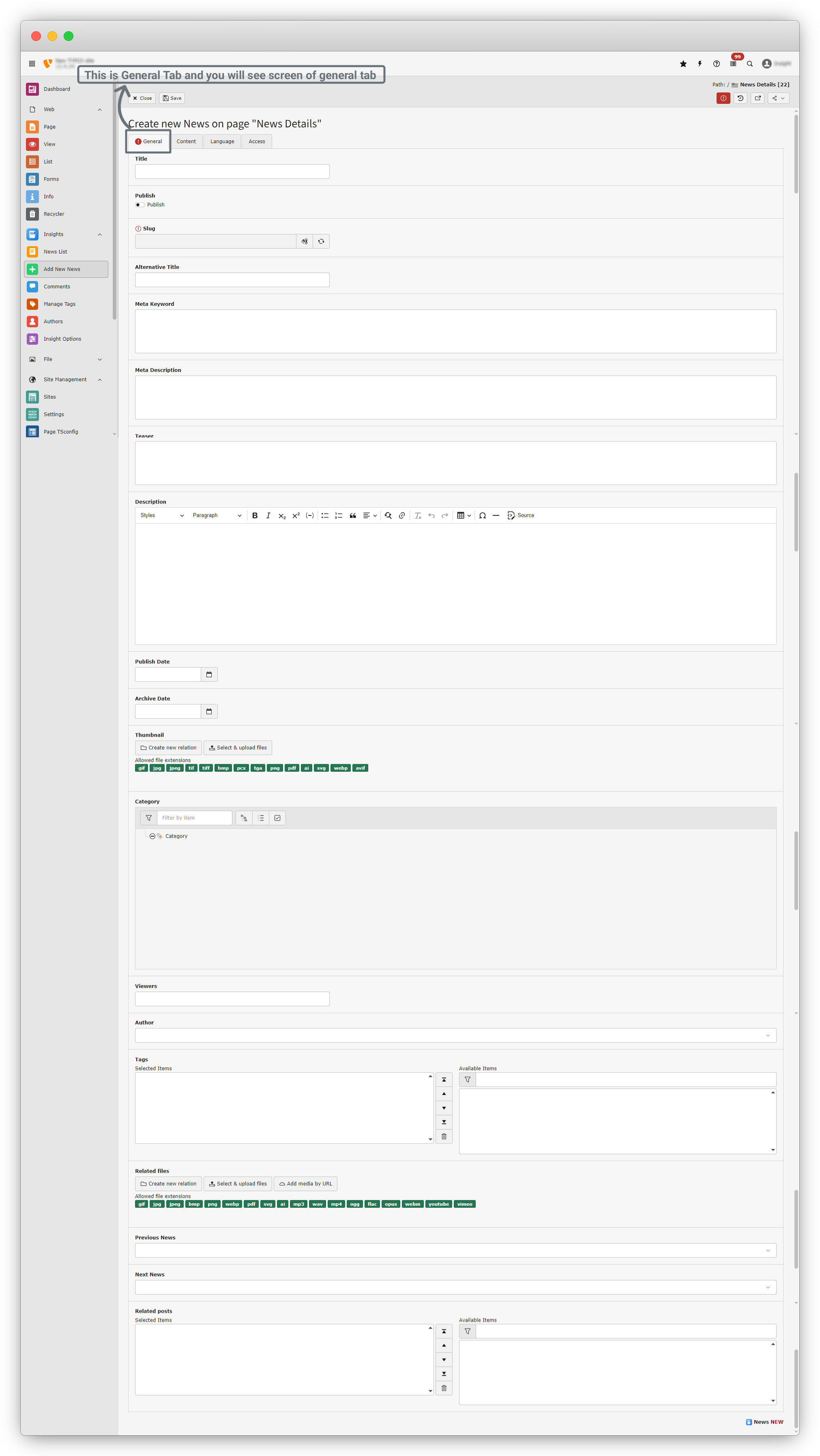
Here are details of every field in the general tab.
3.2.1 Title (Required)
Enter the main headline of news
This is show on
- News Listing Page
- News Detail page
3.2.2 Publish
- Enable Publish to make the news visible on the frontend
- If disabled, the news will stay as draft
- Enable this when the news is ready to go live
3.2.3 Slug (url)
- Automatically generated from title
- It is used to create the News Url
- Note: Avoid changing this unless necessary
3.2.4 Alternative Title (optional)
- Used when you want a different title for SEO or frontend.
- If empty, the main Title is used
3.2.5 Meta Keywords (SEO-optional)
- Keywords for search engines
- Separate keywords with commas
- Example: `technology, product launch, innovation`
3.2.6 Meta Description (SEO – Optional)
- Short description for search engines
- Recommended length: 150–160 characters
- Example:`Discover our latest product launch designed to improve performance and user experience.`
3.2.7 Teaser (Optional)
- Short summary shown in news listing pages
- Helps users quickly understand the article
3.2.8 Description (Main Content)
- The main body content of the news
- This appears on the news detail page
- You can add:
- Text
- Formatting
- Links and many more
3.2.9 Publish Date
- Date when the news becomes visible and archive.
3.2.10 Archive date (optional)
- Date after which the news is archived
- Archived news may stop showing on frontend (depends on configuration)
3.2.11 Thumbnail (Optional but Recommended)
- Upload a featured image for the news
- Used in: News list and News detail header
- Supported formats: `jpg, jpeg, png, webp, svg, gif, bmp and many more`
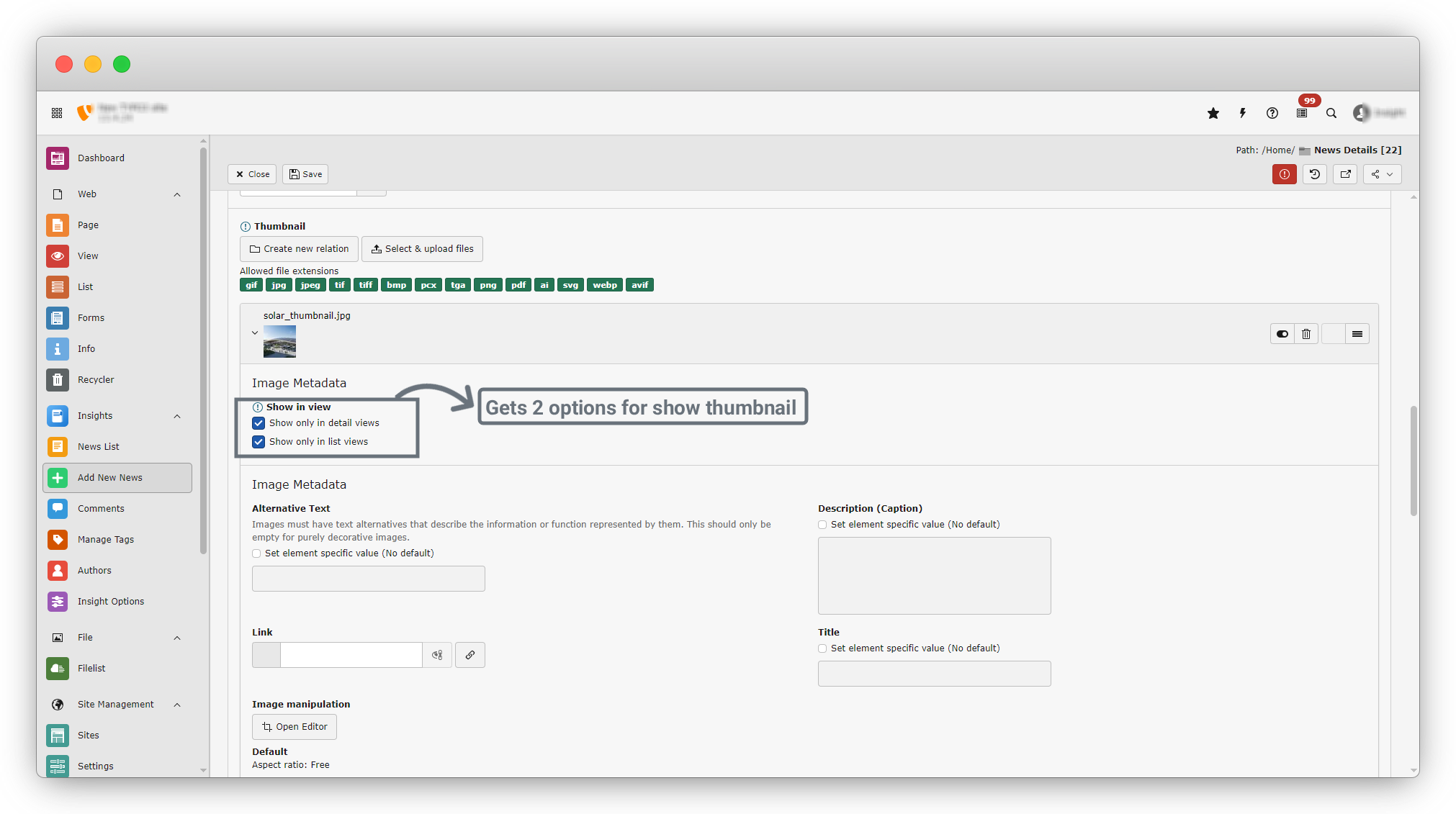
- Show options : there are 2 options to show a thumbnail.
- Show only in List view : This will show thumbnail in list view only, not in details.
- Show only in detail view: This will show thumbnail in details view only
- If you want to show a thumbnail in both views just check both checkboxes.
3.2.12 Category
- Select one or more news categories
- Categories help: Organize content and Filter news on frontend
3.2.13 Viewers
- Auto-managed field
- Shows how many times the news is viewed
- Usually not edited manually
3.2.14 Author
- Select the author of the news
- Author name appear on frontend news details page
- Example: `Alex Morgan`
3.2.15 Tags (Optional)
- Select relevant tags from Available Items
- Click arrows to move them to Selected Items
- Tags help:
- Improve filtering
- Show related news
3.2.16 Related Files (Optional)
- Attach additional files such as:
- PDFs
- Images
- Videos
- Can be used for downloads or references
3.2.17 Previous News / Next News (Optional)
- Manually link previous and next news articles
- Improves navigation on news detail page
3.2.18 Related Posts (Optional)
- Link related news articles
- These may appear as Related News on frontend
Lets fill all details in the details tab. See the screenshot below to fill all fields to create a news item.
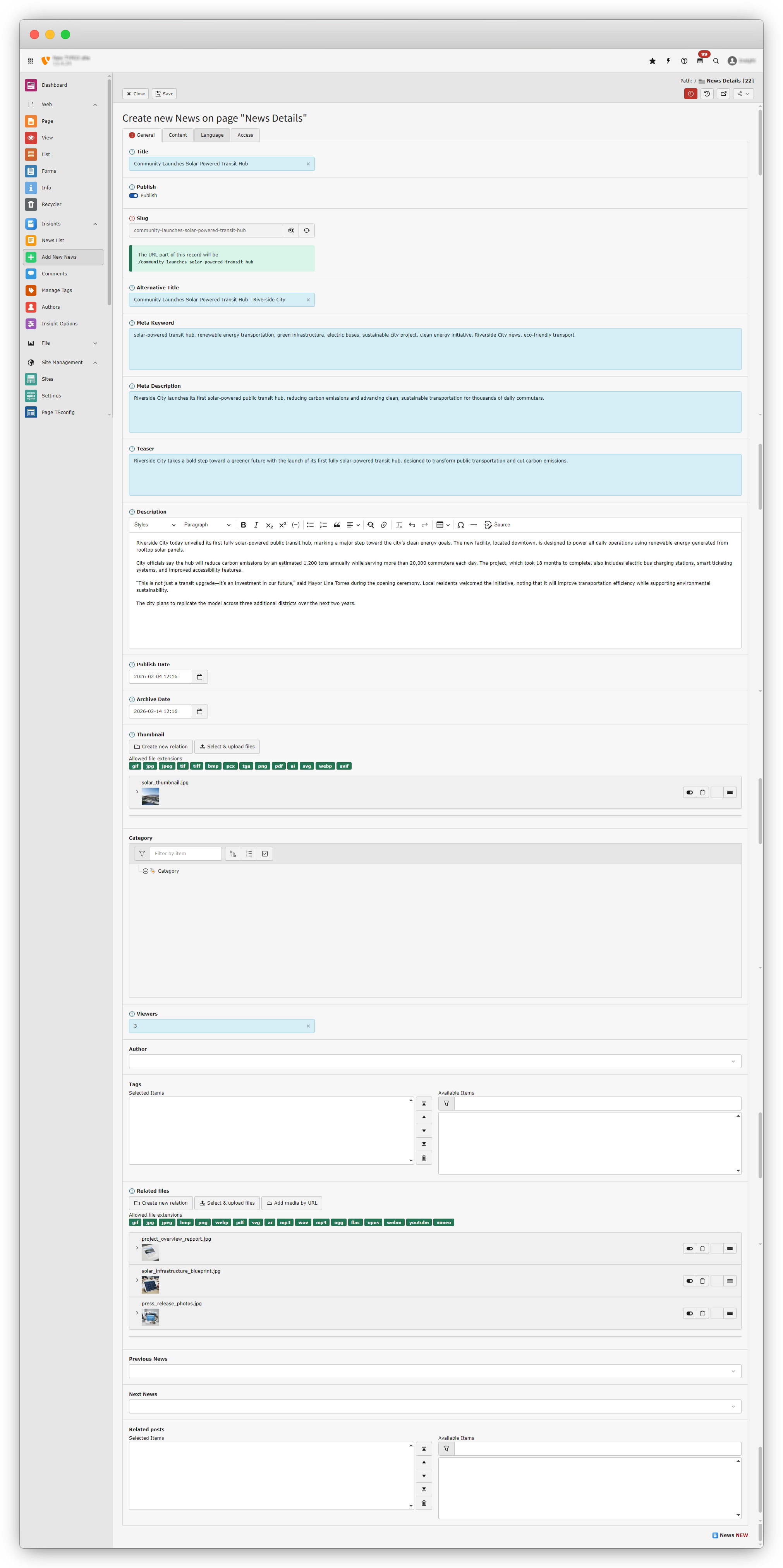
After filling in the basic details, you can save the news—there’s no need to fill in the Content or other tab details.
1. On the top-left side, you will see the Save button. Click on Save, and you will see a message confirming that the news has been saved successfully.
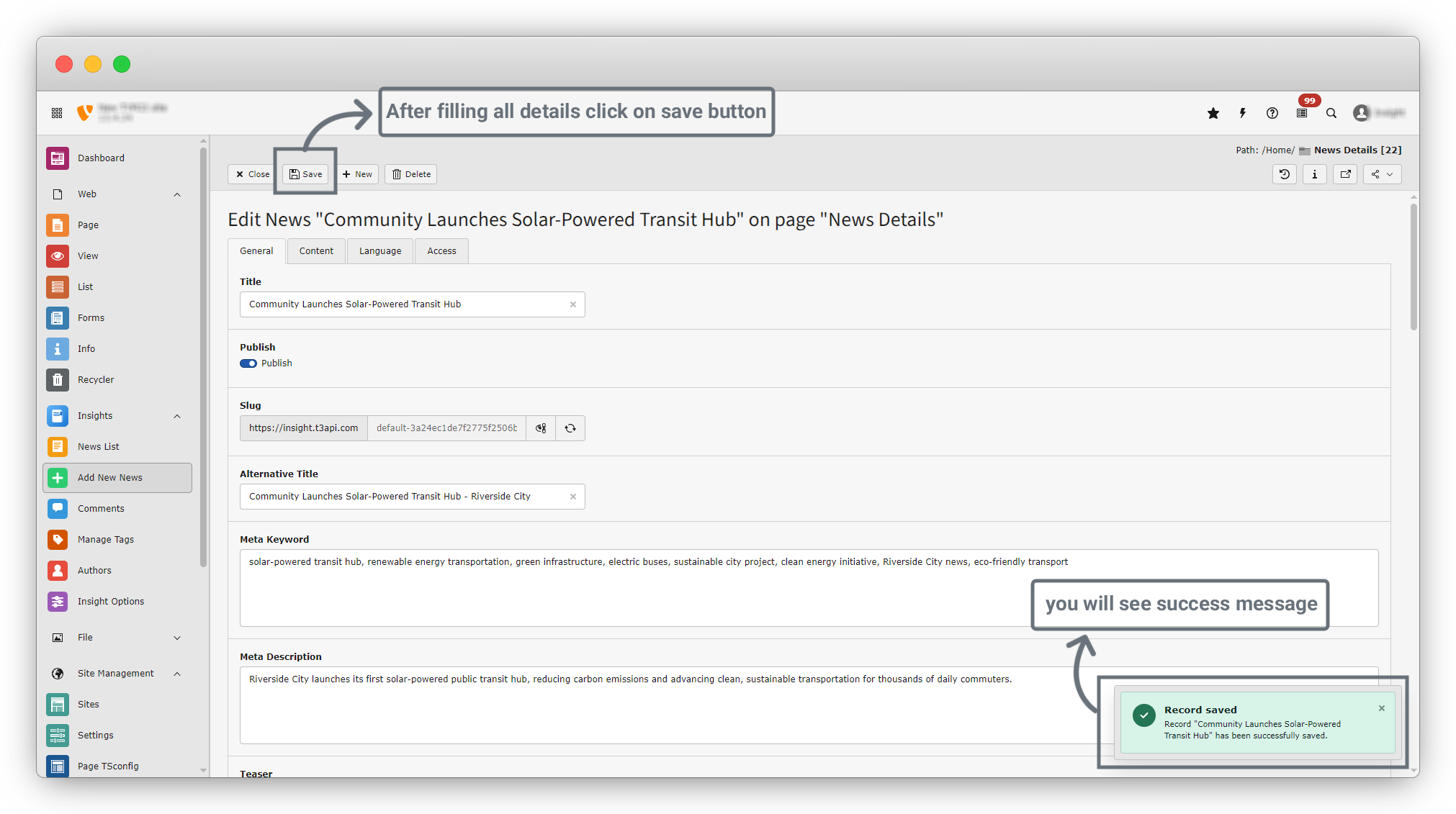
2. The news has now been saved successfully.
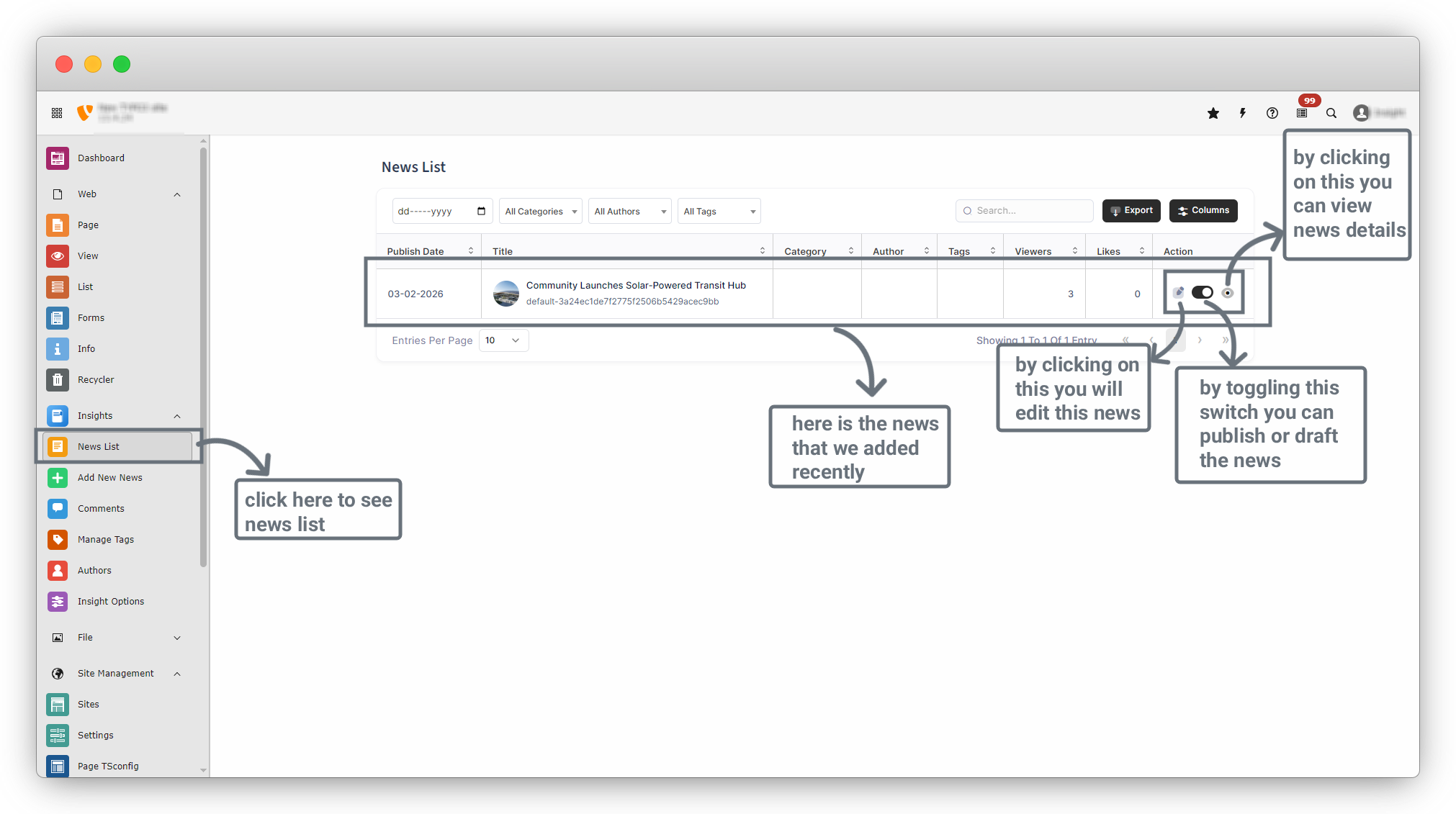
3. On the sidebar, go to Insights > News List, and you will see the news you added displayed in the list.
4. In the News List, there are three buttons for each news item:
- Edit: Click the Edit (notepad) icon to edit the news.
- Publish : Toggle this switch to publish the news or save it as a draft.
- View: Click the View (eye) icon to see the details of the news.
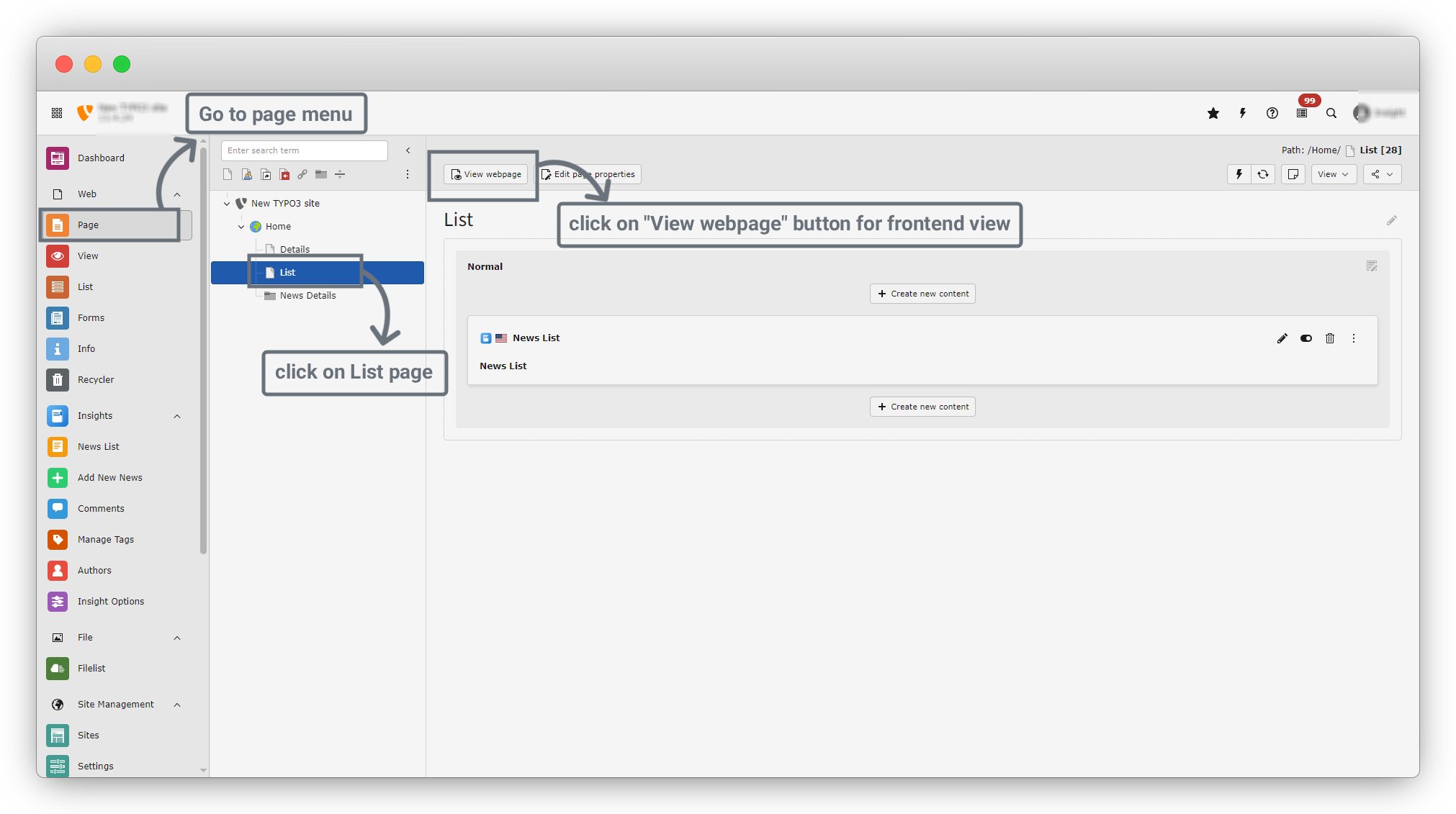
5. Now, go to the Page menu on the sidebar. Click on the List page, and you will see the screen as shown in the screenshot below.
6. Click on the “View Webpage” button to see the frontend view of the list.
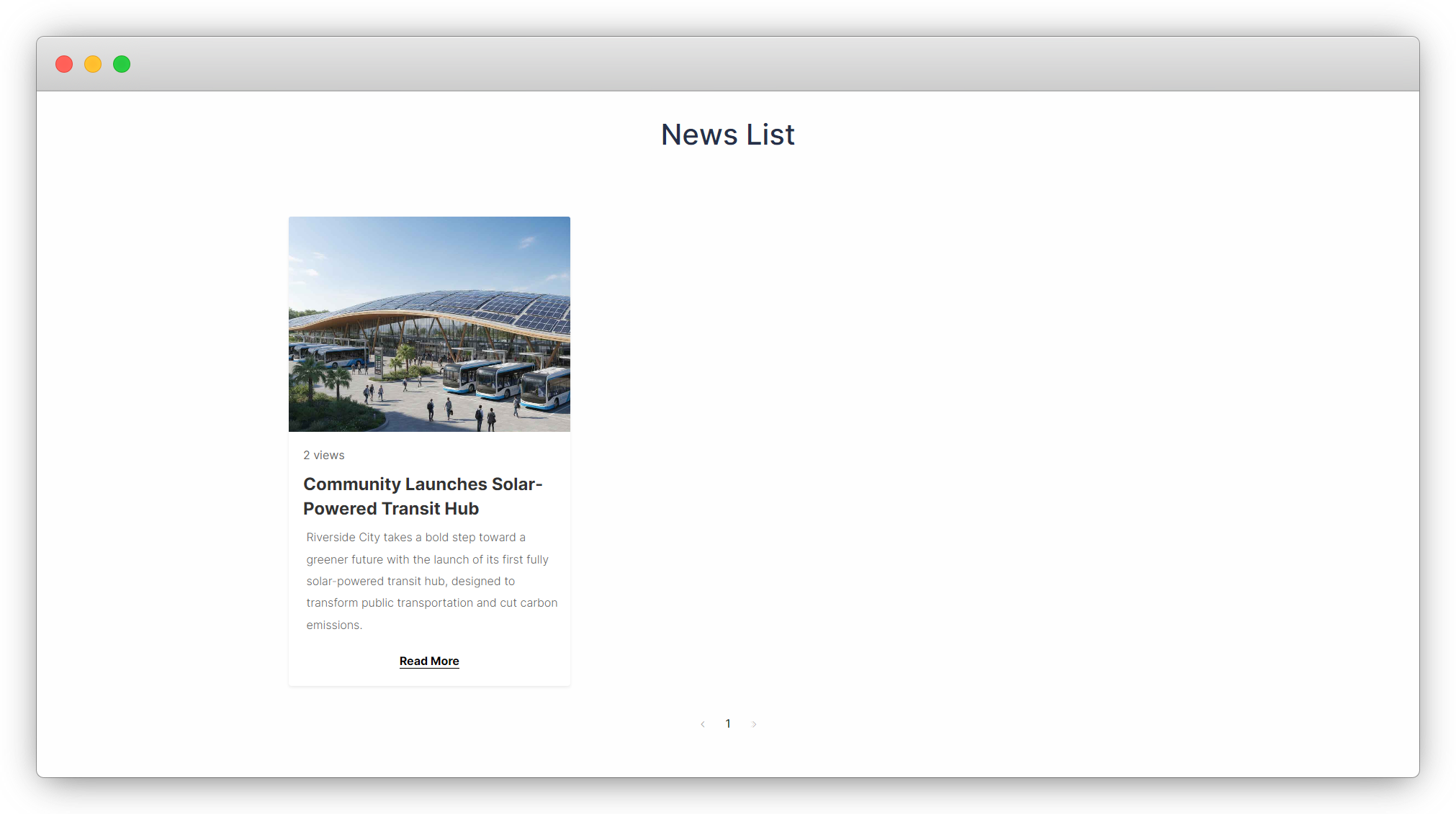
7. In the frontend, the news items will be displayed, and by clicking the “Read More” button, you can open the corresponding News Details page.
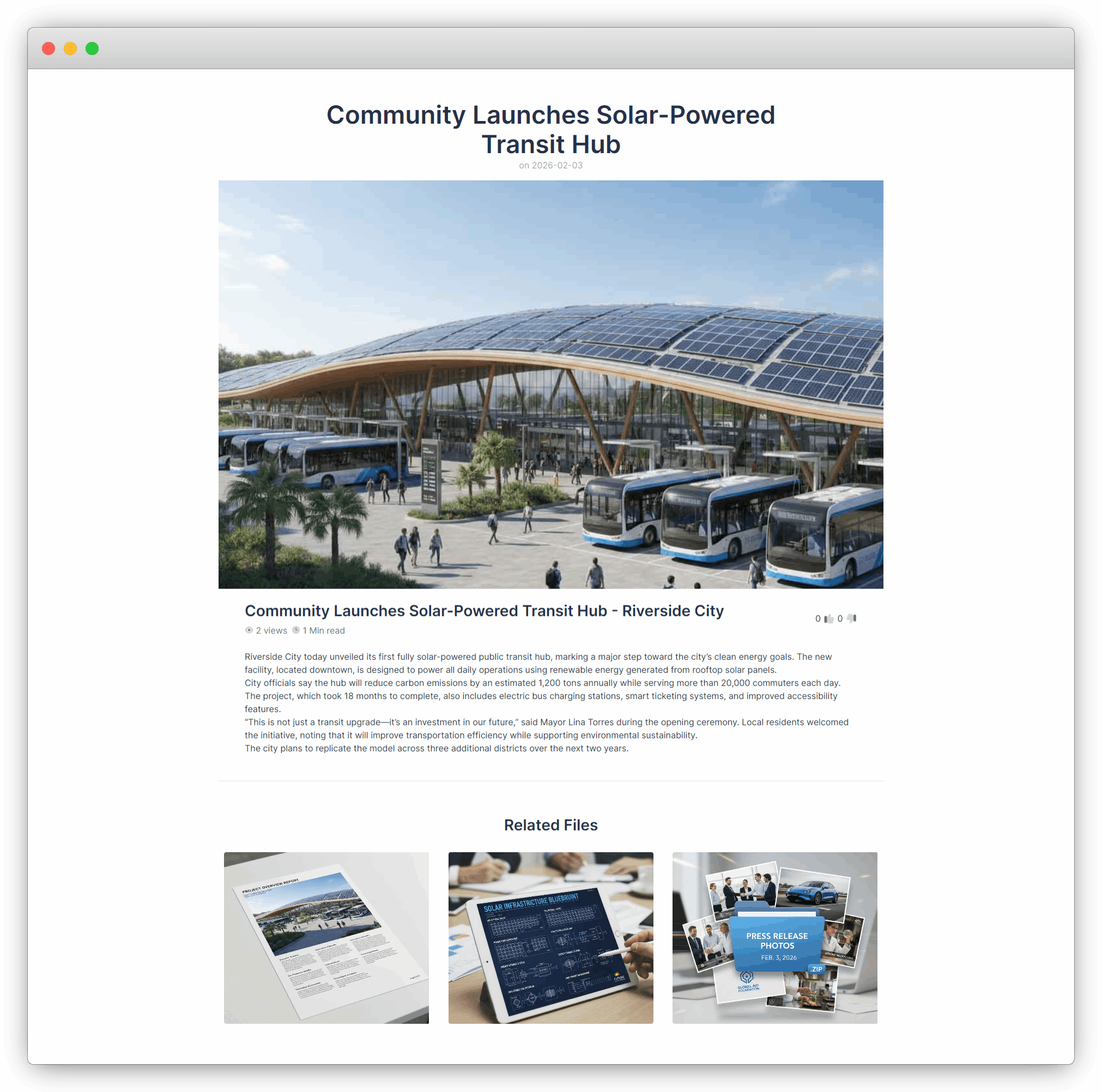
8. In the below screenshot our news details page will be shown there.
9. Lets quickly add 2 more news to check that news gets in the listing and details page. Don't forget to enable news to get on the front end.
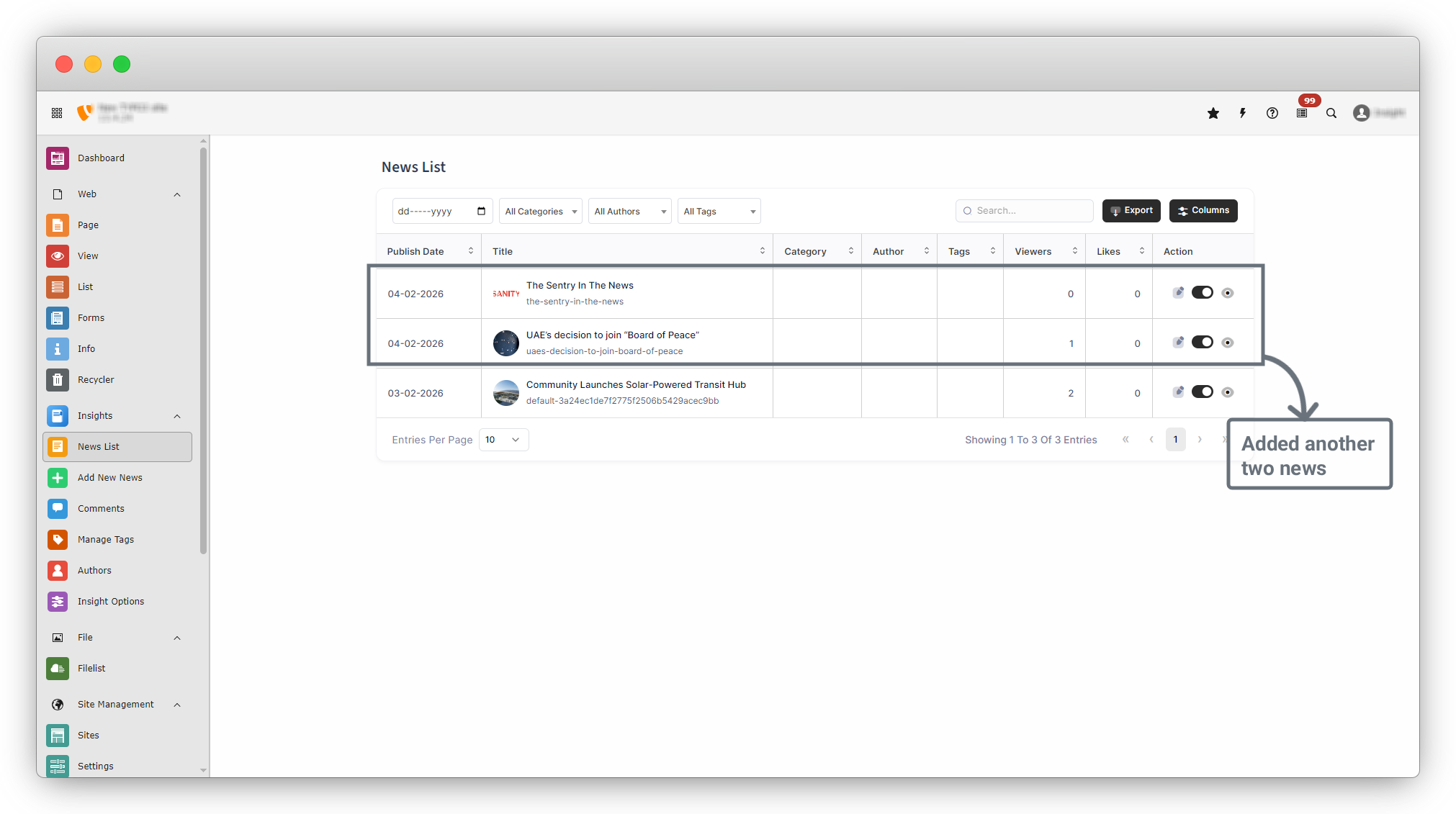
10. Our recently added news will get in frontend successfully.
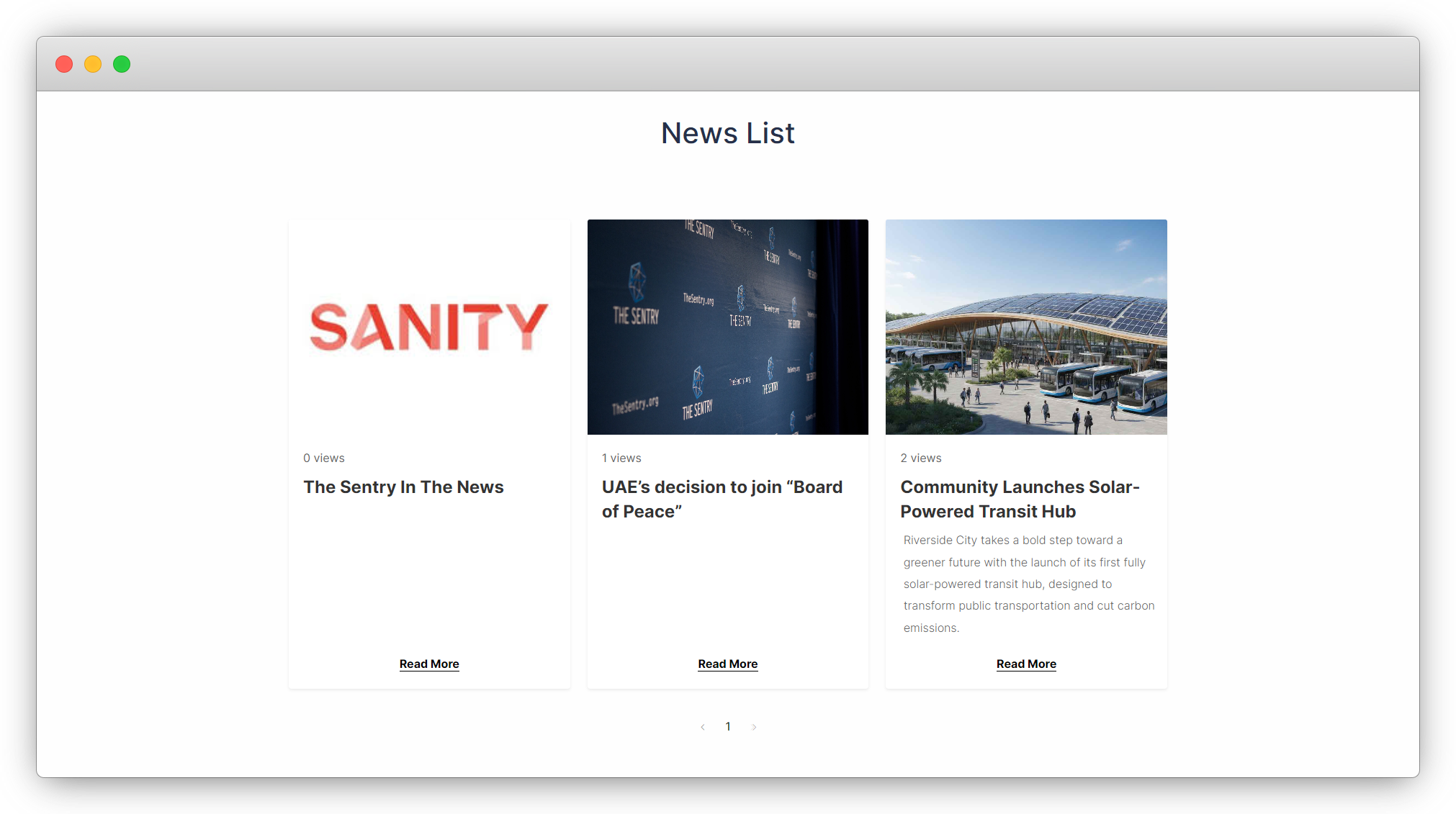
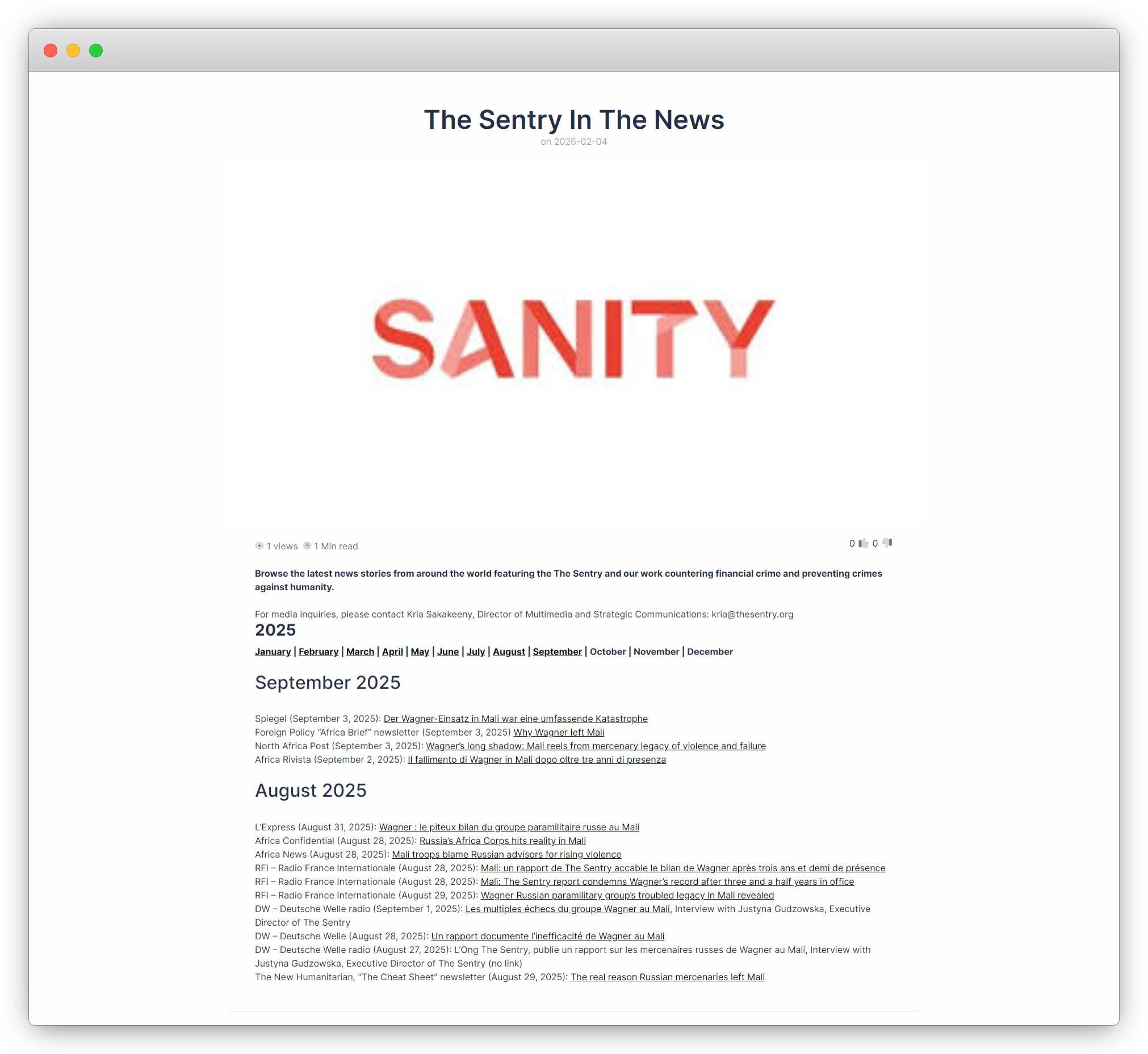
11. let's open First news : The Sentry In The News
12. let's open second news : UAE’s decision to join “Board of Peace”
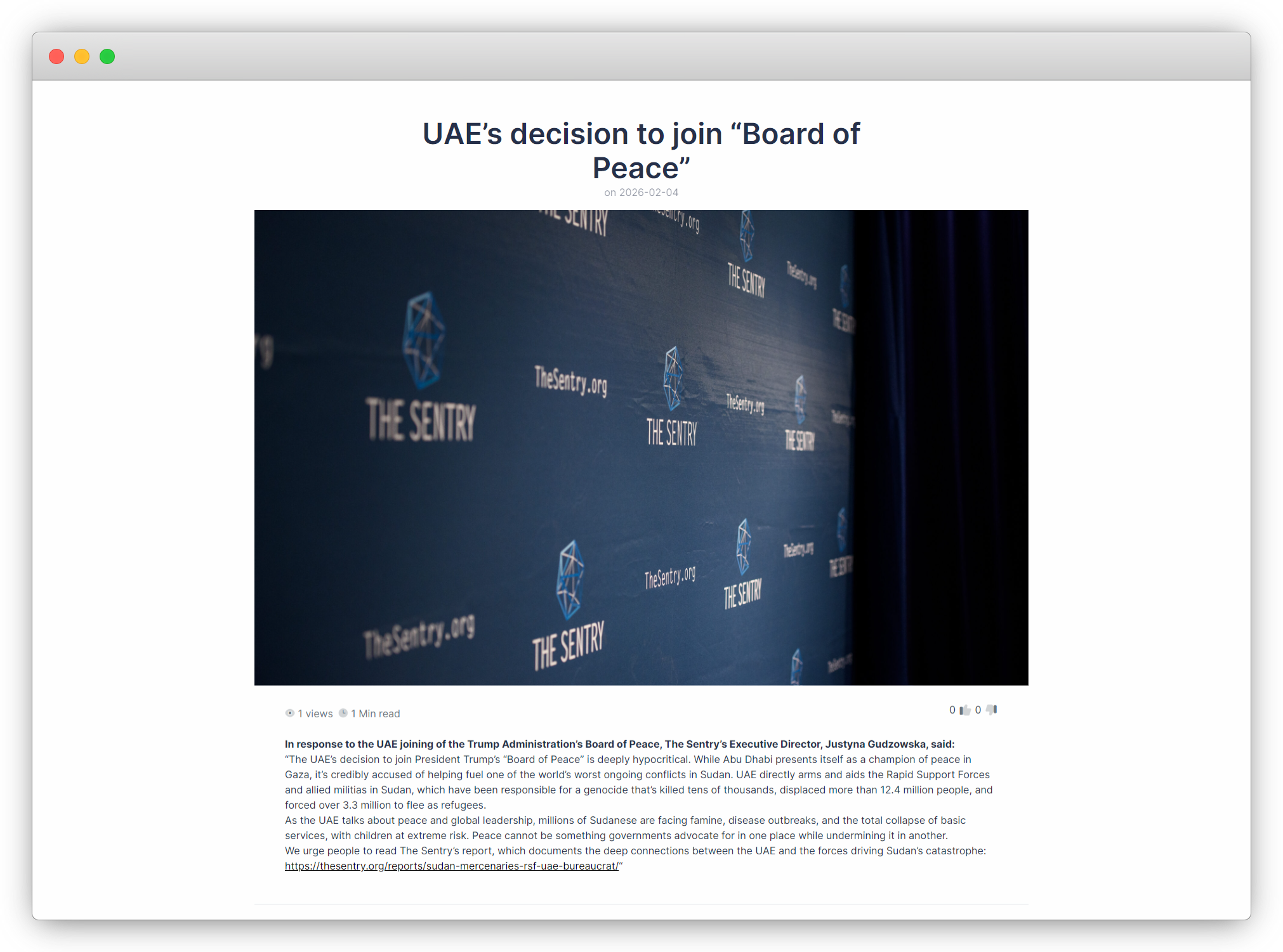
13. all news gets successfully with their description. Currently we haven't added categories, tags, related posts and many more in the future we will add all data in news.
14. Now let's move to the “Content” tab of news add and edit.
Share



