



URL copied to clipboard

Edit the employee in the back-end module
3 views
__readtime__ Min
read
We already have added the “Edit” button into the template file employeeResourcesPrivateBackendTemplatesEmployBelist.html at the time of creating the template.
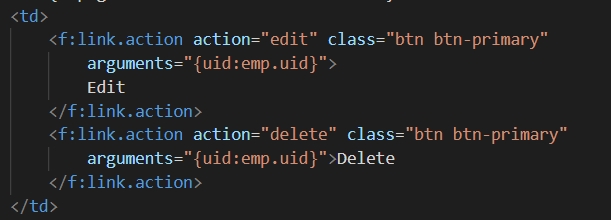
But if you check you will get to know that the edit button is not working as we haven’t created the edit action and added the action into the modules.php file to allow it for the back-end module.
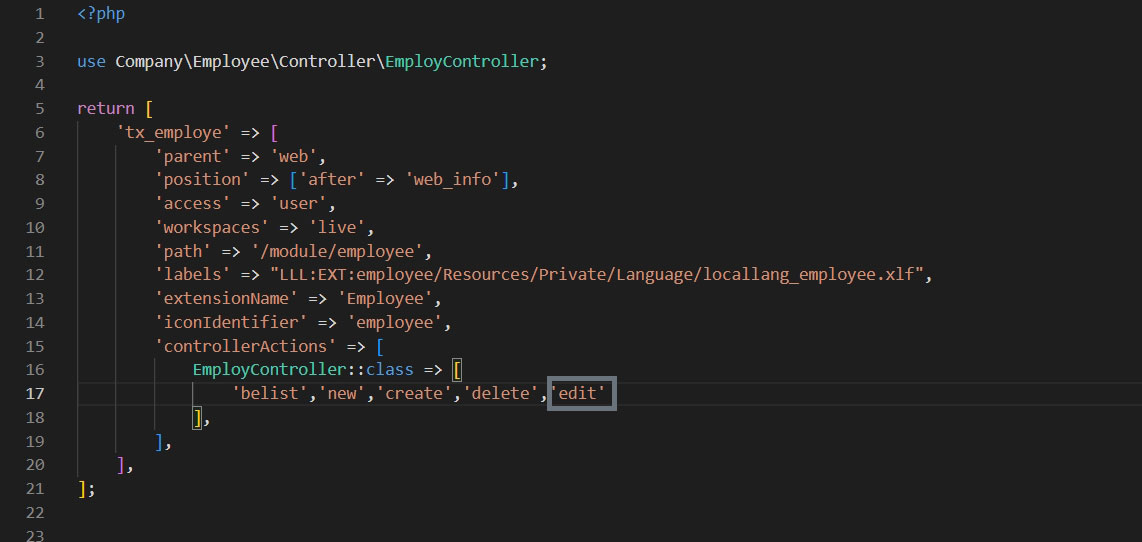
1. Let’s add the action “edit” we have assigned to the edit button to the employeeConfigurationBackendModules.php file to allow it for the backend module.
2. Now create an action for edit, add the below code of the editAction() in the file employeeClassesControllerEmployController.php
    public function editAction(): ResponseInterface
    {
        // get all the arguments by using getArguments() method.
        $arguments = $this->request->getArguments();
        // get the uid from arguments
        $uid = $arguments['uid'];
         /**
         * Check the condition for uid and use the finByUid method and get all the data
         * for that user you have clicked the edit button for.
         * And store the data in a variable.
         * Then check the condition for that variable and assign it to the instance 'employ' and that instance will be pass as an object
         * into the form of Edit.html template file.
         *
         */
        if ($uid) {
            $emplodata = $this->employRepository->findByUid($uid);
            if ($emplodata) {
                $this->view->assign('employ', $emplodata);
                // Here, we used moduleTemplateFactory to get htmlResponse and it gives some functionalities, setTitle is one of them
                $moduleTemplate = $this->moduleTemplateFactory->create($this->request)->setTitle("Edit Employee");
                $moduleTemplate->setContent($this->view->render());
                return $this->htmlResponse($moduleTemplate->renderContent());
            } else {
                $this->addFlashMessage('Employee Not Found!!', 'Invalid', ContextualFeedbackSeverity::WARNING, true);
                return $this->redirect('belist');
            }
        } else {
            $this->addFlashMessage('Employee Not Found!!', 'Invalid', ContextualFeedbackSeverity::WARNING, true);
            return $this->redirect('belist');
        }
    }
3. Flush the cache and reload the employee list of the back-end module and you will see the edit button is working now.
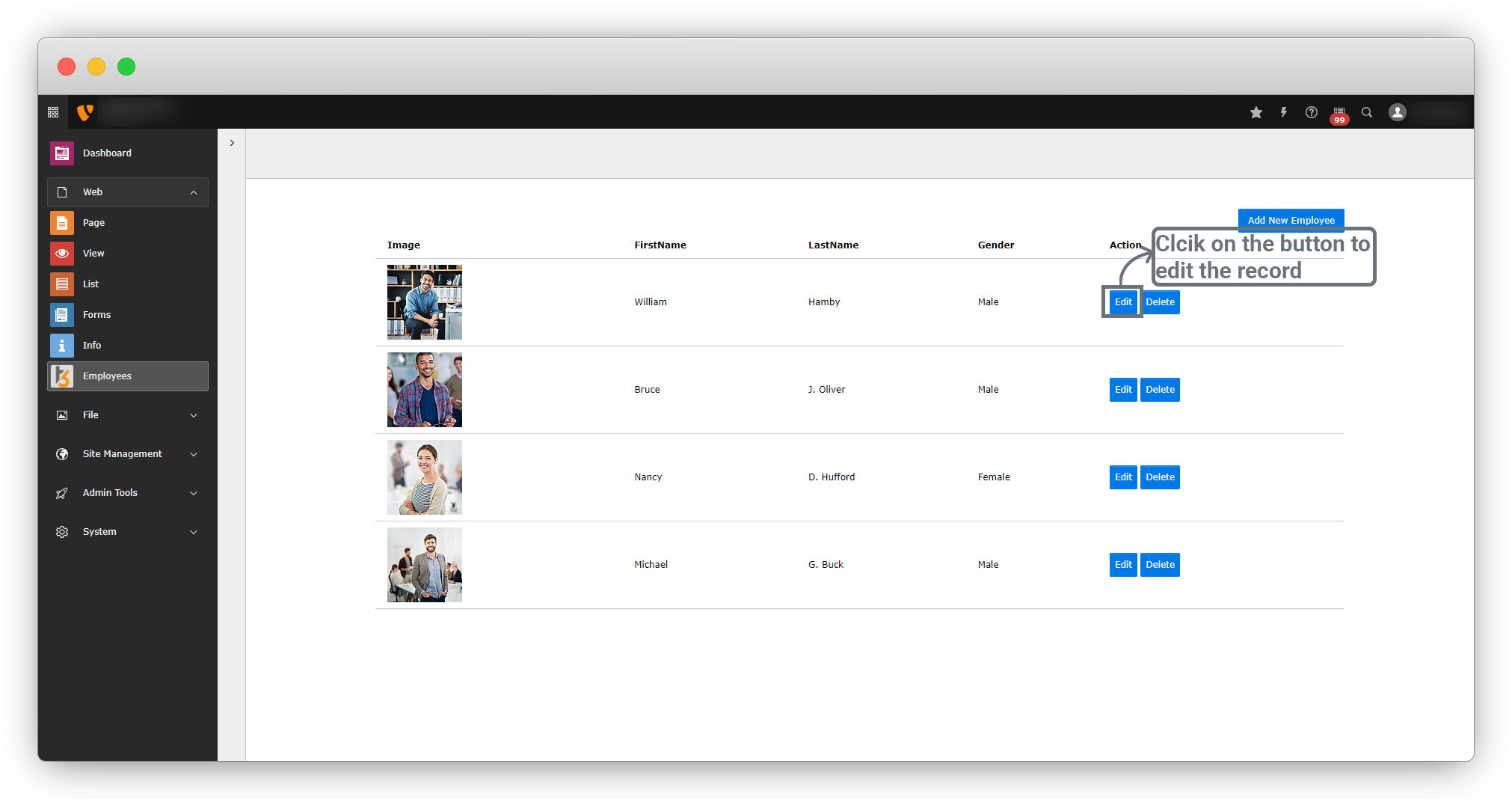
Click on the edit button of the record you want to edit, and you will see the below error
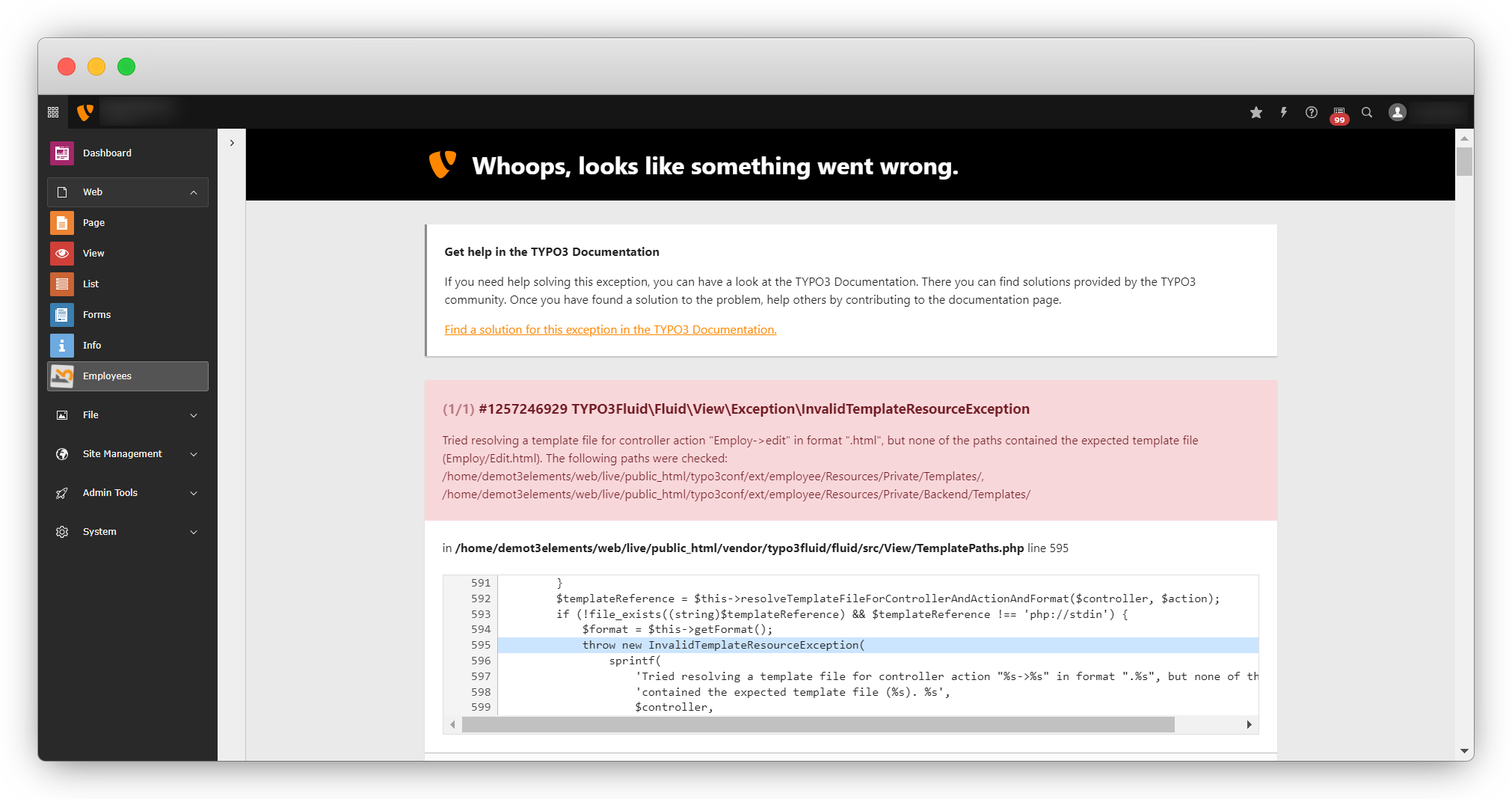
4. To resolve the above error, create the template file for editAction.
4.1. Create the Edit.html file. The file path is employeeResourcesPrivateBackendTemplatesEmployEdit.html
4.2. Add the below code to the Edit.html file
<html xmlns:f="http://typo3.org/ns/TYPO3/CMS/Fluid/ViewHelpers"
    xmlns:core="http://typo3.org/ns/TYPO3/CMS/Core/ViewHelpers"
    xmlns:be="http://typo3.org/ns/TYPO3/CMS/Backend/ViewHelpers" data-namespace-typo3-fluid="true">
<f:layout name="Default" />
<f:section name="Content">
    <div>
        <div>
            <f:flashMessages />
            <div>
                <h1>Edit Employ</h1>
            </div>
            <div>
            //pass the object 'employ' assigned to the view in controller file
                <f:form action="update" enctype="multipart/form-data" name="employ" object="{employ}">
                    <f:render partial="Employe/FormFields" arguments="{_all}" />
                    <div>
                        <f:form.submit value="Update Employee" />
                    </div>
                </f:form>
            </div>
        </div>
</f:section>
</html>
Save the file, flush the cache, go to the back-end module, and click on the edit button of any record. You will see the error on the screen as you can see in the screenshot below:
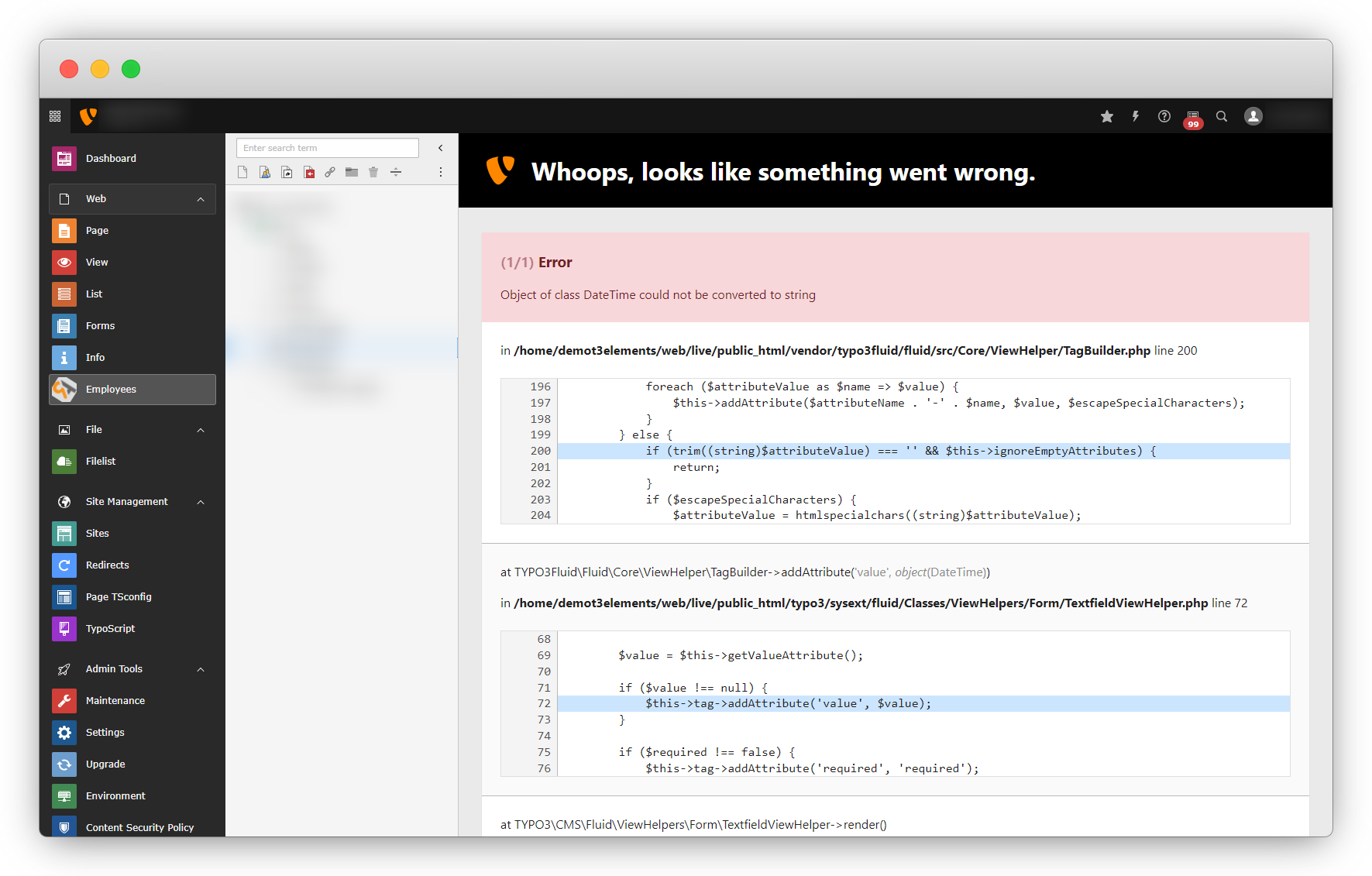
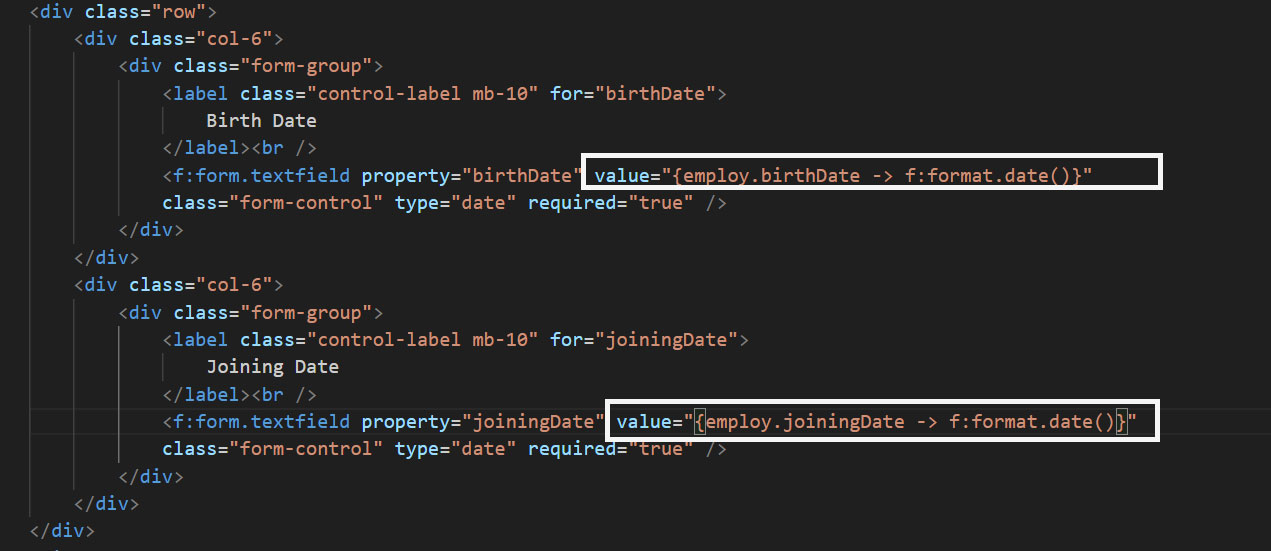
The above error is occurring for the fields “birth date” and “joining date” as the value of fields with DateTime datatype could not be converted to a string. To resolve the above error, add the piece of code in file employeeResourcesPrivateBackendPartialsEmployeFormFields.html to both the fields “birth date” and “joining date”. For the birthdate field, add value="{employ.birthDate -> f:format.date()}" and for the joining date field, add value="{employ.joiningDate -> f:format.date()}" , below is the screenshot of both fields after adding the value attribute.
Save the file, flush the cache, and reload the back-end module employee list, click on the edit button of any record and you will see the form with all the details for that particular employee.
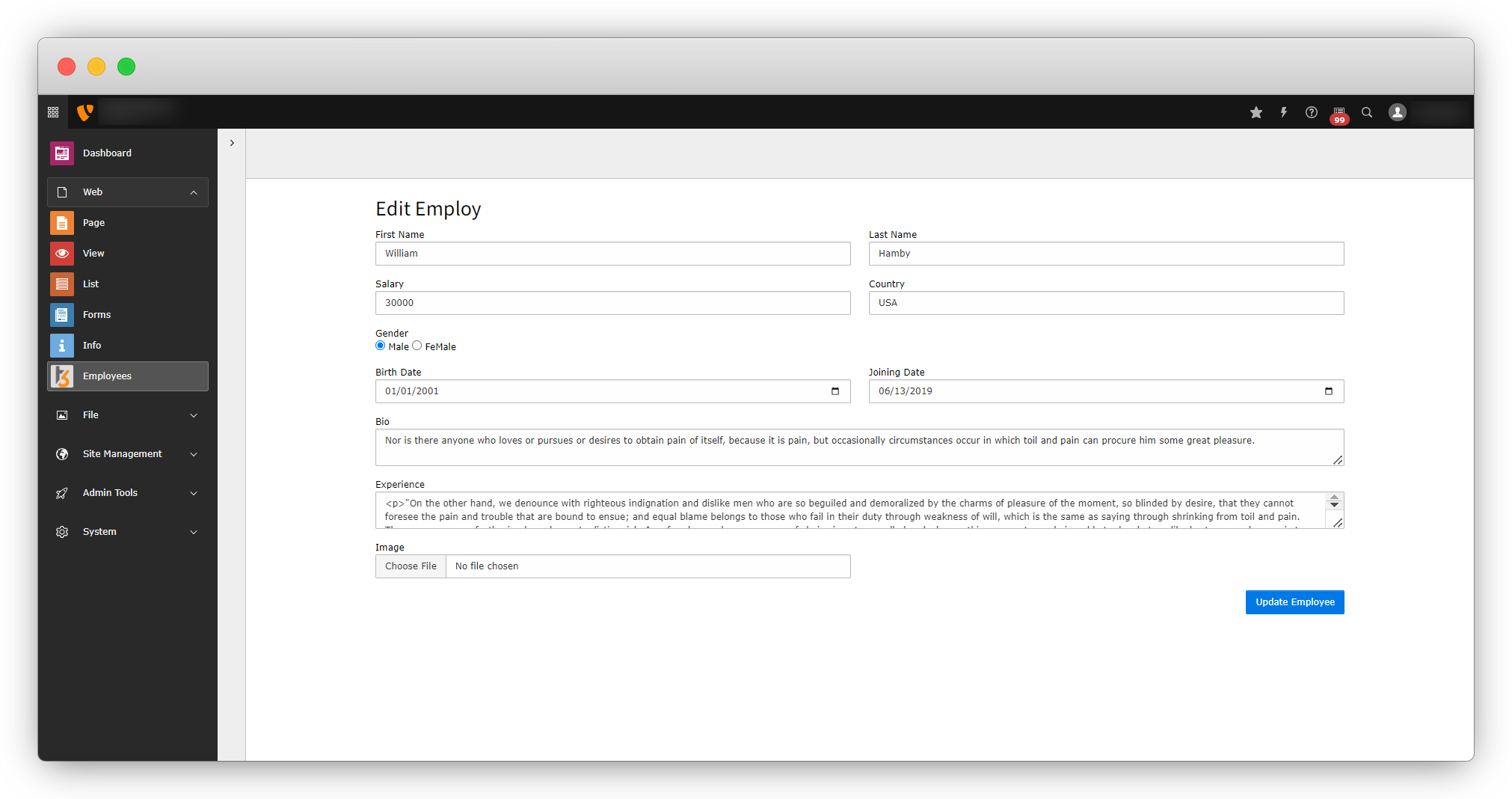
Edit any data in this form and click on the Upload Employee button, but nothing will happen as we haven’t created the “updateAction” yet. We have added the action “update” to the Edit.html template file, but haven’t created the action or added it to the modules.php file to allow the action for the back-end module.
4.3. Add the action “update” in the employeeConfigurationBackendModules.php file to allow the action for the back-end module.
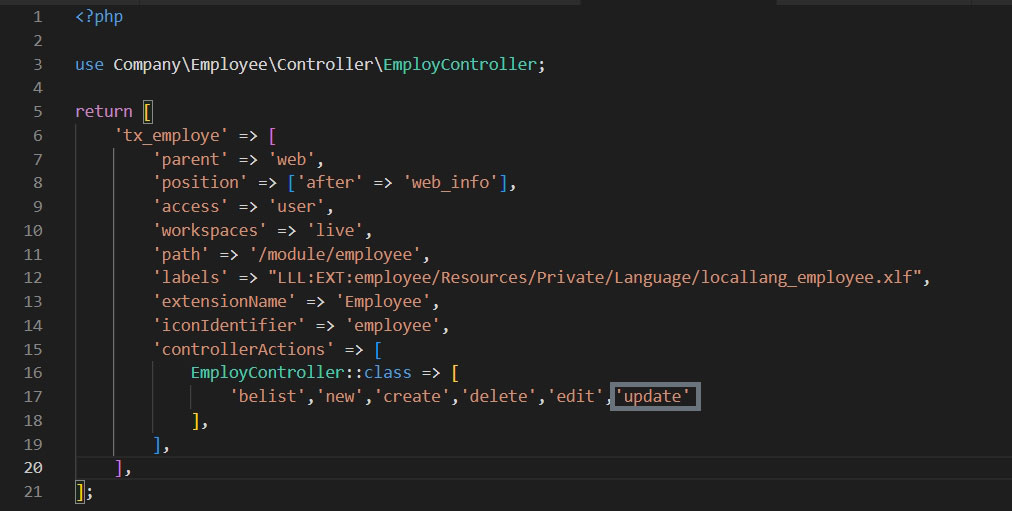
4.4. Now create an updateAction in the controller file, the file path is employeeClassesControllerEmployController.php
4.5. Add the code below to create the action
 /**
     * action update
     * @param Employ $employ
     * @return void
     */
    public function updateAction(Employ $employ): ResponseInterface
    {
        $this->employRepository->update($employ);
        $this->addFlashMessage('Employee Updated successfully!!', 'Success', ContextualFeedbackSeverity::OK, true);
        return $this->redirect('belist');
    }
Save the controller file, flush the cache, go to the employee list in the back-end module, edit any record, and click on the “Update Employee” button, and you will see the error on the screen as you can see in the screenshot below.
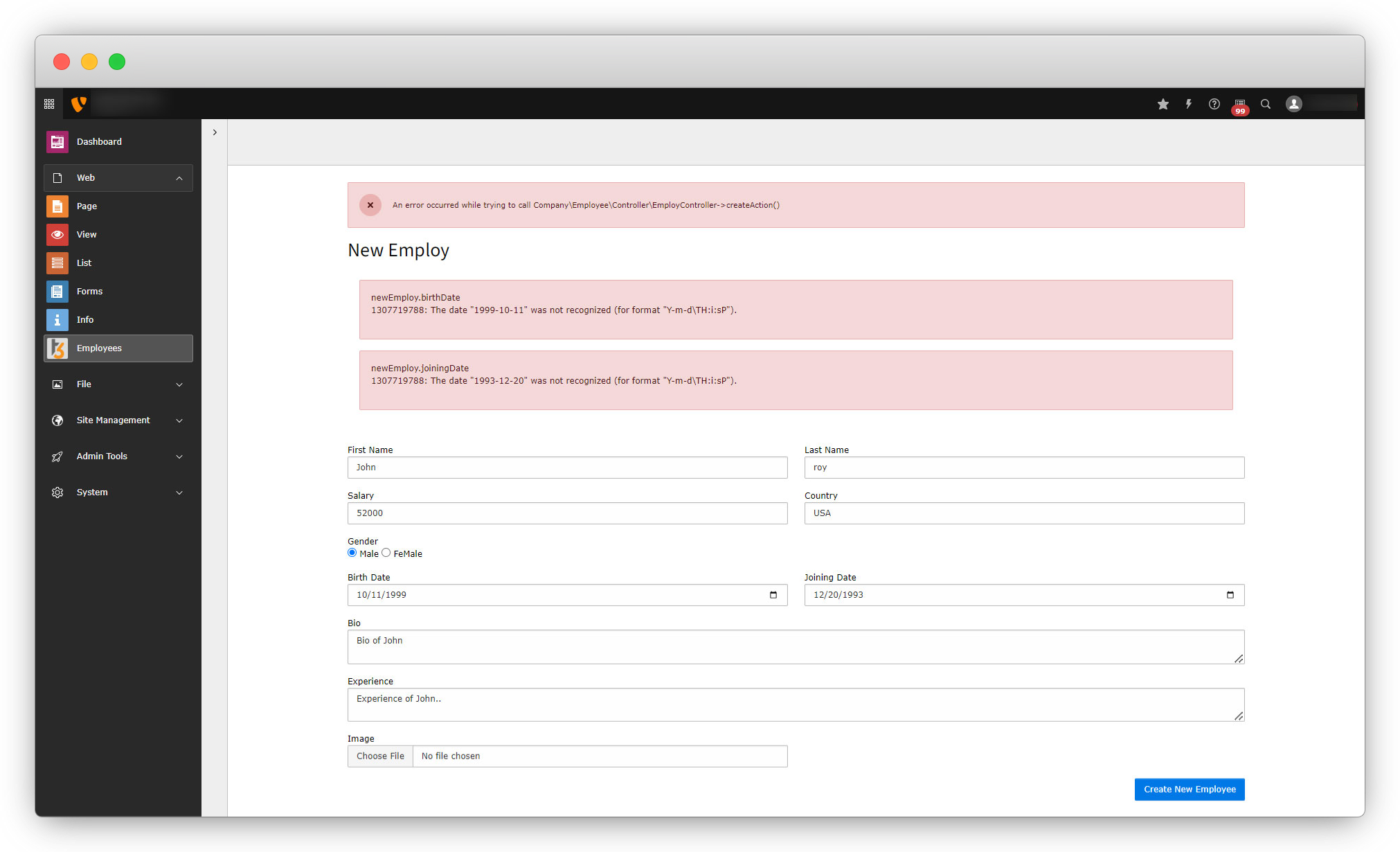
4.6. To resolve the above error, let’s initialize the updateAction.Add the initialize action whenever you want to perform anything just before the action calls, for example here we want to convert the data type for “birthdate” and “joiningdate” from string to DateTime so when we call the updateAction there should be no error occur, and for that, we have to convert the data type of them before we call the update action, so we should create an initialize action and convert the data type in that action. Add the below code in employeeClassesControllerEmployController.php file just before the updateAction.
public function initializeUpdateAction()
    {
        if ($this->arguments['employ']) {
            $propertyMappingConfiguration = $this->arguments['employ']->getPropertyMappingConfiguration();
            $propertyMappingConfiguration->allowAllProperties();
            $propertyMappingConfiguration->forProperty('birthDate')->setTypeConverterOption(TYPO3CMSExtbasePropertyTypeConverterDateTimeConverter::class, TYPO3CMSExtbasePropertyTypeConverterDateTimeConverter::CONFIGURATION_DATE_FORMAT, 'Y-m-d');
            $propertyMappingConfiguration->forProperty('joiningDate')->setTypeConverterOption(TYPO3CMSExtbasePropertyTypeConverterDateTimeConverter::class, TYPO3CMSExtbasePropertyTypeConverterDateTimeConverter::CONFIGURATION_DATE_FORMAT, 'Y-m-d');
            $propertyMappingConfiguration->skipProperties('image');
        }
    }
To add the image field update the code of the updateAction(), replace the code of updateAction() with the code given below
/**
     * action create
     * @param Employ $employ
     * @return void
     */
    public function updateAction(Employ $employ): ResponseInterface
    {
        $uploaded = $this->request->getUploadedFiles();
        if (sizeOf($uploaded) > 0) {
            $oldImage = $employ->getImage();
            if($oldImage){
                foreach($oldImage as $im){
                    $employ->removeImage($im);
                }
            }
            $__imag = $uploaded['employ']['image'];
            $resourceFactory = GeneralUtility::makeInstance(TYPO3CMSCoreResourceResourceFactory::class);
            $storage = $resourceFactory->getDefaultStorage();
            $newFile = $storage->addFile(
                $__imag->getTemporaryFileName(),
                $storage->getRootLevelFolder(),
                $__imag->getClientFilename()
            );
            $fileReference = GeneralUtility::makeInstance(CompanyEmployeeDomainModelFileReference::class);
            $fileReference->setOriginalResource($newFile);
            $employ->addImage($fileReference);
        }
        $this->employRepository->update($employ);
        $this->addFlashMessage('Employee Updated successfully!!', 'Success', ContextualFeedbackSeverity::OK, true);
        return $this->redirect('belist');
    }
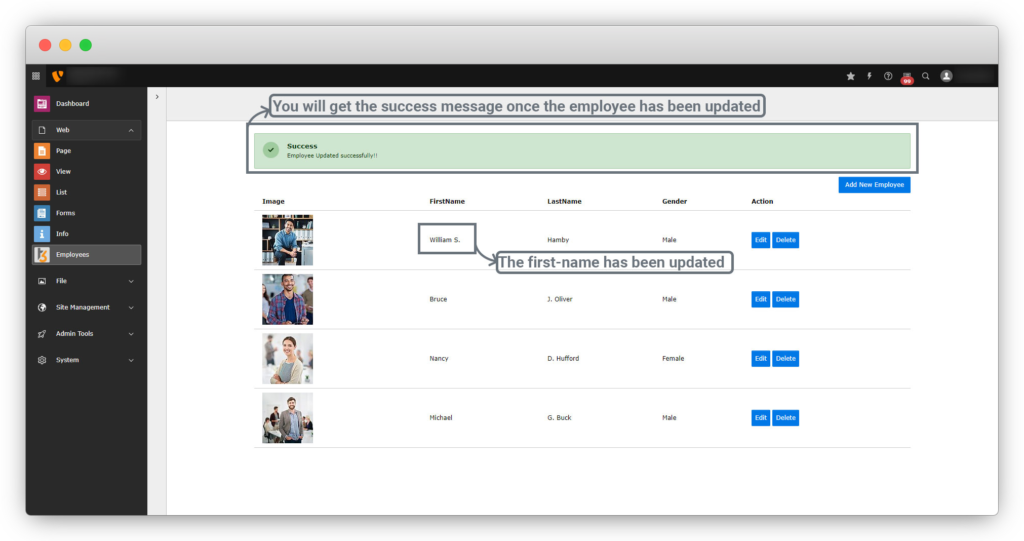
4.7. Save the file, flush the cache, and click on the “Update Employee” button, you will see the employee will be updated and you will get the message of success as you can see in the screenshot below.
Share



