



URL copied to clipboard

Override the form by using the extension
4 views
__readtime__ Min
read
Make sure that the extension in which you are going to override the form extension is enabled in your TYPO3 setup.
1. Partials: After downloading the form extension, go to the extension folder and go to the folder /Resources/Private/Frontend/Partials, copy all the things and then go to your TYPO3 setup, go to any of your extension’s partial folder, the path is: public_html/typo3conf/ext/<my_ext>/Resources/Private/Partials, then create a folder with any name, here let’s create the folder “Forms” and paste all the things from partial folder to here.
2. Template: Then go to the /Resources/Private/Frontend/Templates folder in your downloaded form extension, copy all the things and go to your TYPO3 setup, go to the extension’s template folder, the path is: public_html/typo3conf/ext/<my_ext>/Resources/Private/Templates, then create the folder for forms, let’s create a folder “Forms” and paste all the things in this folder.
3. Yaml: Let’s create the ‘yaml file’ for the custom form. Go to public_html/typo3conf/ext/<my_ext>/Configuration and create a folder Yaml. Create the file ‘CustomFormSetup.yaml‘ into the Yaml folder. The file path will be: public_html/typo3conf/ext/<my_ext>/Configuration/Yaml/CustomFormSetup.yaml and put the below code into the file.
TYPO3:
  CMS:
    Form:

      prototypes:
        standard:
          formElementsDefinition:
            Form:
              renderingOptions:
                templateRootPaths:
                  100: "EXT:<my_ext>/Resources/Private/Templates/Forms/"
                partialRootPaths:
                  100: "EXT:<my_ext>/Resources/Private/Partials/Forms/"
Make sure you have added your extension’s folder name in the place of <my_ext> in the above code.
If the TYPO3 version is older, the above code might not be working for you, in that case, please add the code given below:
TYPO3:
  CMS:
    Form:
      persistenceManager:
        allowedExtensionPaths:
          1000: EXT:<my_ext>/Resources/Private/Forms
        allowSaveToExtensionPaths: true
        allowDeleteFromExtensionPaths: true

      prototypes:
        standard:
          formElementsDefinition:
            Form:
              renderingOptions:
                templateRootPaths:
                  100: "EXT:<my_ext>/Resources/Private/Templates/Forms/"
                partialRootPaths:
                  100: "EXT:<my_ext>/Resources/Private/Partials/Forms/"
4. Typoscript: Now add the below code to your extension’s setup.typoscript file to call the files. File path: public_html/typo3conf/ext/<my_ext>/Configuration/TypoScript/setup.typoscript
plugin.tx_form {
    view {
        templateRootPaths.100 = EXT:<my_ext>/Resources/Private/Templates/Forms/
        partialRootPaths.100 = EXT:<my_ext>/Resources/Private/Partials/Forms/
    }
    settings {
        yamlConfigurations {
            200 = EXT:<my_ext>/Configuration/Yaml/CustomFormSetup.yaml
        }
    }
}
Make sure you have added your extension’s folder name in the place of <my_ext> in the above code.
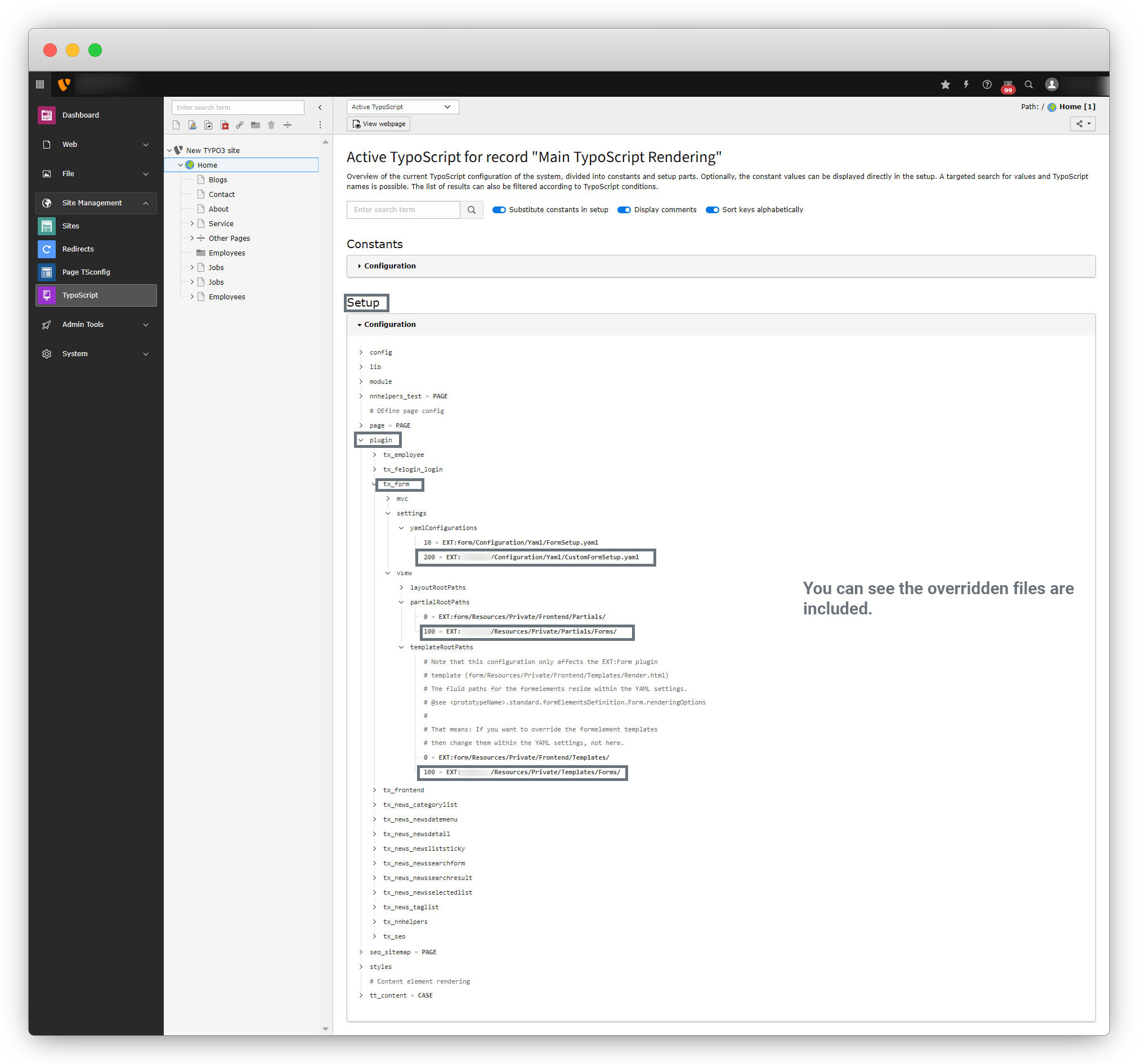
5. Then to check if the Typoscript is added or not, go to the TYPO3 admin panel, Site Management > Typoscript, select “Active typoscript” and open the “Configuration” for “Setup” and check plugin > tx_form. Your overridden files should be included here as you can see in the screenshot below:
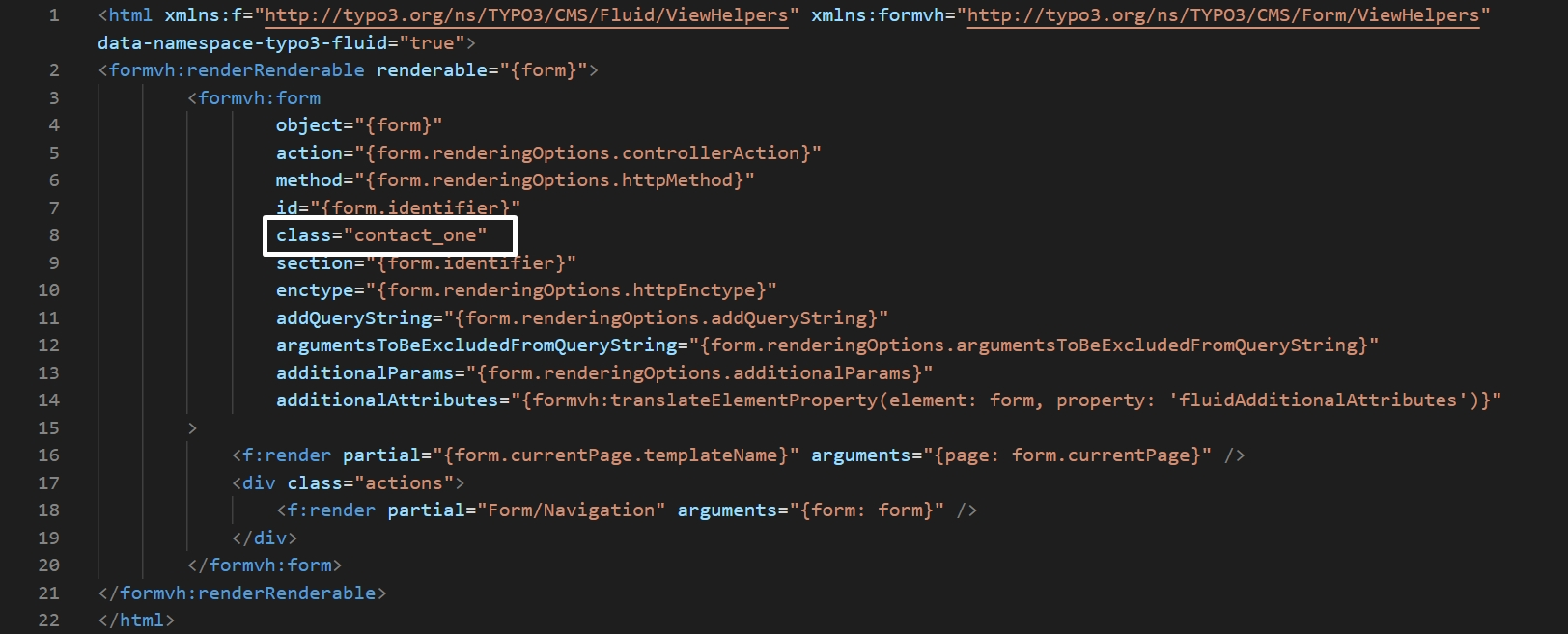
6. Let’s edit the form template file by adding a class attribute to it. Open the file: public_html/typo3conf/ext/<my_ext>/Resources/Private/Templates/Forms/Form.html and add a class attribute and class name as you can see in the screenshot below:
7. Let’s check in the front-end the class attribute has been added or not. Go to front-end and inspect the element.
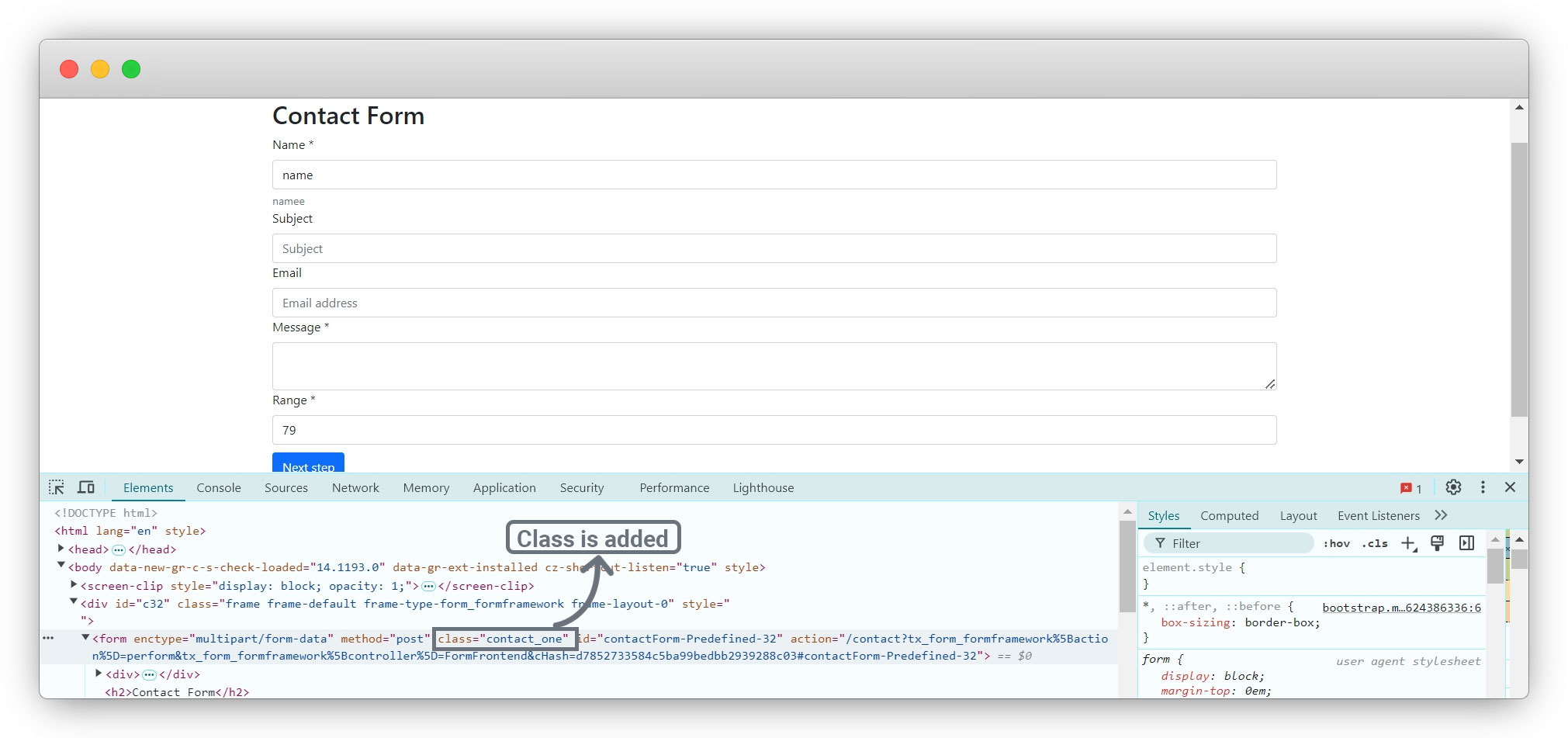
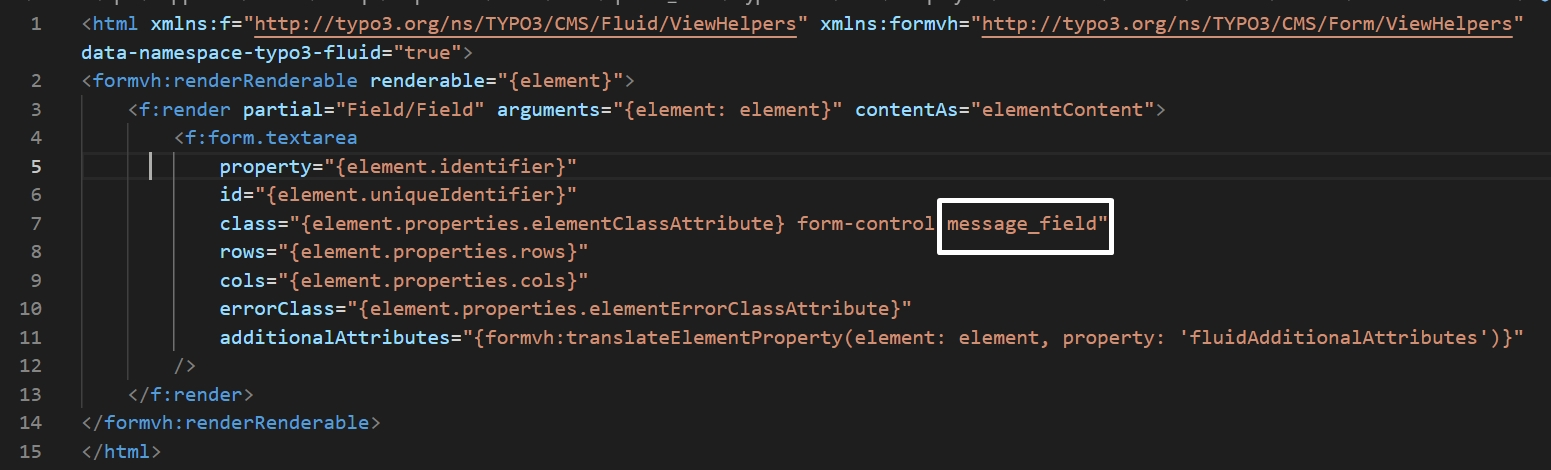
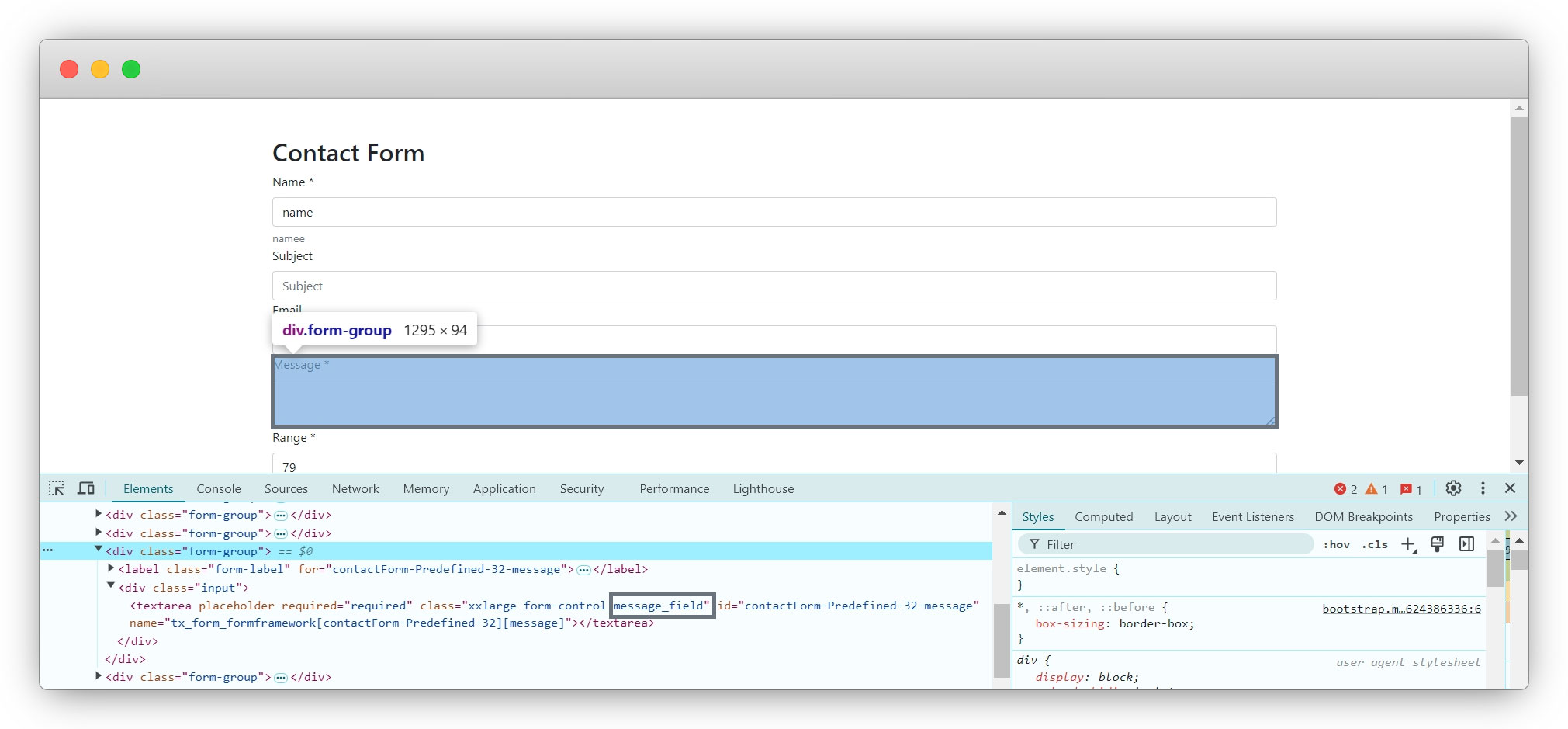
8. You can implement style by using this unique class. Now if you want to add a class for a specific field, you can do that from the field’s HTML file. Suppose you want to add a unique class for the textarea field, go to public_html/typo3conf/ext/employee/Resources/Private/Partials/Forms/Textarea.html and add a class name as you can see in the screenshot below:
You can see in the below screenshot that the class has been added to the textarea field:
9. Let’s create a CSS file to implement the style.
9.1. Go to public_html/typo3conf/ext/<my_ext>/Resources/Public/css folder and create a CSS file custom_form.css. You can give any name to the file.
9.2. Now include that file in setup.typoscript file by adding the given code below to the public_html\typo3conf\ext\<my_ext>\Configuration\TypoScript\setup.typoscript
includeCSS {
        customForm = EXT:employee/Resources/Public/css/custom_form.css
	}
9.3. Then add the style to the public_html/typo3conf/ext//Resources/Public/css/custom_form.css file.
.contact_one{
    padding: 50px 300px;
}

.contact_one .btn-toolbar{
    margin-top: 10px;
}

.contact_one h2{
    margin-bottom: 40px;
    text-decoration: underline;
}
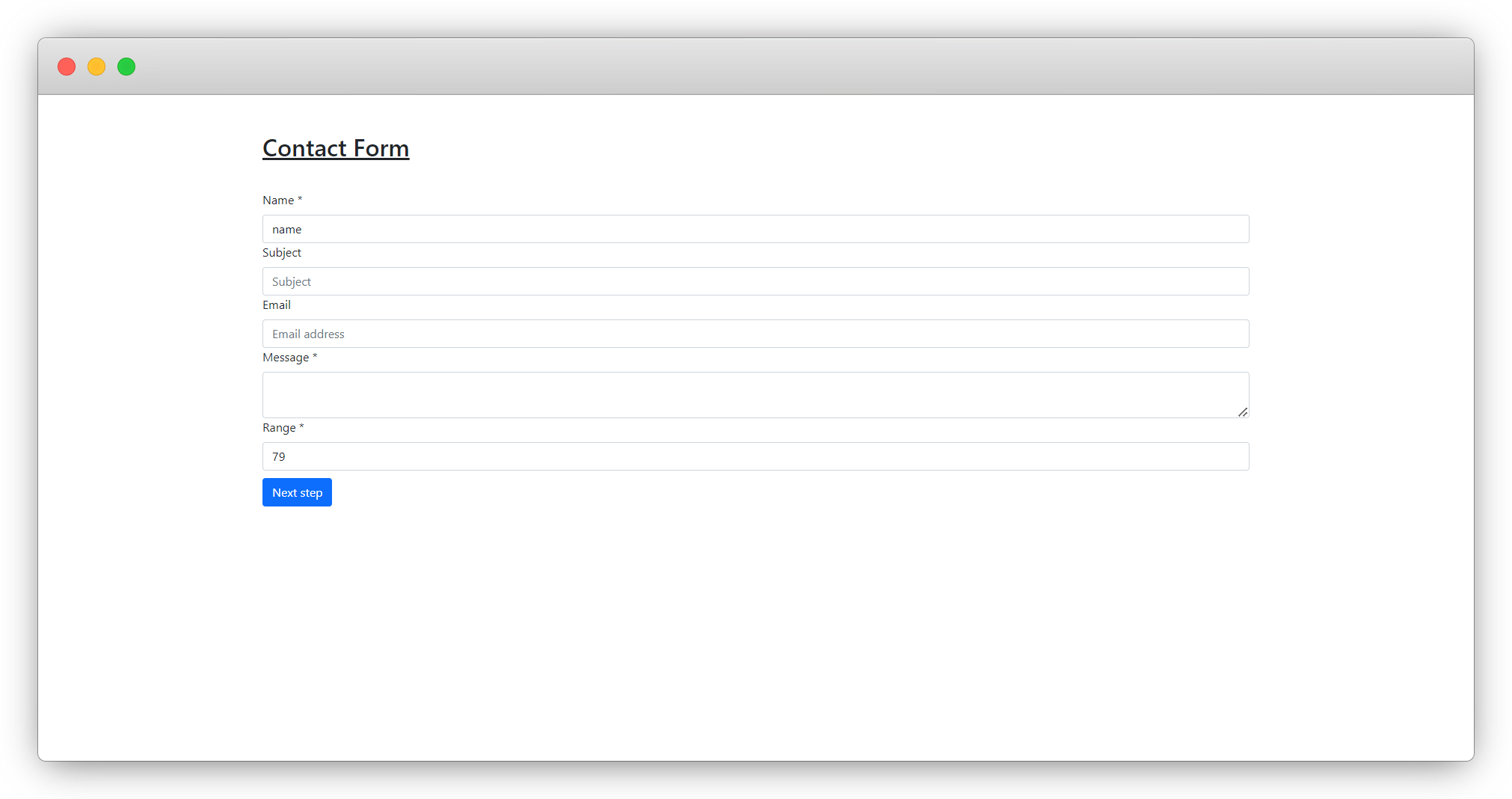
10. And you will see the form like this on front-end:
Share



