



URL copied to clipboard

Perform actions on the custom content element
9 views
__readtime__ Min
read
You can edit or delete the element and you can edit the template file also.
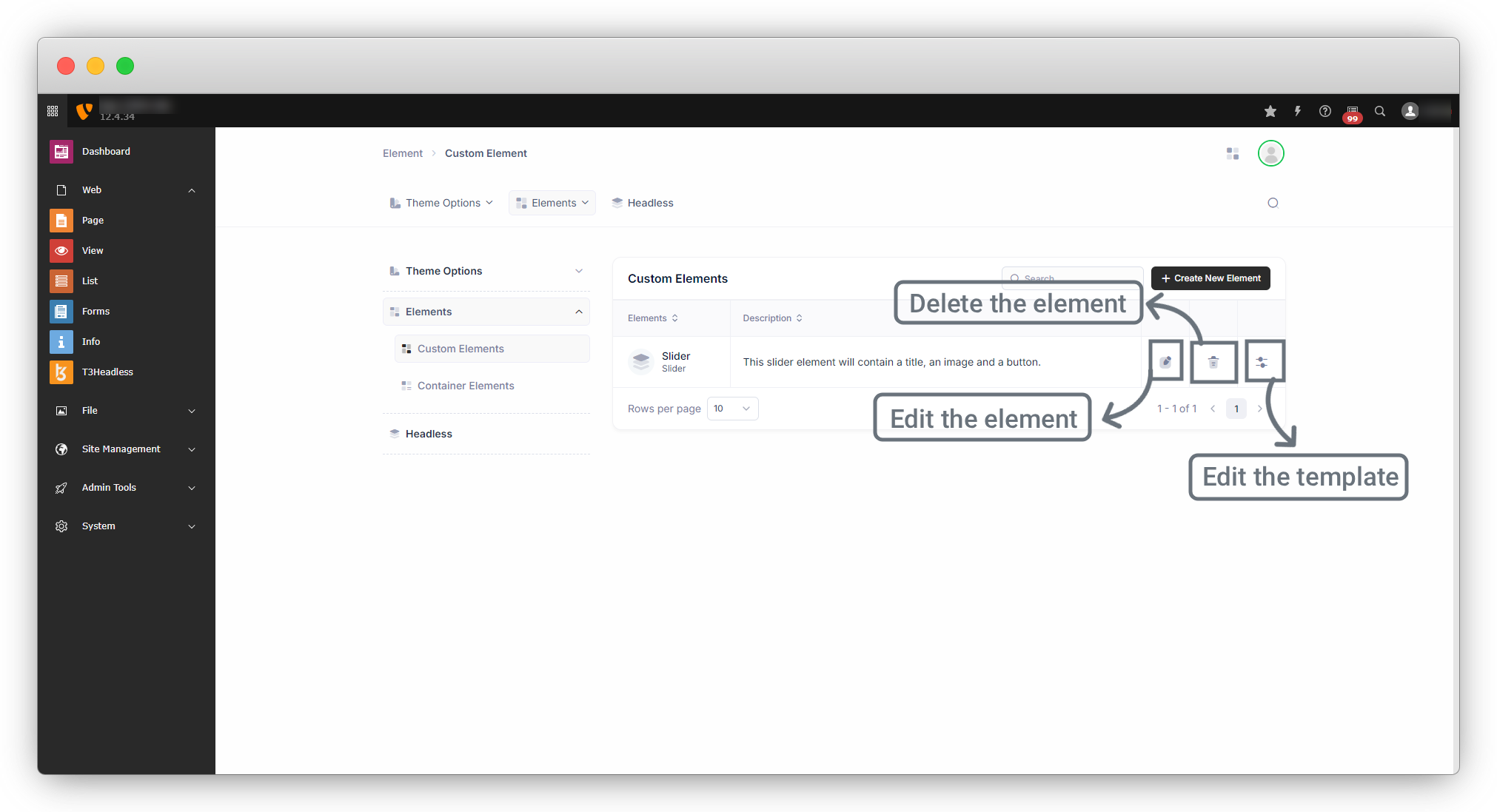
1. Edit the element
1. You can edit the element by clicking on the edit icon and you will see all the 3 tabs, info, fields, and template.
1.1. When you edit the element, if the element is in use then the dialogue will remind you and warn you that “Element is in used, This action can lost data or error can be occurred, Do you want to really edit element?”
2. If you want to rename the title, short title, or description you can edit them and press “Next”.
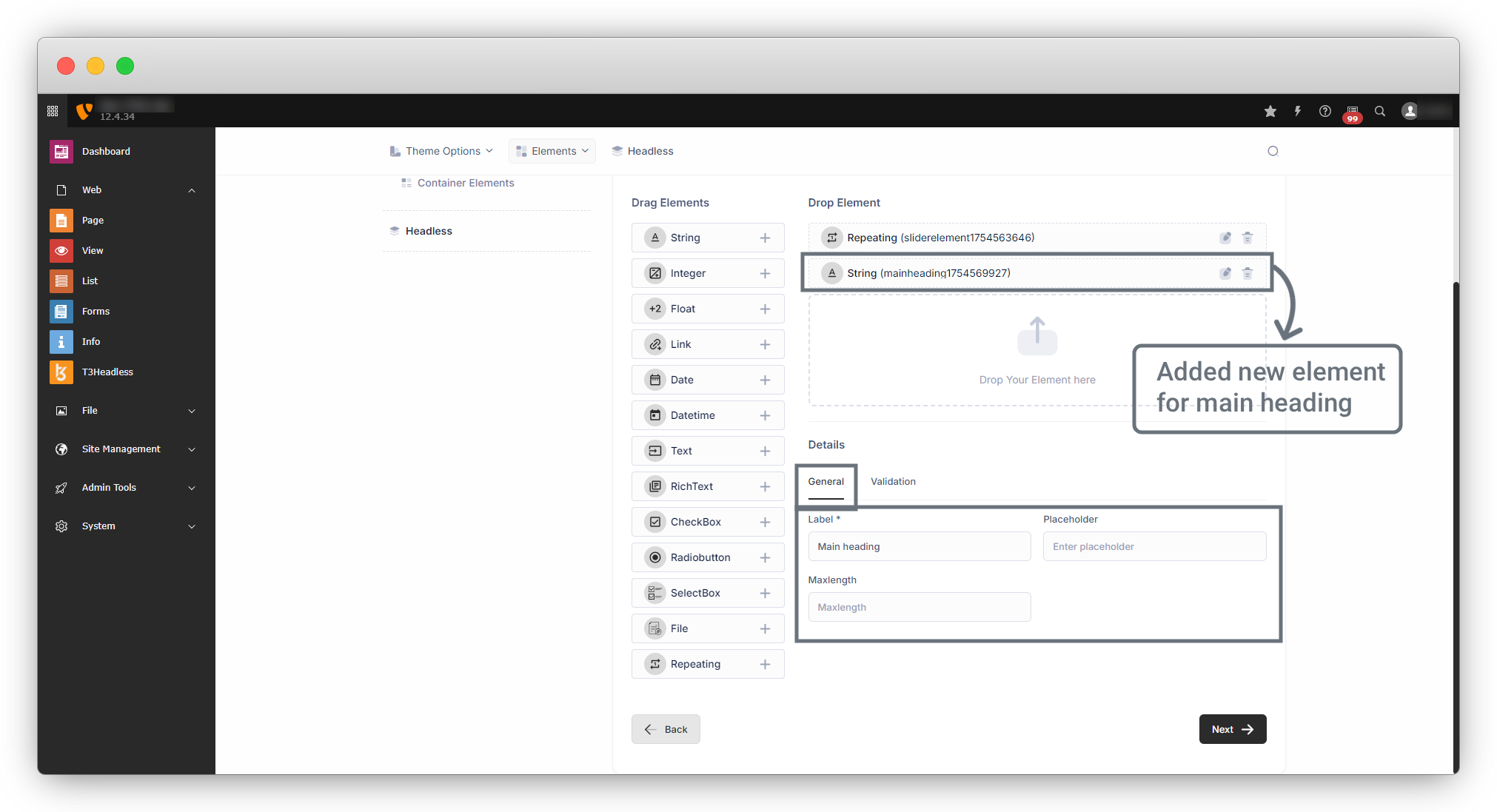
3. Now the important part of element editing is here, suppose you want to add a new field at the time of element editing, then you can add any number of fields. For example, here one element has been added for the main heading of the slider section.
4. Then click on the next button, and you will see your template will not overwrite, so the new field will not be added to the template but you can get the code of the new field from the marker.
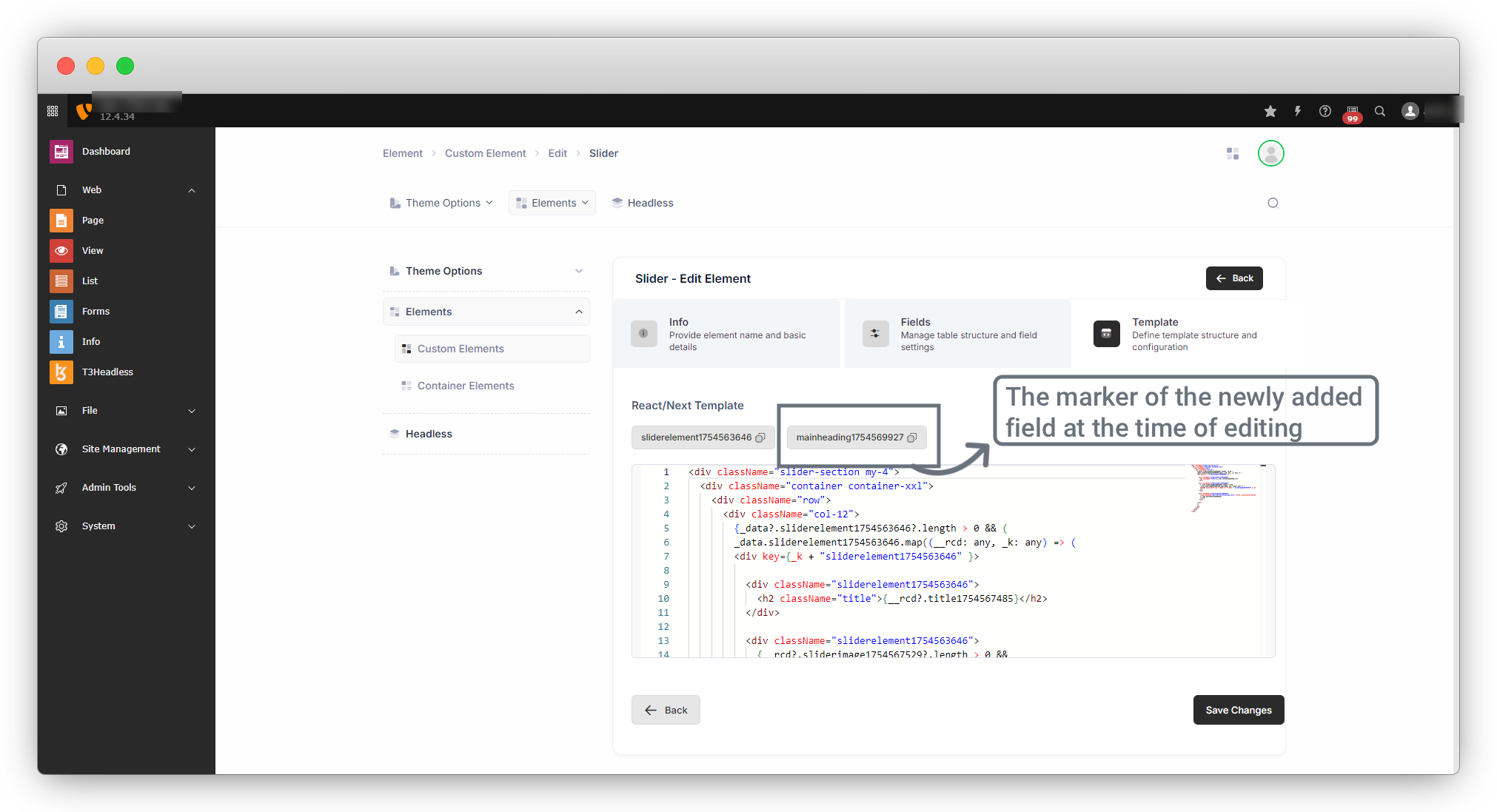
5. Then click on the “Save” button and you are done with the element editing.
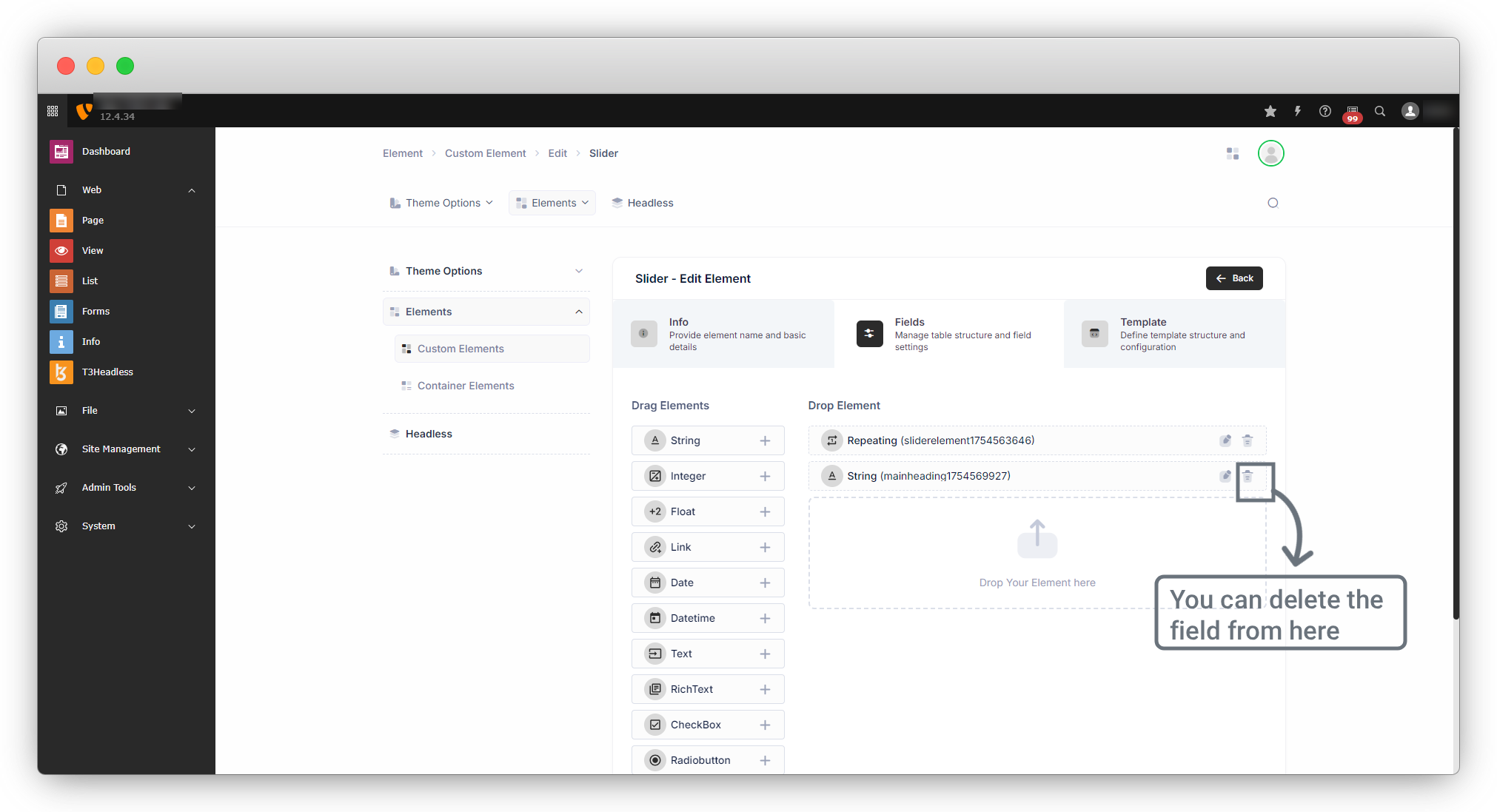
6. And if you don’t want that newly added field any more, you can just delete it, and the marker will also be deleted.
2. Edit the template
- If you just want to edit the template, you can edit it by clicking the 3rd icon on the element listing.
- Before you edit the template. Keep in mind that this is the React/Next template and not just a simple HTML template.
3. Delete the template
You can delete the element if you want. When you delete the element if the element is already in use, the dialogue will open to remind you that the element you are going to delete is already in use.
Share



