



URL copied to clipboard

3 views
__readtime__ Min
read
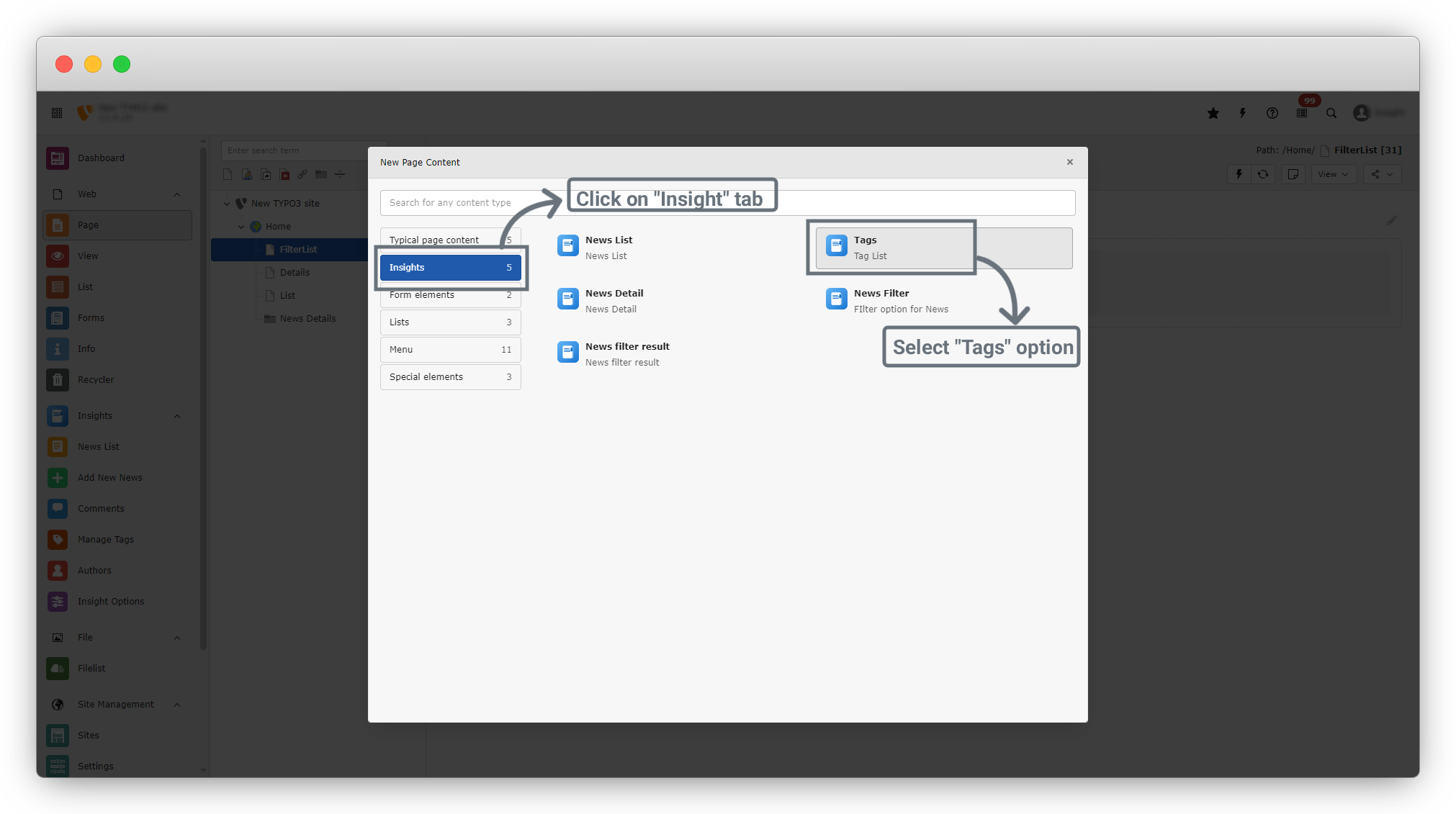
1. Click on “+ Create New Content”. A dialog box will open.
2. In the dialog box, you will see:
- A sidebar on the left
- Options on the right
3. From the left sidebar, click on the second option, “Insights”. Under Insights, you will find the following five options:
- News List
- Tags
- News Details
- News Filter
- News Filter Result
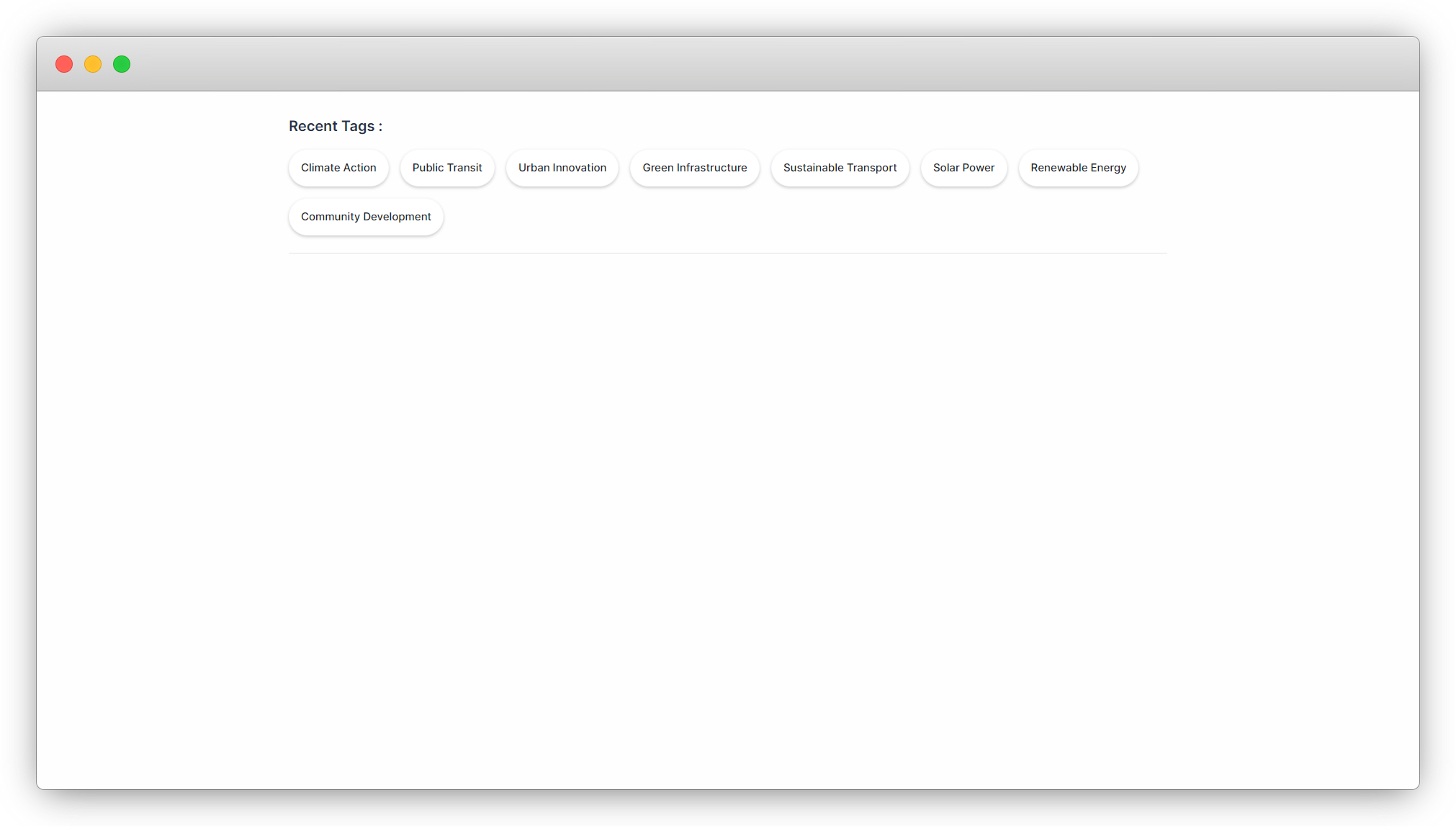
4. Select “Tags” to display the list of tags on the frontend for filtering data.
5. This will open a new form. Click on the “Plugin” tab.
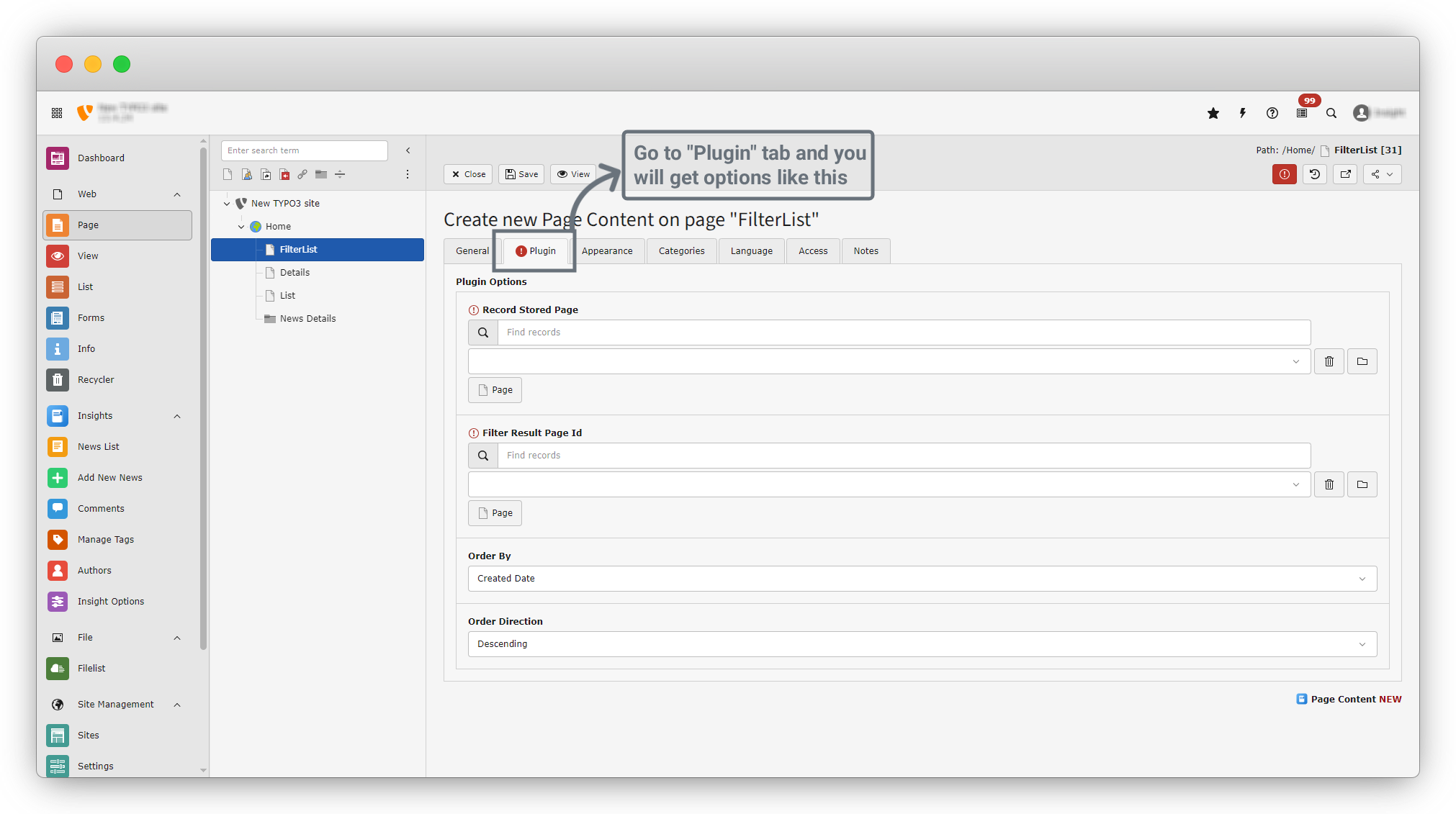
6. In the Plugin tab, there are four fields:
- Record Stored Page: Select the page where records are stored. Our records are stored in the “News Details” folder.
- Filter Result Page ID: Select the page where filtered results will be displayed. Since records are shown in a list, select the List page.
- Order By: By default, this is set to Created Date.
- Order Direction: By default, this is set to Descending.
7. Select “News Details” as the Record Stored Page and “List” as the Filter Result Page ID.
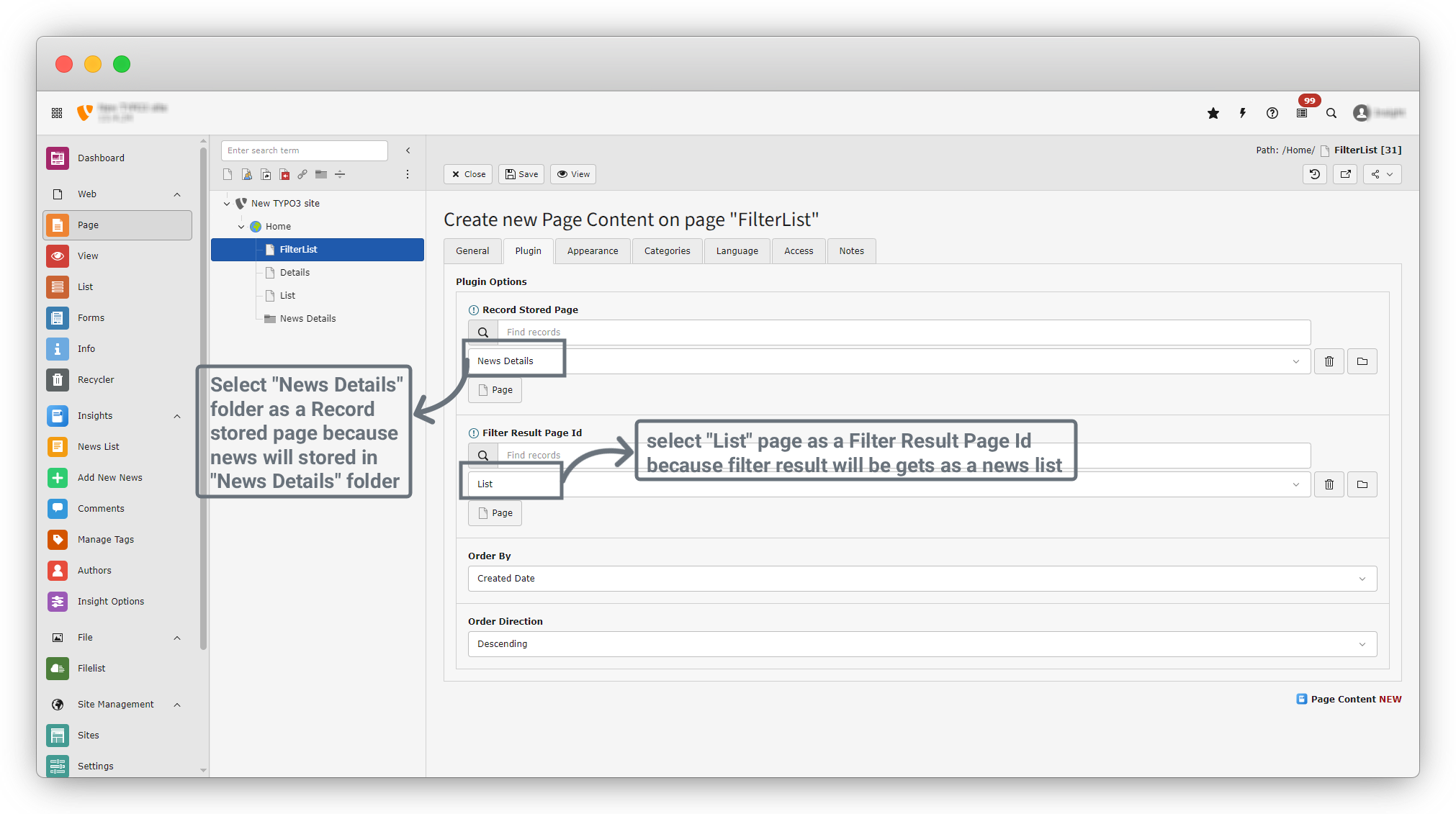
8. Click on the “Save” button. After the data is saved successfully, a success message will appear. Then click on the “Close” button next to the Save button to close the form.
9. After clicking the Close button, you will be redirected to the “FilterList” page. On this page, the newly created Tags content will be listed.
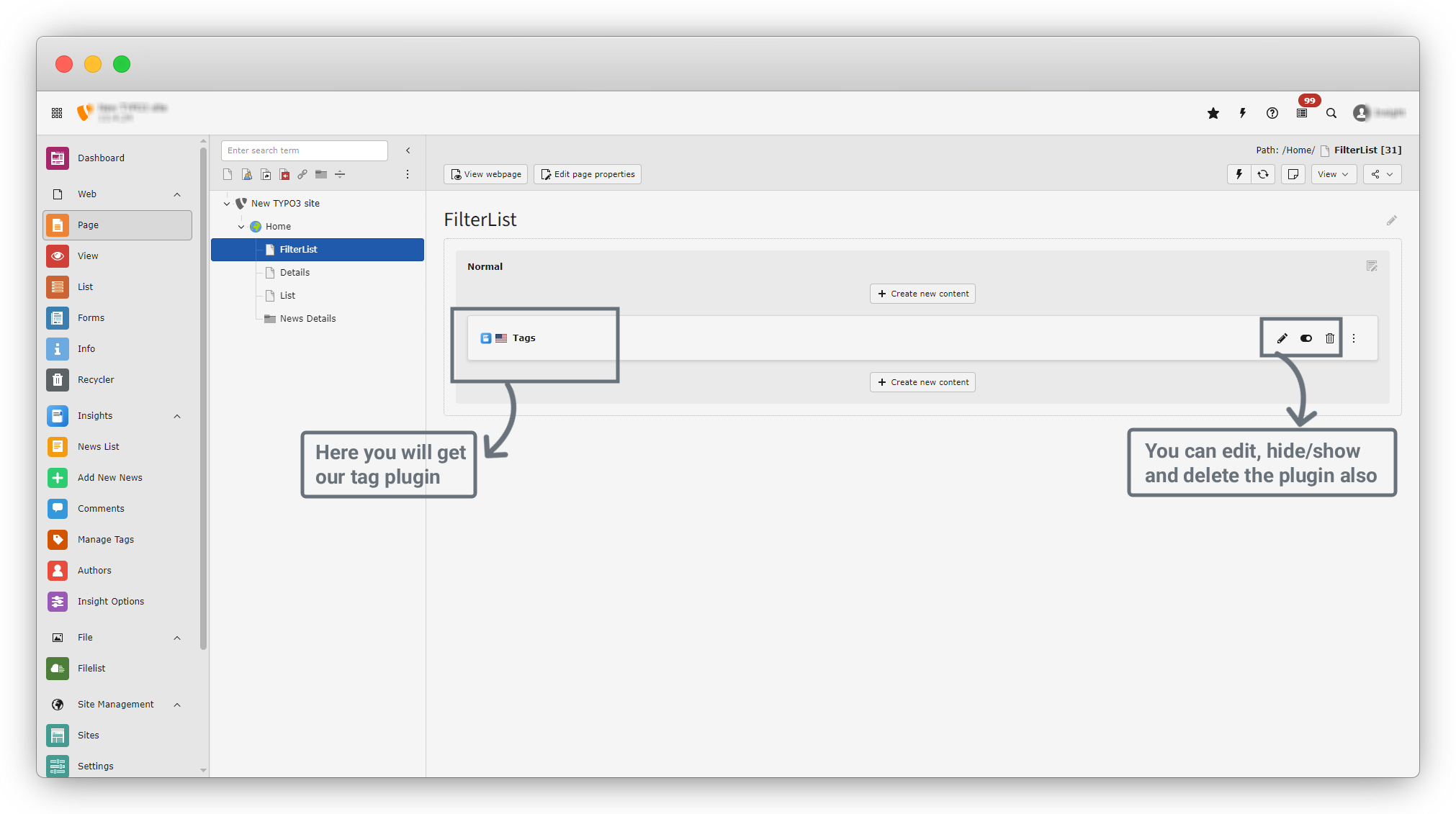
10. Each listed item includes Edit, Enable/Disable (Show/Hide), and Delete options to manage the data.
11. At the top of the page, click the “View Webpage” button. You will be redirected to the frontend, where the tag list will be displayed as shown in the screenshot below.
Share



