



URL copied to clipboard

News Filter
3 views
__readtime__ Min
read
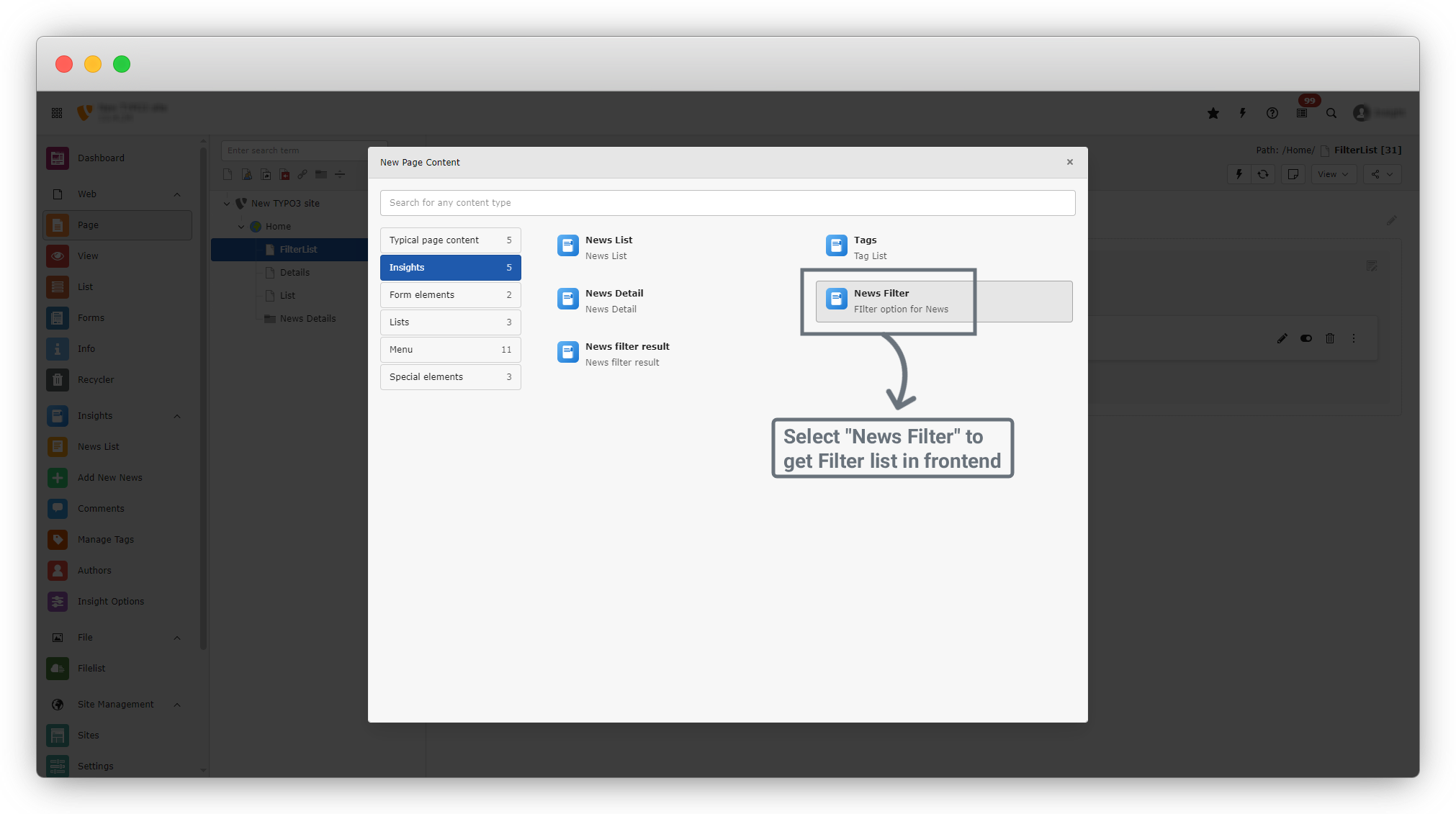
1. Just like Tags, create a News Filter button by clicking on “+ Create New Content.” A dialog box will open.
2. From the left sidebar, click on the second option, “Insights,” and then select News Filter.
3. Select News Filter to display the filter button on the frontend.
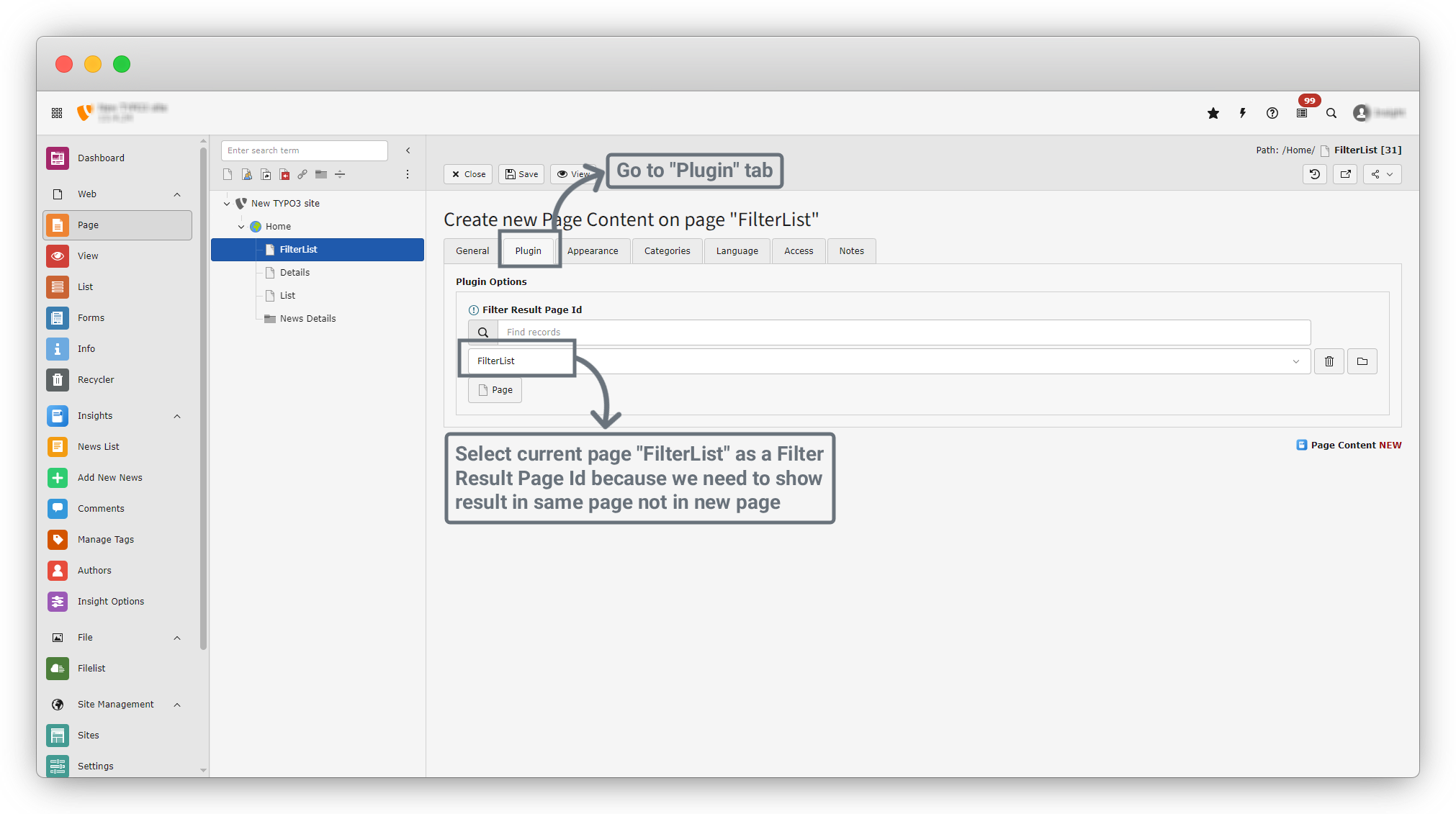
4. This will open a new form. Click on the “Plugin” tab.
5. In the Plugin tab, there is one field:
- Filter Result Page ID: Select the filter result page ID. Choose the current page, “FilterList.”
6. Select “FilterList” as the Filter Result Page ID because we want to display the filter results on the same page, not on a new page.
7. Click on the “Save” button. After the content is saved successfully, a success message will be displayed. Then click on the “Close” button next to the Save button to close the form.
8. After clicking the Close button, you will be redirected back to the FilterList page. On this page, the new News Filter content will be listed after the Tags content.
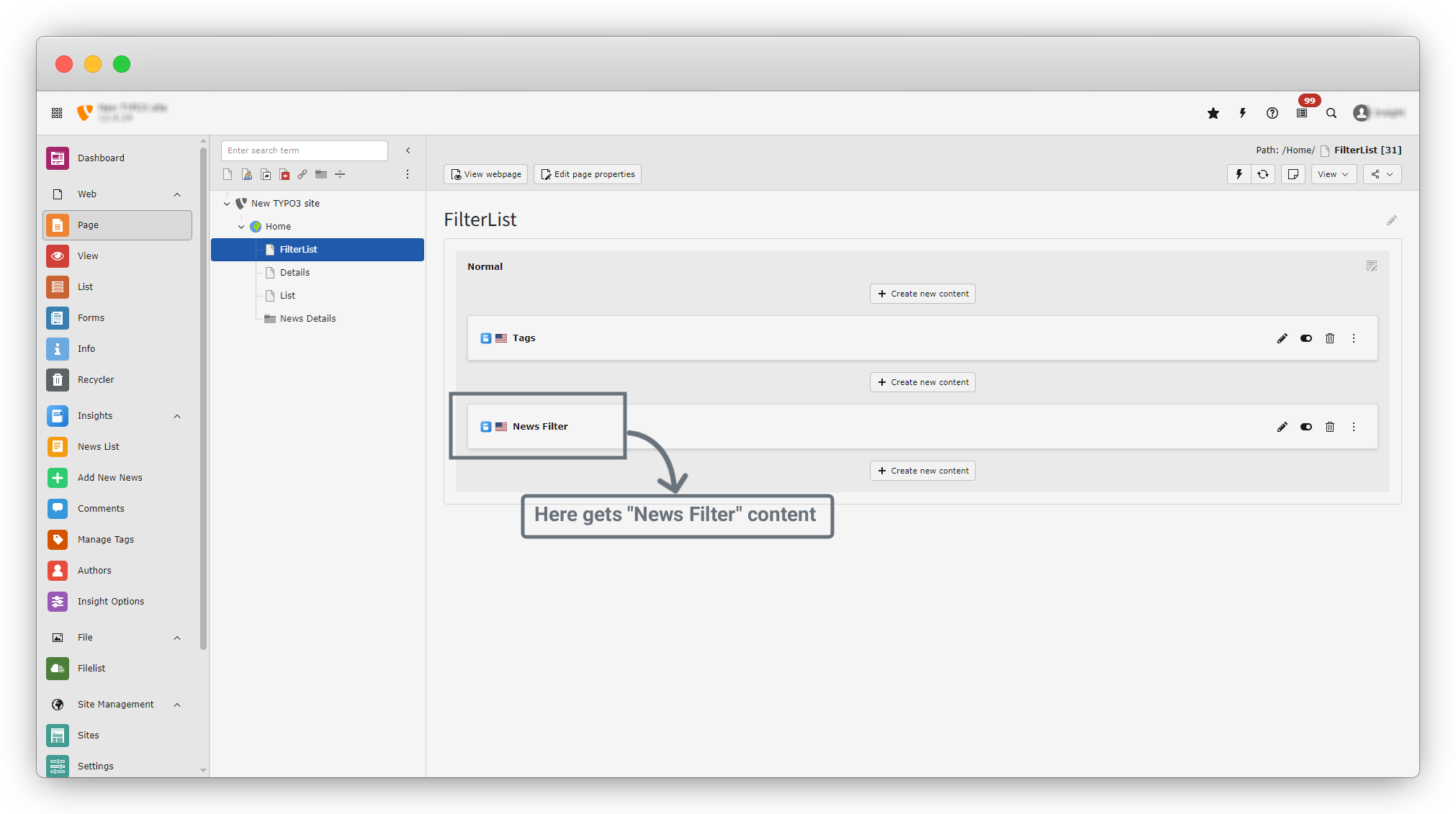
9. There are options available to Edit, Enable/Disable, and Delete the content to modify data, show/hide content, or remove it.
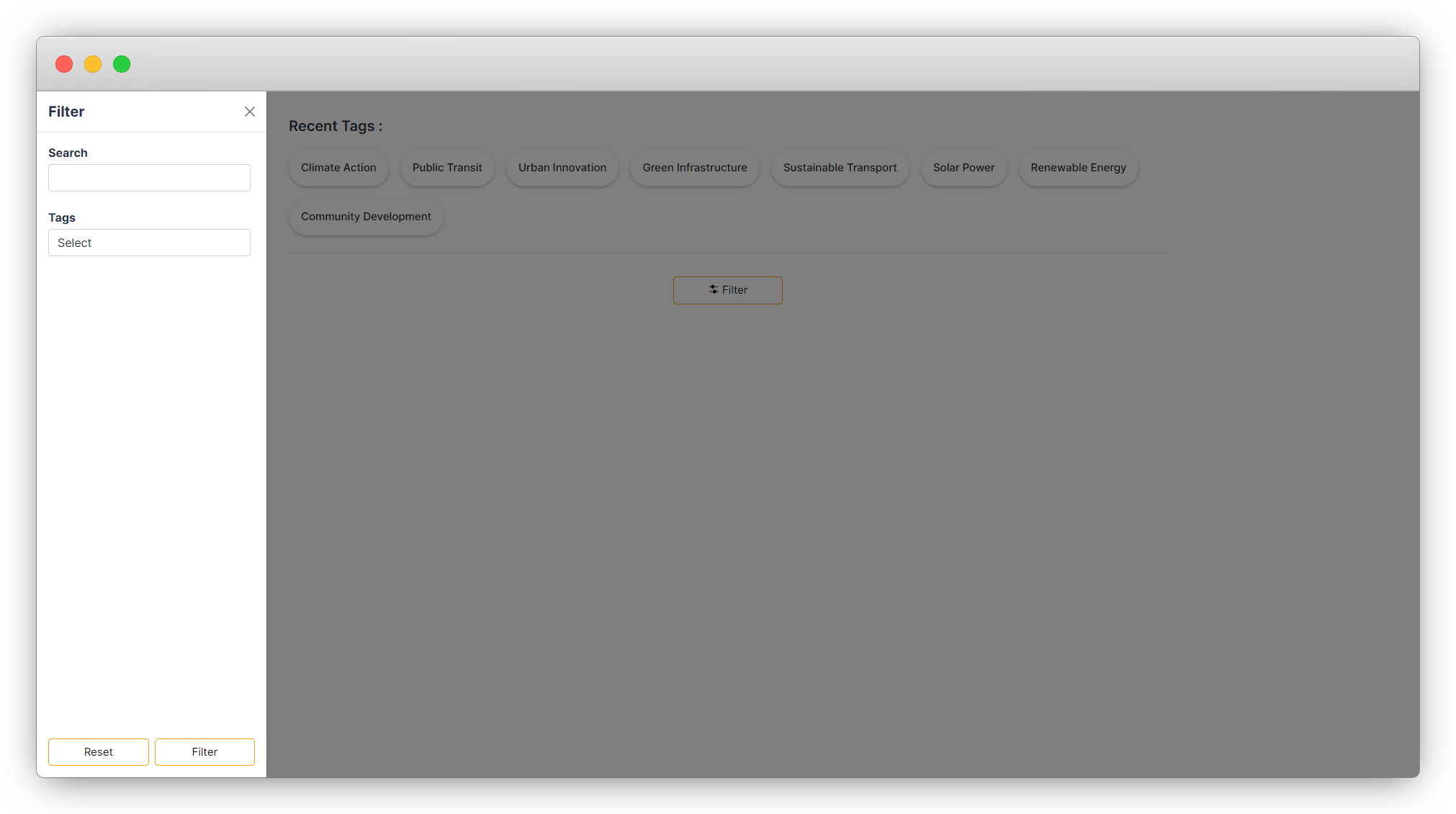
10. At the top of the page, click on the “View Webpage” button. You will be redirected to the frontend, where you will see the filter button displayed after the tags list, as shown in the screenshot below.
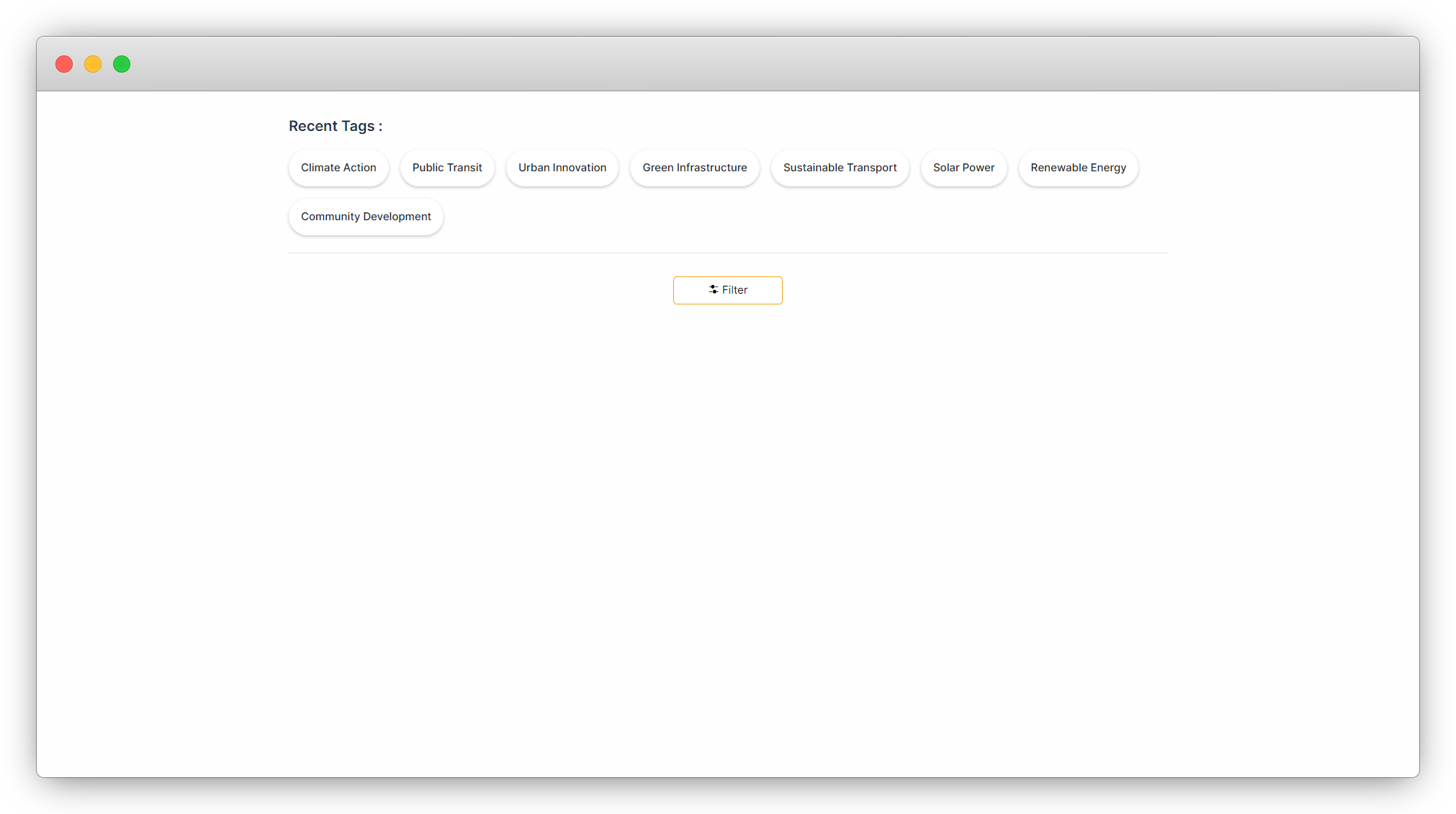
11. When you click on the Filter button, a sidebar opens with filtering options, allowing you to filter the data accordingly.
Share



