



URL copied to clipboard

Action & Templates for list
3 views
__readtime__ Min
read
1. To resolve the above error, let’s create an action for the backend module into the EmployController.php file (employeeClassesControllerEmployController.php)
2. Add the code to the EmployController.php file given below
//import the ModuleTemplateFactory to use this
use TYPO3CMSBackendTemplateModuleTemplateFactory;

 public function __construct(
        protected readonly ModuleTemplateFactory $moduleTemplateFactory,
    ) {
    }
Use ModuleTemplateFactory to get the HTML response, and by using this you can have some functionalities, you can check the given reference links to understand the ModuleTemplateFactory.
Ref. link: https://docs.typo3.org/m/typo3/reference-coreapi/main/en-us/ExtensionArchitecture/HowTo/BackendModule/CreateModuleWithExtbase.html#backend-modules-extbase, https://docs.typo3.org/m/typo3/reference-coreapi/12.4/en-us/ApiOverview/Backend/ButtonComponents.html
/**
 * action belist
 */
 public function belistAction(): ResponseInterface
    {
        $employs = $this->employRepository->findAll();
        $this->view->assign('employs', $employs);
        // You can set the title for the backend module with using ModuleTemplateFactory
        $moduleTemplate = $this->moduleTemplateFactory->create($this->request)->setTitle("Employee List");
        $moduleTemplate->setContent($this->view->render());
        return $this->htmlResponse($moduleTemplate->renderContent());
    }
3. The final code of the EmployController.php file after adding the belist action is:
<?php

declare(strict_types=1);

namespace CompanyEmployeeController;

use TYPO3CMSExtbaseMvcControllerActionController;
use TYPO3CMSBackendTemplateModuleTemplateFactory;
use PsrHttpMessageResponseInterface;


class EmployController extends ActionController
{
    /**
     * employRepository
     *
     * @var CompanyEmployeeDomainRepositoryEmployRepository
     */
    protected $employRepository = null;
    /**
     * @param CompanyEmployeeDomainRepositoryEmployRepository $employRepository
     */
    public function injectEmployRepository(CompanyEmployeeDomainRepositoryEmployRepository $employRepository)
    {
        $this->employRepository = $employRepository;
    }
    public function __construct(
        protected readonly ModuleTemplateFactory $moduleTemplateFactory,
    ) {
    }

    /**
     * action list
     *
     * @return string|object|null|void
     */
    public function indexAction(): ResponseInterface
    {
        $employs = $this->employRepository->findAll();
        $this->view->assign('employs', $employs);

        $settings = $this->settings;
        $this->view->assign('settings', $settings);
        return $this->htmlResponse();
    }

    /**
     * action detail
     *
     * @return string|object|null|void
     */
    public function detailAction(): ResponseInterface
    {
        $uid = TYPO3CMSCoreUtilityGeneralUtility::_GP('uid');
        if ($uid) {
            $details = $this->employRepository->findByUid($uid);
            $this->view->assign('details', $details);
        } else {
            $this->view->assign('details', null);
        }
        return $this->htmlResponse();
    }

    /**
     * action belist
     */
    public function belistAction(): ResponseInterface
    {
        $employs = $this->employRepository->findAll();
        $this->view->assign('employs', $employs);
        // You can set the title for the backend module with using ModuleTemplateFactory
        $moduleTemplate = $this->moduleTemplateFactory->create($this->request)->setTitle("Employee List");
        $moduleTemplate->setContent($this->view->render());
        return $this->htmlResponse($moduleTemplate->renderContent());
    }
4. Now allow this belistAction() to the back-end module in employeeConfigurationBackendModules.php as you can see in the screenshot below.
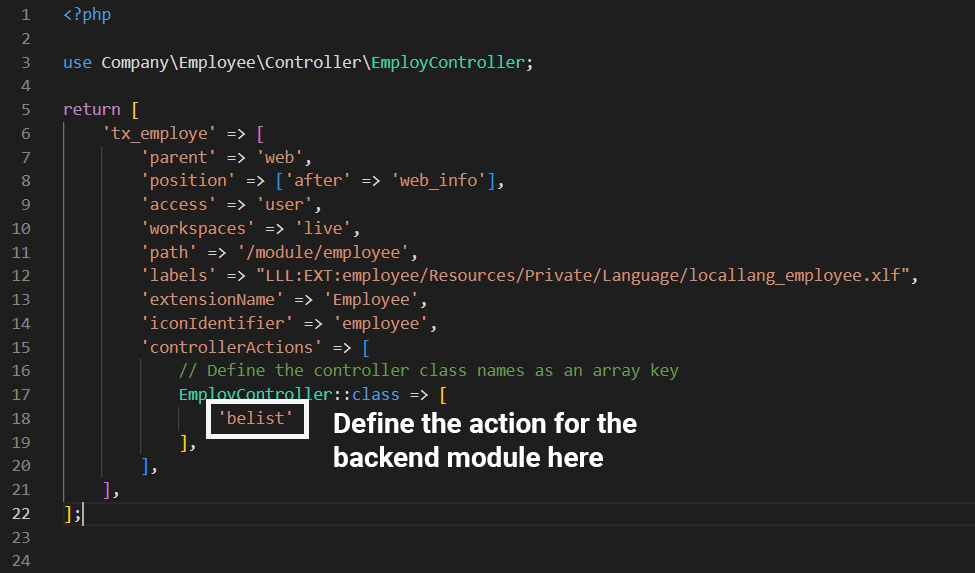
5. Save the file, flush the cache, go to the admin panel, and open the backend module, and you will face the error below:
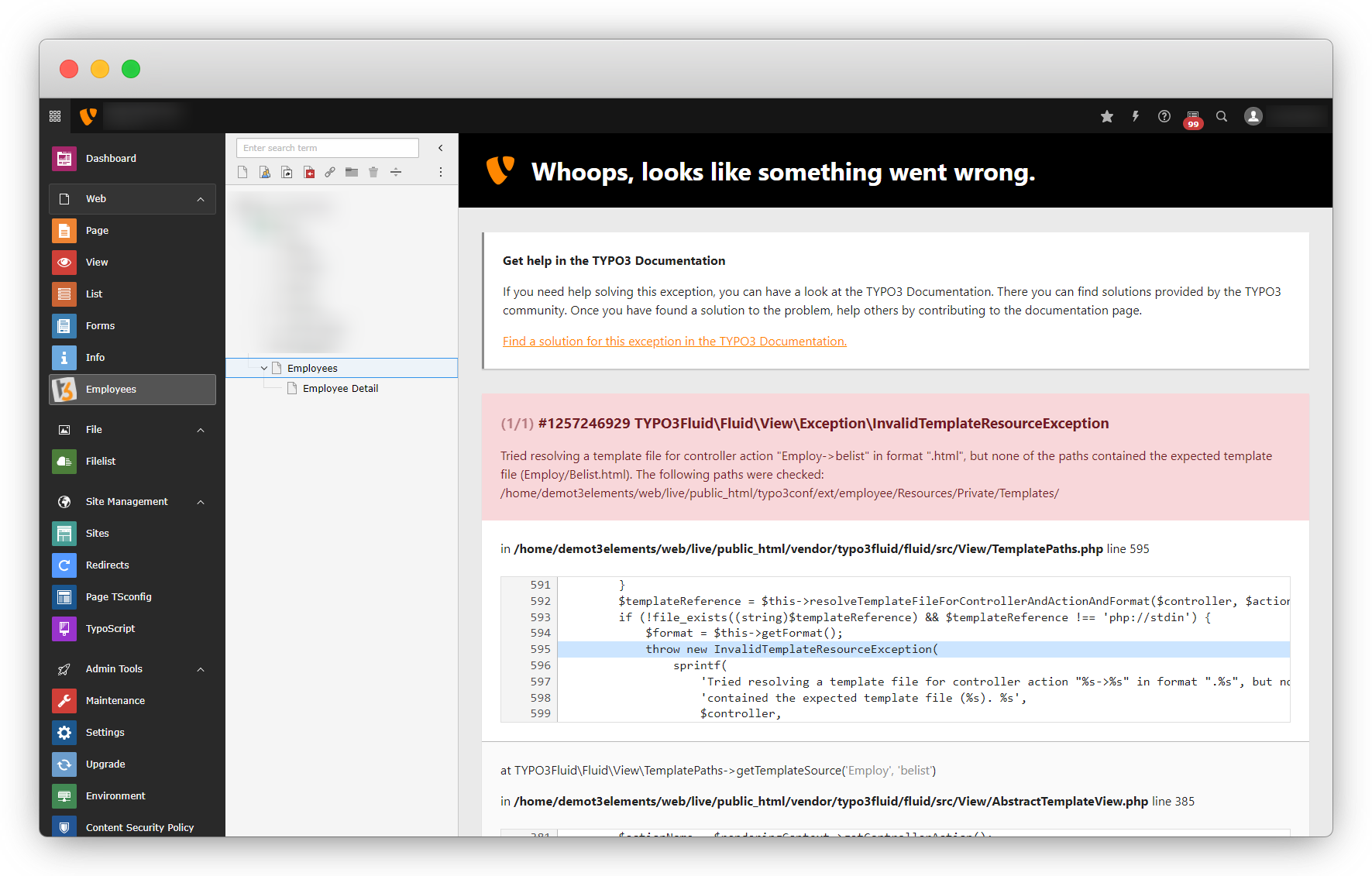
6. To resolve the above error, create a template file for the back-end action and before creating the template file, need to add a typoscript to use the template path for the back-end module with a different folder. We are creating the backend module so it is recommended to use the different folders for back-end module template files and not the same one we had used in the front-end plugin.
7. We already have created the constants.typoscript file on path employeeConfigurationTypoScriptconstants.typoscript, so put the below code in that file.
module.tx_employee {
    view {
        # cat=module.tx_employee/file; type=string; label=Path to template root (BE)
        templateRootPath = EXT:employee/Resources/Private/Backend/Templates/
        # cat=module.tx_employee/file; type=string; label=Path to template partials (BE)
        partialRootPath = EXT:employee/Resources/Private/Backend/Partials/
        # cat=module.tx_employee/file; type=string; label=Path to template layouts (BE)
        layoutRootPath = EXT:employee/Resources/Private/Backend/Layouts/
    }
    persistence {
        # cat=module.tx_employee//a; type=string; label=Set Root Page ID
        storagePid =
    }
}
By adding the above code in “view”, you are providing the fields to specify the different template file path and specifying the template file paths, and the code added in “persistence” will provide a field to add the ID for the page/folder from which you want to fetch records to the backend module.
8. Save the file and flush the cache.
9. To set the file path and StoragePid go to Site Management > Typoscript > select root page > select constant editor and you will be redirected to the screen as seen in the screenshot below:
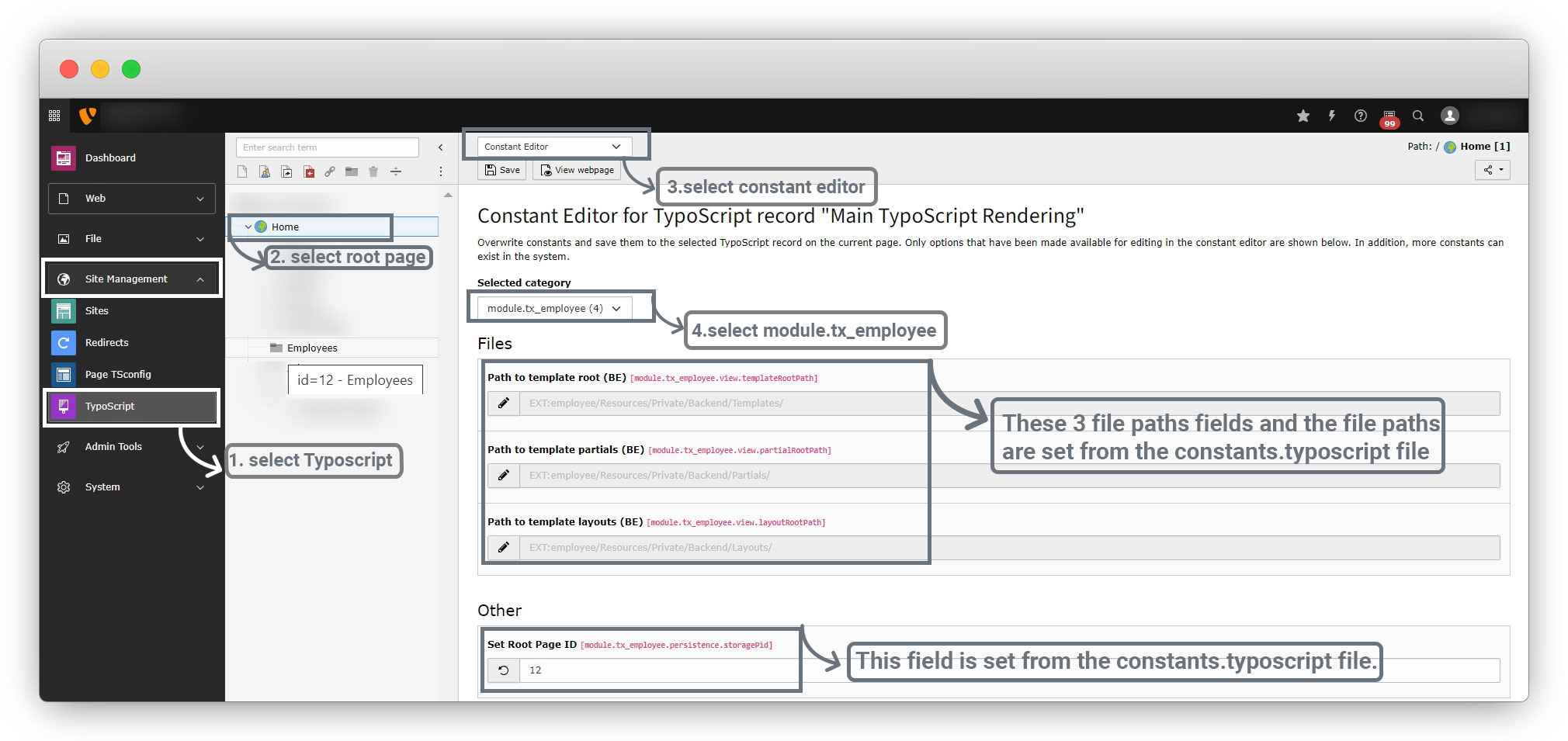
10. Set the ID of the folder or page in the Set Root Page ID [module.tx_employee.persistence.storagePid] field. This ID should be for the folder or page where you have stored all your records. Here it is 12, cause all the records are stored in the Employees folder with ID = 12 (Make sure you are storing all the records in one place, it should not be like some records are on one page, and others are on different pages or folders.)
11. Then, add the below code in the next line to the setup.typoscript file (employeeConfigurationTypoScriptsetup.typoscript)
module.tx_employee {
   persistence {
        // get the value of the ID and use in controller
        storagePid = {$module.tx_employee.persistence.storagePid}
    }
    view {
        templateRootPaths.0 = EXT:employee/Resources/Private/Backend/Templates/
        templateRootPaths.1 = {$module.tx_employee.view.templateRootPath}
        partialRootPaths.0 = EXT:employee/Resources/Private/Backend/Partials/
        partialRootPaths.1 = {$module.tx_employee.view.partialRootPath}
        layoutRootPaths.0 = EXT:employee/Resources/Private/Backend/Layouts/
        layoutRootPaths.1 = {$module.tx_employee.view.layoutRootPath}
    }
}
- Suppose the template file path has not been specified in constants.typoscript file then the path of setup.typoscript file will be considered.
- If you are not specifying the path in any of the typoscript from setup.typoscript and constants.typoscript files, then the front-end template file path will be considered.
12. Now create the layout file on the path <extension_directory>/Resources/Private/Backend/Layouts/, here the path will be employee/Resources/Private/Backend/Layouts/, and add the code below:
<html
  xmlns:f="http://typo3.org/ns/TYPO3/CMS/Fluid/ViewHelpers"
  xmlns:be="http://typo3.org/ns/TYPO3/CMS/Backend/ViewHelpers"
  xmlns:core="http://typo3.org/ns/TYPO3/CMS/Core/ViewHelpers"
  data-namespace-typo3-fluid="true"
>
13. Now create the template file for the back-end module setting from where you will be able to add, edit, or delete employees. The path for the template file is <extension_directory>/Resources/Private/Backend/Templates/Controller/<Action_name>.html, here it will be employee/Resources/Private/Backend/Templates/Controller/Belist.html.
14. Add the given code to the Belist.html file
<html xmlns:f="http://typo3.org/ns/TYPO3/CMS/Fluid/ViewHelpers"
    xmlns:core="http://typo3.org/ns/TYPO3/CMS/Core/ViewHelpers"
    xmlns:be="http://typo3.org/ns/TYPO3/CMS/Backend/ViewHelpers" data-namespace-typo3-fluid="true">
<f:layout name="Default" />

<f:section name="Content">
    <div>
        <div>
            <table>
                <thead>
                    <tr>
                        <th>Image</th>
                        <th>FirstName</th>
                        <th>LastName</th>
                        <th>Gender</th>
                        <th>Action</th>
                    </tr>
                </thead>
                <tbody>
                    <f:for each="{employs}" as="emp">
                        <tr>
                            <td>
                                <f:if condition="{emp.image}">
                                    <f:for each="{emp.image}" as="img">
                                        <f:image image="{img}" alt="{emp.firstName}" width="100c" height="100c" />
                                    </f:for>
                                </f:if>
                            </td>
                            <td>{emp.firstName}</td>
                            <td>{emp.lastName}</td>
                            <td>{emp.gender == 1 ? "Male" :"Female"}</td>
                            <td>Edit</td>
                        </tr>
                    </f:for>
                </tbody>
            </table>
        </div>
    </div>
</f:section>
</html
Flush the cache and click on the back-end module “Employees” and you will see the list of employees you already have added.
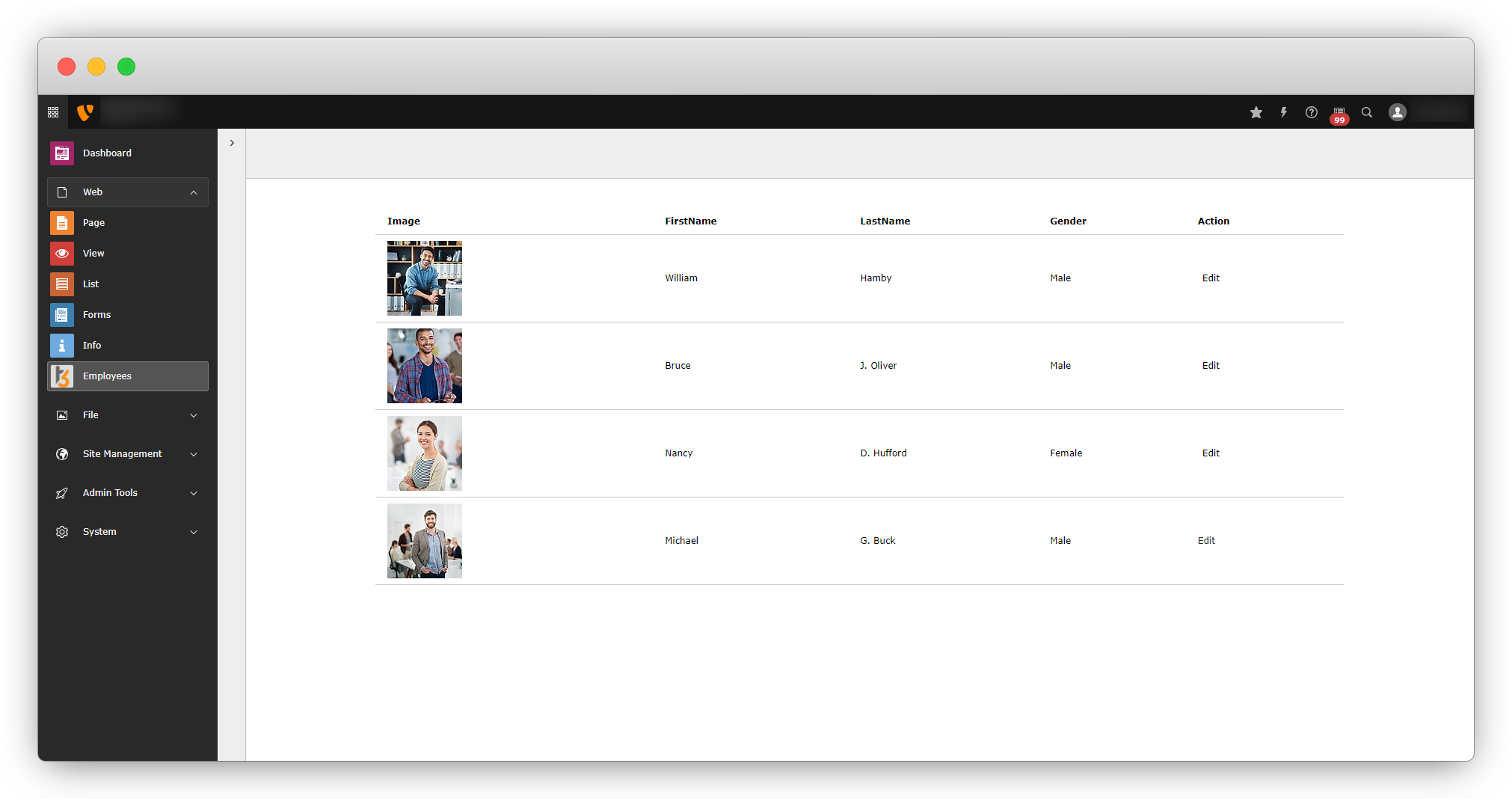
In the above list, we have added the column “Edit“, but that is not working. But for now, let’s keep it as it is. Before Edit, let’s go for the Create new employee.
Share



