



URL copied to clipboard

Create composer.json
4 views
__readtime__ Min
read
1. Create a composer.json file for the extension.
2. file path: employee/composer.json
3. Below is the code of the composer.json file, which is according to the vendor name and the extension key.
{
    "name": "company/employee",
    "type": "typo3-cms-extension",
    "description": "Employee Details",
    "authors": [
        {
            "name": "Author Name",
            "role": "Developer"
        }
    ],
    "license": "GPL-2.0-or-later",
    "require": {
        "typo3/cms-core": "^12.0"
    },
    "autoload": {
        "psr-4": {
            "Company\Employee\": "Classes/"
        }
    },
    "extra": {
        "typo3/cms": {
            "extension-key": "employee"
        }
    }
}
See the reference link: https://docs.typo3.org/m/typo3/reference-coreapi/main/en-us/ExtensionArchitecture/FileStructure/ComposerJson.html
- name: The name has the format: <my-vendor>/<dashed extension key>. Here “Dashed extension key” means that every underscore (_) has been changed to a dash (-).
- According to the vendor name and extension key here, the name of the extension would be company/employee.
- type: Use typo3-cms-extension for third-party extensions.
- description: Description of your extension (1 line).
- authors: Provide information for authors like name, role, etc.
- license: It has to be GPL-2.0-only or GPL-2.0-or-later.
- require: At least, you will need to require typo3/cms-core in the according version(s). You should add other system extensions and third-party extensions, if your extension depends on them. In composer-based installations the loading order of extensions and their dependencies is derived from require and suggest.
- autoload: The autoload section defines the namespace/path mapping for PSR-4 autoloading <https://www.php-fig.org/psr/psr-4/>. In TYPO3 we follow the convention that all classes (except test classes) are in the directory Classes/.
- extra.typo3/cms.extension-key: Not providing this property will emit a deprecation notice and will fail in future versions.
After completing the above steps, you will be able to find your extension in the extension list if you already have created the extension in your TYPO3 website. But if you have created it in the local TYPO3 setup then you will have to upload the extension after completing above steps and you will see your extension into the extension list as seen in the screenshot below:
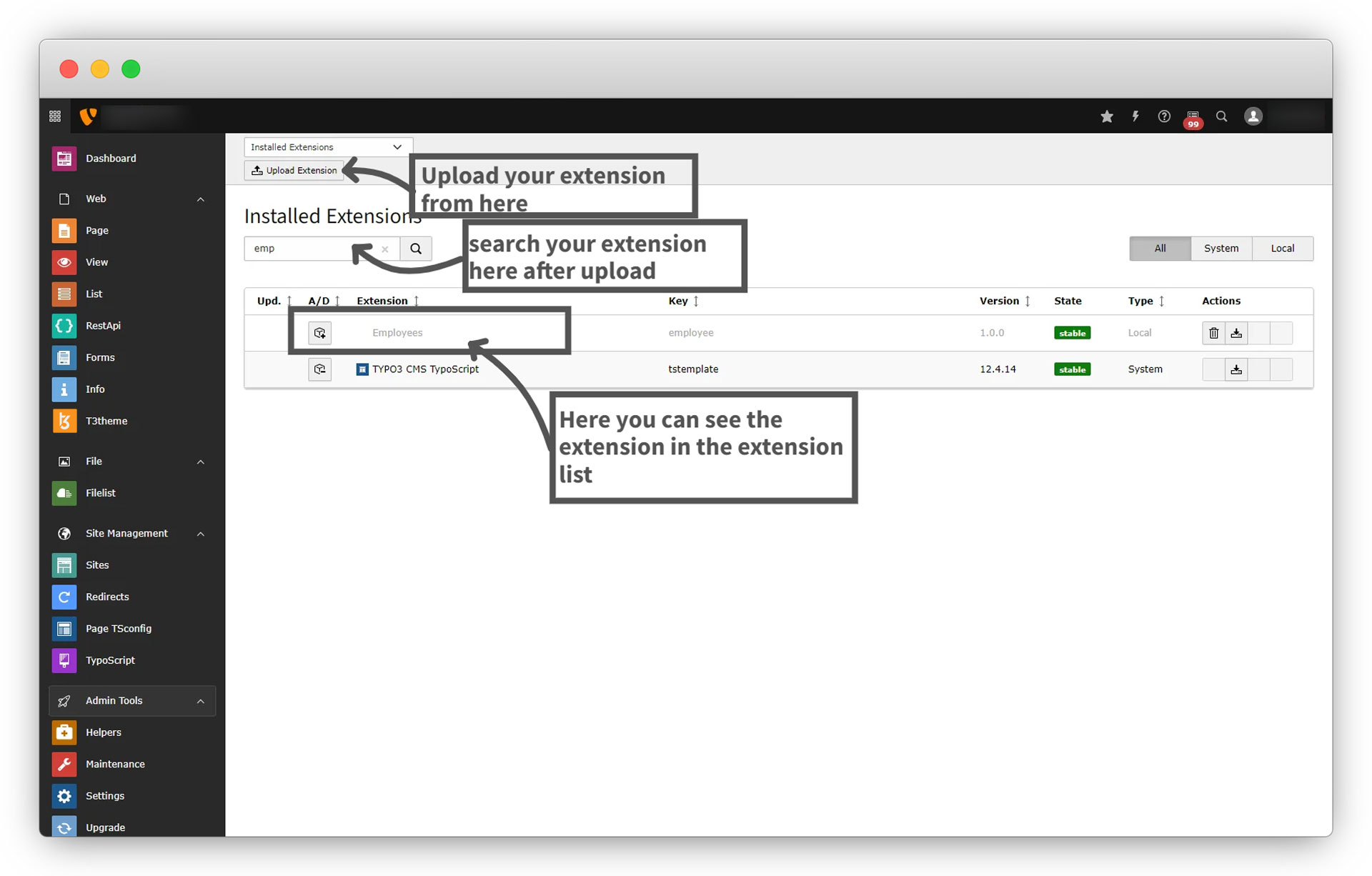
Here you can see that the icon for the extension is missing. Let’s add the icon for the extension.
Share



