



URL copied to clipboard

Plugin type – Detail
4 views
__readtime__ Min
read
This plugin will be used to create the detail page for products. The detail page will contain all the information about the particular product. In the product list, we have limited information about the product like the product name, SKU, launch date, etc. but on the detail page of the particular product, will have all the information like the product image, detailed information about the product like product’s full description, product features and many more.
There is a possibility that a particular product’s detail page should be used as a normal page. E.g, if one wants to link the detail page of any particular product to any random section or wants to link that page to the menu items, here the option is provided which is “Only Show Selected Item?”. By checking this checkbox you will be able to select a page in detail page config at the time of adding the detail plugin in your TYPO3 setup.
We will create a separate plugin to utilize that functionality. Here in this plugin, we will not check the checkbox of “Only Show Selected Item?” because we want the detail page of each product, not just for any selected item.
Create a detail plugin without selecting “Only Show Selected Item?”
1. Click on the “Add Plugin” button, the default selected plugin will be “List”. Select “Detail” there to create the detail plugin
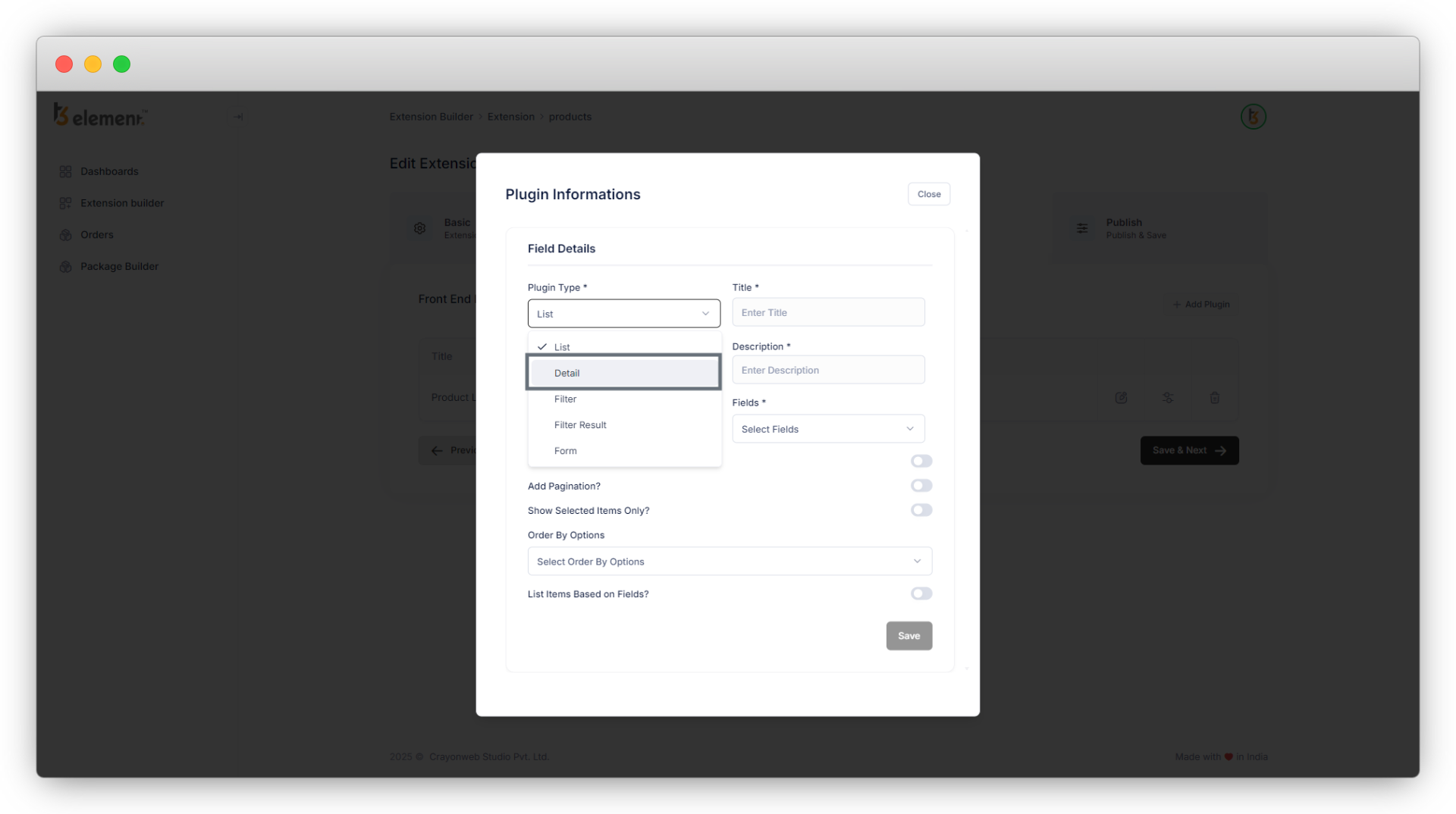
2. As you select the “Detail” plugin, you will see the below options for the detail plugin.
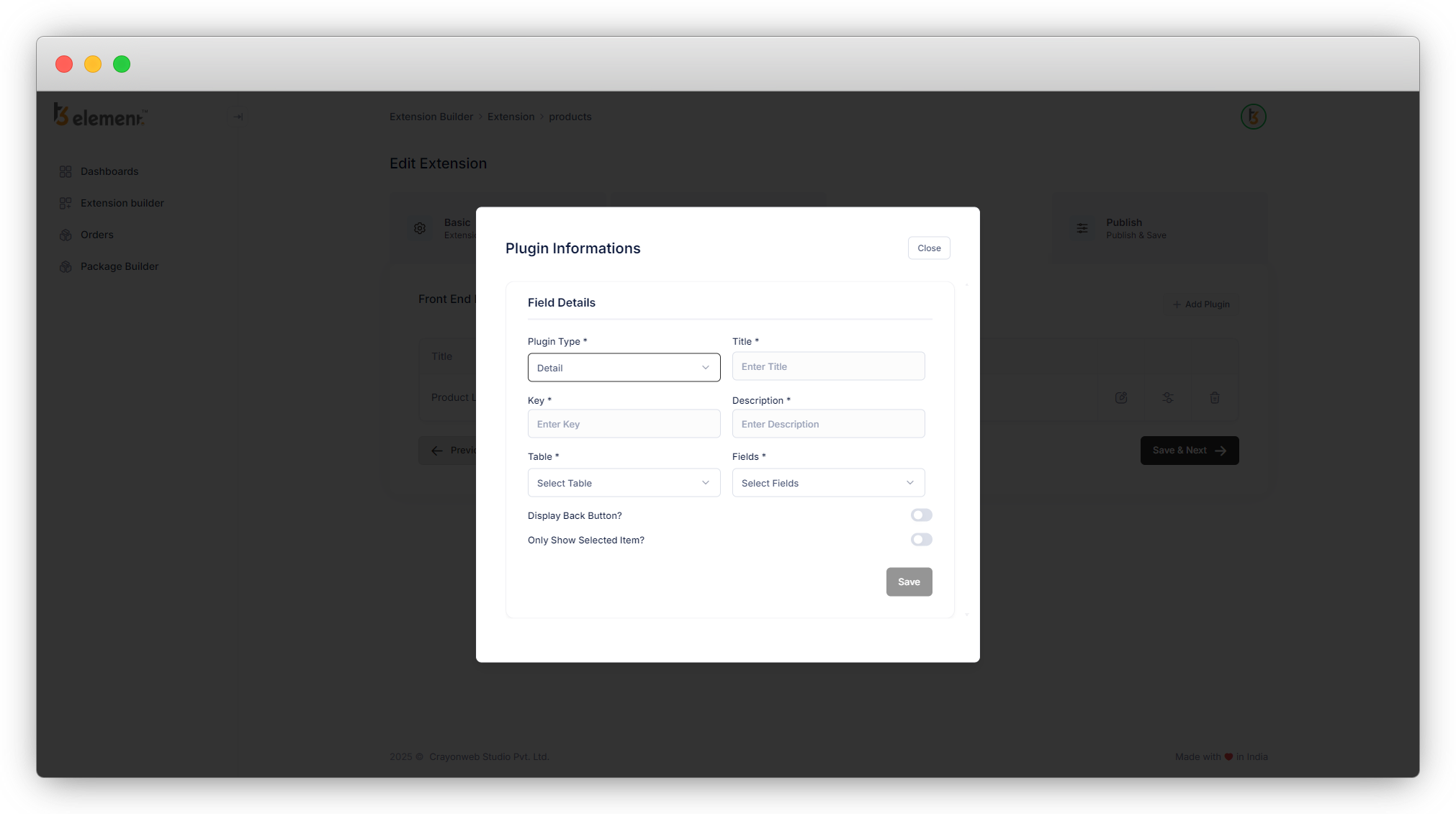
3. Add the Title, Key, and Description for the plugin. (Title and Key are the mandatory fields).
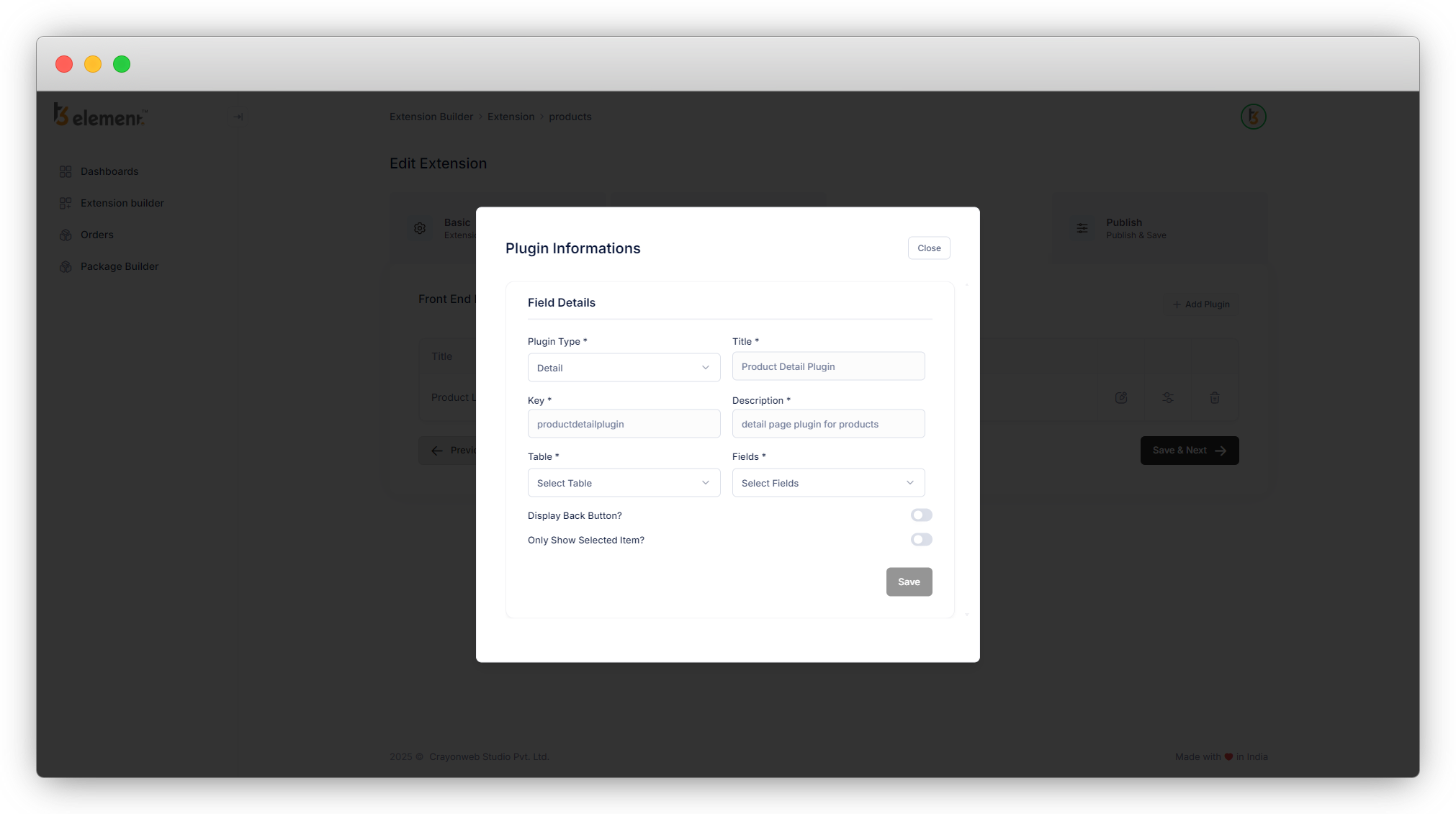
4. Let’s select the “Products” table as we want to create the detail page for the products.
5. As you select the table, the “Fields” dropdown will enable and you can select the fields that will appear on the detail page. Generally, all the fields should be there on the detail page. Or you can add the fields as per your requirement.
6. You can add a back button to the product list by selecting the “Display Back Button” option.
7. We are not checking the “Only Show Selected Item?” checkbox here.
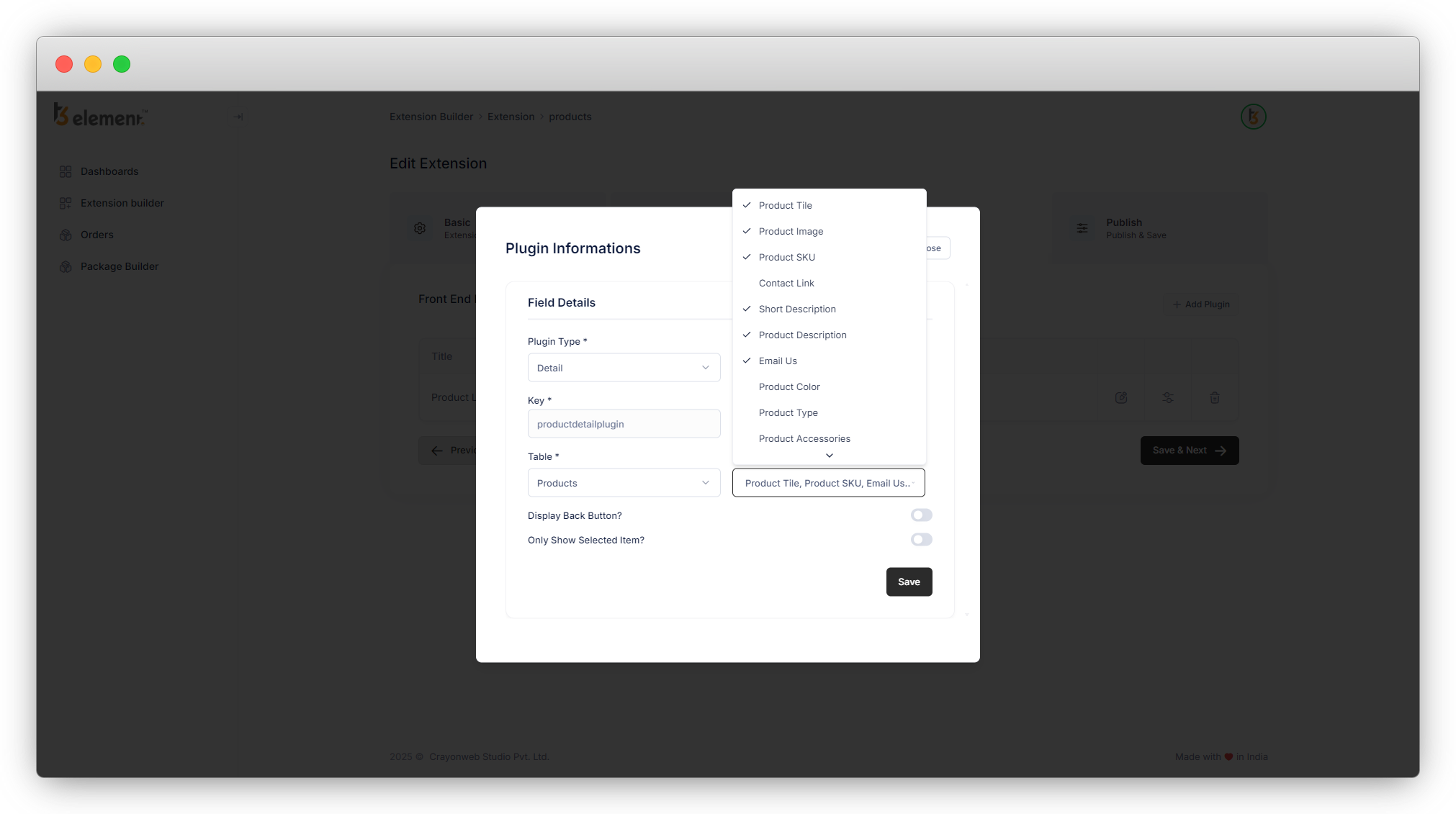
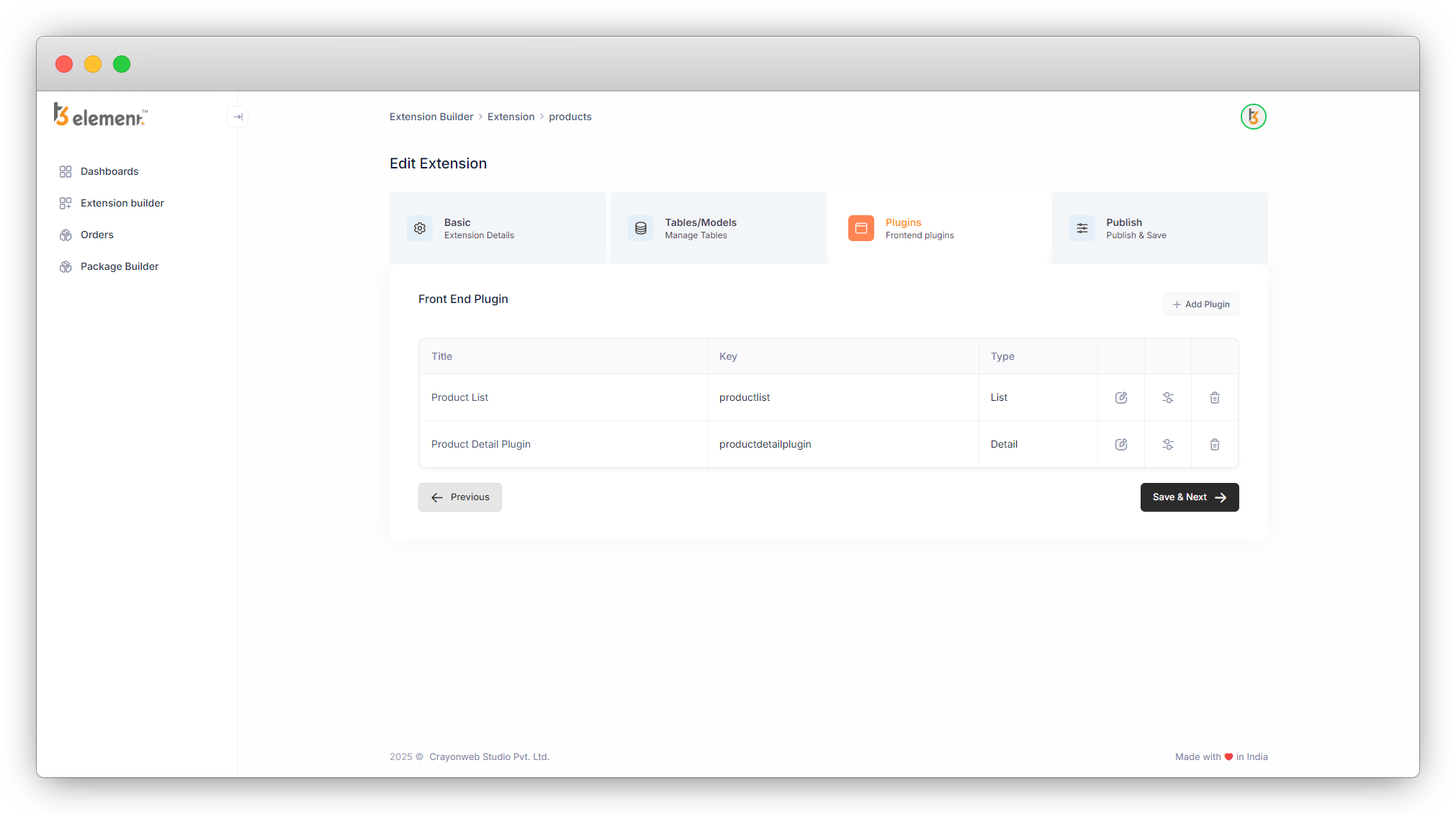
8. Save the plugin and the plugin will be added to the plugin list, and then save the template for the “Product detail plugin”.
Create a detail plugin by selecting “Only Show Selected Item?”
1. Click on the “Add Plugin” button, the default selected plugin will be “List”. Select “Detail” there to create the detail plugin.
2. As you select the “Detail” plugin, you will see the options for the detail plugin.
3. Add the Title, Key, and Description for the plugin. (Title and Key are the mandatory fields).
4. Let’s select the “Products” table as we want to create the detail page for any particular product here.
5. As you select the table, the “Fields” dropdown will enable and you can select the fields that will appear on the detail page. Generally, all the fields should be there on the detail page. Or you can add the fields as per your requirement.
6. You can add a back button to the product list by selecting the “Display Back Button” option.
7. Let’s check the “Only Show Selected Item?” checkbox so we can show the detail page of a particular selected product directly to any CMS page.
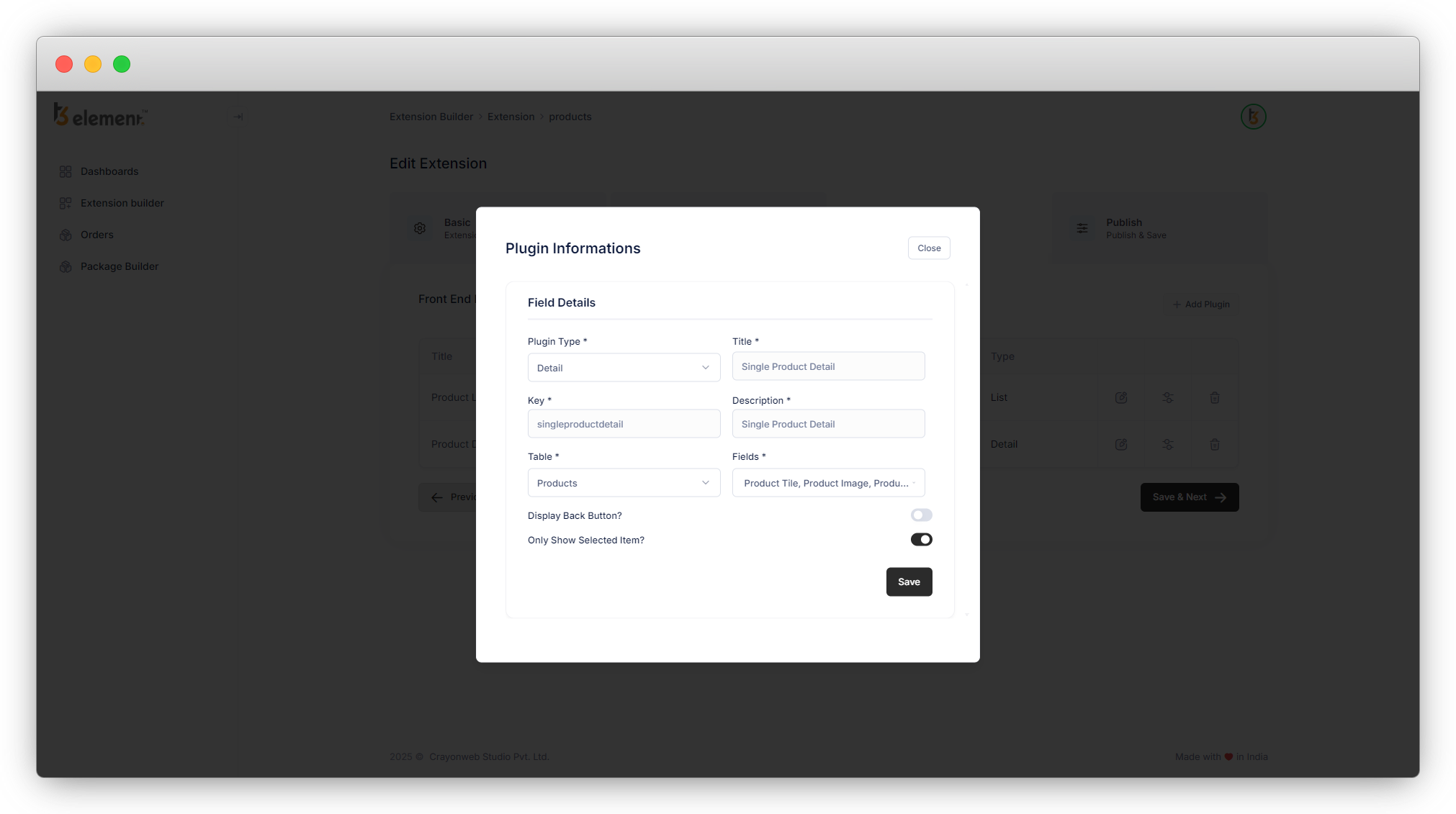
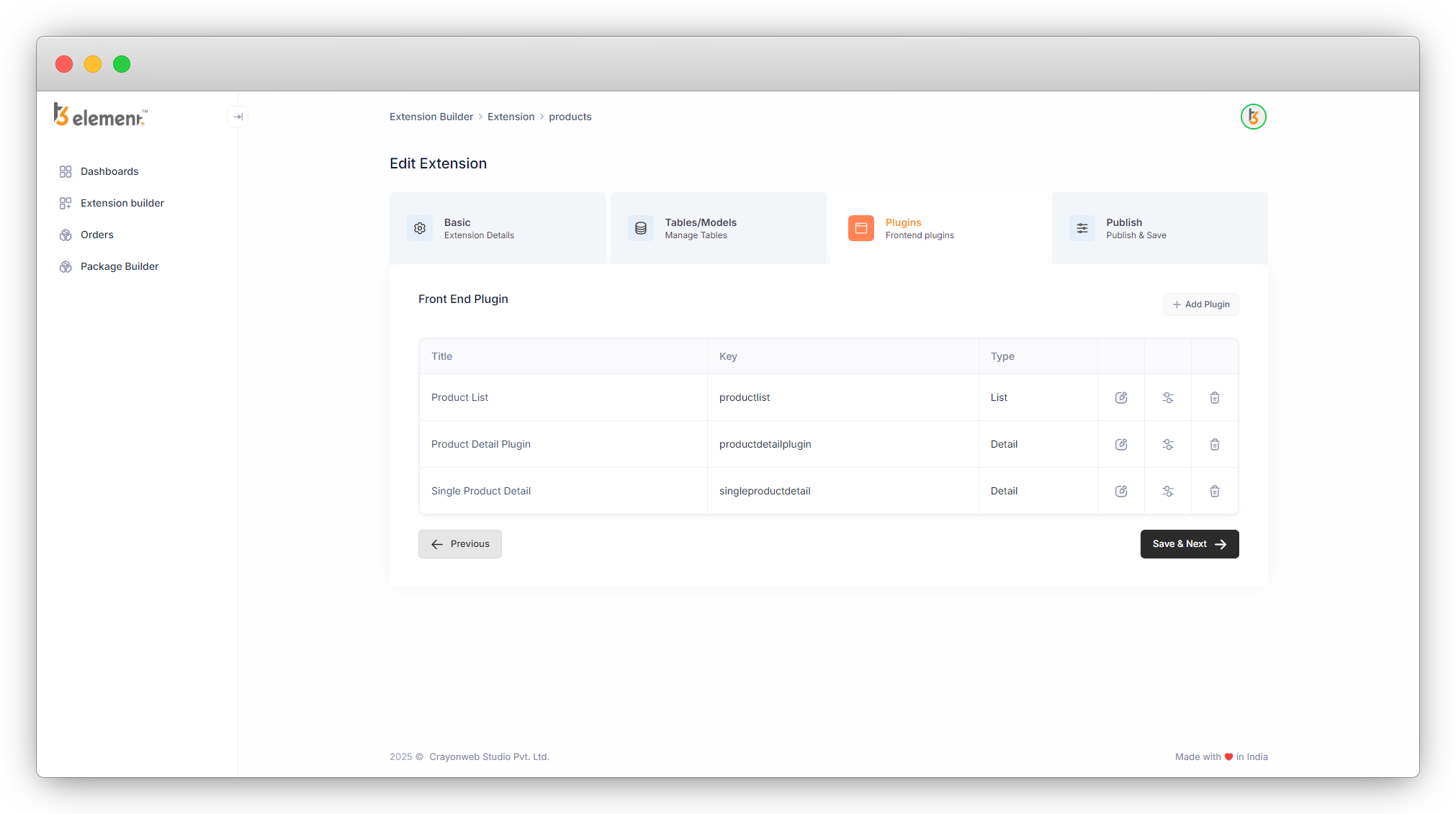
8. Save the plugin and the plugin will be added to the plugin list, and then save the template for the “Single Product Detail”.
9. Let’s create a Filter plugin after this.
Share



